
How to Transfer Android Phone Contacts to Outlook?
Transfer Android Phone Contacts to Outlook
Do you want to import or transfer Android phone contacts to Outlook? If yes, you are at the right place because, after reading this blog, you will get a simple and easy solution to import contacts from Android to Outlook. Read this article till the end to know more.
Why do You Need to Transfer Contacts from Android Phones to Outlook?
Transferring contacts from Android phone to Outlook has several benefits:
- Outlook helps keep all your contacts in one place, making it easy to manage, find, and update your contact information.
- With contacts in Outlook, you can access them from any device you sign in to your Outlook account, such as your office computer, tablet, or second phone.
- If you use other Microsoft 365 services like Teams, Word, or Excel, Outlook integration can make communication and planning easier.
- Having contacts in Outlook provides an extra layer of backup in case your phone loses data.
- Outlook and Microsoft 365 provide strong security features such as encryption and multi-factor authentication to help protect your contact information.
- Email and contact integration makes communication easy without having to look for an email or phone number elsewhere.
Manual Method Transfer Android Phone Contacts to Outlook
Here is a step-by-step guide to manually transfer contacts from Android phone to Outlook:
Method 1: Export Contacts from Android
- Open the Contacts app on your Android phone.
- Press the menu (usually three dots or lines) and select Settings.
- Find Export (or Export to.vcf file) and select it.
- Choose a location to save the.vcf file, such as internal storage or downloads.
# Transfer the VCF File to your Computer
- Connect your smartphone phone to your PC using a USB cable.
- Find the file (in the directory where you saved it) and copy it to your computer.
# Import Contacts to Outlook
- Open Outlook on your computer.
- Click on the File > Open & Export > Import/Export.
- Select Import VCARD file (.vcf) and click Next.
- Locate and select the.vcf file on your computer and follow the instructions to complete the import.
Method 2: Sync with Google and Import into Outlook
- Sync your contacts with Google (if you haven't already):
- Go to Settings > Accounts > Google on your Android phone.
- Make sure contact sync is turned on.
# Export Contacts from Google Contacts
- Open a web browser on your computer and go to Google Contacts.
- Sign in to your Google account.
- Select Export (usually under More or Settings).
- Choose Outlook CSV as the export format and download the file.
# Import CSV into Outlook
- In MS Outlook, go to File > Open & Export > Import/Export.
- Pick the Import from another program or file and click Next.
- Choose the Comma Separated Values (CSV) and click Next.
- Select your Google Contacts CSV file and follow the instructions to complete the import.
- Either method should successfully import your contacts into Outlook.
Limitations on the use of the manual method
Transferring contacts from an Android phone to Outlook can be a simple process, but there are some limitations you should be aware of:
- File Format Support: Android contacts can be saved in a format not directly supported by Outlook, such as vCard or CSV. You may need to change them.
- Number of Contacts: Some methods may limit the number of contacts that can be transferred at one time. For example, exporting through certain programs only allows a limited selection.
- Duplicate Contacts: During migration, duplicate contacts may appear in Outlook, especially if you already have the same contacts.
- Terrain maps: Not all touchpoints transmit perfectly. For example, custom fields or certain information may not match between Android and Outlook.
To mitigate these issues, be sure to back up your contacts before migrating, and consider using an official tool or a trusted third-party app to make the process easier.
Alternative Solution to Transfer Android Phone Contacts to Outlook
Now you have exported VCF files from Android, but the problem is that Outlook does not support VCF files, so you need to convert them to Outlook data file format. To do this, you need to use a solution called SysTools vCard to CSV Converter Tool. This program allows you to export Android VCF contact file to Outlook PST format. After that, you can simply move contacts to Outlook from any phone.
Moreover, it also offers top-notch software features to improve your work efficiency. For example, you can preview all contact information and then import vCard files to a group in Outlook. Moreover, it also allows you to batch transfer all data (including contact photos) while maintaining data integrity.
- Download and open the VCF File to CSV Converter Software.
- Click Add Files or Folders to upload the vCard contact file to the tool
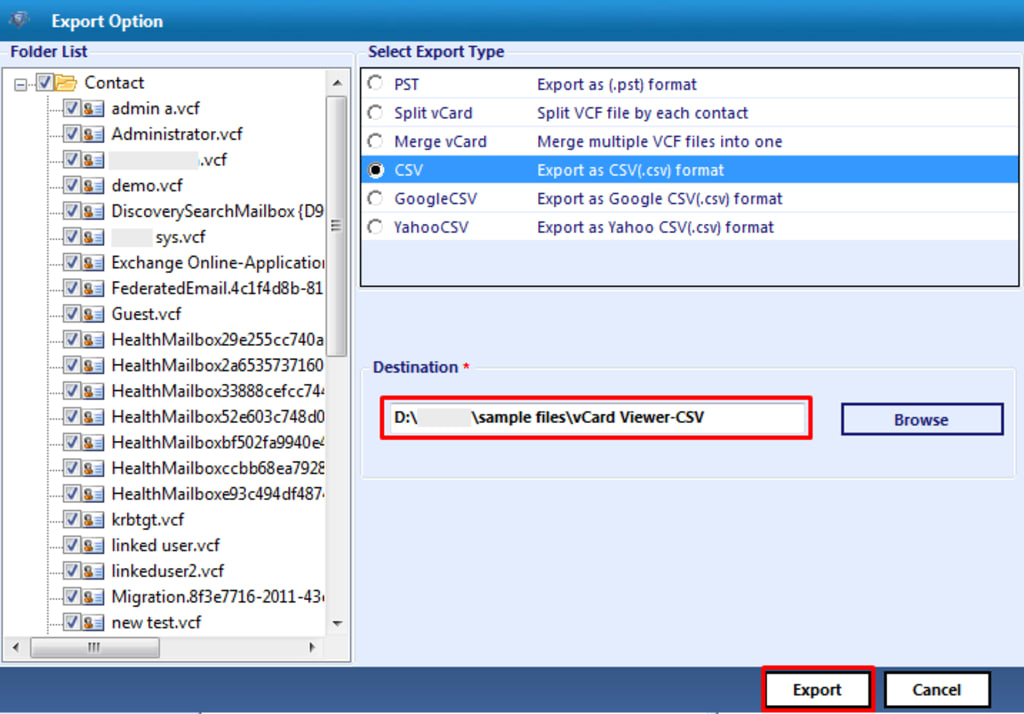
- Choose the CSV option to transfer the vCard file
- Click on the Export button to move VCF contact file to PST
- Click Save to complete the process.
Final Words
The purpose of this blog is to teach you how to transfer contacts from Android phone to Outlook version. There are various ways to import contacts from Android to Outlook. You can using the ways that works best for you. In this article, we have explained the entire process, so you can read this article and download the solution on your computer. For further assistance, you can consult our technical experts.
About the Creator
Keep reading
More stories from Elle Stephen and writers in Education and other communities.
How Do I Convert PST Contacts to VCF Format?
If you're someone who has been using Microsoft Outlook for managing your emails, calendars, and contacts, you may know that Outlook stores its data in PST files (Personal Storage Table). However, there are times when you may need to convert PST contacts to VCF (vCard), which can be easily imported into other email clients, smartphones, or address books.
By Elle Stephen10 months ago in Education
Major Real Estate Market Trends Defining the Modern Housing Landscape
The real estate market is undergoing steady, visible change. Buyers think differently. Sellers adjust their strategies. Investors watch new signals closely. These shifts affect prices, demand, and how homes are used. To stay informed, it helps to understand real estate market trends and why they matter today. This article explains the key movements shaping the market in clear, simple terms that are easy to read and follow.
By Michael O'Sullivan Hampton7 days ago in Education
Travel Made Easy: A Practical Guide to Planning a Smooth and Relaxing Vacation Anywhere
Travel has the power to refresh the mind, inspire new ideas, and create unforgettable memories. However, planning a vacation can sometimes feel more stressful than rewarding. From choosing destinations to managing time and expenses, many travelers feel overwhelmed before they even pack their bags. The key to enjoying a peaceful journey lies in thoughtful planning and a calm mindset. This guide explains how to plan a stress-free vacation anywhere while keeping the process simple, organized, and enjoyable.
By Nathalie Kyriakou4 days ago in Education
The Blue Ridge Stalker
Tom had left the Ford down the way, its spark plugs finally exhausted and no mechanics for a dozen miles back through the foothills to Strossburg. No matter, he had worn his boots—almost as if he planned for this to happen. The puzzle he sought to solve emanated from the woods clinging to the slopes above; the valley behind held no mysteries.
By Stephen A. Roddewig5 days ago in Fiction


Comments (2)
Want to resolve how to transfer Android Phone contacts to Outlook? If yes, then I can surely help you. Here I am going to elaborate on an expert solution to export all phone contacts to Outlook. DataVare Address Book Converter helps you export VCF files to Outlook in batch. It does not impose any limitation on the number of files so that users are allowed to import multiple VCF files to PST format at once. Also, it is safe to opt for this method, no data loss may occur in this method. This software will also facilitate the option to convert VCF to CSV, MSG, PST, MSG, NSF and many more. It is a utility compatible with Windows Operating Systems. Read More: https://www.datavare.com/software/address-book-converter.html
To Transfer Android Phone Contacts to Outlook GainTools Address Book Manager helps you export VCF files to Outlook in batch. It does not impose any restrictions on multiple files, allowing users to import several VCF files to PST format at once. This method is also safe to use as no data loss is possible. This software also allows you to convert VCF files to CSV, OST, PST, MSG, MBOX and many other formats. It is a program that works with all Windows operating systems. Users have the excellent advantage of selecting a demo option. Visit Here: https://www.gaintools.com/address-book-manager/