
How Do I Convert PST Contacts to VCF Format?
Convert PST Contacts to VCF File
If you're someone who has been using Microsoft Outlook for managing your emails, calendars, and contacts, you may know that Outlook stores its data in PST files (Personal Storage Table). However, there are times when you may need to convert PST contacts to VCF (vCard), which can be easily imported into other email clients, smartphones, or address books.
In this blog post, we'll walk you through a simple and easy-to-follow method to convert contacts from PST to VCF file.
Why Convert Outlook PST Contacts to VCF Format?
VCF is an electronic business card file format used for exchanging contact details . It's supported by many platforms such as Google Contacts, Apple Contacts, Android phones, and even social media networks like LinkedIn. By converting your Outlook contacts into VCF files, you can:
- Move Contacts Simply: If you're migrating from Outlook to another email client, like Gmail, VCF files make it easy to migrate your contacts.
- Backup Contacts: You can store your contacts in VCF format for backup purposes, ensuring that you don't lose them.
- Share Contacts Easily: VCF files are portable and can be easily shared with others, making them ideal for exchanging contact information.
- Cross-Platform Compatibility: VCF files are compatible with almost all email clients, smartphones, and devices. This makes it easier to transfer and access your contacts across different platforms.
Now that you know the basics, let’s dive into the guide to convert Outlook PST contacts to VCF
Free Method to Convert PST Contacts to VCF
To manually convert contacts from PST to VCF (vCard) format, you typically need to use Outlook (the software that manages PST files) and export the contacts into a vCard file. However, it can be finish in just a few easy steps:
- Open Outlook where the PST file is already loaded or accessible.
- In the navigation pane, click on "People" or "Contacts" to view your contact list.
- If you want to export all contacts, pick the Contacts folder.
- If you want to export specific contacts, hold down Ctrl and click to select multiple individual contacts.
- On the start tab, Find and press the Manage and then pick the Export tab.
- If you're using an older version of Outlook, you can find the export option under File > Open & Export > Import/Export.
- Pick the Export to a file > Select VCF or vCard format.
- For newer versions, this option may be under File > Open & Export > Import/Export, then selecting “Export to a file” and choosing the vCard format.
- Choose the contact folder to export.
- Outlook will then ask you to select a location to save the VCF file.
- Choose where you need to save the VCF file and hit Finish.
- If you export more than one contact, Outlook will create a single .vcf file that contains all of your selected contacts.
- Go to the destination where you saved the file and find that the .vcf file contains all of your contacts.
Important Notes:
If you're dealing with a very large number of contacts or need a more advanced method, you might consider using a third-party tool to bulk convert contacts from PST to VCF.
- If you have multiple Outlook PST contacts files, you may want to repeat this task for each file.
- By the end of these steps, you should have your contacts in a .vcf format, which is portable and can be imported into other contact management systems or email services.
Expert Software to Convert PST Contacts to VCF File
If you prefer an automated solution or have a large number of contacts to convert, there are best recommended applications like Outlook Contacts Export Tool that can help streamline the process. It helps users easily convert Outlook PST contacts to VCF (vCard) format.
This tool is particularly useful when you want to migrate your contacts from Outlook to another email service, a mobile phone, or a different application that supports vCard.
Step-by-Step Guide to Export PST Contacts to vCard
- First, download the vCard Export tool from the official website and install it on your system.
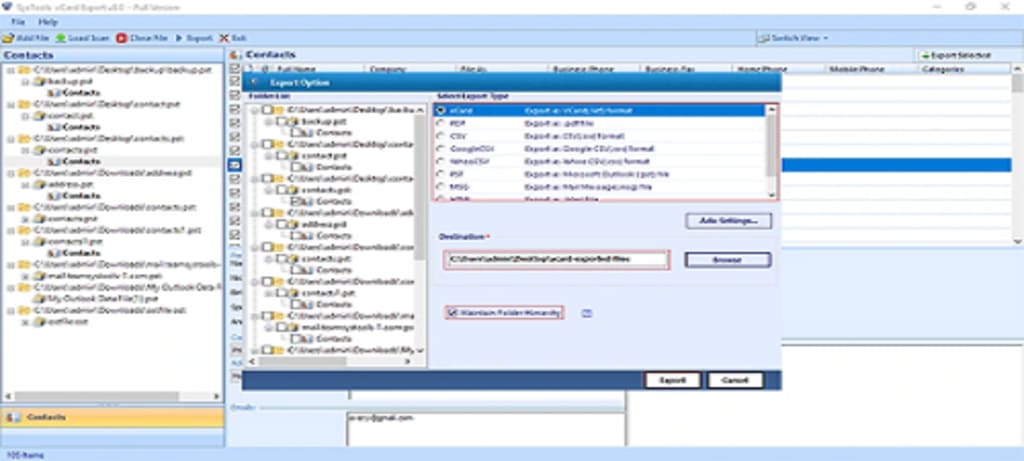
- Click the Add File and browse for the PST file that contains your Outlook contacts.
- Choose the VCF file format as the export option.
- Click on the Export button. The tool will begin export PST contacts to vCard.
- After the conversion is done, select a path to save the VCF files on your system.
- Your Outlook contacts are now ready to be imported into other email clients, mobile devices, or applications.
Why Choose this Automatic Software?
- Fast and Efficient: The tool performs the conversion quickly, even for large contact lists.
- Accurate Conversion: Ensures that all contact details, including images, are retained.
- Easy to Use: The user-friendly interface makes the conversion process simple, even for beginners.
- Bulk Conversion: Convert multiple Outlook PST files or contact folders in one go.
Final Thoughts
Converting your Outlook PST contacts to VCF format can be a useful way to back up your contacts, migrate them to another platform, or share them with others. Whether you use an tool or a desktop application, the process is relatively simple and straightforward. By following the steps outlined above, you'll be able to easily convert PST contacts to VCF and ensure they are accessible across various platforms.
About the Creator
Keep reading
More stories from Elle Stephen and writers in Education and other communities.
Can You Recover Data from a Hard Drive? A Comprehensive Guide
In today’s digital age, data loss is one of the most frustrating problems users face. Whether it’s due to accidental deletion, a system crash, or physical damage to a hard drive, losing important files can be a nightmare. However, the best news is that in most cases, it is possible to recover data from a hard drive. In this blog post, we will explore how data recovery works, the factors that affect it, and the methods available to help you get your data back.
By Elle Stephen11 months ago in Education
EPF (KWSP) Say What???
So… Employees’ Provident Fund (EPF) or Kumpulan Wang Simpanan Pekerja (KWSP) just casually dropped “You might need up to RM1.3 million to retire” and all of us went: “Haha, cool cool cool… I will simply… not retire?”
By Anie the Candid Writer Abroadabout 7 hours ago in Education
Why Creative Thinking is the Catalyst for Higher Productivity
In many professional settings, creativity and productivity are often seen as separate, even conflicting, concepts. Productivity is typically associated with structure, deadlines, and measurable output, while creativity is considered unstructured, unpredictable, and harder to quantify. But this outdated thinking overlooks a critical truth: a creative mindset is a powerful driver of productivity.
By Norman Badger5 days ago in Education



Comments
There are no comments for this story
Be the first to respond and start the conversation.