
How To Leave A Book Review On Goodreads
An Informative Article

If you love reading books, there comes a time when you may want to share your thoughts and opinions with other readers. One of the best ways to do that is to write a book review on Goodreads, the world’s largest site for book lovers. As you probably already know, Goodreads allows you to rate and review any book you have read, and to discover new books based on your preferences and recommendations from other users.
But how do you write a good book review on Goodreads? Here are some tips to help you get started.
1) Find the book you want to review.
You can search for the book by title, author, ISBN, or genre on the Goodreads homepage.

Alternatively, you can browse your own shelves or the lists of books you have read, want to read, or are currently reading. Once you find the book, click on its title to go to its page.
2) Rate the book.
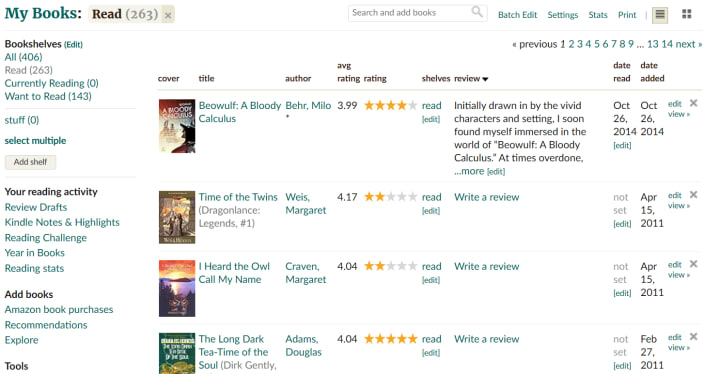
On the book page, you'll see a row of stars under the book cover. You can rate the book from one star (did not like it) to five stars (it was amazing). To rate the book, simply click on the star that corresponds to your rating. You can also change your rating later if you change your mind.
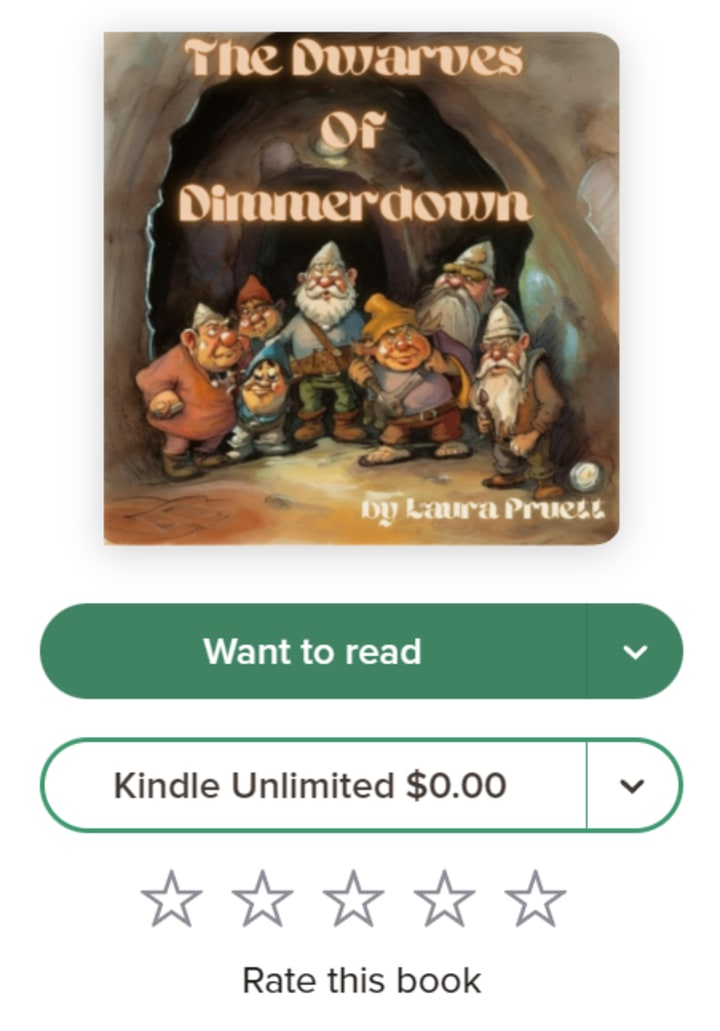
You can also rate the book in the Ratings & Review section if you scroll down the page a bit.
3) Write your review.
Further down the page, you'll see a section that says "Ratings & Reviews," followed by "What do you think?" Under that, you'll see a button that says, “Write a review.”
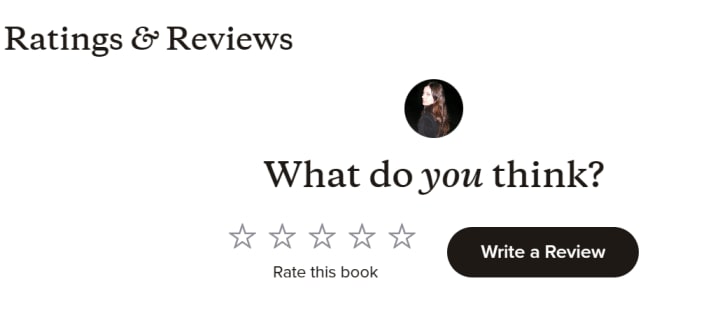
Click on that to expand the review editor. Here, you can write your review in your own words, using the formatting tools provided to add headings, bold, italic, quotes, links, images, and more. You can also add spoilers, but make sure to mark them as such by clicking on the spoiler icon.
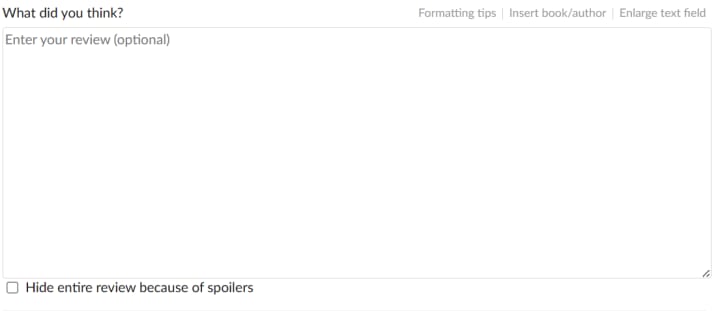
Your review can be as long or as short as you want, but try to be clear, honest, and respectful. Here are some questions you can answer in your review to help you organize your thoughts:
- What did you like or dislike about the book?
- What were the main themes, messages, or ideas of the book?
- How did the book make you feel or think?
- How did the book compare to other books by the same author or in the same genre?
- Who would you recommend the book to and why?
4) Preview and publish your review.
When you're done writing your review, you can preview it by clicking on the preview icon. This will show you how your review will look when it's published. You can also edit your review by clicking on the edit icon.
When you're satisfied with your review, click on the save icon to publish it. Your review will appear on the book page, on your profile, and on your updates feed.
You can also share your review on other platforms, such as Facebook, Twitter, or your blog, by clicking on the share icon.
5) Engage with other readers.
After you publish your review, you can interact with other readers who have read or want to read the book. You can like, comment, or reply to other reviews, or join discussions on the book page or in groups.
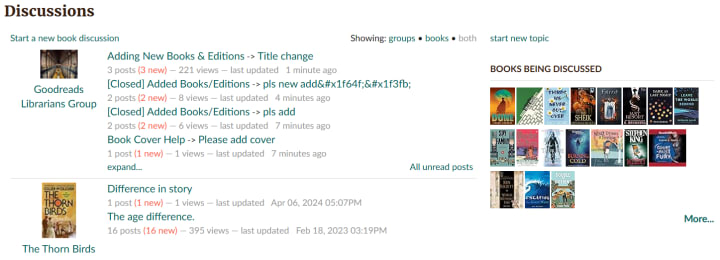
You can also follow other reviewers who share your interests or opinions, or invite your friends to join Goodreads and read the book with you. By engaging with other readers, you can enrich your reading experience and discover new books and perspectives.
Writing a book review on Goodreads is a fun and rewarding way to express your love of books and connect with other readers. Whether you're a casual reader or a bookworm, you can find your place and your voice on Goodreads. So, what are you waiting for? Start writing your book review today and share your passion with the world!
Author's Note: I hope you enjoyed the read, and that you learned something new. I'd love to hear what you think, so please feel free to leave a comment, click the heart, and subscribe! Also, let me know if you're a member of Goodreads yourself!
About the Creator
Laura Pruett
Laura Pruett, author of The Dwarves Of Dimmerdown and others.
Reader insights
Outstanding
Excellent work. Looking forward to reading more!
Top insight
Expert insights and opinions
Arguments were carefully researched and presented
Keep reading
More stories from Laura Pruett and writers in Education and other communities.
A Dwarf's Life -- In Brief (Episode 3)
To Gromdahl's dismay, before he had time to react, before he really even had time to fully realize what was happening, the vines had already wrapped around the cart's axles and had begun to tighten around Bessie's ankles as well. The goat tried to bolt, tried to escape from the creepers’ infernal grasp, but she was held fast to the spot and could only bleat in terror. Gromdahl released his grip on the crank and drew his axe from his belt with a bellow.
By Laura PruettExclusive • 8 months ago
Foreclosure vs. Short Sale: 7 Key Differences Every Real Estate Pro MUST Know
You are driving through a target neighborhood and spot a classic "diamond in the rough." The lawn is overgrown, mail is spilling out of the box, and the shutters are hanging by a thread. To the untrained eye, it is just a neglected house. To a seasoned real estate professional, it is a potential high-margin opportunity.
By REI Data Solutionsa day ago in Education
Olena Kalaitan on Mariupol, Journalism, Language, and War in Ukraine
Olena Kalaitan is a Ukrainian journalist and editor best known for leading Mariupol’s Pryazovskyi Robochyi newspaper and heading the Donetsk regional organization of the National Union of Journalists of Ukraine. During Russia’s 2022 siege of Mariupol, she stayed in the city for 23 days, survived the destruction of her home, and escaped on foot with her son. She later became a prominent voice for displaced journalists, media freedom, and the revival of independent Ukrainian journalism in occupied and war-affected regions. Kalaitan has also warned publicly against Russian propaganda issued under the stolen name of her newspaper during wartime occupation there.
By Scott Douglas Jacobsen3 days ago in Education
The Politics of Playing Dress-Up
Well, to start off I'd like to say a happy world book day to all who celebrate. I know I haven't really posted anything on my socials about it but I'm not a jubilant kind of person. I lay low most of the time. Let's start off with a popular anecdote from the vaults...
By Annie Kapur7 days ago in Geeks



Comments (1)
Very useful and this could be used for other platforms , Excellent article.