
How to Download YouTube Videos on Any Device Using Y2mate
How to Download YOUTUBE Videos


In the digital age, YouTube has become an invaluable resource for everything from educational content to entertainment. However, there are times when you may want to download a video for offline viewing. Whether it's to save on data usage, watch videos without interruption, or have access to content without an internet connection, downloading YouTube videos can be very useful. One of the most popular tools for this purpose is Y2mate. In this guide, we'll walk you through how to download YouTube videos on any device using Y2mate.
What is Y2mate?
Y2mate is a free online service that allows users to download YouTube videos in various formats and resolutions. It is compatible with a wide range of devices, including PCs, Macs, smartphones, and tablets. Y2mate is user-friendly and does not require any software installation, making it a convenient option for downloading videos quickly and easily.
Why Use Y2mate?
There are several reasons why Y2mate is a popular choice for downloading YouTube videos:
Ease of Use: The interface is straightforward, making it easy for users of all levels to download videos.
Multiple Formats: Y2mate supports various video and audio formats, including MP4, MP3, and more.
High-Quality Downloads: You can choose the resolution and quality of the video, ranging from 144p to 1080p and even 4K.
No Registration Required: You can download videos without the need to create an account.
Free Service: Y2mate is completely free to use.
How to Download YouTube Videos Using Y2mate
Follow these steps to download YouTube videos on any device using Y2mate:
Step 1: Copy the Video URL
First, go to YouTube and find the video you want to download. Copy the URL of the video from the address bar of your browser. On a computer, you can do this by highlighting the URL and pressing Ctrl+C (Windows) or Command+C (Mac). On a mobile device, tap and hold the URL until a menu appears, then select "Copy."
Step 2: Go to Y2mate
Open your web browser and go to the Y2mate website (https://www.y2mate.com). You will see a search bar on the homepage.
Step 3: Paste the URL
Paste the copied YouTube video URL into the search bar on the Y2mate website. On a computer, you can do this by clicking in the search bar and pressing Ctrl+V (Windows) or Command+V (Mac). On a mobile device, tap and hold the search bar until a menu appears, then select "Paste."
Step 4: Select Format and Quality
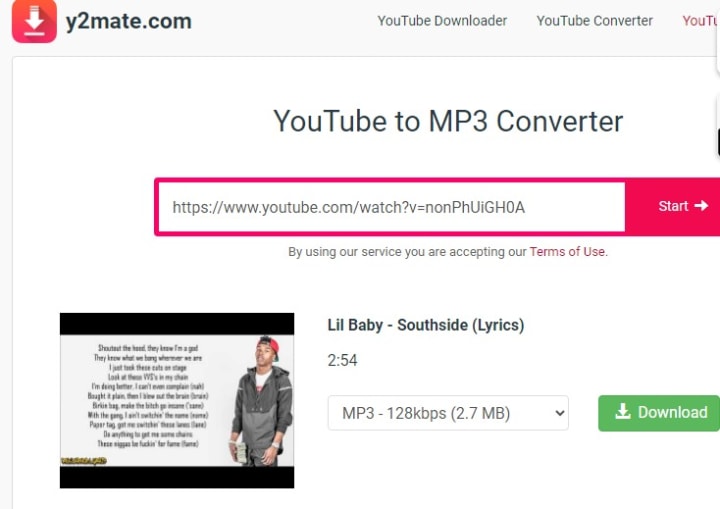
After pasting the URL, click the "Start" button next to the search bar. Y2mate will process the video and present you with a list of available formats and quality options. You can choose to download the video in different resolutions (such as 720p, 1080p, or even 4K) or convert it to an audio file (MP3).
Step 5: Download the Video
Once you have selected your desired format and quality, click the "Download" button next to your choice. A new page will open, and after a few moments, your download will begin automatically. If prompted, select the location where you want to save the file on your device.
Additional Tips
Check Storage Space: Make sure you have enough storage space on your device before downloading large video files.
Use Wi-Fi: To avoid using up your mobile data, download videos over a Wi-Fi connection.
Legal Considerations: Remember to respect copyright laws and the terms of service of YouTube. Downloading videos for personal use is generally acceptable, but distributing them without permission may violate copyright regulations.
Y2mate provides a simple and efficient way to download videos in a variety of formats and resolutions. By following the steps outlined in this guide, you'll be able to download YouTube videos on any device with ease. Happy downloading!
About the Creator
Amrit Kandel
I delve into the latest advancements in technology, providing insightful analysis and practical advice. Additionally, I enjoy creating educational content that empowers readers with knowledge and skills
Keep reading
More stories from Amrit Kandel and writers in Education and other communities.
How to earn money online: 7 Tips and Strategies for Success
In today's digital age, the internet offers countless opportunities to earn money from the comfort of your own home. Whether you're looking to supplement your income or replace your traditional 9-to-5 job, there are numerous paths to financial success online. However, navigating the vast array of options can be overwhelming. To help you get started, we've compiled a list of seven practical tips and strategies that can set you on the path to online earning success. From freelancing to affiliate marketing, these methods are tried and tested, offering potential for both beginners and seasoned entrepreneurs. Read on to discover how you can turn your online ventures into a steady income stream.
By Amrit Kandel2 years ago in Education
The Energy Pivot The State of Russia’s Oil and Gas in 2026
For decades, this was the "world's gas station": Russia's pipeline network to Europe was the veins of the world economy. By 2026, that aura is dull and those veins are rerouted out of Europe. Since the collapse of the Soviet Union, the Russian oil and gas sector is facing the largest structural change.
By Neeraj kumar7 days ago in Education
Do you really need to take 10,000 steps a day?
While most people avoid spending the night in jail, Jean Béliveau jumped at the opportunity. For the past three years, Béliveau had been walking from country to country, with the goal of circumnavigating the globe on foot. This required sleeping in tents, strangers’ homes, and the occasional jail cell along the way. But this morning, as Béliveau was ready to leave, the police chief, who had agreed to his sleeping arrangement, was nowhere to be found, and the guards weren’t buying his story. Few people have the time or desire to walk such extreme lengths.
By Munesh Yadav2 days ago in Education



Comments (1)
Hey, just wanna let you know that this is more suitable to be posted in the Lifehack community 😊