
How to Delete LinkedIn Account Professionally
How to Delete LinkedIn Account: A Complete Step-by-Step Guide


Quick Checklist to Delete LinkedIn
Step Task
✔️ Log in or recover access
✔️ Go to Account Preferences
✔️ Click “Close Account”
✔️ Confirm deletion
✔️ Download your data (optional)
Are you no longer using LinkedIn or just want to take a break from professional networking? Whether you're simplifying your digital presence or shifting focus, knowing how to delete LinkedIn account is essential. In this guide, we’ll walk you through the process to delete your LinkedIn profile permanently, the impact it has, alternative options like deactivation, and answer the most common user questions.
By the end of this guide, you’ll be equipped to close your LinkedIn profile securely and confidently.
Related: How to delete Resume Form Linkedin
Why Do People Delete LinkedIn?
Before jumping into the process, here’s why some users choose to delete their LinkedIn profile permanently:
They’re no longer job hunting
Privacy concerns or data fatigue
Too many spam messages or recruiters
Shifting to other platforms
Retiring or changing careers
In some cases, people just want to deactivate LinkedIn temporarily. But if you’re sure about it, let’s go through the steps.
How to Delete LinkedIn Account on iPhone
Want to know how to delete LinkedIn account on iPhone? The process is straightforward:
Open the LinkedIn app.
Tap your profile icon in the top-left corner.
Go to Settings → Account Preferences.
Scroll to Account Management.
Tap Close Account and follow the instructions.
This method works for iOS devices like iPhones and iPads. You can also use the same steps on Android.
How to Delete LinkedIn Account Without Email
You can still delete your LinkedIn account even if you don’t have access to the email address associated with it. Here's how:
Go to the LinkedIn login page.
Click on “Forgot password?”
Use your registered phone number or another email if previously added.
Once logged in, follow the standard steps to delete your LinkedIn profile.
If you can’t recover the account, contact LinkedIn Support Center and verify your identity. Once verified, they’ll help you with the LinkedIn account deletion process.
How to Delete LinkedIn Account Without Password
Lost your password? No worries. Here’s how to delete your LinkedIn account without password:
On the LinkedIn login page, click “Forgot password?”
Reset your password using your registered email or phone.
Once you regain access, go to Settings & Privacy → Account Preferences → Close Account.
If you can’t reset your password or don’t have access to the recovery options, you must submit a support request to LinkedIn’s Help Center with ID verification.
How to Delete LinkedIn Account: Full Process
Here’s the standard desktop method to permanently delete your LinkedIn account:
Log into your LinkedIn profile.
Click Me > Settings & Privacy.
Select Account Preferences.
Scroll down to Account Management → Close Account.
Follow prompts, select a reason, and confirm with your password.
Make sure to download your data before closing. Once deleted, LinkedIn data cannot be recovered.
What Happens When I Delete My LinkedIn Account?
This is one of the most important FAQs. Here's what to expect:
Your profile becomes invisible immediately.
All connections, messages, and endorsements are erased.
You will lose access to job applications and profile insights.
Your profile may still appear on Google for a few weeks until it’s deindexed.
You cannot reactivate after 14 days.
Within 14 days, you can reactivate the account—but your endorsements and group memberships may be gone.
FAQs
1. How do I delete my LinkedIn account permanently?
Go to Settings & Privacy → Account Preferences → Account Management → Close Account. Follow the instructions to confirm.
2. How to delete LinkedIn account without email?
Use your phone number or alternate email to reset your login. If access is lost, submit ID to LinkedIn Support.
3. How to delete LinkedIn account on iPhone?
Open the app → Tap profile icon → Settings → Account Preferences → Close Account → Follow prompts.
4. What happens when I delete my LinkedIn account?
Your data is removed, profile is hidden, and you lose all activity. Google may take time to remove cached pages.
5. Can I delete LinkedIn account without password?
Yes. Reset it first. If recovery fails, use LinkedIn Help Center with identity verification.
6. Is deleting LinkedIn permanent?
Yes, after 14 days. Consider deactivating or hiding your profile if unsure.
7. Can I remove my LinkedIn profile from Google without deleting the account?
Yes. Go to Visibility Settings → Toggle off “Allow search engines to show profile”.
Deleting LinkedIn Profile vs. Deactivating
Deleting LinkedIn Profile
Permanent
Data lost
Cannot undo after 14 days
Deactivating or Making Invisible
Keeps data
You can return anytime
Great for short breaks
If you simply want privacy, adjust your LinkedIn settings and privacy controls rather than deleting.
Tips Before Deleting LinkedIn
Download your data archive
Cancel any LinkedIn Premium or LinkedIn Learning subscriptions
Notify contacts if necessary
Back up any content you posted
To get a copy of your LinkedIn data, go to:
Settings & Privacy → Data Privacy → Get a copy of your data
Remove LinkedIn from Google Without Deleting
If you want to remove your LinkedIn from search engines only:
Go to Settings & Privacy
Click Visibility → Profile visibility off search engines
Toggle off and save
This will hide your LinkedIn from Google, Bing, and Yahoo without deleting your account.
Final Thoughts on Deleting LinkedIn
Knowing how to delete LinkedIn account gives you full control over your digital footprint. Whether you’re exiting for privacy, focus, or retirement, you now have the tools to do it confidently—whether you use desktop, mobile, or have lost login details.
Just remember:
Consider deactivating first
Back up your data
Understand what happens post-deletion
Use LinkedIn’s Help Center if you're stuck
About the Creator
Ramsha Riaz
Ramsha Riaz is a tech and career content writer specializing in AI, job trends, resume writing, and LinkedIn optimization. He shares actionable advice and insights to help professionals stay updated.
Keep reading
More stories from Ramsha Riaz and writers in Education and other communities.
What is the Career Path for Hr?
Professionals interested in supporting the welfare of employees, strategic business goals, and organizational culture are most likely to thrive in the Human Resources (HR) field. People with aptitude and interest have rewarding career paths and multiple opportunities in this domain.
By Ramsha Riaz9 months ago in Education
Natural Ways to Clear Blackheads and Whiteheads
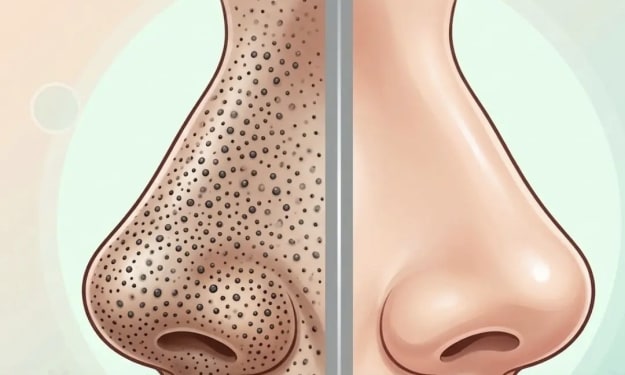
Blackheads and whiteheads are very common skin problems that affect people of all ages. They usually appear on the nose, chin, forehead, and sometimes on the cheeks. These small bumps form when the pores of the skin become clogged with oil, dead skin cells, and dirt. Blackheads appear dark because the clogged material inside the pore reacts with air and becomes oxidized, while whiteheads remain covered by skin, giving them a white or flesh-colored appearance.
By DigitalAddi3 days ago in Education



Comments
There are no comments for this story
Be the first to respond and start the conversation.