
How To Clean Touchscreen Laptop?
Learn how to clean a touchscreen laptop safely and effectively using the right tools and techniques to avoid damage and maintain screen clarity.


Touch, taps, and swipes provide you incredibly versatile navigation and interaction with touchscreen PCs. But this continual contact can leave smears, dust, fingerprints, and even bacterial buildup.
Maintaining the hygiene and lifespan of your touchscreen laptop will help to guarantee a quick and responsive experience. Here on our site, we'll go over the safest and most effective ways to clean a touchscreen laptop.
Why You Should Clean the Touchscreen on Your Laptop?
Keeping a touchscreen laptop clean has several benefits.
Touch sensitivity is increased by a clean screen.
Higher visibility: Eliminating fingerprints and smudges improves screen clarity.
Hygiene: Touchscreens can harbour germs and bacteria that are harmful to your health.
Longer lifespan: By keeping your laptop free of scratches and other damage, you can extend its life.
Basic Supplies and Equipment
Before you begin cleaning your touchscreen laptop, make sure you have the necessary materials and tools:
Microfiber cleaning cloths: Suitable for fragile screens, they are soft and non-abrasive.
To wet the cleaning cloth without leaving any mineral buildup, use distilled water.
Seventy percent or more isopropyl alcohol: Used for disinfection and residue elimination.
Dust is removed from ports and other hard to get places with compressed air.
Great for cleaning around corners and in small spaces are cotton swabs.
Detailed Instructions for Cleaning a Laptop Touchscreen
Make a safe connection and turn off of the laptop first.
Before starting any cleaning, be sure your laptop is off and unplugged from any power sources. This reduces damage potential and protects you from electrical hazards.
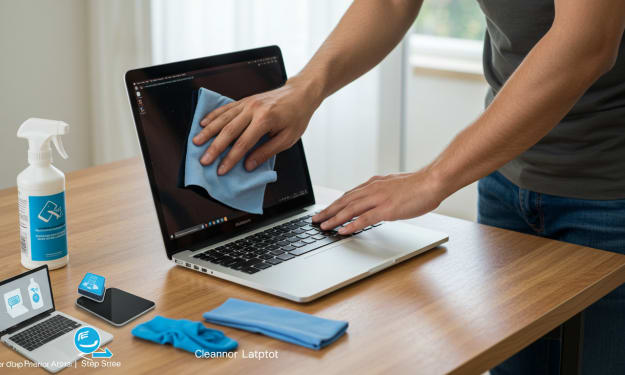
Wipe the screen with a dry microfiber towel.
To remove any dust or little smudges, start by wiping the touchscreen clean with a dry microfiber cloth. To prevent scratching the screen, go in small circles. The screen is prepared for a thorough cleaning and is helped to be free of any loose material by this first step.
Moisten Cloth with Distilled Water
For any last traces of fingerprints or smudges, dab a corner of the microfiber cloth with a little distilled water. Use of tap water should be avoided since it can leave mineral deposits on the screen. Though not drenched, the fabric should be somewhat moist.
Wipe the touchscreen with the moist towel.
Gently clean the touchscreen with the damp cloth, being sure to get at any noticeable smudges or grime. Using light, circular motions will help to prevent applying too much pressure. Watch out to keep moisture out of the laptop's seams and other apertures.
Wipe the perimeter and hinges with cotton swabs.
Using a cotton swab dipped in distilled water or isopropyl alcohol, wipe the edges of the screen and the laptop's hinges. With this method, accumulated dust and dirt are cleared from small spaces. Try to use little liquid and not apply too much pressure to prevent harm.
Disinfect with isopropyl alcohol, if desired
Extra disinfection can be achieved with isopropyl alcohol (70% or more). Dab a corner of the microfiber cloth with isopropyl alcohol, then gently wipe the touchscreen.
Bacteria and germs are helped to be removed at this step. Make sure the towel is just very little damp and keep moisture out of the laptop's interior components.
Apply compressed air to ports and openings.
Use compressed air to clear the laptop's ports, hinges, and other apertures of dust. Holding the canister at an angle, take small airbursts to avoid over pressurizing.
By exercising this care, dust and debris won't collect in strategic locations where they could affect performance.
Let Laptop Dry by Air
Before turning the laptop back on, let it completely air dry. This ensures that whatever moisture that is left has evaporated, therefore reducing the risk of harm. Any excess moisture should be removed if needed with a dry microfiber towel.
Check the touchscreen.
When the laptop has dried, switch it on and see if the touchscreen functions. Verify the display's and other features' functionality and touch response accuracy. If all works as it ought to, your cleaning process was successful.
Some Tips to Maintain the Cleanness of the Touchscreen on Your Laptop
Follow these tips to keep your touchscreen laptop in great shape:
time-consuming cleaning Should you use your touchscreen a lot, you should clean it more often than once a week.
To reduce the quantity of oil and grime that gets onto the screen, avoid touching it with unwashed hands.
To help keep fingerprints and scratches off the touchscreen, put on a screen cover.
Keep the space surrounding your laptop spotless: Keep it out of the dust while not in use and consider further safeguarding it with a laptop case or sleeve.
Follow these guidelines to maintain the touchscreen on your laptop clear and responsive. Kindly share in the touchscreen laptop comments area below any more cleaning tips or experiences you may have. To your cleaning success!
About the Creator
Laptopflora
Welcome to Laptopflora, where laptops meet expertise and your tech decisions are made easier. Our journey began with a single mission: to create a trusted platform that provides clear, actionable, and insightful information about laptop.
Keep reading
More stories from Laptopflora and writers in Education and other communities.
Most Expensive Flowers in the World
The most expensive flowers in the world are admired not only for their beauty but also for their rarity, growing conditions, and the effort required to cultivate them. Some flowers are priceless because they bloom for only a short time, while others take years of research and care to grow. Their high value often comes from limited availability, special environments, and strong cultural importance. In this article, we explore what makes certain flowers so valuable and why people around the world are fascinated by them.
By Horizon Dwellers6 days ago in Education
The Comfort of Arrival: Why Certain Destinations Instantly Feel Familiar
There are moments in travel that defy logic. You arrive in a place you have never visited before, step onto its streets, breathe in its air, and suddenly feel at ease. There is no adjustment period, no sense of being out of place. Instead, there is a quiet recognition, as if the destination has been waiting for you. This feeling of instant belonging is not accidental, nor is it purely romantic imagination. It is the result of emotional, cultural, psychological, and environmental factors working together to create a sense of home far from home.
By Producer James Simon2 days ago in Education



Comments
There are no comments for this story
Be the first to respond and start the conversation.