
How To Clean Fingerprints Off Laptop Screen?
Learn how to clean fingerprints off your laptop screen using safe and simple methods to restore clarity without damaging the display.


Our everyday technology depends on laptop screens, which are readily fingerprinted and smudged from frequent use. Together with making the screen less clear, these dots might be annoying.
Cleaning fingerprints from a laptop screen requires care to avoid scratching or other damage. This article will walk over the best methods for removing fingerprints and keeping your screen looking brand new.
How Can I Get Fingerprints Off a Laptop Screen?
Fingerprints and smudges can have a number of effects on your laptop experience:
Smudging can make it harder to see what's on the screen, especially in bright settings.
More glare: Eye strain and pain might result from the glare that fingerprints leave behind.
Unprofessional look: In formal settings especially, smudged screens are ugly.
Potential damage: Oils and fingerprint residues left behind could cause long-term problems.
What You Need to Take Fingerprints Off of a Laptop Screen?
Get ready the following materials and tools before starting the cleaning:
Microfiber cloth: Soft and nonabrasive, it works well for cleaning fragile screens.
Distilled water helps to wet the cloth without leaving any residual minerals behind.
70% or more isopropyl alcohol: For stubborn stains to be cleaned up.
Excellent for removing dust and other debris from the screen is compressed air.
A Complete Guide on Fingerprint Removal from Laptop Screens
For safety's sake, switch off and unplug your laptop.
Before cleaning, be sure your laptop is turned off and unplugged from any power sources. Electric shock and unintentional harm are less likely as a result.
Using a dry microfiber cloth, dust
Begin by lightly wiping the laptop's screen using a dry microfiber towel. Take little circular motions to remove dust and loose debris. Rubbing a dusty screen can scratch it, hence this first step is essential.
Moisten Cloth with Distilled Water
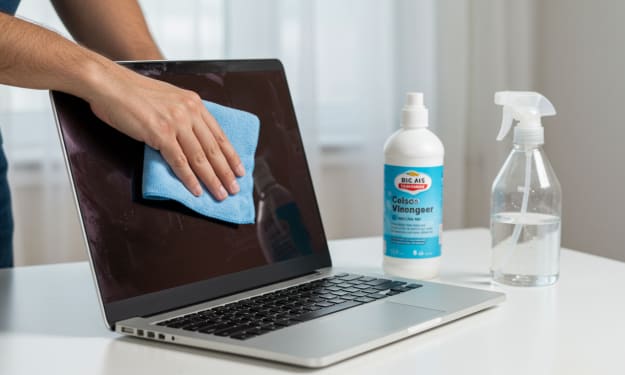
Remove fingerprints by moistening a corner of the microfiber cloth with distilled water.
Better than tap water, distilled water lacks minerals that might leave streaks or stains. Check that the material is just barely damp, not drenched.
Clean the screen with the moist towel.
Dust the screen lightly with the damp towel. Go in soft, circular motions to avoid using too much pressure. Look for the spots with fingerprints and smudges. Verify whether the laptop's edges or apertures are not leaking moisture.
Use isopropyl alcohol if your fingerprints are obstinate.
For additional cleaning strength or if the fingerprints are really stubborn or leave a sticky residue, use isopropyl alcohol (70% or higher).
After softly misting a corner of the microfiber cloth with a little isopropyl alcohol, gently wipe the screen.
Overindulging in alcohol should be avoided since the laptop may become damaged by excessive wetness.
Dry the Screen with a New Microfiber Cloth
After the fingerprints are off, wipe the screen with a dry microfiber towel to remove any last traces of moisture. This will help you to prevent streaks and ensure that the screen is completely dry.
Let the Screen Dry Completely
Only once the screen has dried entirely, turn the laptop back on. There is no moisture left over at this point that could damage the interior components.
Check the Screen Clarity
Once the screen has dry, turn on the laptop and examine the clarity. Make sure no smudges or streaks are still there. If the screen seems clear and fingerprint-free, you've cleaned it well.
Tips to Keep the Screen of Your Laptop Clean
Follow these tips to keep smudges and fingerprints off your laptop screen:
Time-consuming maintenance Swipe the screen often to prevent smudges and fingerprints from building up.
Leave your hands off the screen: Smudges are less likely when you touch the screen less.
Don a screen protector: Fingerprints can be lessened and cleaning easier when you use a screen protector.
Raising of hands: Wash your hands before using the laptop to reduce the oil transmission.
Maintain in a hygienic setting: Put your laptop somewhere dust-free when it's not in use.
Following these instructions will help you to keep your laptop screen fingerprint-free. Kindly feel welcome to add any further tips or personal experiences you may have had cleaning laptop screens in the space provided for comments below. To your tidying, cheers!
About the Creator
Laptopflora
Welcome to Laptopflora, where laptops meet expertise and your tech decisions are made easier. Our journey began with a single mission: to create a trusted platform that provides clear, actionable, and insightful information about laptop.
Keep reading
More stories from Laptopflora and writers in Education and other communities.
Mastering Patient Communication: Building Trust and Enhancing Care
Effective patient communication is one of the most powerful tools in healthcare. While advanced diagnostics and innovative treatments continue to transform medicine, the ability to communicate clearly and compassionately remains central to high-quality care. Communication shapes patient experiences, influences treatment adherence, and directly affects health outcomes. When healthcare professionals master the art of meaningful dialogue, they build trust, reduce misunderstandings, and create stronger therapeutic relationships.
By Yousuf A. Gaffar, M.D6 days ago in Education
Explosions in Tehran Force Pakistani Students to Leave Iran
The intensity of the explosions caused by the missile attacks on Tehran was extremely high. In such a situation, it is natural for a person to feel frightened. Because of this situation, we immediately decided to leave.
By Real content5 days ago in Education
The BAFTA Awards
By now, in a stunning departure from recent years, most of the world is aware of what happened at the BAFTA film awards. Social Media Headlines will tell you the bare bones: that John Davidson, a Tourette's Syndrome advocate, shouted a racial slur at two Actors of Colour, Michael B Jordan and Delroy Lindo.
By Natasja Rose4 days ago in Psyche



Comments
There are no comments for this story
Be the first to respond and start the conversation.