
Advanced Excel Formulas
Know about Advanced Excel Skills
Advanced Excel skills enable you to handle core responsibilities in an organization. Advanced Excel skills will automate the tasks and searching capabilities. As a result, it helps to save time and boost productivity. Let's learn about a few Advanced Excel skills:
a) SUMIF
SUMIF formula helps add cells with similar properties. For example, the SUMIF formula is applicable when you want to add cells that include a specific word or number. Also, you can use it for cells of a particular type or class of item. Most importantly, SUMIF collects a summary of massive data generated from enrolment, sales, or similar huge data sets. This formula includes information on the number of cells that should be examined and the kind of cells that can be added.
b) Conditional Formatting
Most industries use formatted Excel spreadsheets and tables to represent their data visually. Conditional formatting changes the appearance and colour of cells based on the information it includes. For example, when working on a budgeting and financial spreadsheet, you can highlight negative figures in red. Similarly, in yellow, you can highlight cells containing error codes or a unique word. Conditional formatting will help you represent your information visually and verbally. All you'll have to do is decide the facts and figures that should be highlighted and differentiated from each other.
c) IFERROR
It's common to make mistakes when carrying out advanced Excel functions. The errors arise when there are missing data in a particular row or a problem that needs immediate attention. IFERROR can generate a text or a blank cell and eliminate error codes. An empty cell or a particular text is attached to the cell that should be re-verified.
d) COUNTIF
Excel's COUNTIF function helps you to keep a count of cells with identical properties. The function will help you figure out how many times an entry and word are included in a vast spreadsheet. COUNTIF will gather all your data and classify them under a specific criterion. Besides, it enables you to know the location of your consumers, track the number of employees that work in a particular department, and so on.
e) Index Match
When combined, Excel's Index & Match function will help you evaluate data that is included in an Excel workbook and sheet. The Match function is usually included in the INDEX function. So, it is used to discover a specific kind of data. Similarly, the purpose of the INDEX is to connect the data to different data in the row.
f) Macros in Excel VBA
Thesey use the Visual Representation Application in Excel to create custom user-generated functions. VBA Macros are used to access the Windows Application Programming Interface (API). They also speed up manual tasks by creating automated processes.
g) INDIRECT
A valid cell reference from a given text string is returned by this Excel function. You can make use of INDIRECT when you want to assemble a text value that can be used as a valid reference.
h) Get External Data (from Web)
Follow the below steps to import a Web data into Excel
1) Click an empty cell in the spreadsheet
2) Click the Data tab located between Formulas and Review at the top of the app window.
3) Click ‘From Web’ on the Data Ribbon. This is found in the upper-left corner of Excel on the “Get and Transform “ panel.
4) Enter the website URL and click ‘OK’. The URL should be the address you want to enter or paste into the typing area. And, the address should essentially contain the data you want to import.
5) To access the site anonymously, you have to click ‘Connect’.
6) Then select a Table. You can find the list of tables in the left panel of the Navigator window. When a table is selected, the data will appear on the right in the panel.
About the Creator
Keep reading
More stories from Lora Goody and writers in Education and other communities.
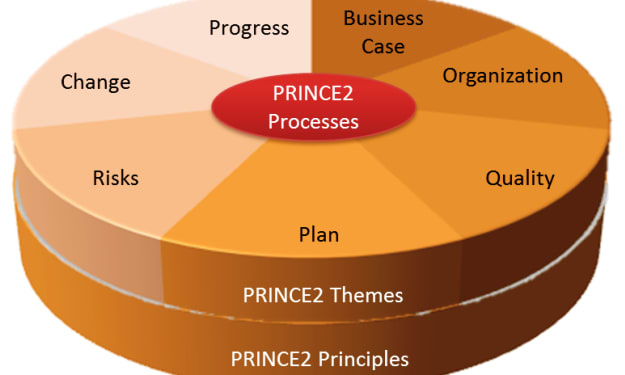
What Is PRINCE2?
Regardless of the Nature and Scope of the Project, PRINCE2®assists Project Managers in breaking down Projects into manageable and controllable stages. It may be customized to meet your unique needs and is highly adaptable. Before you start working on a Project, you can thoroughly plan it with the aid of PRINCE2®.From Beginning to end, the process is structured at every level. After the job is complete, it also enables you to tidy up any loose ends.
By Lora Goody3 years ago in Education
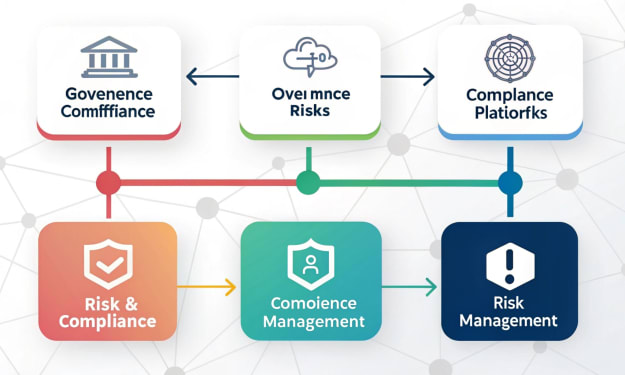
Governance Risk and Compliance Platforms Supporting Secure and Compliant Operations
Governance, risk and compliance platforms have become essential tools for organizations navigating complex operational, regulatory, and digital environments. These platforms help businesses establish clear governance structures, identify and manage risks, and ensure compliance with evolving regulations. As organizations face increasing pressure to protect sensitive data, maintain transparency, and meet regulatory obligations, governance, risk and compliance platforms provide a structured and integrated approach to managing these challenges.
By Bobby Yadav7 days ago in Education
The Story of George Peake
In the early winds of American history, long before cities rose and skylines filled the horizon, a quiet but determined innovator walked across the unsettled fields of what would one day become Cleveland, Ohio. His name was George Peake, a man born in 1722, who lived a remarkable 105 years — a lifetime that stretched across centuries of change.
By TREYTON SCOTT3 days ago in Education


Comments
There are no comments for this story
Be the first to respond and start the conversation.