
A Guide to Upgrading Your MacBook Operating System
A Guide to Upgrading Your MacBook Operating System

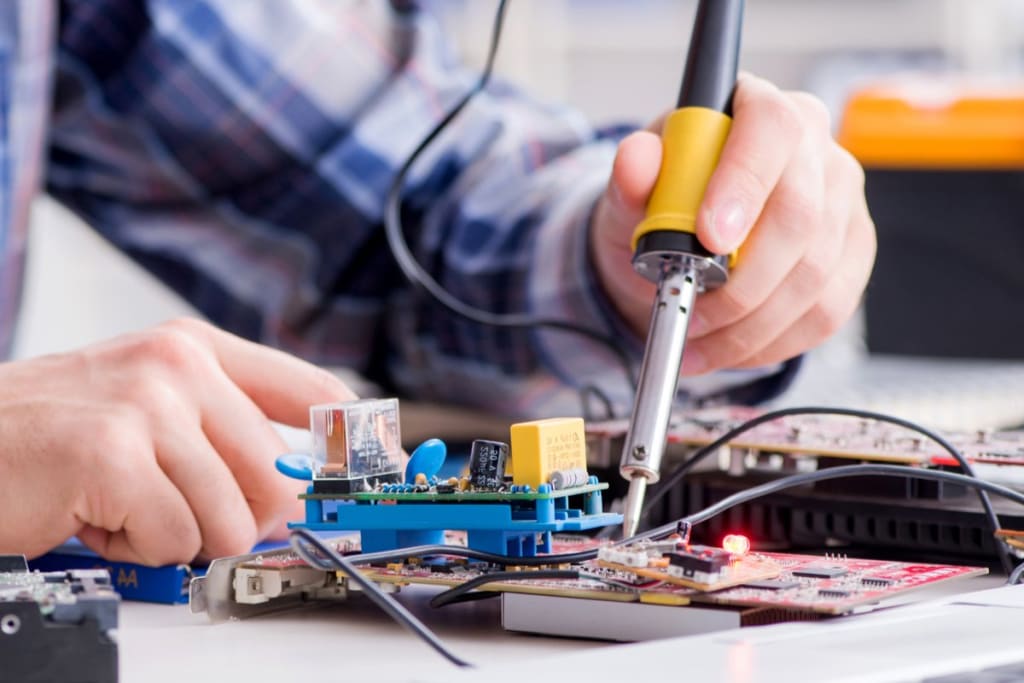
Upgrading your MacBook's operating system is an essential task to keep it up-to-date and running smoothly. It ensures that your MacBook has the latest security features, bug fixes, and software enhancements. With Apple regularly releasing new macOS versions, it's vital to keep your MacBook System Upgrade to ensure optimal performance.
In this guide, we'll provide you with everything you need to know about upgrading your MacBook operating system, including the benefits, the steps involved, and some tips and tricks to ensure a successful upgrade. So let's dive in!
Benefits of a MacBook System Upgrade
Upgrading your MacBook operating system comes with numerous benefits, such as:
Improved Security: Security is a top priority for Apple, and every new macOS version comes with advanced security features to protect your MacBook from malware, viruses, and other security threats.
Bug Fixes: Every new macOS version comes with bug fixes that address previous issues in the operating system, leading to improved performance and stability.
New Features: Apple is known for introducing innovative features with every new macOS version, and upgrading your MacBook operating system will give you access to these new features.
Compatibility: Many third-party apps require the latest macOS version to run smoothly. Upgrading your MacBook operating system ensures that you can use the latest apps without any compatibility issues.
Steps to Upgrade Your MacBook Operating System
Upgrading your MacBook operating system is a straightforward process. Here are the steps involved:
Check Compatibility: Before upgrading your MacBook operating system, check if your MacBook is compatible with the latest macOS version. Apple regularly updates the list of supported Mac models on their website, so make sure to check the list before proceeding.
Backup Your Data: Upgrading your MacBook operating system involves installing a new OS version, which can sometimes result in data loss. Therefore, it's essential to backup your data before upgrading. You can use Time Machine, iCloud, or any other backup method of your choice.
Download the macOS Installer: After backing up your data, download the macOS installer from the App Store. You can also download it from Apple's website.
Run the Installer: Once you have downloaded the macOS installer, run it, and follow the on-screen instructions to install the new macOS version.
Restart Your MacBook: After the installation is complete, restart your MacBook. Your MacBook will then run the new macOS version.
Tips and Tricks for a Successful MacBook System Upgrade
Here are some tips and tricks to ensure a successful MacBook system upgrade:
Check Your MacBook's Storage Space: Make sure that you have enough free storage space on your MacBook before upgrading. The new macOS version requires sufficient storage space to install, and it's recommended to have at least 20GB of free space.
Check Your MacBook's RAM: The new macOS version may require more RAM than your current OS version. Therefore, it's recommended to check your MacBook's RAM and upgrade it if necessary.
Close All Apps: Before upgrading your MacBook operating system, make sure to close all apps to prevent any data loss or corruption during the installation process.
Check Your Internet Connection: Upgrading your MacBook operating system requires a stable internet connection. Therefore, make sure to check your internet connection before starting the upgrade process.
Be Patient: Upgrading your MacBook Operating System can take some time, depending on your MacBook's hardware and internet speed. Therefore, it's essential to be patient and let the installation process complete without interruption.
macOS Big Sur Upgrade
macOS Big Sur is the latest macOS version, released by Apple in 2020. It comes with several new features and improvements, such as a redesigned user interface, improved privacy controls, and better performance. Upgrading your MacBook to macOS Big Sur will give you access to these new features and improvements, but it's essential to check if your MacBook is compatible with macOS Big Sur before upgrading.
MacBook Pro Upgrade
If you own a MacBook Pro, upgrading your operating system is crucial to ensure optimal performance. MacBook Pro users can benefit from the latest macOS version's advanced security features, bug fixes, and new features. Additionally, if your MacBook Pro's hardware is compatible with the latest macOS version, you can expect improved performance and speed.
MacBook Air Upgrade
Upgrading your MacBook Air's operating system is also essential to keep it up-to-date and running smoothly. With the latest macOS version, MacBook Air users can enjoy improved security features, bug fixes, and new features. Additionally, upgrading your MacBook Air's operating system can help extend its lifespan and prevent the need for costly repairs.
MacBook Storage Upgrade
If you're running low on storage space on your MacBook, upgrading your storage can help you avoid the need to purchase a new MacBook. There are two types of storage upgrades available for MacBook users: internal storage and external storage. Upgrading your MacBook's internal storage involves replacing your MacBook's hard drive or solid-state drive with a higher-capacity one. Alternatively, you can use external storage devices, such as external hard drives or USB drives, to store your files.
MacBook RAM Upgrade
Upgrading your MacBook's RAM can help improve its performance, especially when running resource-intensive tasks, such as video editing or gaming. Adding more RAM to your MacBook can help it run more smoothly and quickly. However, not all MacBook models allow for RAM upgrades, so it's essential to check if your MacBook is compatible before upgrading.
Conclusion
Upgrading your MacBook operating system is essential to keep it up-to-date and running smoothly. With the latest macOS version, you can benefit from improved security features, bug fixes, and new features. However, it's crucial to check if your MacBook is compatible with the latest macOS version before upgrading. Additionally, it's recommended to backup your data, check your MacBook's storage and RAM, close all apps, and have a stable internet connection before upgrading. By following these tips and tricks, you can ensure a successful MacBook system upgrade and enjoy an optimized MacBook experience.
About the Creator
macbookrepair1
Get fast and reliable Apple MacBook Repair services for all models. Trust our experienced technicians for quality MacBook Repair in Delhi. Enjoy a seamless MacBook Repair Service with our Apple Service Centre.
Keep reading
More stories from macbookrepair1 and writers in Education and other communities.
Expert MacBook Logic Board Repair: Get Your Laptop Running Like New Again
The MacBook is one of the most popular laptops on the market today. It's sleek, powerful, and reliable, making it a top choice for both personal and professional use. However, like all electronic devices, MacBook laptops can experience issues, and one of the most common problems is logic board failure. Fortunately, with expert MacBook Logic Board Repair, you can get your laptop running like new again. In this article, we'll discuss everything you need to know about MacBook logic board repair, including Apple logic board repair, MacBook Pro logic board replacement, MacBook Air logic board repair, MacBook logic board failure, MacBook logic board repair cost, Apple laptop logic board repair, MacBook logic board replacement cost, MacBook logic board repair near me, and MacBook logic board issues.
By macbookrepair13 years ago in Education
The Logistics of Flavor Chile Food Delivery Revolution in 2026
Chile, a country of extremes and culinary delights, has experienced a deep digital transformation in the past few years. As we move through the world of 2026, the classic view of dining out in the bustling streets of Santiago or the colourful alleys of Valparaíso is being supplemented and, in many cases, replaced by a high-tech, high-speed food delivery system. What began as a convenience-driven niche has grown into a multi-billion-dollar backbone of the Chilean economy. With a tech-savvy middle class, an unprecedented explosion in mobile penetration, and an urban population that prizes time above almost everything else, the food delivery market in Chile is no longer simply about delivering a pizza to your doorstep; it is about a complex system of AI-powered logistics, cloud kitchens, and a new "On-Demand" lifestyle that is redefining the very fabric of Chilean society.
By Neeraj kumarabout 17 hours ago in Education
The Bridge He Never Crossed
The river had always divided the town into two halves. On one side lay the old neighborhoods — narrow streets, familiar faces, small shops where owners still remembered names and stories. On the other side rose the new city — glass buildings, bright lights, offices, opportunities, and futures that promised more than memory. Between them stood a narrow iron bridge. People crossed it every day without thinking. Buses rattled over it. Motorcycles rushed across it. Students walked laughing, lovers paused to take photographs, workers hurried with phones pressed to their ears. Only one man rarely crossed it. His name was Saad. Saad lived his entire life on the old side of town. He taught mathematics at a small school, returned home before sunset, drank tea on his veranda, and spent evenings reading while the world beyond the river glittered in the distance. His life was calm, predictable, and quietly safe. Too safe. Years ago, after finishing university with excellent grades, Saad had received an offer from a large firm in the new city. The salary was generous, the future promising, the path clear. But it required crossing the bridge. Not physically — he had crossed it many times before. But emotionally. It meant leaving familiar streets, aging parents, comfortable routines, and the quiet certainty of knowing where every road led. It meant risking failure, loneliness, and change. So Saad declined. He told himself he valued simplicity. He told others he preferred teaching. He convinced everyone — except himself — that he had chosen wisely. Yet every evening, as the sun dipped behind the glass towers across the river, a strange restlessness stirred inside him. One autumn afternoon, while walking home from school, Saad noticed an old painter standing near the bridge. The man had placed a small wooden stool by the railing and was painting the river with slow, deliberate strokes. His canvas showed neither the old town nor the new city — only the bridge itself, stretching quietly between them. Saad stopped to watch. “You paint only the bridge?” he asked. “Yes,” the painter replied without looking up. “It is the most honest subject here.” “How so?” “Because it belongs to neither side,” the man said. “Yet it connects both.” Saad visited the bridge more often after that. Sometimes the painter was there, sometimes not. When present, he spoke little, but his words lingered. One day, Saad confessed, “I have spent my life avoiding this bridge.” The painter smiled faintly. “Many people live beside their destiny without ever touching it.” Saad frowned. “Is crossing always destiny?” “No,” the painter said. “But refusing to cross is always a decision.” Those words followed Saad home. Memories returned — the ambition he once carried, the excitement he felt when imagining life in the new city, the disappointment he quietly buried when he chose safety instead. Weeks passed. One morning, Saad found a letter waiting on his desk at school. It was from an old university professor. A new training institute across the river was opening. They needed an experienced educator to design curriculum and mentor young teachers. The position was temporary — six months. The pay was modest. The risk, however, was real. Saad folded the letter carefully and placed it in his bag. All day, numbers blurred before his eyes. That evening, he stood at the bridge as traffic rushed past. Lights flickered on across the river, reflections trembling in the water like uncertain thoughts. The painter was there again. “I received an invitation today,” Saad said slowly. “From the other side.” “And?” “I am afraid.” The painter nodded. “Good. Fear means the road matters.” Saad laughed bitterly. “What if I fail?” “Then you return wiser,” the painter said. “But what if you never go?” Saad did not answer. That night, he could not sleep. He imagined two futures. In one, he remained — respected, comfortable, quietly wondering what might have been. In the other, he crossed — uncertain, challenged, but alive with possibility. At dawn, he rose, dressed carefully, and walked toward the bridge. The river whispered below, patient and indifferent. For the first time in years, Saad placed his foot on the iron surface. Halfway across, doubt struck fiercely. He stopped. The old town lay behind him, warm and familiar. The new city waited ahead, bright and unknown. He closed his eyes. And stepped forward. The months that followed were not easy. The institute demanded long hours, new methods, constant learning. Younger colleagues questioned his ideas. Administrators pressured results. Twice, Saad considered quitting. But slowly, something changed. He rediscovered the joy of growth. His lessons improved. His confidence returned. His mind awakened. Students respected him not only for knowledge, but for patience. Teachers sought his guidance. Ideas he had buried for years found voice again. Six months ended. The institute offered him a permanent position. Saad accepted without hesitation. One evening, long after settling into his new life, he returned to the bridge. The painter was gone. In his place, a small unfinished canvas leaned against the railing. It showed a man standing midway across a bridge — paused between worlds — eyes closed, heart steady. On the back, written simply: “Courage is not crossing without fear. Courage is crossing despite it.” Saad smiled. For the first time, the bridge no longer divided his life. It had united it.
By Muhammad yaseen6 days ago in Education
10 Times Rotten Tomatoes and I Disagreed
***Disclaimer*** I will be ranking these movies in the following manner: The greater the divide between Rotten Tomatoes and I, the higher up on the list (and I am referring to the critic's score, not the audience score). I will also show Rotten Tomatoes' score on each one in addition to my score. I am curious to know what everyone thinks, please let me know in the comments below!
By Madison "Maddy" Newton4 days ago in Geeks



Comments
There are no comments for this story
Be the first to respond and start the conversation.