
How to Make a Smart TV App: A Step-by-Step Guide
Learn how to create a Smart TV app with this step-by-step guide, covering planning, design, development, testing, and publishing for various platforms.

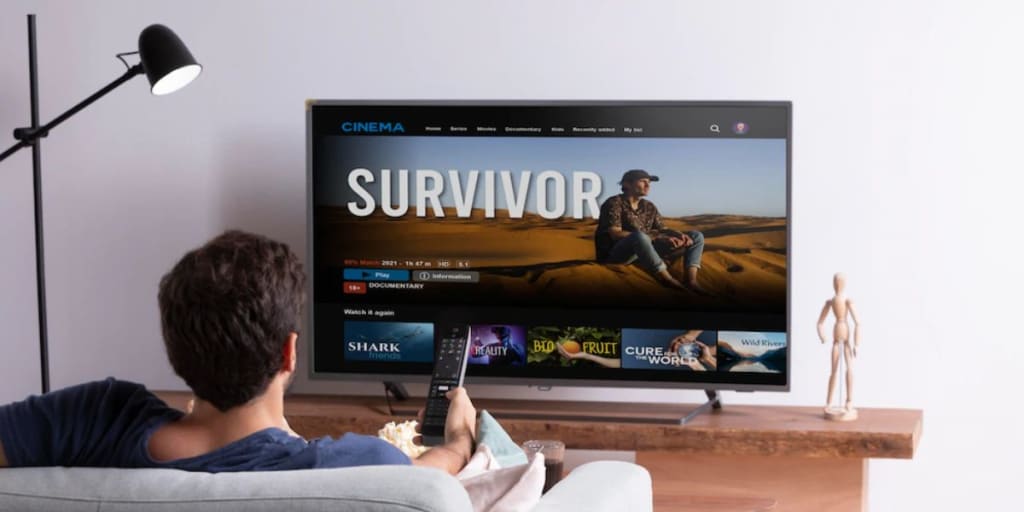
Creating a Smart TV app involves more than just coding. It’s about ensuring the app provides a rich user experience, performs smoothly, and integrates well with the unique capabilities of Smart TVs. Whether you want to build an app for entertainment, utilities, or interactive services, the development process for Smart TV apps is similar to creating mobile apps but with some important differences.
In this article, we will go through the essential steps to build a Smart TV app, from planning and design to development and deployment.
1. Plan Your App Concept
The first step in making a Smart TV app is to define the purpose of the app. Will it be a media streaming app, a social app, or a utility tool like a fitness tracker? Before you begin coding, decide on your app’s core functionality.
Target Audience: Consider who will use the app. Smart TV users tend to consume content passively, so apps that provide entertainment, media, and interactive features work best.
Core Features: Think about the key features your app must include, such as video streaming, content recommendations, live interactions, or voice control.
Platform Selection: Different Smart TVs use different operating systems, such as Android TV, Tizen (Samsung), webOS (LG), or Roku. Each platform has its own development environment, so knowing which one to target is crucial.
2. Choose the Right Platform for Development
Not all Smart TVs run the same operating system, and this significantly affects how you develop your app. Some platforms are more open to developers, while others are more restrictive.
Android TV: This is one of the most widely used Smart TV platforms and supports development using Java and Kotlin. It has a strong ecosystem and provides access to the Google Play Store.
Tizen (Samsung): Samsung’s Smart TVs run on Tizen OS, and development requires knowledge of HTML5, JavaScript, and CSS. Samsung provides a specific SDK for Tizen development.
webOS (LG): LG Smart TVs run on webOS, which uses a combination of HTML, JavaScript, and CSS for app development.
Roku: Roku uses its own development framework called SceneGraph, and apps are built using Roku’s proprietary programming language, BrightScript.
Once you choose your platform, download the necessary SDKs and set up your development environment.
3. Set Up the Development Environment
Each Smart TV platform has its own setup requirements, but generally, you will need to:
Install the SDK: Depending on your target platform, install the relevant software development kit (SDK) for building and testing apps.
Set up Emulators: Smart TV emulators simulate a TV screen on your computer, allowing you to test the app without a physical Smart TV.
Create Developer Accounts: To publish your app on the platform’s app store, you’ll need a developer account. For example, on Android TV, you need a Google Play Developer account.
4. Design the User Interface (UI)
Smart TV apps are different from mobile or desktop apps because users interact with them from a distance using a remote control, voice commands, or even gestures. The design should prioritize large fonts, minimalistic layouts, and intuitive navigation.
Navigation: Design for horizontal navigation, as Smart TV interfaces usually involve scrolling through menus or lists. Use arrows to navigate through categories and subcategories.
UI Elements: Make sure buttons, icons, and text are large and easy to read from a distance. Ensure all clickable elements are spaced out so that users can easily select them using a remote.
Color Scheme: Use a contrasting color scheme to ensure the content is visible on large TV screens, especially in low-light environments.
Testing: Always test the UI on a physical TV or a well-functioning emulator to ensure it looks good and functions properly.
5. Develop the App
After the design is in place, you can start the coding process. Depending on your chosen platform, you will use different programming languages. Here’s a quick rundown of the most common languages and tools:
Android TV: Develop with Java or Kotlin. You can use Android Studio to create the app.
Tizen: Use HTML5, JavaScript, and CSS to build the app. Samsung provides the Tizen Studio as an IDE.
webOS: Use web technologies like HTML5, JavaScript, and CSS.
Roku: Use BrightScript, Roku’s own scripting language.
Common features to add during development include:
Video Streaming: If your app involves video content, integrate with popular APIs like YouTube, Vimeo, or your custom media server.
Authentication: If your app requires user login, implement authentication systems, such as OAuth or Firebase.
Remote Control Integration: Most Smart TVs allow remote control navigation. You need to code for focus management, meaning that the remote control will move between clickable elements like buttons, lists, and videos.
6. Test the App
Testing is a crucial part of smart tv apps development. Since Smart TVs come in various screen sizes and resolutions, you must ensure your app works seamlessly across different devices.
Use Emulators: Most Smart TV platforms offer emulators to test the app before deploying it on actual devices. This helps you catch potential issues without needing a physical TV.
Physical Device Testing: Testing on a real TV is important to ensure that your app looks good on larger screens and behaves as expected.
Usability Testing: Make sure the app is easy to navigate and doesn’t require advanced knowledge from the user. Remote control navigation should be intuitive.
7. Publish the App
Once you are satisfied with the performance and functionality of the app, you can submit it to the relevant app store. Each platform has its own submission process.
Android TV: To publish on the Google Play Store, you must sign up for a Google Developer account and submit your app through the Play Console. Google also requires you to follow specific guidelines related to app performance, content, and security.
Tizen (Samsung): Samsung’s developer portal allows you to submit your app for review. Ensure your app meets Samsung’s standards for app design, performance, and security.
webOS (LG): The LG Developer website allows you to submit your app once it’s ready. Ensure you follow the guidelines for webOS apps.
Roku: Roku has a developer portal where you can upload your app, submit it for review, and monitor its performance.
Each platform may take several days to review and approve your app.
8. Maintain and Update the App
After your app is live, the work isn’t over. Regular updates are essential for fixing bugs, improving performance, and adding new features.
User Feedback: Collect feedback from users to address any issues and make improvements. Pay attention to reviews on the app store and any issues reported by users.
Update Content: If your app streams content (e.g., videos, music, etc.), regularly update the content to keep users engaged.
OS Updates: Smart TV platforms frequently update their operating systems. Be sure to update your app to ensure compatibility with the latest OS versions.
9. Monetization and Analytics
If your goal is to make money from the app, you need to think about monetization strategies. Several options exist:
In-App Ads: You can integrate ad networks like Google AdMob or Amazon’s A9 into your app to display ads and earn revenue.
Subscription: If your app provides premium content, you can offer a subscription service, like a monthly or yearly plan.
In-App Purchases: You could offer additional features or content that users can purchase directly through the app.
It’s also important to set up analytics to track user behavior. Tools like Google Analytics, Firebase, or other analytics providers can help you monitor how users are interacting with your app, what content they are engaging with, and where they drop off.
Conclusion
Developing a Smart TV app requires careful planning, a solid understanding of the platform, and a focus on creating a great user experience. From choosing the right platform to designing an intuitive UI, testing, and launching your app, each step plays a critical role in delivering a polished product.
Keep your users in mind, design with simplicity, and ensure that the app performs well across different TV models. With the right approach, you can create an engaging Smart TV app that adds value to users’ lives and performs smoothly on their devices.
About the Creator
Keep reading
More stories from writers in Confessions and other communities.
Third Party, Quiet Writer, Silent Viewer
I’ve been on Vocal for a long time. I think longer than most I’ve seen on here. I found Vocal about a year after it was created, in 2017. I was very active in the beginning, but don’t have many articles on here now because life gets in the way. I put what I want to write on here and then go on my way. I would like to start launching my writing career more seriously now though and hope to create more of a portfolio and I hope Vocal is the one site that allows me to do so while, I hear, being on the verge of some changes.
By Rich Burton5 days ago in Confessions




Comments
There are no comments for this story
Be the first to respond and start the conversation.