
How to use Uniswap with Ledger to swap Crypto or Provide liquidity
How to use Uniswap with Ledger to swap Crypto or Provide liquidity
How to use Uniswap with Ledger to swap Crypto or Provide liquidity
Before you start
- Connect your Ledger device to Metamask
- Swapping your asset with Uniswap
- Providing liquidity via Uniswap
- Remove Liquidity
Uniswap is a decentralized application (dApp) that allows its users to swap, earn, and build on the leading decentralized crypto trading protocol.
By connecting your Ledger to Metamask and your Ledger Metamask account to Uniswap, you can easily swap assets or provide liquidity.
This article guide contains information on how to use Uniswap with Ledger to swap Crypto or Provide liquidity.
To fix this
Please download the last update of Ledger Live Application:
● Update your Ledger device to the latest firmware.
● Update Ledger Live to the latest version.
● Make sure the Ethereum app is installed on your Ledger device.
● Also add an Ethereum account.
Connect your Ledger device to Metamask
● Go to Metamask.io and click on Install MetaMask for your browser.
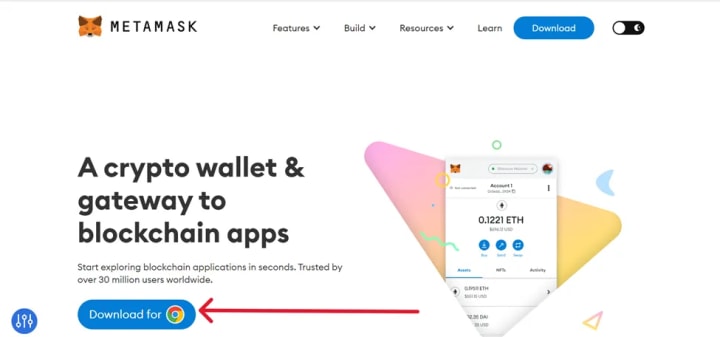
● Add the MetaMask extension to your browser
● Wait for the extension to be added to your browser. (we recommend Google Chrome)
● Select Create a new wallet.
● Once you have created a new wallet. Click on your profile icon and select Connect Hardware Wallet.
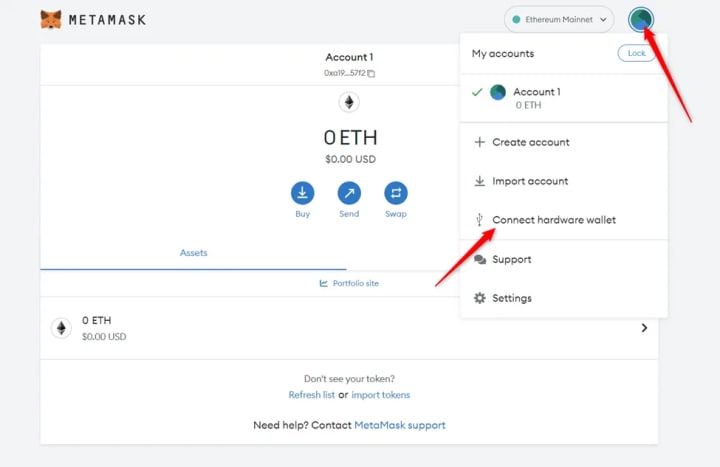
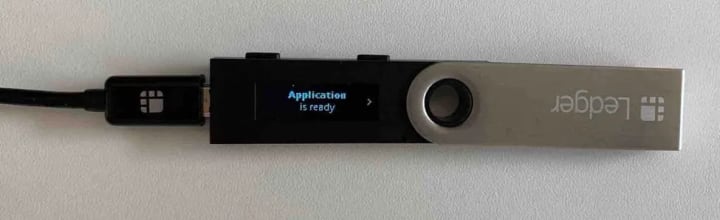
● Follow the instructions on the screen to connect your Ledger device. To do this: Plug your Ledger device into your computer and open the Ethereum (ETH) app on your Ledger device by navigating to the Ethereum icon and pressing both buttons simultaneously. Wait for your Ledger device to display: Application is ready.
● Select Ledger.
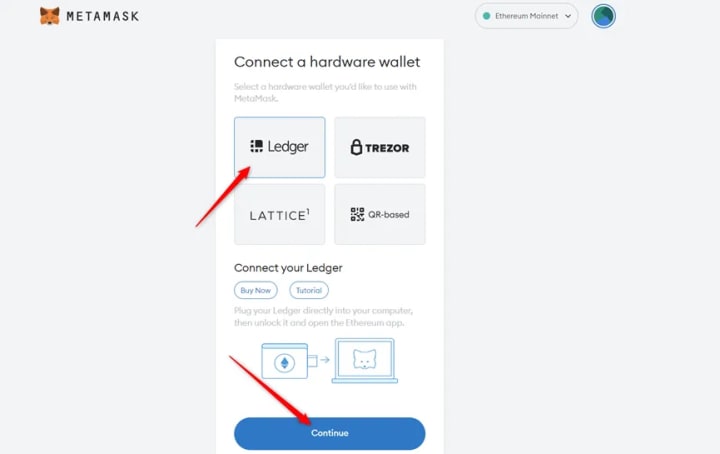
● Wait for MetaMask to recognize your Ledger device, and click on Continue.
● A list of accounts appears. These are your Ledger Ethereum accounts.
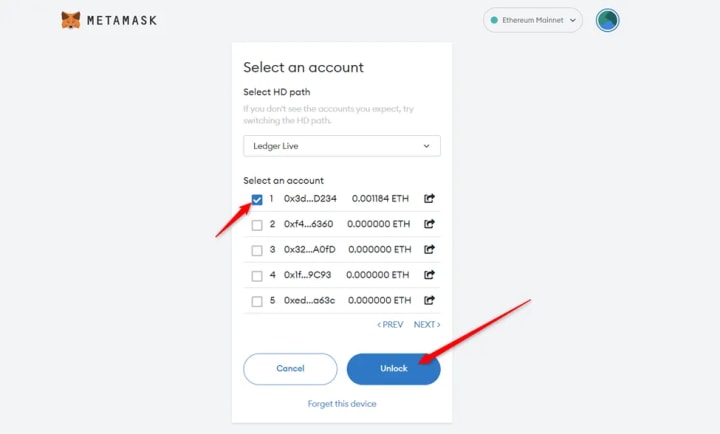
● Select an account by ticking the box then click Unlock.
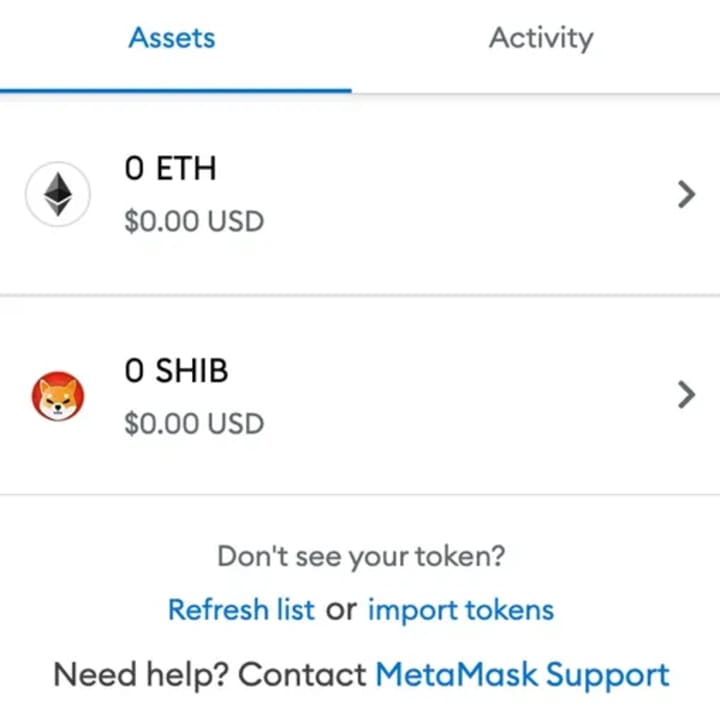
● All done! Your Ledger Ethereum account balance will appear in MetaMask.
Swapping your asset with Uniswap
Before beginning this tutorial, make sure that the tokens you want to swap are stored in your Ledger Metamask account.
● Go to app.uniswap.org
● Click on Connect wallet and select Metamask.
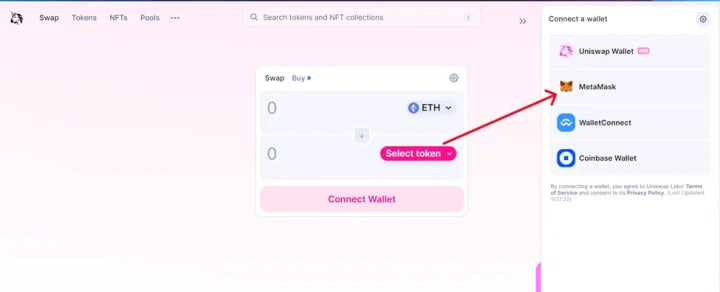
● In the Swap section, enter the amount you want to swap.
● Select the crypto assets you want to exchange from and to, then click on Swap.
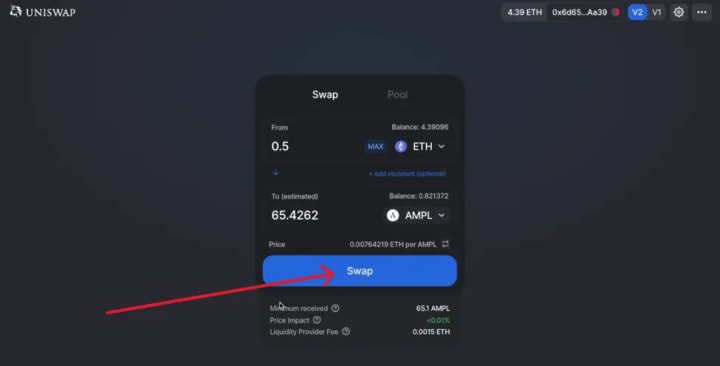
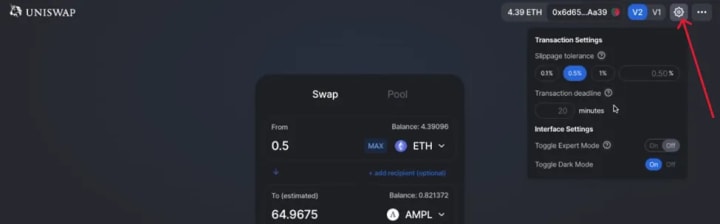
● Review the details of the swap. You can adjust the slippage and gas fees at this stage.
● Once everything looks good, click on Confirm Swap.
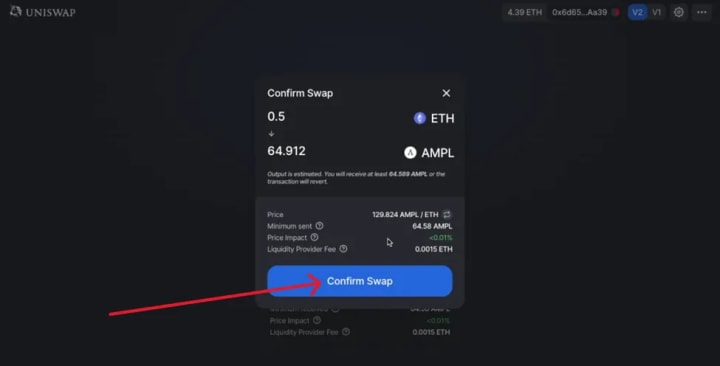
● A popup will appear from Metamask, review the transaction details. If everything looks good, follow the on-screen instruction and authorize the transaction on your Ledger device.
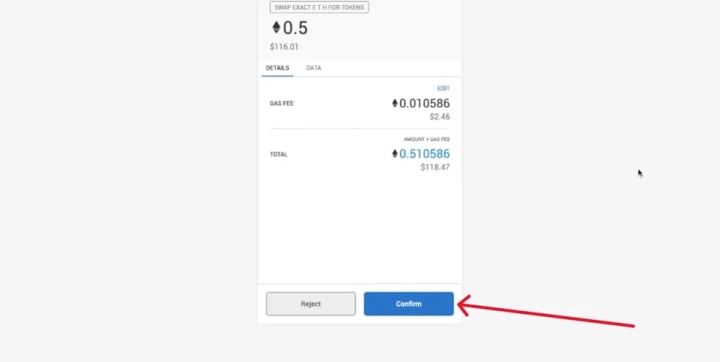
● Now you’ve successfully swapped your tokens using Uniswap.
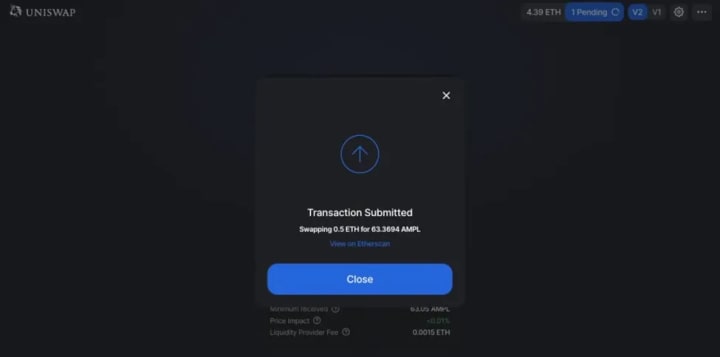
Providing liquidity via Uniswap
In order to provide liquidity via Uniswap with Ledger, you’ll need to connect your Ledger device to Metamask and use your Ledger Metamask account to connect to Uniswap.
For this tutorial, we are going to add liquidity to $UNI.
● Go to the ‘pools’ tab on app.uniswap.org

● Make sure that your Ledger Metamask account is still connected.
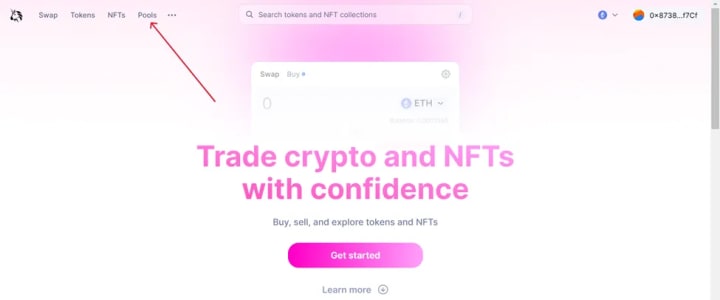
● Click on Top Pools.
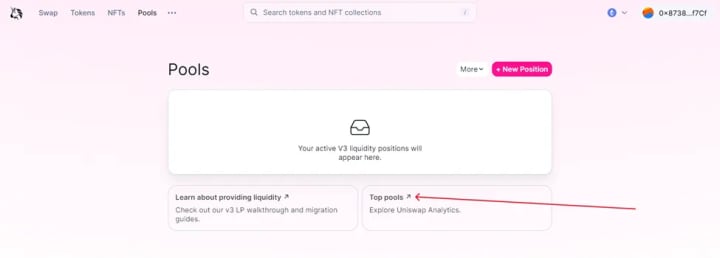
● Enter UNI on the search box and choose a pair to add liquidity.
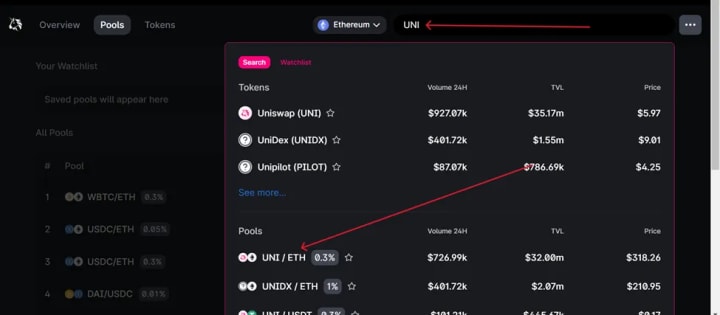
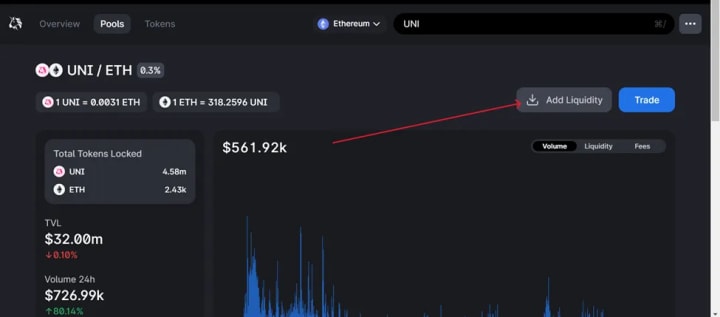
● Click on Add Liquidity.
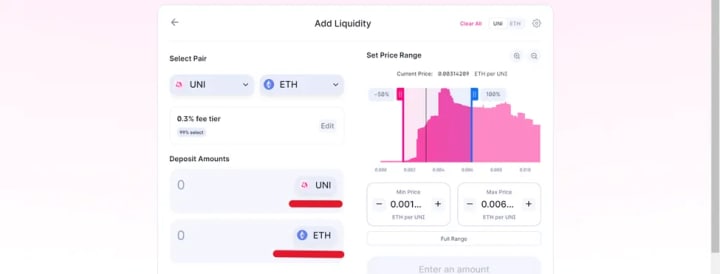
● Enter the amount of $UNI you want to stake and Approve it. You can also customize the network fees by clicking on edit beside the transaction fees.
● Wait for the MetaMask to pop up.
● Verify and confirm the transaction on your Ledger device, if everything looks good.
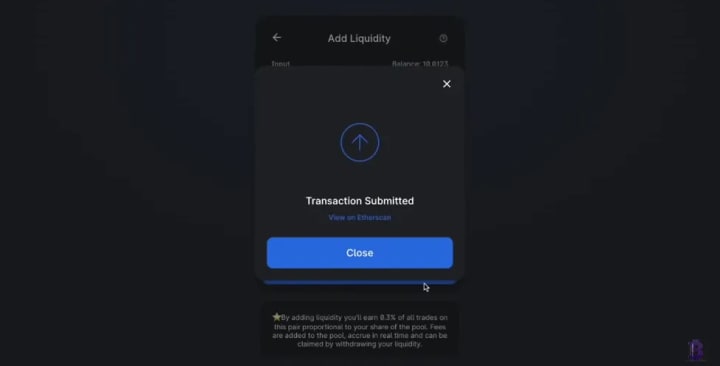
Now, you have successfully staked your UNI token on Uniswap.
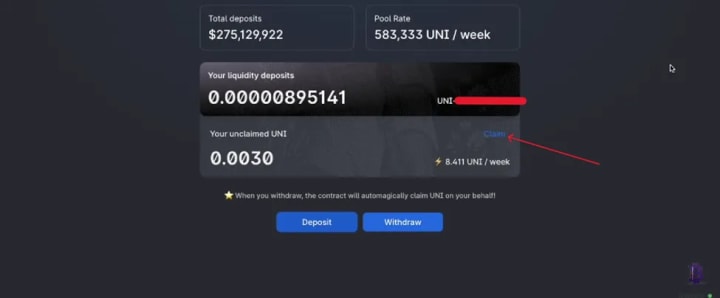
● In the case that there’s no pop-up to claim a reward on the Uniswap website when it matures. You can claim your rewards by navigating to the Pools section.
● Click on pool liquidity. Scroll down and click on Claim, if there’s any available $UNI reward.
Remove Liquidity
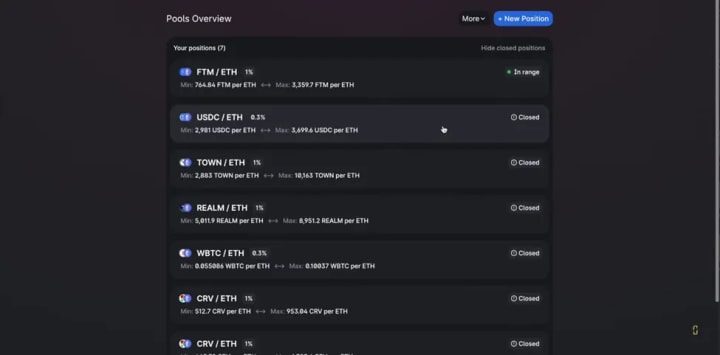
● Navigate to the Pools section.
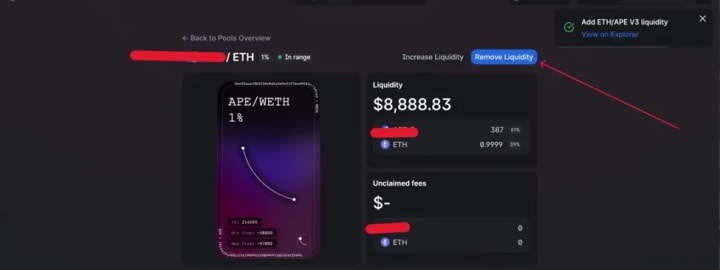
● Click on Remove Liquidity.
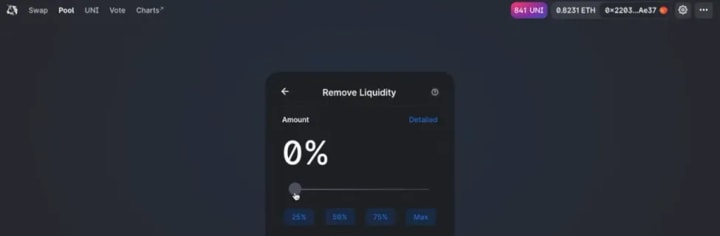
● Enter the amount of $UNI you want to remove.
● Wait for Metamask to pop up.
● Verify and confirm the transaction on your Ledger device. If everything looks good, Approve it.

Now you have successfully removed liquidity from your $UNI on Uniswap.
About the Creator
Keep reading
More stories from Brad Belick and writers in Chapters and other communities.
Little apple of death
I arrive at the meeting and stand to attention in front of the holographic display module. The room is creamy white and brightly lit. There is a communion ball suspended from the ceiling. Once the door I entered closes, it instantly conceals within its structure. The walls appear soft and padded, but on closer inspection they are in fact spongy, constructed from a white fungal material.
By N J Delmas6 days ago in Chapters


Comments
There are no comments for this story
Be the first to respond and start the conversation.