
Spotify Keeps Pausing? Try These 9 Proven Solutions
Does your Spotify keeps pausing but you don't know why? Here's a troubleshooting guide to help you figure out why Spotify keeps pausing and how to fix it.

" I'm an active Spotify Premium subscriber, listening to music from Spotify on a daily basis. But recently, I've felt annoyed as my Spotify keeps pausing on my phone. I cannot find the causes and the way out. Please help! "
Spotify is indisputably the leader in music streaming, housing a vast selection of music content, audiobooks, and podcasts. For some Spotify fans, listening to music on the service has become integral to daily life. However, the overall experience can be frustrating when songs persistently pause and buffer. What's more, it takes a significant amount of time and effort to search aimlessly for the cause as well as a solution to it.
Fortunately, this post will explain why your Spotify keeps stopping at random moments. In the meantime, here's to cover some nifty tricks to help you fix Spotify keeps pausing.
Part 1 Why Does Spotify Keep Pausing or Stopping
Part 2 How to Fix Spotify Music Keep Pausing
Extra Tricks: Download Spotify Music for Offline Playback (Recommended!)
Part 1 Why Does Spotify Keep Pausing or Stopping
Below lists a few common reasons that cause Spotify playback to pause or the entire app to crash.
Unstable Network Connection: Spotify may keep pausing and buffering when you have connected to a poor network. Or, if you've ever enabled the Data Saver mode to conserve mobile data, it will slow down the internet speed and gets in the way of smooth audio playback.
Multiple Devices Log-in: Spotify Premium can support a maximum of six devices, both computers and phones. If your Spotify account is active on different devices simultaneously, Spotify servers see this as a bug and limit the music playback.
Insufficient Phone Memory: The full internal phone storage will cause the flashback of Spotify. Also, Spotify may be stuck on the playing page once too many apps are running background.
Low Power Mode Is Enabled: This mode is set to conserve battery for your mobile phone, but likewise, some apps may not work as expected because your phone will shut down the process of background applications by default.
Redundant Cache Files on Spotify: The cache memory generally reduces load time for frequently used Spotify software. Still, it can get old and corrupted, which often causes issues with Spotify loading.
Headphone Connectivity Issue: This issue can be categorized into bad contact with wireless headphones, Bluetooth interference of other devices, and too great a distance between your device and headphones.
Outdated Version of Spotify Software: Though you can still use Spotify's older version, sometimes it can have glitches, like pausing too frequently and randomly.
Incompatible OS of Your Phone: Updates to the device's operating system should stay within the Spotify version. Otherwise, Spotify won't function smoothly.
Expired Spotify Premium Service: Once your subscription expires, you'll revert to the free version of Spotify. Some music content is open to the Premium account only; Free users are not allowed to listen to ad-free songs and skip music anytime.
Part 2 How to Fix Spotify Music Keep Pausing
- Solution 1 Check the Network Condition
Spotify will keep pausing due to slow internet and its servers going down. Please check your signal or internet connection on your device. If you've already connected to Wi-Fi, try restarting the router.
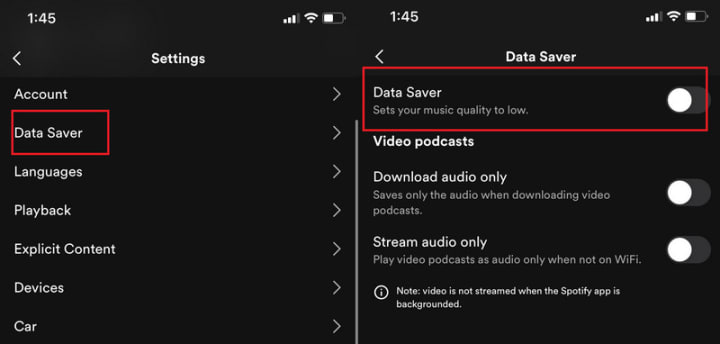
Besides, the need for more bandwidth can cause lags while streaming Spotify. If you've ever enabled the Data Saver Mode on your Spotify, please follow the steps below to turn it off.
Step 1: Open the Spotify application on your phone.
Step 2: Tap "Home > Settings".
Step 3: Select Data Saver, and switch off to grey.
- Solution 2 Sign out of All Device
Spotify Premium Individual doesn't allow users to play on multiple devices simultaneously. Music playback will stop if anyone using your account plays music on other devices. You can choose to sign out of all devices to avoid playback interference between devices.
Step 1: Go to your Spotify Account page, and the Account overview is shown.
Step 2: Scroll down to the bottom, tap, and hit Sign out everywhere.

- Solution 3 Free up Storage Space
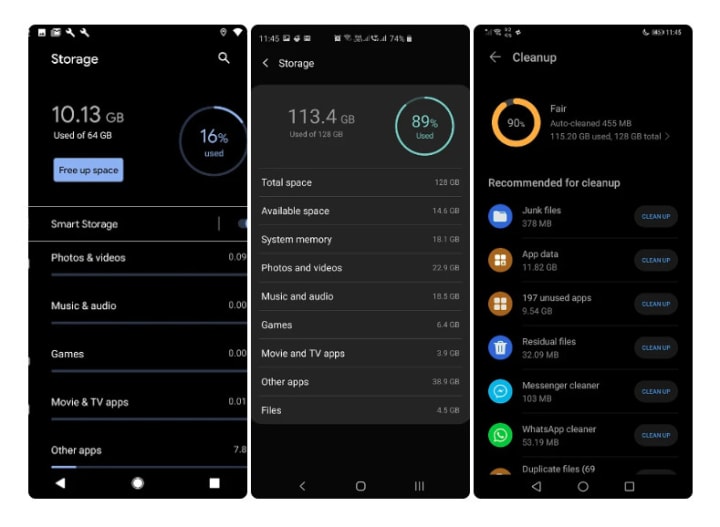
The Spotify app needs sufficient storage space on your device to run smoothly. Fixing the Spotify app from stopping may require clearing space on your device. Simply put, deleting media files such as music, messages, pictures, and more, including apps you don't use very often. Also, since too many background apps running drains the phone's running efficiency, close unnecessary apps in the background.
Step 1: Open the "Settings" on your phone and click "Storage".
Step 2: Find and tap "Free up space", or you can selectively delete stuff.
- Solution 4 Turn Off the Low-battery Mode
The Low Power Mode turns off background activity, so the Spotify app will be forced close. You need to check whether you've enabled this battery conservation mode on your smartphone. If so, go to Settings and manually switch Low-Battery Mode off.

- Solution 5 Restart the Device
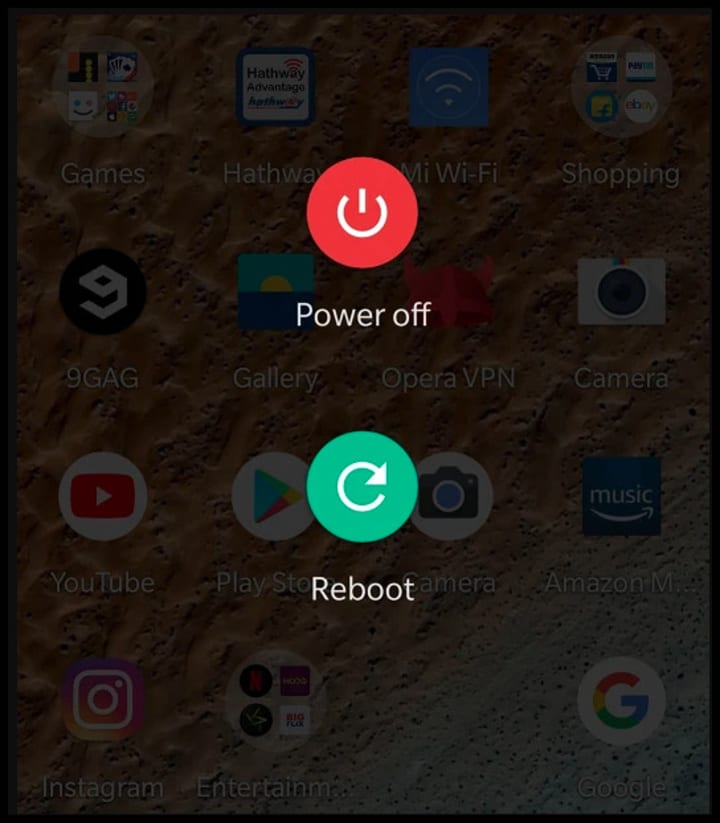
One of the easiest ways to correct issues with Spotify pausing is to restart your device. Once your Spotify has temporary glitches or conflicts with other applications, you can perform a reboot on a mobile device or select Restart from the Start menu on your computer.
- Solution 6 Reinstall or Update Spotify to the Latest
It is necessary for all Spotify users to keep the Spotify app up to date. This ensures that you have access to all the latest features and bug fixes and can also help improve your overall experience using the app. Follow the steps listed below:
Through Mobiles
Step 1: Head over to your mobile's Play Store or App Store, and search for the Spotify app.
Step 2: If new updates are available, tap on the Update option to install it. Or you can uninstall the previous program and reinstall the Spotify application on your mobile.

Through Desktop
Step 1: Click a three-dot icon from Spotify.
Step 2: Click "Help > About Spotify". If a new version of Spotify is available for the PC version, you'll see the "Check for updates" option in your profile drop-down menu.
Step 3: After the updates, restart the Spotify app.

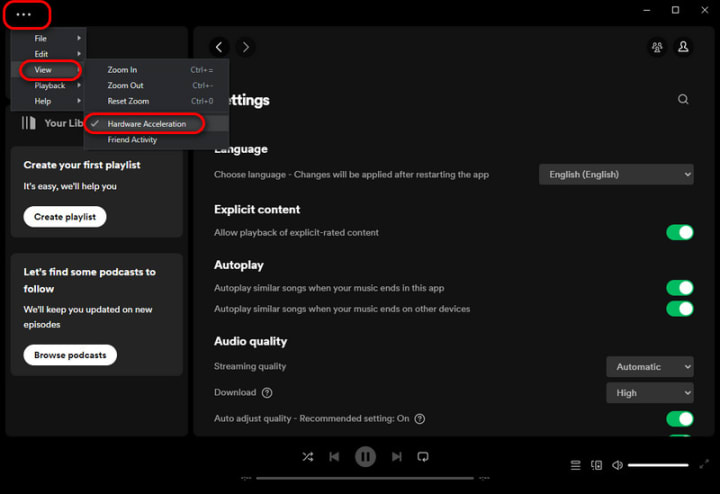
- Solution 7 Disable Hardware Acceleration
Hardware acceleration is built into Spotify to perform the task efficiently. This option is enabled by default, but it may run differently on the older machine lacking the power necessary to complete the task.
Step 1: Open the Spotify Desktop app.
Step 2: Click on the three dots menu from the top, then go to "View > Hardware acceleration".
Step 3: You will get a notice that disabling hardware acceleration can slow down Spotify. Please click "OK" to confirm.
- Solution 8 Clear Cache for Spotify Application
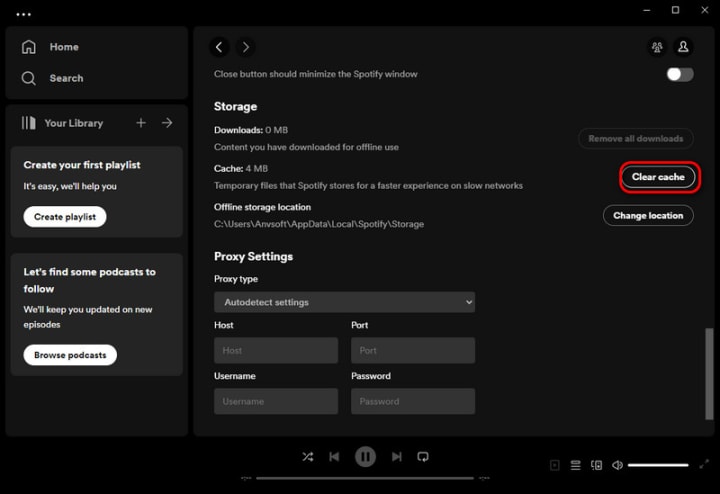
Clearing your cache is one of the most straightforward all-purpose fixes. Doing so removes all the temporary files, freeing up space on your Spotify. Perform the steps below to give the app a clean run.
From Android or iOS:
Step 1: Open Spotify and hit the "Settings" icon in the top right
Step 2: Scroll down to "Storage" and click "Clear Cache"

From PC or Mac:
Step 1: Launch the Spotify Desktop app, then click a profile icon in the top right.
Step 2: Go to "Settings > Storage."
Step 3: Click "Clear cache."
Extra Tricks: Download Spotify Music for Offline Playback
We trust that you've browsed the top and swiftly zeroed in on the precise solution to the problem. If all of that still can’t stop your Spotify from pausing your music, it may be time to reach out to Spotify Support. Or maybe you should consider turning to a reliable streaming tool - AudiCable Spotify Music Recorder. This tool is aimed at extracting your fave music content from Spotify to offline audio. The converted Spotify audio can be transferred to your device for playing at your disposal. After that, you can feel safe to listen to downloaded Spotify music offline, whether the Spotify app is paused or forced to exit.
Tool Required: AudiCable Spotify Music Recorder

💡Tutorial on Downloading Spotify Music to Offline Audio
Step 1 Download and Install AudiCable Spotify Music Recorder
Download and launcn AudiCable Audio Recorder on your PC. Most popular music streaming platforms are displayed on the main interface of AudiCable. Navigate to "Spotify" and click.

Note: Using the "Add other sources" button, you can also add other music services that you want. Just copy the official website, customize it with a new name, and then implement a new music platform.
Step 2 Choose the Player and Sign in
Please choose the way you want to download Spotify music. After that, sign in with your Spotify Free or Premium account.
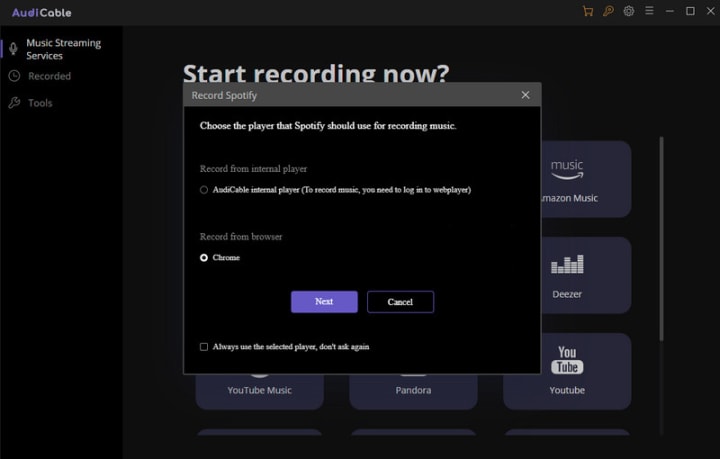
Note: The first option will bring up AudiCable's built-in web player window, and the second will pop up from your Chrome.
Step 3 Customize the Output Parameters for Your Spotify Music
On the top-right corner of AudiCable, click on a "gear icon". From the pop-up setting window, choose "MP3" as the output format. Then close it to apply the changes.
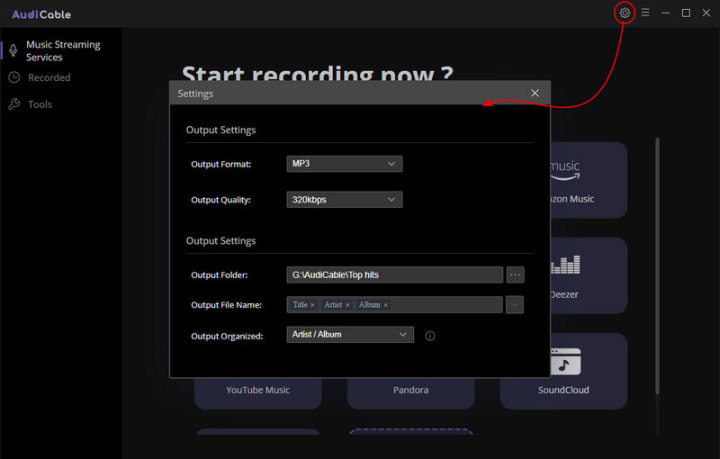
Note: Apart from the output format, you can also freely customize the output quality, output folder, output files name, output organized and output path as you like. Among them, the audio quality varies from 128kbps to 320kbps.
Step 4 Start Recording Spotify Music
Choose your preferred Spotify songs, playlist, or albums to play. As soon as you play the song, AudiCable will start recording simultaneously. All recorded Spotify songs are saved in the MP3 format you set before.

Note: If you want to mute the sound and just download Spotify music in the background, you can go to the upper right, and tap the "sound" icon to switch to mute.
Step 5 Get Downloaded Spotify Songs on the Local Folder
Click the "Recorded" tap, and the "folder icon" behind a song, then you can quickly locate downloaded Spotify audio.

Final Words
The Spotify app will be getting slow and unstable as hundreds of new songs, podcasts, and other forms of media are added to the platform every day. Plus, the playback of Spotify songs will interrupted by network connection or device mode settings. You need to make sure that the Spotify app is up to date and clear the cache regularly to keep it running smoothly on your device. If the problem persists, you can try the aforementioned suggestions in turn in order to find out what might be causing the problem and stop it from happening again.
Of course, if you aren't interested in spending any more time fixing these bugs repeatedly, then the ultimate method is to utilize AudiCable Audio Recorder to download Spotify music to offline audio. After that, you can play songs offline on various devices anytime and anywhere without worrying about network, device compatibility, and more. Embrace your wonderful music experience with AudiCable right now!
About the Creator
Whitney Brown
Love to share stunning music ideas from all streaming music resources.
Resource site in https://www.audicable.com/
Keep reading
More stories from Whitney Brown and writers in Beat and other communities.
Review of 'Man on the Run'
My wife and I saw Man on the Run, a nearly 2-hour documentary on Amazon Prime, about Wings, Paul McCartney's group that flew around the world from shortly after The Beatles broke up in early 1970 to shortly after John Lennon was murdered at the end of 1980, making a Beatles reunion forever impossible.
By Paul Levinson9 days ago in Beat
Bennie Cloud: Blending Love, Rap, and Modern Hip Hop Energy
In today’s digital music landscape, independent artists are redefining how audiences experience music. Streaming platforms and social media have created opportunities for talented musicians to build their own audiences without relying solely on traditional industry systems. One emerging voice contributing to this movement is Bennie Cloud, an artist whose sound blends Rap, R&B, Hip Hop, and emotional storytelling into a style that reflects both modern culture and personal expression.
By charliesamuel2 days ago in Beat
Silken Chains
Silhouettes of the female form were given flesh and bone. Silken skin glistened under the spotlight. Dry ice rose around our Icons as they danced atop their podiums in the Square. Heralded for their beauty, their movements were slight, powerful, and sensual.
By Paul Stewart3 days ago in Fiction




Comments
There are no comments for this story
Be the first to respond and start the conversation.