
How to Play Spotify Songs on PS5
Would you like to listen to your fave Spotify songs on PS5? Read this page, you’ll get the detailed steps of playing Spotify music on your PS5.


Having trouble listening to Spotify on your PS5? Bravo! On the following page, you'll find two methods that actually work.
Since its release, PlayStation 5, abbreviated PS5, has been a fan favorite among gamers. One of the best extra features of the PS5 is its ability to operate as a streaming entertainment hub. The console supports a wide range of media apps, including Netflix, Disney Plus, and, of course, Spotify. This guide will walk you through the official methods of installing and streaming Spotify on the PlayStation 5. Also, whether you use Spotify Free or Spotify Premium, here's another approach to playing Spotify tracks offline on PS5.
Part 1 Get Spotify on PS5 for Streaming
Part 2 Play Spotify Music Offline on PS5
Part 1 Get Spotify on PS5 for Streaming
Spotify is officially available on PS5 and integrates well with Play Station’s latest iteration. You can set up Spotify on PS5 by following the steps below, then listen to music while playing compatible PS5 games.
Before enjoying Spotify music on PS5, you're required to download and install the Spotify application on your PS5.
Step 1: On PS5, navigate to "All Apps" from your media home.
Step 2: Choose "Spotify > Download", then wait for the download process.
Step 3: Open the Spotify app on your console, then sign up or log in to your Spotify account.
Step 4: Tap "Link Accounts" to connect Spotify with your PS5 device.

Note: Spotify is only available in a limited number of countries on the PS5. Please check the Spotify on PlayStation support page.
- Play Spotify Music in Gaming
When you play Spotify on your PS5, it continues to play while you game. Of course, if the game allows, you can turn off the built-in music to enjoy Spotify music to its fullest.
Step 1: Open Spotify in the Media home or in the control center. Then play something that you want to listen to while you play games.
Step 2: Launch the game, bring up the command center by hitting the PS button.
Step 3: In the command center, a card displays the currently playing music or podcast. Select the card to control the playback, such as skip songs, play/pause, or adjust the volume.

Or, use Spotify Connect to use your phone to control the music remotely.
Part 2 Play Spotify Music Offline on PS5
Despite the fact that Spotify is free to download on the PS5 Play Station. But please be advised that the playback of ad-free songs in gaming is limited to Spotify Premium. Spotify Free accounts will occasionally be cut off by perky advertisements, and not be granted offline playback. If you're looking to listen to Spotify songs offline on PS5 with your Spotify Free account, AudiCable Spotify Recorder is an ideal alternative for you.
Tool Required: AudiCable Spotify Music to PS5 Recorder
AudiCable Audio Recorder is dedicated to downloading Spotify playlists, albums, podcasts, and audiobooks to your computer, available for both Spotify Free and Spotify Premium. AudiCable supports converting Spotify tracks to MP3, AAC, WAV, FLAC, AIFF, ALAC with retaining the original sound quality and ID3 tags after music conversion, thanks to advanced streaming music decryption features.
This program extracts music content from the Spotify web player to the local drive so that you transfer the converted tracks to your PS5 for offline playing. Far more than this, AudiCable also supports recording music from a host of music services, such as Spotify, Amazon Music, YouTube Music, Tidal, and so on. With it, you're able to stream music from different music platforms on PS5.
Tutorial on Playing Spotify Music Offline on PS5
Step 1 Download and Install AudiCable Spotify Music Recorder
Download and start AudiCable Spotify Music Recorder for Windows or Mac. Most popular music streaming platforms are displayed on the main interface of AudiCable. Navigate to "Spotify" and click.

Note: Using the "Add other sources" button, you can also add other music services that you want. Just copy the official website, customize it with a new name, and then implement a new music platform.
Step 2 Choose the Player and Sign in
Please choose the way you want to download Spotify music. After that, sign in with your Spotify Free or Premium account.
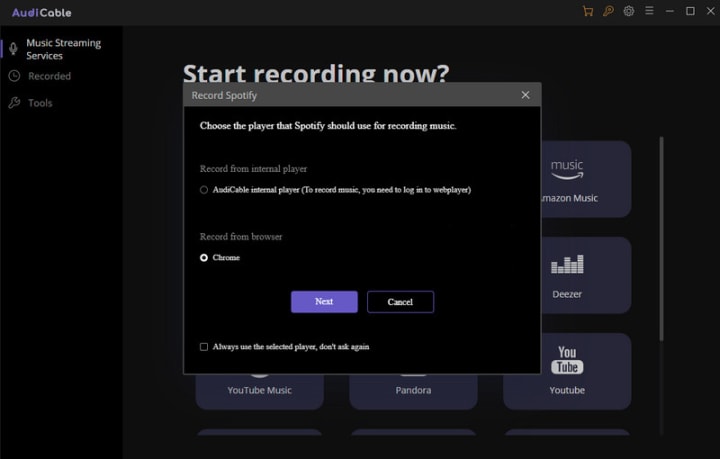
Note: The first option will bring up AudiCable's built-in web player window, and the second will pop up from your Chrome.
Step 3 Customize the Output Format for Spotify Music
On the top-right corner of AudiCable, click on a "gear icon". Since PS5 supports the audio formats as FLAC, MP3, as well as AAC. Please choose the Spotify’s audio format from either of them. Here we choose "MP3" as an example. Then close it to apply the changes.

Note: Apart from the output format, you can also freely customize the output quality, output folder, output files name, output organized and output path as you like. Among them, the audio quality varies from 128kbps to 320kbps.
Step 4 Download Spotify Playlist to MP3 Files
Choose your preferred Spotify songs, playlist, or albums to play. As soon as you play the song, AudiCable will start recording simultaneously. All recorded Spotify songs are saved in the MP3 format you set before.
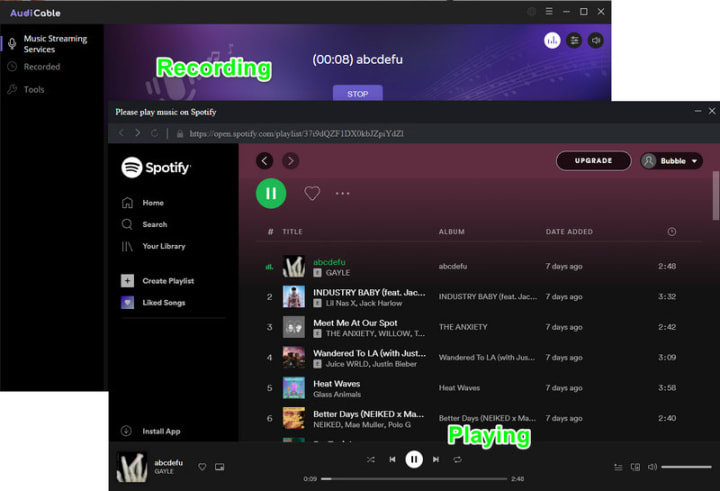
Note: If you want to mute the sound and just download Spotify music in the background, you can go to the upper right, and tap the "sound" icon to switch to mute.
Step 5 Get Downloaded Spotify Songs on Your Computer Folder
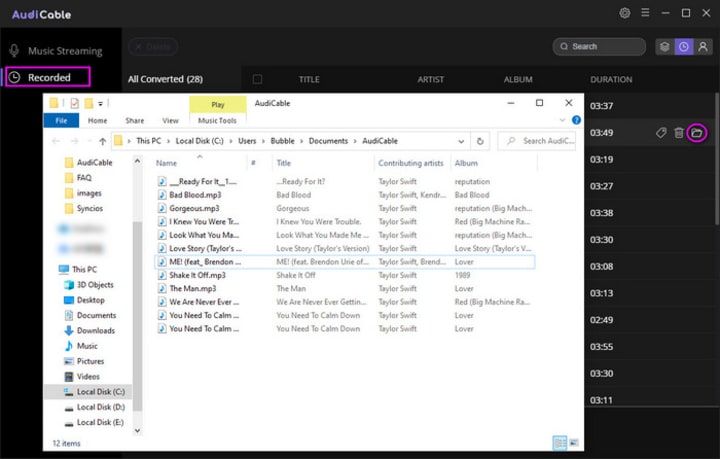
Click the "Recorded" tap, and the "folder icon" behind a song, then you can quickly locate downloaded Spotify MP3s.
Step 6 Play Downloaded Spotify Tracks to PS5 via USB Drive
1. Drag & Drop the downloaded Spotify audio to USB drive.
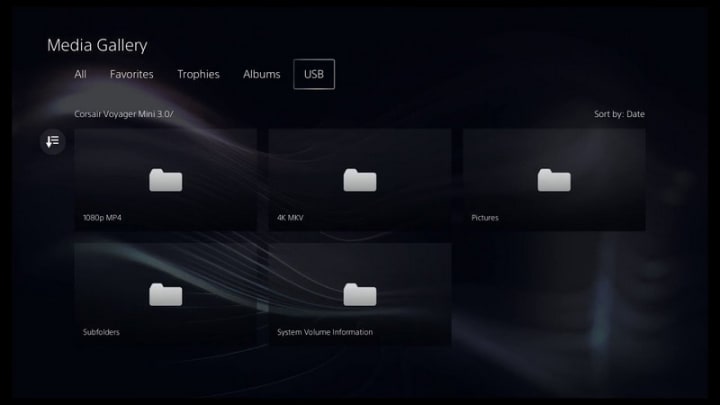
2. Connect the USB drive to your PS5 console. Select Music in the control center. USB Drive appears in your playlist.
3. Go to USB, and choose a file to play it.
Conclusion
Playing games while listening to your favorite Spotify music is an excellent way to lift the mood and immerse yourself in the virtual game world. Spotify is simple to use on your PS5, whether you’re streaming some exhilarating background music while you game or want to create an intense gaming playlist. On top of that, you can use AudiCable Audio Recorder to play downloaded Spotify playlists offline on your PS5. This tool allows you to download Spotify songs to your local disk and then transfer the downloaded tunes to your PS5 consoles via a USB drive. So turn on the music and have fun with your next gaming session! Good luck!
About the Creator
Whitney Brown
Love to share stunning music ideas from all streaming music resources.
Resource site in https://www.audicable.com/
Keep reading
More stories from Whitney Brown and writers in Beat and other communities.
How to Add Spotify Tracks to Rekordbox
Can I add Spotify music to Rekordbox DJ? What should I do? As a powerful and professional DJ software, Rekordbox provides an easy-to-use way to get DJs organized for mixing at home or performing on the stage. DJ users are available to use the track from supported music services for mixing. But it may not be comprehensive for some streaming music users. For example, Spotify, the most-desired music service, has not partnered with Rekordbox.
By Whitney Brown3 years ago in Beat
It's 2026. Songs Turning 10 This Year
In 2016, we saw the rise of short form videos and what would lead to the birth of TikTok. We cannot forget the Snapchat filters no matter how cringe worthy some of them might have been. It was also the year in which the hit series Stranger Things debuted.
By Jasmine Aguilar16 days ago in Beat
The Unsinkable Ambition: China’s Massive Undertaking to Recreate the Titanic
The story of the RMS Titanic has fascinated the world for over a century. From the tragic night in April 1912 to James Cameron’s cinematic masterpiece, the "Ship of Dreams" remains a global symbol of both human ingenuity and sobering hubris. Now, in a landlocked county in southwest China, that legend is being physically rebuilt. The Unsinkable Titanic, a full-scale, 1:1 replica, is currently under construction in Daying County, Sichuan Province, marking one of the most ambitious—and controversial—tourism projects in modern history.
By Irshad Abbasi 4 days ago in Beat



Comments
There are no comments for this story
Be the first to respond and start the conversation.