
How to Insert Spotify Songs to Powerpoint Presentation
Looking to polish your PowerPoint presentation with unique Spotify music? This post will show you how to embed your favorite Spotify music into the PowerPoint slideshow.


A well-designed PowerPoint presentation with dynamic images and audio will make it more appealing and interest-building for your listeners. Some PPT creators may want to embed the music from the largest music streaming platform - Spotify. However, they failed because Spotify tracks are encrypted in a proprietary format. To add Spotify songs to a PowerPoint presentation, you should initially convert the music to MP3 using a program like AudiCable Spotify Music Recorder.
Part 1. How to Convert Spotify Songs for Powerpoint
Part 2. How to Add Spotify Music to Powerpoint Presentation
Part 1. How to Convert Spotify Songs for Powerpoint
PowerPoint supports various audio file formats like WAV, MP3, and WMA, but the Ogg-formated Spotify music isn't in the list. Luckily, you can output Spotify music as MP3 using AudiCable Audio Recorder.
The following instructions will explain how to convert Spotify songs to MP3 audio using AudiCable Audio Recorder. So please get the AudiCable program installed on your computer first.
Step 1 Run AudiCable and Choose Music Platform
Take first to download and start AudiCable Spotify Music Recorder for Windows or Mac. Most popular music streaming platforms are displayed on the main interface of AudiCable. Navigate to "Spotify" and click.Choose
Step 2 Select the Recording Mode and Sign in
Please choose the way you want to download Spotify music. After that, sign in with your Spotify Free or Premium account.
Step 3 Choose the Output Format as MP3
On the top-right corner of AudiCable, click on a "gear icon". From the pop-up setting window, you can freely choose MP3, AAC, WAV, FLAC, AIFF, ALAC as the output format for your Spotify songs. Now choose "MP3" and then close it to apply the changes.
Step 4 Start Converting Spotify Playlist
Choose your preferred Spotify songs, playlist, or albums to play. As soon as you play the song, AudiCable will start recording simultaneously. All recorded Spotify songs are saved in the format you set before.
Step 5 Check Downloaded Spotify Songs on Your Computer Folder
Click the "Recorded" tap, and the "folder icon" behind a song, then you can quickly locate Spotify downloads.
Part 2. How to Add Spotify Music to Powerpoint Presentation
Once the program finish the conversion of Spotify music, then you can insert plain Spotify audio files to Powerpoint presentation.
- On Windows PC:
Step 1: Open Powerpoint presentation.
Step 2: Click the INSERT tap on the top toolbar. Then select Audio > Audio on My PC.
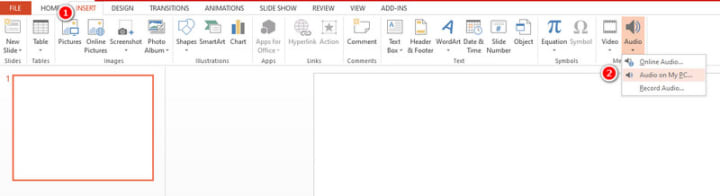
Step 3: Here pop ups the folder that store the downloaded Spotify music. You can choose the target Spotify audio you want to add.
When the audio is inserted successfully, you can see an audio icon on your presentation. To delete an audio clip, just select this icon on the slide and press Delete.
- On Mac:
Step 1: Launch PowerPoint on your Mac.
Step 2: Select Insert > Audio > Insert Audio, then insert an audio clip from your Mac.
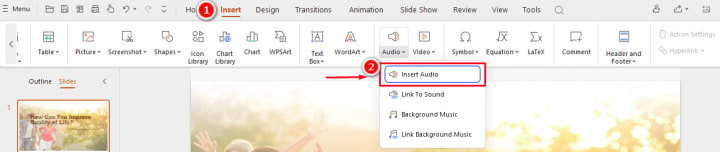
Step 3: Now choose the desired Spotify track of the local folder, and then the speaker icon will display on the slide.
If you tap the speaker icon, you will find 'Audio Tools' section which allows you to select when the music starts and stops, and how it will play.
Final Words
By following the tutorial above, you can easily add Spotify songs to your PowerPoint presentations on both Windows and Mac. If you'd like to experiment with different Spotify audio format conversions, you should not miss out on AudiCable Audio Recorder. Remember to save your PowerPoint file after adding Spotify audio to your presentation. Now, go ahead and enhance your PowerPoint slides with Spotify music to deliver an impactful and engaging slide show!
About the Creator
The Tango Connection
I suppose I've become a writer so I wouldn't bore everyone to death telling them my stories. Reading them is reading. Not the same. There's rhythm. And timing and, most importantly, drama and suspense. Unless you have tremendous magnetism and an undeniable stage presence, there's no way you can engage an audience the way you can by writing your story. That's my opinion.
By Rene Volpi 29 days ago in Beat



Comments (2)
It works. Thanks for your tips!
PowerPoint supports various audio file formats like WAV, MP3, and WMA, but the Ogg-formated Spotify music isn't on the list. Luckily, you can convert Spotify music as MP3 or other audio formats using AudiCable Audio Recorder: https://bit.ly/3sdoNaZ