
Quick Way to Copy Amazon Music to USB Flash Drive
Seeking a way to copy Amazon music songs onto your USB drive? This post will help you transfer Amazon Music tracks to a pen drive in 5 steps.

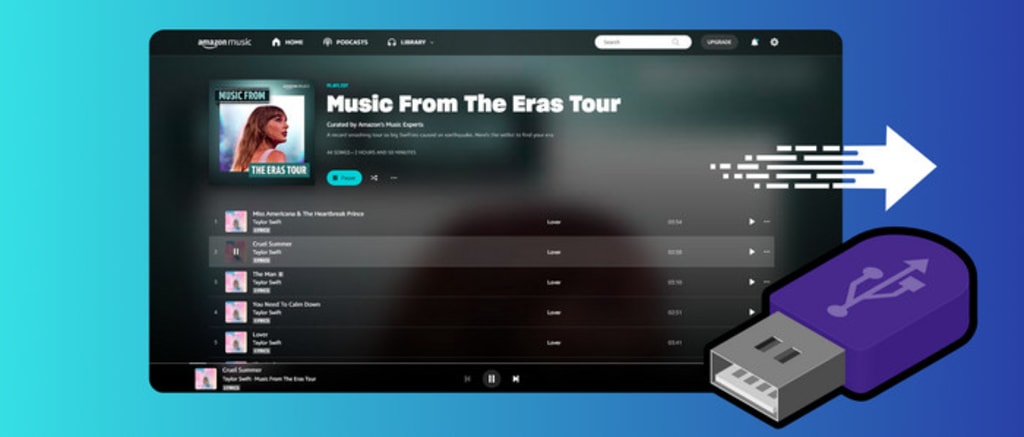
Amazon Music houses a vast library of songs and albums from a wide range of genres and artists, making it a popular streaming options for users who want to transfer their favorite tracks to a USB drive.
The wide compatibility of USB does allow users to put Amazon Music playlists on various devices for offline listening. Yet, Amazon Music did not offer a direct option to export music collections to a thumb drive. To help you out, this post shows a workable trick for downloading Amazon Music to local storage and then copying downloaded Amazon Music songs to a USB flash drive. Keep reading.
Part 1. Can I Transfer Amazon Music to USB Stick Directly?
No. Amazon Music encoded the music content with its encryption technology, limiting users to copying and sharing the audio directly into other platforms apart from Amazon Music. Therefore, users fail to export the Amazon Music songs to the USB drive even if them downloaded them offline.
For this reason, you'll need a reliable third-party program called AudiCable Amazon Music Recorder to save songs from Amazon Music as local audio files. When the conversion is done, you can effortlessly copy Amazon Music to a USB flash drive. In this manner, the backup Amazon Music makes sure you always have access to your music, even after your subscription service ended.
Tool Required: AudiCable Amazon Music Recorder
AudiCable provides a trustworthy Amazon Music Recorder, allowing any Amazon Music user to save songs instantly to their computer. It supports outputting Amazon Music to MP3, AAC, WAV, FLAC, AIFF, and ALAC, with original audio quality and ID3 tags preserved.
Thanks to its support for all-in-one streaming, AudiCable Audio Recorder also allows users to easily download songs from services like Spotify, Apple Music, Tidal, Pandora, YouTube, and more. Switching to another music platform is easily at your disposal!
Part 2. How to Download Amazon Music Songs to USB Drive?
Step 1 Launch the AudiCable program and Choose the Music Service
Run AudiCable Audio Recorder on your Windows or Mac computer. Then, select "Amazon Music" from the main interface and sign in with your Amazon Music account.
Step 2 Adjust the Output Format as MP3
Click on a "gear icon" on the top right corner. In the setting interface, you're able to choose "MP3" as the output format for your Amazon Music songs. Then close the window to apply the changes.
Step 3 Download and Save Amazon Music Songs to Local Files
Select and play songs from the Amazon Music web player. AudiCable will record Amazon Music songs simultaneously. You can see the recording process in the recording page.
Step 4 Get the Downloaded Amazon Music Songs on Your Computer
When the recording is done, click the "Recorded" tap and then the "folder icon". Later you'll find all converted Amazon Music songs with ID3 tags kept.
Step 5 Copy Downloaded Amazon Music Tracks to Pen Drive
1) Insert the USB drive into an available USB port on your computer.
2) Then find where the downloaded Amazon Music audio files are located; simply drag & drop or copy & paste them into the target folder of the USB.
3) When the transfer is complete, safely eject the USB drive from your computer to avoid data corruption.
Other FAQs on Amazon Music
💬 Q1: Where can I find downloaded tracks on Amazon Music?
A: It is easy to find the offline Amazon Music streams on the Library of Amazon Music.
On the Amazon Music Mobile App, go to "Library" on the Amazon Music app, then find "Recently Downloaded".
On the Amazon Music Desktop App, click the Library section and then select "Songs > Downloaded."
Alternatively, the location of downloaded Amazon Music tracks on different devices may vary.
💬 Q2: Can I keep downloading Amazon Music songs on a USB drive forever?
A: Yes. AudiCable has helped you rip Amazon Music songs as generic audio formats in the local drive. Then, you can directly copy these local files to a USB drive so that you can listen to them offline out of the Amazon Music app.
Conclusion
In short, with favorite Amazon Music tracks saved locally using the suggested streaming music tool, music fanatics are able to move them into USB drives. Then, pair the thumb drive with a wide range of compatible devices, including vehicle stereos, home audio systems, and more, to listen to their music without needing an internet connection.
About the Creator
How Businesses Actually Choose the Best SEO Services Today?
Most businesses do not begin their SEO search with excitement. They begin with frustration. They have tried agencies that promised rankings without explaining trade-offs. They have paid for reports that looked impressive but changed nothing. By the time they start looking again, the question is no longer who sounds confident. It is who understands consequences.
By Jane Smith3 days ago in 01
Handbags: Function, Fashion, and the Rise of Modern Alternatives
Handbags are among the most enduring accessories in human history. Originally designed for practicality, they have gradually evolved into items that reflect culture, personal taste, and social change. Today, handbags exist across a wide spectrum—from everyday functional pieces to luxury-inspired designs and replicas—each serving a different purpose in modern life.
By charliesamuel6 days ago in 01
Wild Card Weekend Recap: What Happens Now?
I think I figured out why I love Wild Card Weekend so much. It's because it's the first playoff anything of the calendar year. The NFL season starts in the fall, and once upon a time, the champion was crowned either on or slightly before New Year's. The evolution of the NFL schedule has resulted in the playoffs starting just into the New Year, and currently, the final week of the season falls on the first weekend of the New Year, with Wild Card Weekend coming a week after that. So yes, chronologically, the NFL's Wild Card Weekend serves as the first playoff anything of the calendar year.
By Clyde E. Dawkins5 days ago in Unbalanced



Comments (2)
This post goes over the steps of downloading Amazon Music to USB using the Windows version of AudiCable Audio Recorder. You can get AudiCable installed first in accordance with the OS of your computer. Try it free: https://bit.ly/3tUHj8o
Copying music on to flash drives is awesome