
How to Make a Bottle Mockup in Photoshop: A Complete Guide
How to Make a Bottle Mockup in Photoshop

Creating a bottle mockup in Photoshop is a fantastic way to visualize your product’s design before it goes into production. With a bottle mockup, you can test different label styles, colors, and branding elements to see how they will look on your product. This guide will walk you through every step of making a bottle mockup in Photoshop – even if you’re a beginner! Plus, we’ll touch on how to use a bottle mockup generator for a quick and easy alternative.
Why Use a Bottle Mockup?
Bottle mockups are digital representations of your product’s final look. They allow you to add your design to a bottle template and see how it would appear in real life. From beverage bottles to skincare serums, mockups are essential for bringing a product to life before it’s physically made. Bottle mockups are also great for presentations, marketing materials, and online stores, making them a must-have for designers and brand owners.
What You’ll Need to Get Started
To create a bottle mockup, here’s what you’ll need:
Adobe Photoshop: Photoshop is a powerful tool for mockup creation, especially for adding labels and adjusting lighting and shadows.
Bottle Mockup Template: You can find free or paid templates online on sites like Adobe Stock, Freepik, and Envato Elements. These templates usually include smart object layers, making it easy to add your design.
Your Label Design: Have your label or branding image ready to apply to the bottle mockup.
Tip: If you’re looking for an even quicker way, you can also try a bottle mockup generator. Tools like Placeit or Mockey offer customizable mockup templates that don’t require Photoshop skills. But if you want a fully custom look, Photoshop gives you total control over every detail.
Step-by-Step Guide to Making a Bottle Mockup in Photoshop
Ready to dive in? Here’s a step-by-step guide to creating a professional bottle mockup in Photoshop.
Step 1: Open Your Bottle Mockup Template
Start by downloading a bottle mockup template that fits your product type. Many mockup templates include built-in layers to simplify the design process. Open the template file in Photoshop by going to File > Open and selecting your template.
Step 2: Locate the Smart Object Layer
Most bottle mockup templates will have a smart object layer labeled something like “Place Your Design Here.” This layer is where you’ll insert your label design. To access it, double-click on the smart object layer icon in the Layers panel. This will open a new window where you can add your artwork.
Step 3: Add Your Label Design
In the new smart object window, drag and drop your label design onto the canvas. You can also use File > Place Embedded to add your design file. Once it’s added, use the Move Tool (V) to position it correctly. Make sure it aligns with the shape and layout of the bottle.
After placing your design, save and close the smart object window by going to File > Save and then File > Close. When you return to the main template, your design will automatically appear on the bottle.
Step 4: Adjust Colors and Background
Many mockup templates allow you to change the bottle’s color, cap color, or background. To adjust these elements:
- Locate the layers in your template for color changes (they may be named “Bottle Color” or “Cap Color”).
- Click on the desired layer and use the Paint Bucket Tool (G) or Color Fill options to change the color.
For the background, you can either use the default or add your own image. Simply drag a new background image into Photoshop and place it beneath the bottle layers.
Step 5: Add Lighting and Shadows
Lighting and shadows are essential for making your mockup look realistic. Most templates have shadow layers built-in, but you can adjust them to better fit your design.
- To enhance shadows: Look for a layer labeled “Shadows” and adjust the opacity to make it darker or lighter.
- To add reflections: Some templates come with reflection layers that add a glossy effect to the bottle. Toggle these layers on or off as needed for a more polished look.
You can also add your own shadows by creating a new layer and using the Brush Tool (B) with a soft, low-opacity brush to paint subtle shadows around the bottle.
Step 6: Refine and Preview Your Mockup
Once everything is in place, zoom in to check details. Make sure your label design is correctly aligned and that colors and shadows look natural. Adjust any layer opacities, colors, or effects as needed.
After you’re satisfied, save your mockup by going to File > Save As and choosing a high-resolution format like JPEG or PNG. This will give you a professional-quality image that’s ready for presentations, marketing, or online use.
Step 7: Export and Share
To finish up, export your bottle mockup in the appropriate format for your needs:
- JPEG: Great for presentations and web use, as it compresses well.
- PNG: Ideal for images that need transparent backgrounds or high-quality details.
Tips for Making Your Bottle Mockup Stand Out
Use a Realistic Background: Try placing your bottle in a setting that matches the product, like a kitchen for beverages or a bathroom counter for skincare.
Experiment with Angles: Some templates allow you to adjust the angle, so try a few options to showcase the bottle’s design from the best view.
Consider 3D Effects: If you’re comfortable with 3D software, you can create a 3D bottle design for a more dynamic and realistic mockup.
When to Use a Bottle Mockup Generator
If you’re short on time or don’t have Photoshop, a bottle mockup generator is a quick and easy alternative. Online tools like Placeit and Mockey let you upload your label design and apply it to pre-made templates in just a few clicks. While these options don’t offer as much customization as Photoshop, they’re a fast way to create professional mockups without any advanced design skills.
Final Thoughts
Creating a bottle mockup in Photoshop gives you full control over every detail, from lighting and colors to shadows and backgrounds. With a few clicks, you can bring your design to life and see exactly how it will look on your product. For those who prefer a quicker solution, a bottle mockup generator is also a great option for creating high-quality mockups with minimal effort.
Start experimenting with different templates, colors, and effects, and watch your product design transform! A well-made bottle mockup can capture attention, inspire customers, and bring your brand’s vision to life – all from your screen.
also read:
About the Creator
ladali official
I am a content creator with a love for storytelling and turning ideas into visuals that captivate and connect. I focus on creating engaging, high-quality content that speaks to audiences across platforms
Keep reading
More stories from ladali official and writers in Art and other communities.
What is a Mockup?
A mockup is a visual representation of a design or product, crafted to showcase its appearance in a realistic setting before it goes into production. Used widely in fields like graphic design, product development, and marketing, mockups allow designers, clients, and stakeholders to see how a final product will look, providing valuable insights and opportunities for feedback before committing to full-scale production.
By ladali officialabout a year ago in Art
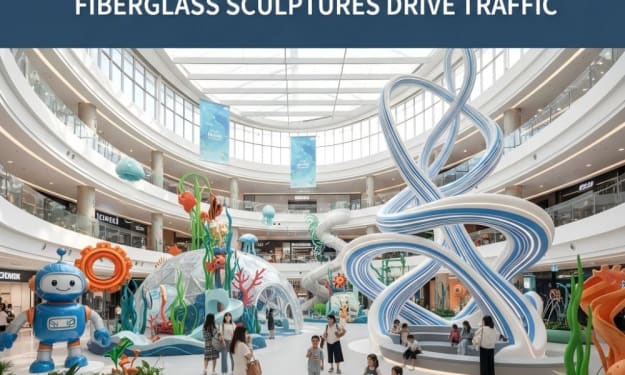
2026 Commercial Space Design:How Fbierglass Sculpture Drives Traffic
Today, offline commercial spaces are facing continuous pressure. With e-commerce offering convenient and fast services, physical stores must showcase unique features to attract customers. In this context, fiberglass sculptures are no longer merely decorative items; they have become visual focal points in shopping malls, brand stores, pop-up shops, and mixed-use commercial projects, playing a crucial role in increasing foot traffic.
By Shenzhen Ruiheng Crafts5 days ago in Art
Why Strategic Branding Is Essential for Long-Term Business Growth
In today’s fast-paced digital environment, businesses face constant pressure to stand out. Consumers are exposed to endless choices every day, making attention harder to earn and trust harder to keep. While quality products and services are important, they are no longer the only factors that determine success. Strategic branding plays a key role in helping businesses grow steadily and remain relevant over time.
By Ayush Bagwari5 days ago in Art



Comments
There are no comments for this story
Be the first to respond and start the conversation.