
How to Get a QR Code for Google Reviews in Just a Few Easy Steps
QR Code for Google Reviews
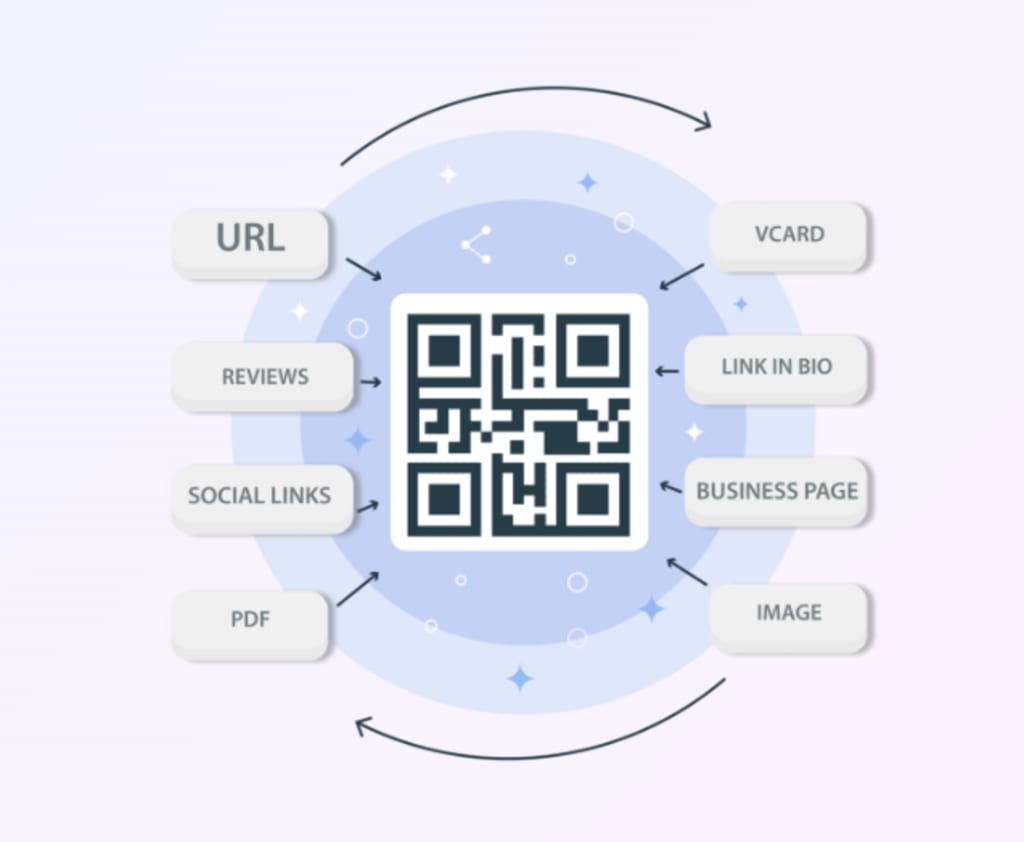
In the digital era, reviews are everything. Whether you’re a small business owner or a larger enterprise, online reviews—especially Google Reviews—play a significant role in attracting new customers and boosting your reputation. But how do you make it easier for your customers to leave a review? One highly effective method is by using a QR code for Google reviews.
In this blog post, we’ll explain how to get a QR code for Google reviews in just a few simple steps. Whether you’re tech-savvy or a complete beginner, this process is straightforward and can be done in minutes.
Why Should You Use a QR Code for Google Reviews?
Before we dive into how to get a QR code for Google reviews, let’s take a moment to understand why it’s such a powerful tool. A QR code for Google reviews acts as a shortcut to your business’s Google Review page. Instead of customers having to search for your business on Google or navigate to your review page, they can simply scan a QR code to leave feedback in seconds.
Here are some reasons why using a QR code for Google reviews is so effective:
Increased Engagement: Making it easy for customers to leave reviews encourages more of them to do so.
Convenience: Customers don’t need to search for your business online. They just scan the code and go straight to your review page.
Better Conversion Rate: The fewer the steps, the more likely customers are to leave a review, leading to a higher number of positive reviews.
Now that we understand why it’s beneficial, let’s jump into the process of getting a QR code for Google reviews.
Step 1: Find Your Google Reviews Link
The first thing you need to do to get a QR code for Google reviews is to grab your Google Reviews link. This link will be embedded in the QR code, so it needs to point directly to your review page.
How to Find Your Google Review Link:
Search for Your Business on Google: Open Google and search for your business by name. Your Google Business Profile should appear on the right-hand side of the screen (on desktop) or at the top (on mobile).
Click on "Write a Review": Under your business name, you should see an option that says “Write a Review.” Click on it.
Copy the URL: After clicking on “Write a Review,” a new page will open, allowing customers to submit their reviews. Copy the URL from your browser’s address bar. This is the link you’ll use to create your QR code.
Alternatively, you can go directly to Google Maps, search for your business, and click “Write a Review” to get the link.
Step 2: Use a QR Code Generator to Create Your QR Code
Once you have your Google Reviews link, the next step is to generate the QR code for Google reviews. Fortunately, this is an easy process that can be completed using a free online tool.
How to Get a QR Code for Google Reviews:
Visit a QR Code Generator: Head over to a reliable QR code generator website. One excellent option is QR Generator Free, which is a user-friendly tool for creating QR codes at no cost.
Paste the Google Reviews Link: On the QR generator site, you will find a field where you can paste the link you copied earlier. Simply paste your Google Reviews link into this box.
Customize Your QR Code (Optional): Some QR code generators, including QR Generator Free, allow you to customize your QR code with different colors, logos, or designs. This step is optional, but adding your logo can make the QR code more recognizable and in line with your branding.
Generate the QR Code: Once you’ve pasted the link and customized the code (if desired), click the “Generate” button. Within a few seconds, your QR code will appear.
Download the QR Code: After the code is generated, you can download it in a variety of formats, such as PNG or JPEG. Now, your QR code for Google reviews is ready to be used!
Why Use QR Generator Free?
If you’re wondering why QR Generator Free is a great choice, here are a few reasons:
Easy to Use: You don’t need to be a tech expert to create your QR code. The process is intuitive and takes only a few steps.
Free to Use: You won’t have to pay for the service. It’s completely free, which is great for businesses on a budget.
Customization Options: You can add your logo and adjust colors to align the QR code with your business’s branding.
Step 3: Display Your QR Code for Google Reviews
Now that you’ve generated your QR code for Google reviews, it’s time to display it so your customers can scan it and leave feedback. The key to getting reviews is making the process as easy and visible as possible. Here are some ideas for where you can display your QR code:
Where to Display Your QR Code:
On Business Cards: Print the QR code on your business cards so that every customer can easily scan it and leave a review.
In-Store or Office Locations: Print the QR code and display it prominently in your store or office. Consider placing it near the checkout counter, on walls, or at customer service desks.
On Receipts: Add the QR code to your receipts as a reminder to customers to leave feedback after their purchase or interaction with your business.
On Your Website: Embed the QR code on your website, particularly on your contact or review pages. This gives website visitors a quick way to leave a review.
In Emails or Newsletters: If you send out newsletters or email campaigns, include the QR code with a call-to-action encouraging your customers to leave a review.
On Social Media: Share your QR code on your social media platforms, encouraging followers to scan it and leave a review.
Best Practices for Using Your QR Code
Make it Clear: When displaying your QR code, include a message like “Scan to leave a Google review” to help customers understand what action they should take.
Use a Call to Action: Encourage customers to leave a review by offering a simple incentive or reminding them how much their feedback helps your business.
Keep it Accessible: Ensure your QR code is easy to scan, with no obstructions or reflections.
Conclusion
Getting a QR code for Google reviews is a quick and effective way to boost your online reputation and encourage more feedback from your customers. By following these simple steps—finding your Google Reviews link, generating the QR code using a tool like QR Generator Free, and displaying it in strategic locations—you can make the review process much more convenient for your customers.
With more reviews, your business will gain higher visibility in search results, attract new customers, and strengthen its online credibility. Don’t wait—start using QR codes today to streamline your review process and improve your business’s reputation.


Comments
There are no comments for this story
Be the first to respond and start the conversation.