
How to Design a Professional Flyer with Canva (Step-by-Step Guide)
how to design a professional flyer with canva


How to Design a Professional Flyer with Canva (Step-by-Step Guide)
A well-designed flyer is one of the most effective tools for promoting an event, product, or service. Whether you're creating it for your own business or for a client, Canva makes flyer design easy and professional—even if you’re not a graphic designer.
In just a few easy steps, you'll learn how to create a professional flyer with Canva in this guide. Why Use Canva for Flyer Design?
Canva is a free, web-based design tool that’s perfect for beginners and professionals alike. It offers:
Thousands of ready-made templates
Drag-and-drop interface
Free access to fonts, images, and icons Ability to customize every element
Simple options for sharing and downloading Now, let’s go step by step.
Step 1: Sign in or Create a Free Canva Account
Go to www.canva.com and sign in with your Google, Facebook, or email account. If you don’t have an account, create one—it’s free.
You can also download the Canva app on your mobile phone or tablet, but using the desktop version is better for flyer design due to the larger screen.
Step 2: Search for Flyer Templates
When you are on the dashboard for Canva: Type “Flyer” in the search bar
Browse through thousands of professionally designed flyer templates
Select a template that is appropriate for your purpose (event, sale, announcement, etc.). Templates can be filtered by style or category (real estate, beauty, restaurant, etc.) (modern, minimalist, creative). Step 3: Selecting the Best Template When selecting a template, think about:
Your target audience
The idea you want to get across The brand's style or vibe Even though you’ll customize everything, starting with a strong template saves a lot of time and gives you structure.
Click on the template you like and it will open in the editor.
Step 4: Make the Text Your Own To edit any text in the template, click on it. Replace the text in the placeholder with your own text: Headline: Use a bold, eye-catching title (e.g., “Big Summer Sale” or “Join Our Fitness Bootcamp”)
Subheading: Add more context (e.g., “Up to 50% off – This Weekend Only”)
Details: Include crucial details like the date, time, location, price, or contact information. Call-to-action (CTA): Encourage the reader to take action (e.g., “Call Now”, “Visit Us”, “Scan to Register”)
Make sure the text is clear, concise, and easy to read from a distance.
Step 5: Change Fonts and Colors
To match your brand or theme:
To change the font's style, size, or color, click on any text box. Use no more than 2–3 fonts to keep it clean
Stick to a consistent color palette (you can use Canva’s default themes or your own brand colors)
For a professional look, use bold fonts for headlines and readable fonts for body text.
Step 6: Add or Replace Images
Visuals are key to grabbing attention. To change an image:
Click on the current photo and hit Delete
Go to “Elements” > “Photos” or “Uploads” to add your own image
You can also use free stock images from Canva’s library
Make sure the image is high-quality and relevant to the flyer’s message.
For example:
Use food images for a restaurant flyer
Use people working for a business flyer
Make a sales flyer with product images. Step 7: Insert Icons or Graphics (Optional)
Add icons or illustrations to make your flyer more visually engaging:
Go to “Elements”
Search for icons (like phone, location, social media, etc.)
Drag and drop them where needed
Keep it minimal—don’t overcrowd the design. Icons should support the message, not distract from it.
Step 8: Modify the spacing and layout Now, tweak your layout: Use Canva’s alignment guides to center text and images
Make sure there’s enough white space around elements
Keep everything balanced and easy to follow
A good rule is to group related content together and leave breathing space around important parts like the CTA.
Step 9: Review and Proofread
Before you finish:
Correct your spelling and grammar. Confirm all details (dates, phone numbers, URLs)
Ask yourself: does it clearly communicate the message?
A clean, typo-free flyer always leaves a better impression.
Step 10: Download or Share Your Flyer
Once you’re satisfied with your design:
Click the “Share” or “Download” button on the top right
Choose the format (PDF for printing, PNG or JPG for digital sharing)
For printing, select “PDF Print” and check “Crop Marks & Bleed” for best quality
You can also directly share it via email or social media from Canva.
Extra Advice for Professional Flyers: Keep the design simple and not too cluttered
Focus on one main message or offer
Use contrast (light background, dark text or vice versa)
Stay consistent with brand style and colors
Highlight the CTA clearly
Final Thoughts
Designing a professional flyer with Canva is easier than ever. With its user-friendly interface, stunning templates, and endless customization options, you can create flyers that look like they were made by a pro—even if you’re just starting out.
Whether you’re promoting a business, announcing an event, or offering a special deal, a well-designed flyer can help you stand out and attract attention.
So go ahead, open Canva, and start designing your first flyer today!
About the Creator
Abdul Wahed
I'm a passionate creator who believes words can inspire, educate, and connect. I transform real-life moments and insights into stories that spark thought and emotion. Join me on a journey of discovery, reflection, and meaningful growth.
Keep reading
More stories from Abdul Wahed and writers in Art and other communities.
How to Start Freelancing from Home
How to Start Freelancing from Home (Step-by-Step Guide) Freelancing is becoming one of the most adaptable and rewarding ways to make money online in today's digital world. You can work with international clients, set your own schedule, and earn from the comfort of your home. But how do you actually start freelancing from home? In this article, we’ll walk you through the exact steps to get started – even if you have no experience!
By Abdul Wahed9 months ago in Art
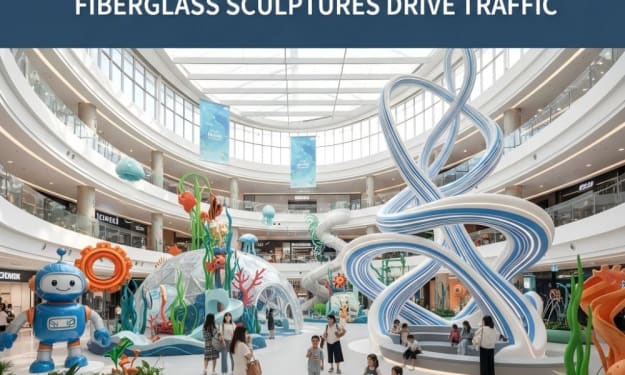
2026 Commercial Space Design:How Fbierglass Sculpture Drives Traffic
Today, offline commercial spaces are facing continuous pressure. With e-commerce offering convenient and fast services, physical stores must showcase unique features to attract customers. In this context, fiberglass sculptures are no longer merely decorative items; they have become visual focal points in shopping malls, brand stores, pop-up shops, and mixed-use commercial projects, playing a crucial role in increasing foot traffic.
By Shenzhen Ruiheng Crafts7 days ago in Art
Why Strategic Branding Is Essential for Long-Term Business Growth
In today’s fast-paced digital environment, businesses face constant pressure to stand out. Consumers are exposed to endless choices every day, making attention harder to earn and trust harder to keep. While quality products and services are important, they are no longer the only factors that determine success. Strategic branding plays a key role in helping businesses grow steadily and remain relevant over time.
By Ayush Bagwari6 days ago in Art



Comments
There are no comments for this story
Be the first to respond and start the conversation.