
How to Create a Box Mockup: A Complete Guide
How to Create a Box Mockup

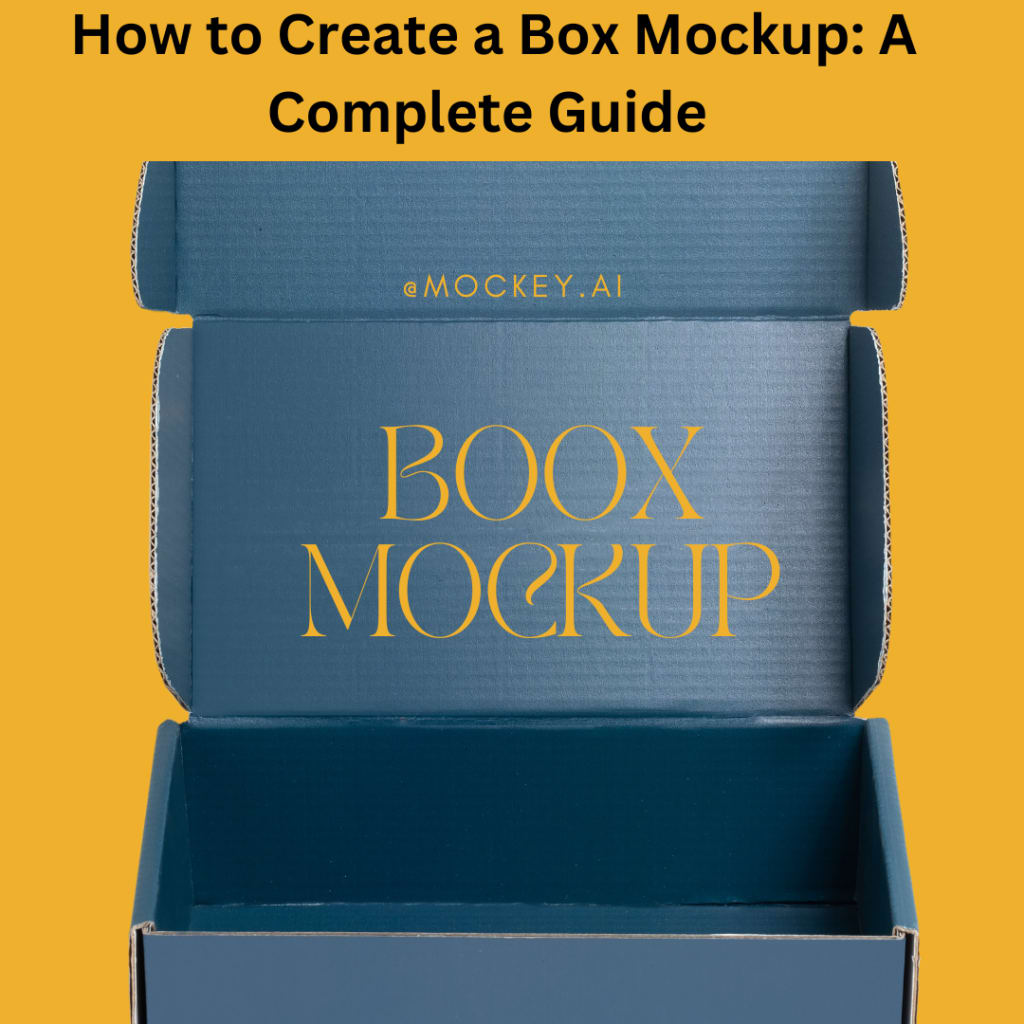
Creating a box mockup is an excellent way to bring your packaging designs to life. It helps you visualize how the product will look in real-world settings, communicate your ideas effectively, and make necessary changes before production. This blog covers everything you need to know about creating a box mockup, from understanding the basics to using advanced tools.
What is a Box Mockup?
A box mockup is a 3D digital or physical representation of a box or packaging. It shows your design in a realistic way, giving you and your clients an accurate preview of the final product. Mockups are commonly used for product packaging, e-commerce listings, marketing materials, and branding presentations.
Why Should You Create a Box Mockup?
- Professional Presentation: It enhances the visual appeal of your design, making it look polished and professional.
- Error Detection: Mockups help spot design flaws, such as misaligned logos or mismatched colors, before production.
- Client Approval: A realistic preview makes it easier for clients to understand and approve the design.
- Marketing Advantage: High-quality mockups are great for promoting products online and offline.
- Cost-Effective: Avoid costly mistakes in production by testing designs first.
Types of Box Mockups
There are different kinds of box mockups depending on the type of packaging you’re designing:
- Product Boxes: Used for consumer goods, electronics, or cosmetics.
- Mailer Boxes: Ideal for subscription boxes and e-commerce packaging.
- Gift Boxes: For events, luxury goods, or special occasions.
- Custom Shapes: Unique box shapes for niche industries.
Steps to Create a Box Mockup
1. Prepare Your Design Files
Before creating a mockup, finalize your packaging design. Make sure your files are in the correct format:
- Vector files for scalability (AI, EPS).
- Raster files for detailed imagery (PSD, PNG, JPEG).
- PDF for universal compatibility.
2. Select a Box Mockup Style
Decide how you want to present the mockup. Do you need a flat layout, 3D representation, or a lifestyle mockup?
- Flat Layout: Displays the box template without assembly. Ideal for initial design reviews.
- 3D Mockup: Shows the box in a fully assembled state from various angles.
- Lifestyle Mockup: Places the box in a realistic environment, such as on a shelf or next to a product.
3. Choose the Right Tool or Software
Your choice of tool depends on your skill level and the complexity of the mockup.
For Beginners:
- Canva: Simple drag-and-drop editor with mockup templates.
- Placeit: User-friendly mockup generator with pre-designed templates.
For Intermediate Users:
- Adobe Photoshop: Offers customization with PSD mockup files.
- Smartmockups: Provides a library of templates for quick editing.
For Advanced Designers:
- Blender: 3D modeling software for custom box designs.
- Adobe Dimension: Great for creating high-quality, photorealistic 3D mockups.
4. Create Your Box Mockup in Photoshop
Step-by-Step Process:
- Download a PSD Template: Websites like Freepik, GraphicBurger, or Mockup World have free and premium templates.
- Open in Photoshop: Load the file and locate the “Smart Object” layer.
- Insert Your Design: Double-click the Smart Object, paste your artwork, and save changes.
- Customize Details: Adjust lighting, shadows, and colors to match your vision.
- Export the Final Mockup: Save as a high-quality image (PNG, JPEG) for sharing or printing.
Common Mistakes to Avoid
- Using Low-Resolution Images: This leads to pixelation and unprofessional results.
- Overcomplicating the Design: Keep the mockup clean and focused on the box.
- Ignoring Context: A plain mockup might not resonate; add a suitable background.
- Skipping Customization: Always tweak colors, textures, and angles for a unique presentation.
Tips to Improve Your Box Mockups
- Always Proofread: Check for typos in text and ensure logos are placed correctly.
- Test Colors: View your mockup on different devices to ensure colors appear consistent.
- Save in Multiple Formats: Export in PNG for transparency, JPEG for compression, and PDF for printing.
- Seek Feedback: Share the mockup with teammates or clients for suggestions.
Conclusion
Creating a box mockup is a vital part of the design and packaging process. It bridges the gap between concept and reality, ensuring your ideas are presented clearly and effectively. Whether you use Photoshop, Canva, or online tools like Placeit, the key is to focus on quality and attention to detail. Follow these steps, and you’ll create stunning box mockups that impress clients and elevate your projects.
By leveraging the right tools and focusing on quality and details, you can create stunning box mockups that not only impress clients but also give you confidence in your design before moving to production. Give a box mockup generator a try, and elevate your packaging design game today!
Let us know your favorite tools and tips for making box mockups!
also read:
How to Create a Magazine Mockup: A Step-by-Step Guide
About the Creator
ladali official
I am a content creator with a love for storytelling and turning ideas into visuals that captivate and connect. I focus on creating engaging, high-quality content that speaks to audiences across platforms
Keep reading
More stories from ladali official and writers in Art and other communities.
Premium vs. Free Magazine Mockups: Which Should You Choose?
Designing a magazine mockup is a key step in presenting your work professionally. Whether you're a designer, marketer, or business owner, the choice between premium and free magazine mockups can be challenging. Each option has its advantages and drawbacks, and understanding them will help you make the best decision for your project.
By ladali officialabout a year ago in Art
Ida shaghoian and the Inner Geography of Painting
In contemporary painting, the most compelling work often resists easy definition. It lingers, unfolds, and asks the viewer to participate emotionally rather than observe from a distance. Ida shaghoian belongs to this tradition. Her paintings explore the fluid relationship between memory, feeling, and the natural world, creating spaces that feel both deeply personal and widely resonant. Through a refined balance of abstraction and suggestion, her work challenges conventional ideas of place, time, and perception.
By Ida Shaghoian6 days ago in Art



Comments
There are no comments for this story
Be the first to respond and start the conversation.