
Which is the Best Free DVD Burner for Mac in 2025?
Read this comprehensive guide to find the best DVD burning software for macOS!

Choosing the right DVD burner for Mac isn't always simple. Mac users need software that supports a wide range of file types, works with the latest Apple Silicon devices, and delivers steady burning speeds. Reliable menu editing, smooth performance, and proper support for external USB DVD drives are essential. Even minor compatibility issues or crashes can waste hours, so practical reliability should be your main concern. So I wrote this blog to help you pick the best DVD burning software for Mac.
Best DVD Burner for Mac: DVDFab DVD Creator
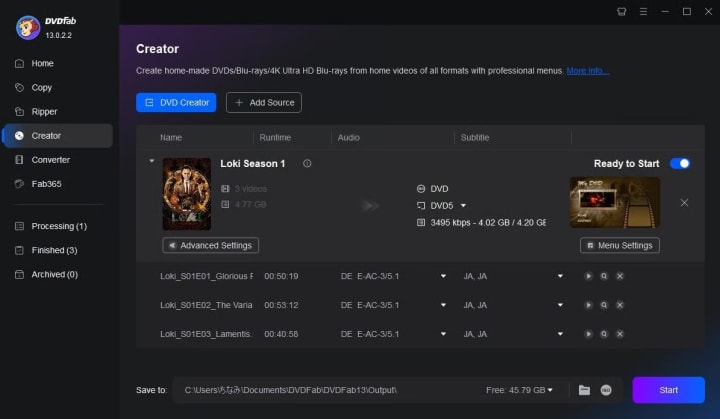
DVDFab DVD Creator is a DVD burner for Mac that focuses on creating DVD-Video with menu and chapter control. It supports common formats, creates the proper VIDEO_TS structure, and outputs to disc, folder, or ISO. The software includes static and animated menu templates, which help in producing playable discs for set-top players without complex technical work.
DVDFab features multi-core/GPU acceleration, customizable menu text and backgrounds, subtitle and audio track selection, and support for DVD-5/-9 formats. It's part of the DVDFab 13 suite for Mac, and recent updates have added video-editing tools. I find it useful that it allows me to save ISO files for verification before burning.
Although DVDFab is a commercial tool, it offers an all-in-one solution for users who need reliable DVD burning on Mac without separate encoders. It is heavier than simpler tools, but I find it offers strong menu quality, format support, and ongoing updates for macOS.
User Feedback:
- Works reliably on both Intel and Apple Silicon Macs
- Supports a wide range of video formats
- Offers flexible menu customization with various templates
- Makes it easy to prepare batch projects
- Burning process is quick and stable
Dedicated DVD Burner for Mac: Burn
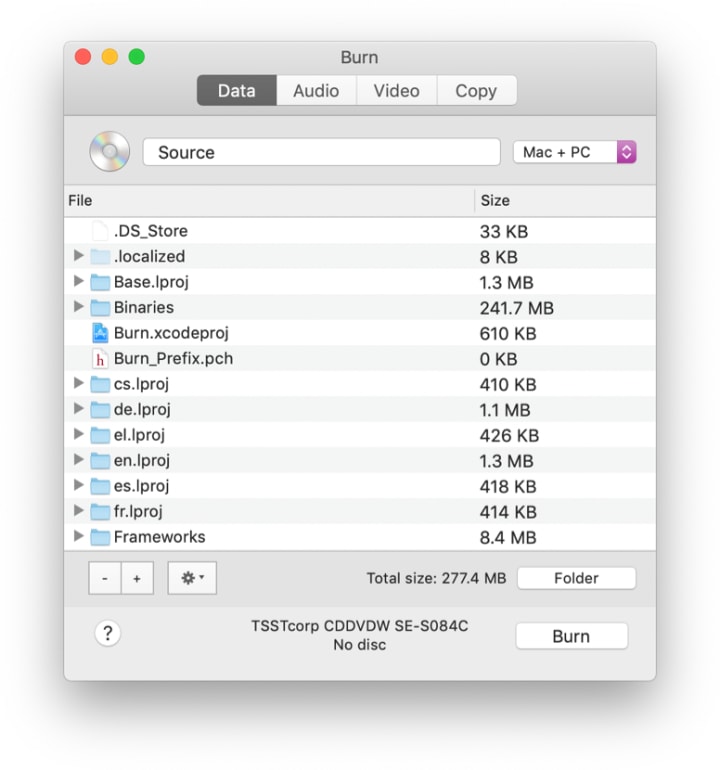
Burn is a long-standing, free DVD burners for Mac that's useful for tasks involving data, audio, and video discs. It can create DVD-Video from movies and build interactive menus using built-in themes. The interface is simple, which makes it great for occasional projects, especially on older Macs.
Burn supports Audio CDs, MP3 discs, DVD-Audio, VideoCD, DivX, and DVD-Video. It also offers various file-system options and includes an inspector for metadata. It uses open-source backends like ffmpeg, DVDauthor, and spumux, with the latest builds available for macOS 10.9+.
Burn is good for basic DVD burning on a MacBook with light authoring and simple menus. However, it lacks advanced template designs and deeper menu logic, so success depends on the quality of the source files. I rate it highly among free tools because of its simplicity and built-in menu options.
User Feedback: Pros
- Simple and easy to use
- No complicated settings
- Useful for standard or legacy DVD projects
- Functions well for quick home video jobs
User Feedback: Cons
- Crashes occasionally on newer macOS versions
- Limited menu and customization options
- Struggles with some modern codecs or large projects
- Discs might not play on all standalone DVD players
- Updates are infrequent and may not keep up with macOS updates
Free DVD Burning Software for Mac: SimplyBurns
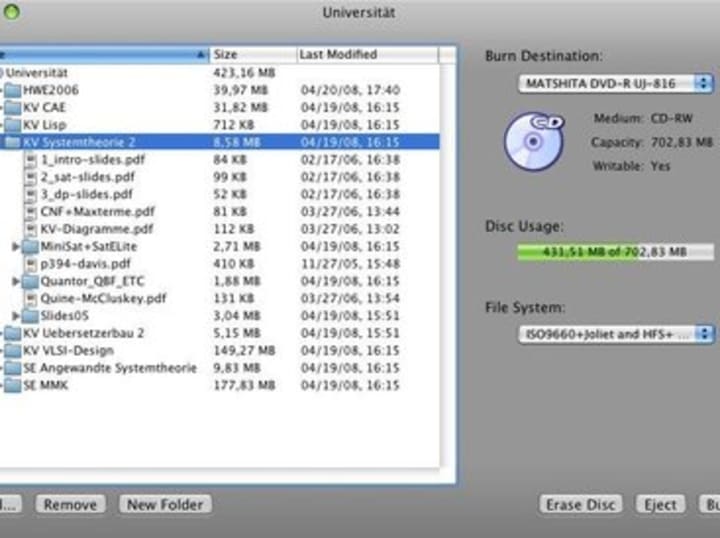
SimplyBurns is a free, open-source Mac utility useful for basic tasks like burning Audio CDs, data discs, and simple disc duplication. Its minimal interface makes it easy to go from files to disc quickly, which is great for those who need to archive small amounts of data.
SimplyBurns supports Audio CD, Data, Burn Image (ISO/DMG), and Duplication. It's available through SourceForge, MajorGeeks, and MacUpdate. It's good for straightforward burning tasks, and its lightweight footprint is a plus.
However, SimplyBurns lacks DVD-Video menu creation and doesn't have modern UI features. Development has slowed compared to other tools.
User Feedback: Pros
- Completely free and open source
- Easy to learn and operate
- Minimal footprint, ideal for very simple tasks
- Good choice for basic backups or transferring files
User Feedback: Cons
- Development is no longer active; lacks updates for the newest macOS
- Inconsistent performance on Apple Silicon or with Ventura/Sonoma
- Limited support for modern video codecs and large files
- No advanced menu customization
- Occasional errors or failed burns on current macOS
Free DVD Burning Software for Macintosh: DVDStyler
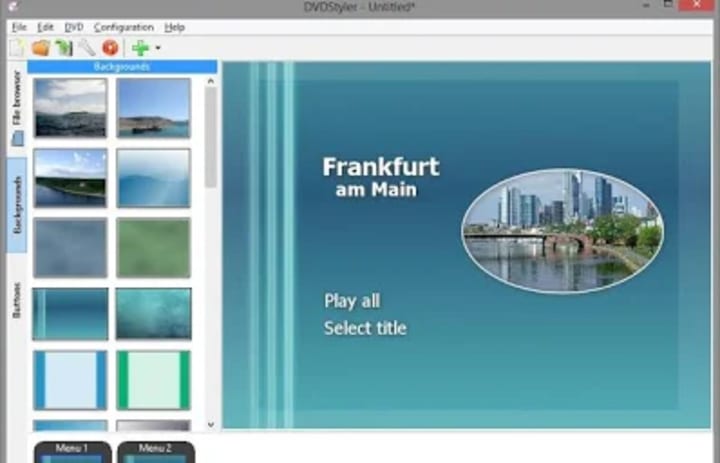
DVDStyler is a free, cross-platform DVD burning software on Mac that focuses on creating menu-driven DVD-Video. It allows for custom menu layouts with buttons, backgrounds, and chapters, and outputs a playable disc for most set-top players. It's a good option for those who want more control over their DVD projects without paid tools.
DVDStyler supports subtitle and audio track assignments, and works with various video formats. I've used version 3.x on macOS, which works well, though the interface may be less intuitive for beginners. Pairing with VLC for previews is common.
DVDStyler is great for users who need free DVD-Video authoring with menu control. However, it depends on external encoders, and the menu creation process can be time-consuming.
User Feedback: Pros
- Strong menu customization in a free tool
- Open source, with no watermark on output
- Accepts most standard video files
- Suitable for making family video DVDs, teaching materials, or creative projects
User Feedback: Cons
- Interface can feel dated or confusing at first
- Occasional compatibility issues with the latest macOS versions
- Longer processing times compared to paid apps
- Sometimes produces discs that don't play on all standalone DVD players
- Less stable when handling very large files or projects
Bonus: A Tutorial on the Best DVD Burning Software for Mac
For Mac users, burning a DVD with DVDFab DVD Creator is a clear, three-stage process.
Start by organizing your video and audio files into a dedicated folder. Rename them as needed for sequence or menu labels. Connect your external DVD drive and insert a blank, high-quality disc.
Next, open DVDFab, import your files, and select a menu template. Customize the menu by adding backgrounds or adjusting chapters. You can add subtitles or audio tracks here. Preview the project to ensure everything looks good before moving forward.
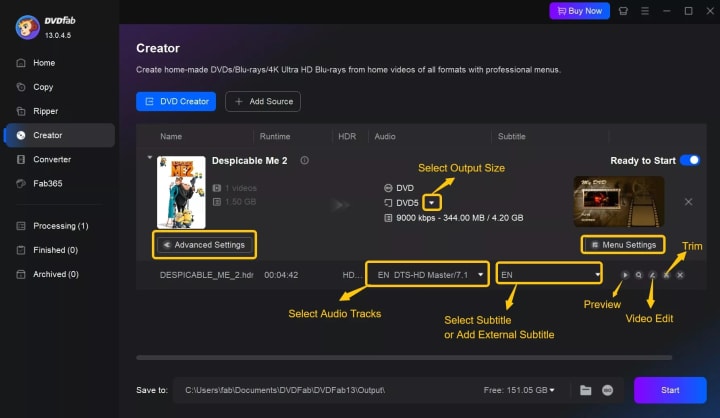
Finally, insert your blank DVD and check that DVDFab recognizes the burner. Click the burn button, and the software will write your files to the disc, assemble the menu, and show progress. Once done, eject the DVD and test it on a computer or standalone player to confirm everything is correct.
Q&A:
Is it legal to burn DVDs from online downloads or streaming platforms?
Burning DVDs for personal use from original content is usually allowed. However, copying DVDs from copyrighted movies or streaming services without permission may be illegal in your country. Always check local copyright laws and only use legally obtained material.
Do I need an external DVD burner for new Mac models?
Yes, newer MacBooks and iMacs do not include built-in optical drives. You will need a reliable external USB DVD burner that is compatible with your macOS version and can handle the required burn speeds.
How can I improve the success rate of DVD burning on Mac?
Use high-quality blank DVDs, keep your software updated, and avoid multitasking with resource-heavy apps during burning. Organize your files and menu setup before starting, and always preview the project to catch any mistakes early.
Conclusion
A reliable DVD burner for Mac is still useful for those needing backups or sharing projects. Free software works for simple tasks on older Macs, but modern compatibility issues remain. DVDFab DVD Creator stands out for stability, speed, and menu features, making it a solid choice for new Mac users. For most users, dedicated DVD burning software ensures better results and fewer frustrations.
About the Creator
Wenny
Hi there, I'm Wenny, a technical writer sharing multimedia solutions accessible for everyone. Read my articles to turn "how?" into "let's do it!"
ICO Marketing Explained: A Beginner’s Roadmap for 2026
The blockchain industry continues to evolve rapidly, and Initial Coin Offerings (ICOs) remain one of the most powerful fundraising mechanisms for blockchain startups and Web3 projects. Even though the crypto market has matured significantly over the past decade, ICOs in 2026 are experiencing a resurgence due to improved regulatory clarity, stronger investor protection frameworks, and advanced marketing technologies that help projects reach a global audience. However, launching a successful ICO is not just about developing a great blockchain product; it requires a well-structured marketing strategy that builds trust, generates awareness, and attracts the right investors. ICO marketing has transformed dramatically compared to the early days of crypto fundraising. In the past, many projects relied on hype and aggressive promotion to raise funds, but today's investors are far more informed and cautious. They expect transparency, detailed roadmaps, credible teams, and strong community engagement before investing in a token sale. As a result, ICO marketing in 2026 focuses on strategic storytelling, community building, influencer collaborations, data-driven campaigns, and regulatory compliance.
By Jack santo4 days ago in 01
Taxi Booking App Development Cost: Full Guide (2026)
Building a ride-sharing platform today is like trying to fix a plane while it is flying. You want a piece of that Uber pie, but the entry price is steep. I have seen founders dump six figures into a "simple" app only to watch it crash during the first load test.
By Sherry Walker6 days ago in 01


Comments
There are no comments for this story
Be the first to respond and start the conversation.