
Understanding BDMV Files and BDMV to MP4 Conversion
Converting BDMV to MP4 can reduce file size, improve streaming performance, and more

Understanding BDMV files
BDMV is the core directory of a Blu-ray Disc, which contains several subfolders and files for organizing and storing multimedia content on Blu-ray Discs. Its structure usually includes the following:
STREAM folder: stores video and audio data, mainly in the file format .m2ts (MPEG-2 Transport Stream). These files are the actual media content of the Blu-ray Disc.
CLIPINF folder: Contains clip information files (.clpi) that provide metadata (such as timecode, frame rate, etc.) associated with .m2ts files.
PLAYLIST folder: holds playlist files (.mpls) that define how .m2ts files are played (e.g., chapter order, seamless switching, etc.).
BACKUP folder: contains a backup of the key files in the BDMV folder.
INDEX.BDMV and MOVIEOBJ.BDMV: These files are the index and menu files for Blu-ray Discs and are used to define the structure and playback order of the disc.
Features of BDMV
- High quality video and audio
BDMV files typically contain high-resolution video (e.g., 1080p or 4K) and lossless audio (e.g., DTS-HD or Dolby TrueHD), providing an excellent audiovisual experience.
- Complex Layered Structure
BDMV is not a single file, but a hierarchical folder structure containing multiple subfolders and files.
- Large File Size
Due to the high quality content of Blu-ray Discs, BDMV files are often very large and a movie may require dozens of gigabytes of storage space.
- Limited compatibility
Most media players cannot play BDMV files directly, as they require a specific Blu-ray player or software to parse them.
- Encryption protection
Many commercial Blu-ray Discs use AACS (Advanced Content Access System) or BD+ encryption, which needs to be decrypted to access BDMV content.
Application Scenarios of BDMV
Blu-ray Disc Production: BDMV format is the standard structure of Blu-ray Disc for storing movies, TV series and other multimedia contents.
High-fidelity audio and video storage: BDMV allows users to retain the high quality content of Blu-ray Discs for backup or offline playback.
Professional Editing and Processing: The structure of BDMV allows complex editing and playback control, suitable for professional movie and TV production.
Why Convert BDMV to MP4?
1. Improved compatibility
Broad support: The MP4 format is compatible with virtually all popular devices and platforms, including Windows, macOS, smartphones, tablets, smart TVs and streaming devices. BDMV files, on the other hand, require a specific Blu-ray player or software to play.
No special software required: MP4 files can be played directly on most media players (e.g. VLC, Windows Media Player, QuickTime), while BDMV files require specialized software (e.g. PowerDVD or MakeMKV).
2. Reduced File Size
Efficient compression: MP4 uses efficient video codecs (such as H.264 or H.265), which can significantly reduce file size while maintaining high picture quality. MP4 is more suitable for storage and transmission than the huge files of BDMV.
3. Easy editing and processing
High compatibility: MP4 files can be directly imported and edited by most video editing software (e.g. Adobe Premiere Pro, Final Cut Pro, DaVinci Resolve).
Flexible processing: The MP4 format supports a wide range of codecs and parameter settings, allowing users to adjust resolution and bitrate as needed.
Top tools for converting BDMV to MP4
Method 1: DVDFab Blu-ray Ripper
DVDFab Blu-ray Ripper is a paid software specifically designed to rip Blu-ray discs and convert them into various formats, including MP4.
Steps to Convert BDMV to MP4 using DVDFab Blu-ray Ripper:
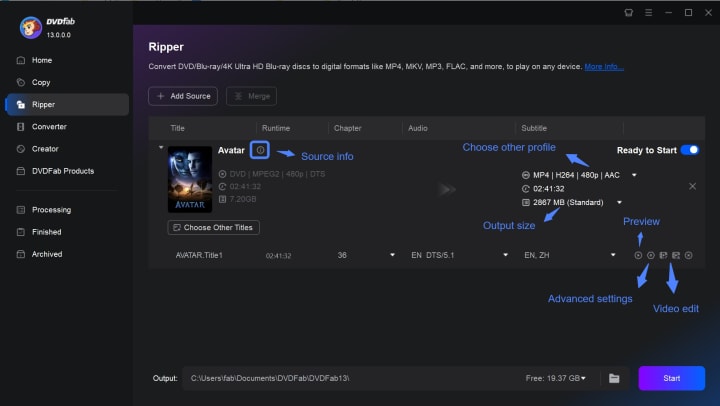
Step 1: Download and install the software from the official website, then launch DVDFab Blu-ray Ripper.
Step 2: Click the “Blu-ray Ripper” option on the main interface. Drag and drop the BDMV folder into the software, or manually select the path of the BDMV folder.
Step 3: Select MP4 in the Output Format option, choose a preset MP4 profile (such as 1080p, 720p, etc.) or customize the video and audio parameters (such as bitrate, frame rate, etc.) as needed.
Step 4: After confirming the settings, click the “Start” button. The conversion process will be carried out automatically, and you will be prompted to save the location when it is finished.
Method 2: MakeMKV + HandBrake
MakeMKV and HandBrake are two free tools that can be used in combination for BDMV to MP4 conversion. MakeMKV is used to decrypt and extract .m2ts files, while HandBrake is used to convert extracted files to MP4.
Steps to Convert BDMV to MP4 using MakeMKV and HandBrake
Step 1: Download and install these two programs from the official websites.
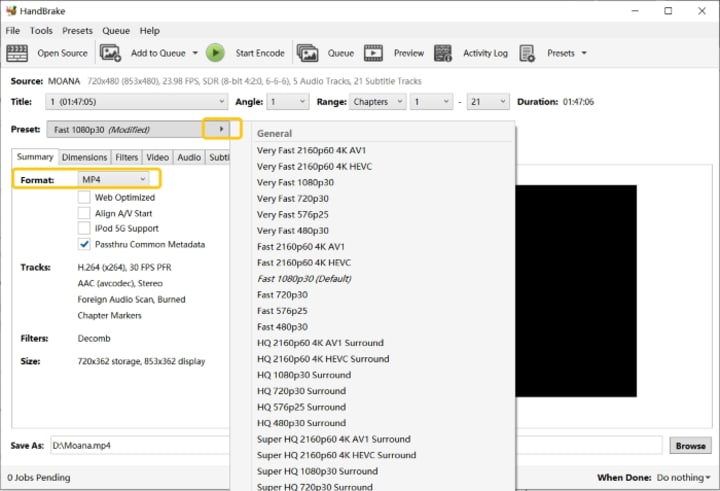
Step 2: Open MakeMKV and load the BDMV folder (MakeMKV will automatically decrypt it if it is encrypted). After that, select the .m2ts file you want to extract (usually the longest file, i.e. the main movie file) and save it in MKV format.
Step 3: Open HandBrake and drag and drop the extracted MKV file into the interface.
Select MP4 format in “Output Settings”. Adjust the video parameters (e.g. resolution, bitrate, encoder, etc.) as needed, or select a preset profile.
Step 4: In the last step, click “Start Encoding” button, HandBrake will convert MKV files to MP4.
Conclusion
Both methods can effectively convert BDMV to MP4. If you need an easy-to-use tool and are willing to pay for it, DVDFab Blu-ray Ripper is the best choice. If you prefer free tools and are willing to spend more time to finish the conversion, MakeMKV + HandBrake is the ideal combination.
About the Creator
Diana
I’m a passionate Blu-ray collector who loves preserving the magic of physical media. Every now and then, I enjoy burning precious family videos onto discs, keeping memories alive in a tangible way.
App Development Cost and Timeline: St. Louis 2026
Estimating the App Development Cost and Timeline: St. Louis 2026 requires deep research. It requires more than just a surface-level quote. You must understand the Midwest’s evolving tech ecosystem. St. Louis-based founders face a unique "sweet spot" in 2026. You are operating in a major technical hub. It combines the technical rigor of coastal standards. It also offers the fiscal advantages of a regional talent pool.
By Del Rosarioabout 17 hours ago in 01
Dating App Development Cost: 2026 Pricing Guide
Building a dating app in 2026 isn't just about swiping anymore, mate. I remember helping a pal try to launch a niche app for dog owners. We thought it would be a breeze. Boy, were we wrong about the actual dating app development cost.
By Samantha Blake3 days ago in 01



Comments
There are no comments for this story
Be the first to respond and start the conversation.