
How to Copy DVD on Mac with 3 Reliable DVD Copy Tools
Share popular DVD copy software for macOS and how to use it to backup your DVDs for personal use.

Copying and backing up your DVDs is the best way to preserve memories. After all, as a DVD enthusiast, I don't want the precious DVDs I collected more than ten years ago to be completely destroyed because they are scratched and cannot be played. In this article, I will share ways that I usually use to copy DVD on Mac for back up both home-made and copy-protected DVDs.
How to Copy DVD on Mac with Disk Utility [Non-Protected DVD]
Backup home movie DVDs is an easy job with the help of Disk Utility. You don't need to install additional DVD copy software for Macs to handle this process. An optical drive needs to be connected to your MacBook Air/Pro to read the DVD and initial the Mac copying DVDs. Follow the steps below:
Step 1: Insert the disc into the drive. If it starts to auto-play, stop it and exit the player window.
Step 2: Go to Applications > Utilities > Disk Utility, you can also open the Dock and search it.
Step 3: Select the DVD title under the "External" in the left panel and then go to File > New image > Image from [disc title] on the top bar menu.
Step 4: Enter a file name and select a save location in the popup Menu. Leave the format as read-only; If you want to get a smaller size, choose "Compress." Tap "Save" and then "Done."
Step 5: Wait for the compress to complete. Disk Utility will create the disk image file in the selected output path.
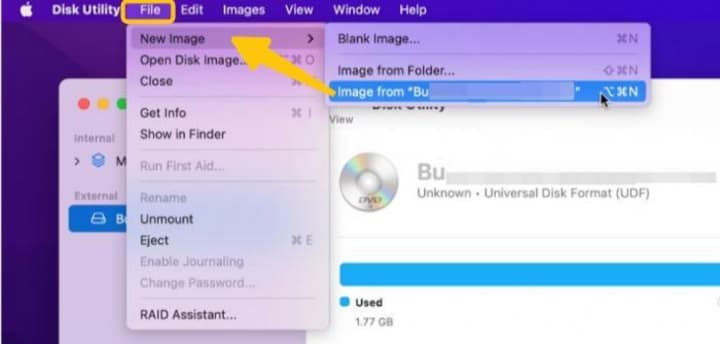
Now, you have successfully created a disk image file with the extension .cdr, effectively copying the DVD on your Mac. However, if you want to copy the DVD onto a blank disc, you need to complete the following steps:
Step 1: Remove the original DVD from your drive and insert a blank disc.
Step 2: Depending on your macOS version, you can write the disk image to the blank DVD using either Finder or Disk Utility:
If you are using macOS El Capitan 10.11 or later, you can use Finder to burn the disk image:
- In Finder, right-click (or Control-click) the .cdr (or .iso) disk image file and select Burn to Disc….
- Choose your DVD drive, set the desired burn speed, make sure the Verify option is enabled, then click Burn to begin burning.
If you are using El Capitan 10.11 or earlier, you should use Disk Utility to burn the disc:
- Launch Disk Utility and highlight the .cdr file or its mounted volume in the sidebar.
- Press the Burn button (or select Burn from the menu), pick the burn speed, enable Verify, and then confirm by clicking Burn once more. Now the copying process starts.
How to Copy DVD on Mac [Protected DVD]
Since Disk Utility does not support decrypting copy-protected DVDs and many commercial DVDs come with encryption, you will need third-party software to bypass these protections and successfully copy such DVDs on Mac.
How to Copy DVD on Mac with DVDFab DVD Copy [1:1 Copy]
For commercial DVDs, which are usually copy-protected, you can use dedicated DVD copy software for Macs to bypass protections and copy them on your macOS. In this section, we will introduce the best DVD copy software for macOS to show you how to back up and copy DVD movies to your hard drive on a Mac.
DVDFab DVD Copy Software is a professional DVD copy Macintosh application, compatible with both Intel and Apple chip versions across macOS 10.10 to 15.x. This tool provides six Mac copying DVD modes, allowing you to easily copy DVDs more accurately. With Clone/Burn mode, you can make a 1:1 copy of the DVD, while Full Disc and Main Movie allow you to copy the full content or just the main title of the DVD. If you are looking for a stylish way to backup DVDs, you can use Customize mode to keep the titles you want and drop those you don't need; and use Merge mode to combine titles from different DVDs into one DVD, or use Split mode to effortlessly split a single DVD into two DVD-5s without worry about quality loss.
One of the standout features of DVDFab DVD Copy is its ability to handle both new and old DVD protections, such as region code, CSS, DADC, etc. It also offers the capability to shrink DVDs to save disk space, making it a versatile choice for backups of your DVD collections.
Available: macOS 10.10 - 15.x, Windows 11/10/8.1/8/7
Tutorial on Using this DVD Copy Software on Mac
Step 1. Download DVDFab and move it to the Applications folder on your Mac. DVDFab DVD Copy is included as a module in the DVDFab program.
Step 2. Launch DVDFab 13 and choose the Copy module on the left pane.
Step 3. Insert the DVD you wish to copy into the optical drive and wait for DVDFab to automatically load and analyze the DVD. If you want to burn a DVD ISO or folder to a blank DVD, you can use the "+Add" button to proceed.
Step 4. Click the blue mode button to choose the Copy mode as needed.
With Full Disc and Clone modes, you can copy the entire DVD content; if you want to playback only the main feature, then pick the Main Movie mode.
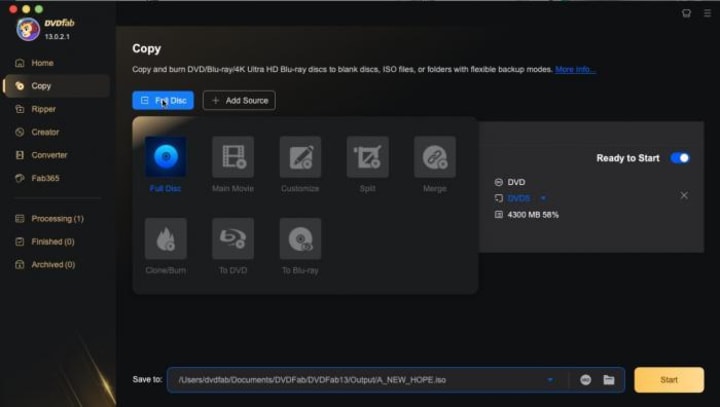
Step 5. In this case, we will use Main Movie mode as an example to show you how to customize the title. You switch to another movie title on the "Choose Other Titles" panel. Adjust the chapter range, choose the needed audio tracks and subtitles, and then unselect those unwanted. Then set the output DVD size (DVD9/DVD5).
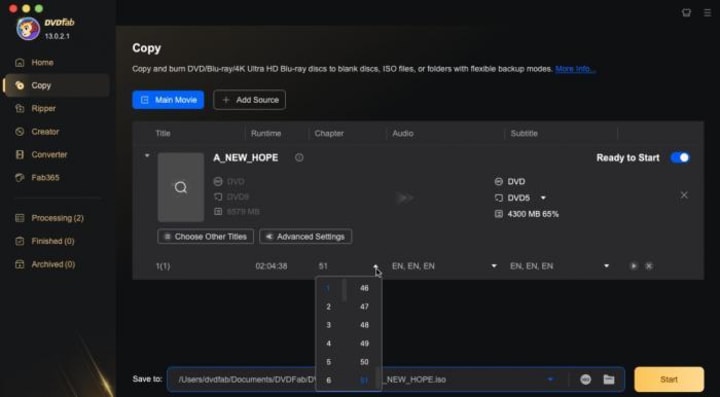
Step 6. Modify the output directory as an ISO file, folder, or drive/burner if you want to burn a blank disc. And then hit the Start button to copy the DVD on your Mac. You can set DVDFab to automatically shut down your Mac when the task is finished, so you don't need to monitor it.
How to Copy DVD on Mac as Digital Files with DVDFab DVD Ripper
There is also a more flexible way to copy DVDs by converting them into widely compatible digital formats like MP4, AVI, MOV, and more. This allows you to play your copied files on various devices instead of being limited to a DVD player. If you prefer this method, DVDFab DVD Ripper can help you copy DVDs on Mac as digital files.
This DVD copy software for Mac supports converting DVDs, ISO images, and folders into over 1000 popular audio and video formats such as MP4, MKV, AVI, MOV, MP3, and more. It can bypass encryption, features GPU acceleration, and includes a built-in video editor along with advanced settings to adjust output quality, making DVD copying on Mac more convenient and customizable.
Available: macOS 10.10 - 15.x, Windows 11/10/8.1/8/7
Tutorial on Using this DVDFab DVD Ripper on Mac
Step 1. Install and launch DVDFab 13 on your Mac. Insert the DVD into your drive, and the software will recognize and load it automatically. Alternatively, you can drag and drop the DVD files directly into the program's main window.
Step 2. Select the "Choose Other Profile" option to pick the desired output format.
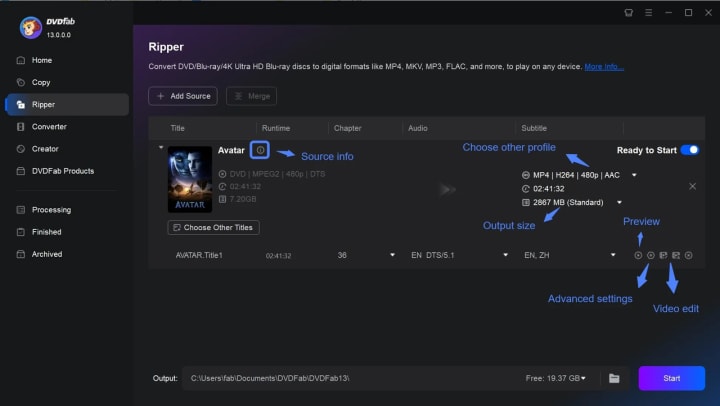
Step 3. Access the Advanced Settings to customize video and audio options such as codec type, resolution, quality, bitrate, and frame rate.
There is also a video editing module, which lets you modify aspects like playback speed, audio settings, contrast, brightness, saturation, and allows you to crop or trim the footage. You can also insert external subtitles, or add text, image watermarks, and various effects for customization.
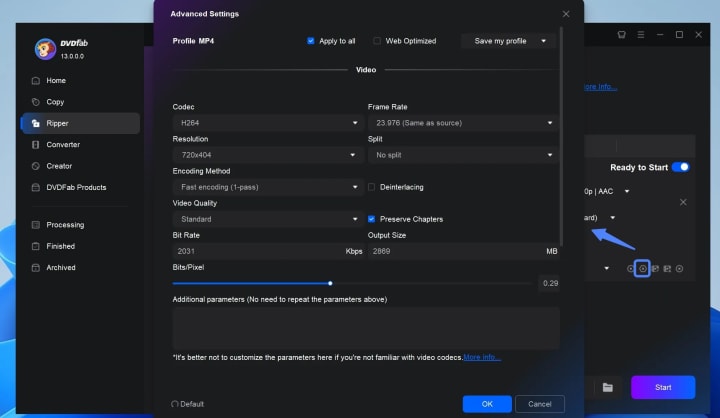
Step 4: Press the Start button to begin copying the DVD on your Mac.
FAQ about DVD Copy Software for Macs
How to Copy a DVD on a Mac without 3-party DVD copy software for Macintosh?
If you are trying to copy a DVD that doesn't contain any copy protection, you can use the "Duplicate" feature to copy a DVD Mac in addition to the Disk Utility. It is a built-in feature of Mac. You can simply choose the DVD file you wish to copy, switch to "File" in the Finder window, and choose "Duplicate".
How to Copy a DVD to ISO with Original Quality (1:1)?
You can use the applications mentioned in this article to help you copy DVD Mac as an ISO image file. For example, you can use the "Clone/Burn" mode in DVDFab DVD Copy, and click the ISO icon next to the SAVE TO field to save the DVD to your hard drive as ISO in original quality with ease. If you only want the main movie part, then use the Main Movie mode, and then select DVD9 for output, also select ISO as output type to proceed.
Disclaimer
Please note that DVD copying should be done strictly for personal backup purposes only. Unauthorized copying, distribution, or sharing of copyrighted DVDs may violate copyright laws in your country. Always ensure that you have the legal right to backup the DVDs you own and use these tools responsibly.
Conclusion
In conclusion, for non-protected DVDs, macOS's built-in Disk Utility provide easy and free solutions. However, for commercial, copy-protected DVDs, professional software like DVDFab DVD Copy is recommended. It offers powerful decryption capabilities, multiple copy modes, and flexible output options to ensure high-quality backups tailored to your needs. Whether you want a simple file copy, a full 1:1 ISO image, or customized content extraction, these tools make DVD copying on Mac efficient and accessible.
About the Creator
Wenny
Hi there, I'm Wenny, a technical writer sharing multimedia solutions accessible for everyone. Read my articles to turn "how?" into "let's do it!"
Italian Brainrot: Gen Alpha
If you walk through a bustling piazza in Milan or stand near a school gate in Rome during the afternoon rush, you might hear a conversation that feels like a glitch in the linguistic matrix. You’ll see a group of twelve-year-olds, dressed in matching tech-fleece tracksuits, shouting about "Skibidi," debating who has the most "Aura," and accusing each other of being from "Ohio." To anyone born before the year 2010, this sounds like a collective mental breakdown. But to the architects of this new reality—Generation Alpha—it is the only language that makes sense.
By Teodor Monescu7 days ago in 01
Data Anonymization Techniques to Ensure Privacy in Modern Enterprises
Enterprises today work with massive volumes of data coming from customers, users, employees, and digital systems. This data is critical for analytics, reporting, artificial intelligence, and strategic decision making. However, much of it contains sensitive or personal information that cannot be exposed or misused. With strict data privacy regulations and growing awareness around data protection, organizations must find a way to use data responsibly.
By Vinod Vasava3 days ago in 01


Comments
There are no comments for this story
Be the first to respond and start the conversation.