
Top 4 DVD Copy Protection Removal Tools for Windows and Mac
Explore the best DVD copy protection removal software for Windows and Mac and how to rip DVDs for personal and legal use.

DVDs have been in use for a long time, and despite the rise of OTT platforms and streaming services, they are still as popular as before. However, with the introduction of different DVD copying protection methods, you may face trouble copying the DVD content for backup. Stay tuned as this guide offers the 4 best DVD copy protection removal software for Windows and Mac for seamless entertainment.
Rip Copy-protected DVD with DVDFab DVD Ripper
DVDFab DVD Ripper is a seamless, efficient, and feature-rich software that handles and removes DVD copying protection and rips DVDs to digital formats in just 5 minutes. It can recognize and handle all kinds of new and old encryptions for smooth digital conversions.
Pros
- Supports ripping old and latest-released encrypted DVDs
- Rips DVDs in over 1000 digital formats and more than 260 device presets
- Enables conversion of bulk DVDs at 50x blazing speed with GPU acceleration
- Supports lossless compression for a high-quality output in reduced file size
- Built-in video editor to crop, trim, merge, add watermark and external subtitles, and do more processing to your video
- Upscale and enhance video from 490p to 1080p to improve the overall video quality
Cons
- Does not offer support for Linux computers
How to Rip Copy Protected DVD Using DVDFab DVD Ripper
Step 1: Launch the DVDFab software and open the Ripper module. Select the DVD to rip by tapping the Add Source button to navigate to the DVD drive. Your DVD will load into the Ripper tab. Drag them directly to the program's interface for ISO files and folders.
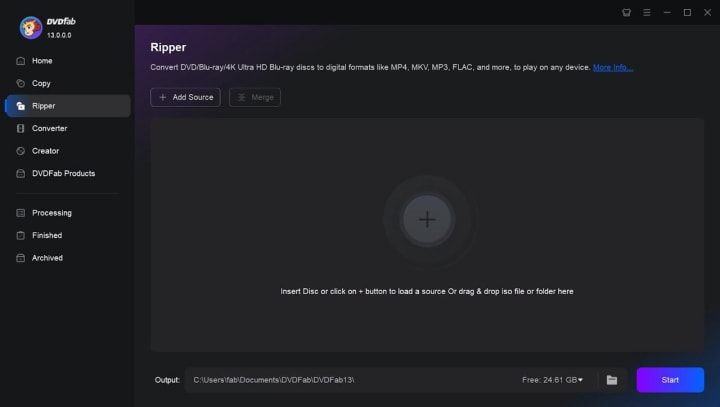
Step 2: DVDFab will automatically load and recognize the source to remove any copy protections from the DVD. Click the Info icon to see the DVD protections.
Tailor your profil's default settings to meet your requirements. Choose a preferred file format, get the audio track(s), or add subtitle(s) for a personalized output.
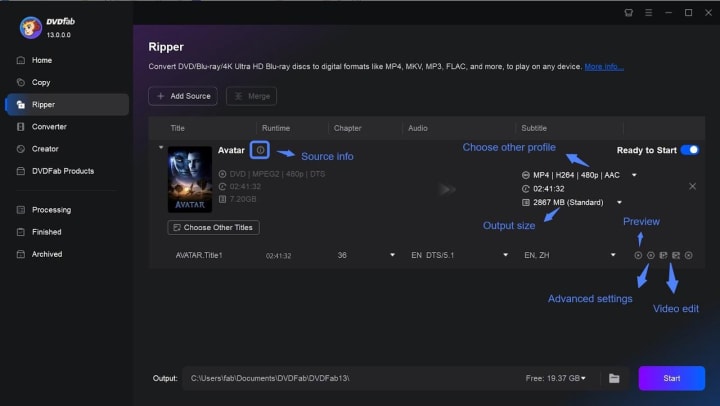
Step 3: Use the Advanced Settings and Video Edit options to fine-tune the audio and video parameters. Select the Save To tab to enter a destination path for your file before you proceed to remove DVD copy protection.
Step 4: Select the Start button to quickly rip copy protected DVD. You will see the progress on the main interface. The software lets you exit, hibernate, or shut down your computer upon the process completion. If necessary, cancel the task at any time.
Rip Decrypthed DVD with Passkey for DVD
Passkey for DVD is a powerful DVD copy protection removal Windows driver that can read and remove all kinds of DVD encryptions and region codes on the fly to make all DVDs accessible. It enables unrestricted access to any DVD movie in seconds without hassle.
Pros
- Works seamlessly with various software to copy, clone, burn, etc. Updates constantly with the latest decryption technologies to catch up with the newest DVD protections
- Makes all DVDs accessible to watch and enjoy with a region-specific drive or player software
- Offers flexible settings to provide an enhanced user experience
- Unprotects encrypted DVD discs on Windows to remove DVD copy protection and region codes
Cons
- Incompatible with Mac and Linux computers
How to Use the DVD Copy Protection Removal Software
Step 1: Tap twice to run Passkey 9 and select DVD from the primary interface. Navigate and tap the Start Passkey button. Passkey will launch and minimize automatically in the system tray. It will detect a DVD in your drive.
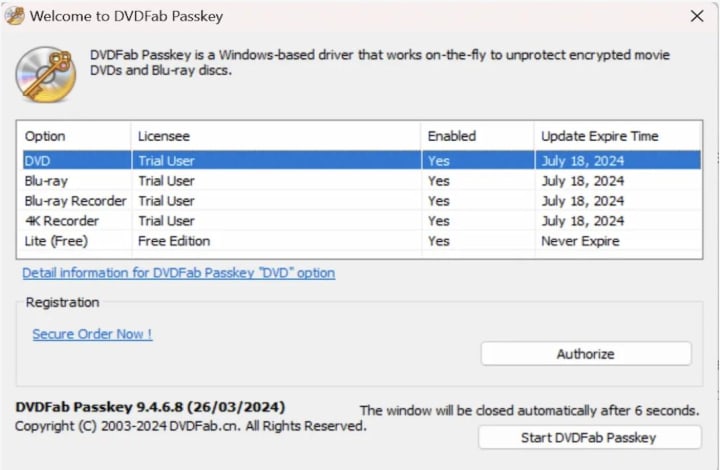
Step 2: Load your source disc in the drive, and the program will automatically start the decryption task. A small window will appear in the system tray area, indicating progress. The decryption will be complete when the green bar reaches the end.
The Passkey for DVD's interface details the source disc and its status, as well as removed protections for enhanced transparency.
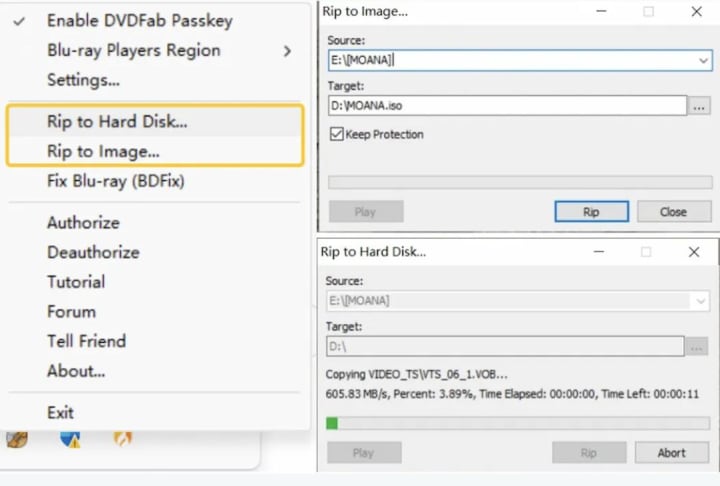
Step 3: Once decryption is complete, your DVD can play with any player. To rip it, right-click the Passkey icon minimized in the system tray and select Rip to Hard Disk or Rip to Image. In the pop-up window, select the output target.
Note: Checking the Keep Protection textbox while ripping creates a copy-protected ISO image of the DVD
Copy Copyright DVDs with MakeMKV
MakeMKV is a decent DVD copy protection removal software that can eliminate common copy protections, including region codes, from most DVDs and convert them into MKV formats. The program can stream decrypted video directly and is compatible with various players and devices.
Pros
- Reads DVDs and AACS/BD+ protected Blu-rays
- Retains chapter info, video/audio tracks, and HD audio
- Supports multiple tracks and chapters and is widely convertible
Cons
- Fails to bypass all kinds of DVDs
- Cannot select the output format other than MKV
How to Use MakeMKV to Remove DVD Copy Protection
Step 1: Download and install MakeMKV, then insert the copy-protected DVD into your computer's DVD drive to begin ripping.
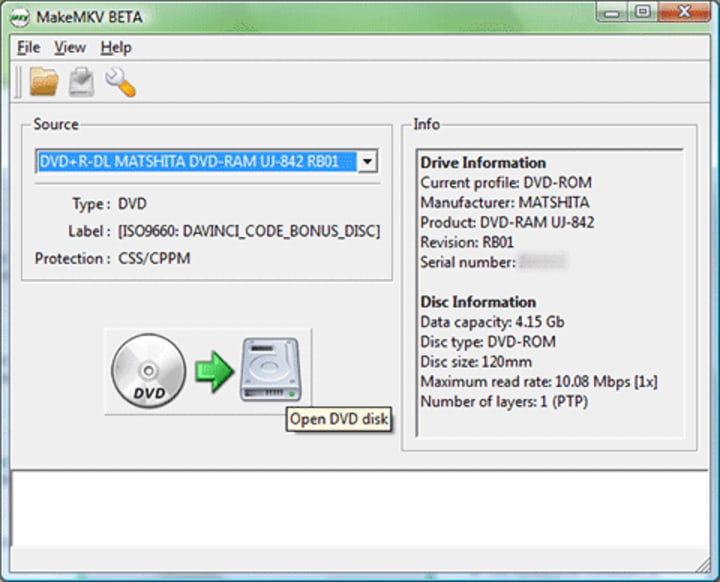
Step 2: MakeMKV will list the titles, audio tracks, and subtitles. You can select or deselect options as required.
Step 3: Select the folder icon next to the Output Folder to pick the save location. Ensure you have enough disk space for large MKV files.
Step 4: Press the Make MKV button. The software will bypass copy protection and rip selected titles to MKV format without re-encoding.
Rip Copy-protected DVD with HandBrake + LibDVDcss
HandBrake is an open-source transcoder that converts unprotected DVDs to formats like MP4 or MKV. Combined with libdvdcss, it can handle Content Scramble System (CSS) encryption on commercial DVDs and remove DVD copying protection. However, HandBrake rips can lose some quality compared to the original DVD.
Pros
- Decrypts protected DVDs on Windows and Mac computers
- Automatically loads the libdvdcss library upon installation
- Creates 1:1 DVD copies as single MPEG-2 files or ISO images
- Rip protected DVDs to MP4, HEVC, MOV, AVI, MKV, and over 350 profiles for various devices and platforms
- 5x faster than Handbrake with GPU hardware acceleration
Cons
- Configuring HandBrake and LibDVDcss can be complex for beginners and require extra steps
- The process can strain older hardware, impacting system performance
How to Use HandBrake + LibDVDcss to Remove Protection
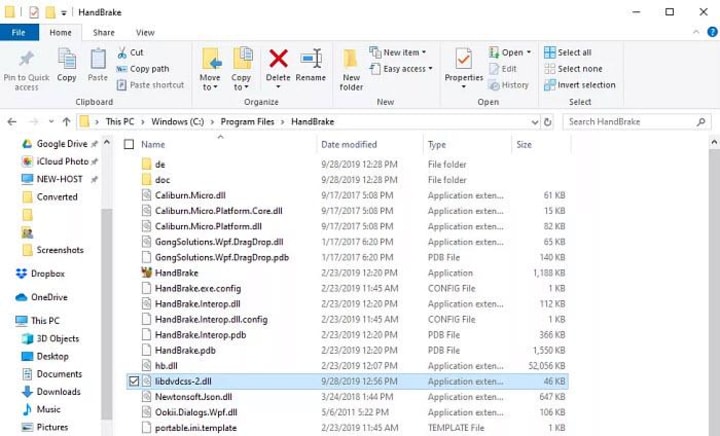
Step 1: Install and run the newest version of HandBrake. Then, download libdvdcss-2.dll for Handbrake on Windows. Upload a DVD to your optical drive and open Handbrake. Click Open Source or File, select the DVD, and wait for Handbrake to read the disc. It will use libdvdcss.dll or libdvdcss.pkg to detect the correct title.
Step 2: Select your file's quality in the Preset drop-down menu. In the General section, choose between Very Fast, Fast, HQ, and Super HQ. For DVDs, select 480p or 576p based on PAL or NTSC. Avoid 720p or 1080p, as they increase file size without improving quality.
Step 3: Click the Video tab to choose a video encoder (e.g., H.264, H.265) and adjust settings like picture size, bitrate, audio channel, and encoding quality.
Step 4: Tap the Browse button to select a save folder, then click Start. Handbrake and libdvdcss will decrypt your protected DVD.
Extended Tips: Common DVD Copy Protections
DVDs often feature various protections, such as CSS, region codes, and RCE, to prevent unauthorized copying and playback. These measures safeguard content against piracy and illegal distribution. Here's a list of common DVD protections.
DVD Copy Protection
- Region Code: DVDs may have region codes limiting playback to specific areas. Region-free players or modifications enable playback of all discs, bypassing these geographical restrictions.
- Region Code Enhanced (RCE): Region Code Enhanced (RCE) was designed to prevent cross-region playback but can be bypassed by first playing a normal Region 1 disc.
- Content Scramble System (CSS): The Content Scramble System (CSS) is a DRM scheme that uses a 40-bit cipher to prevent DVD copying. It requires licensed devices for playback and compliance.
- User Operation Prohibition (UOP): User Operation Prohibition (UOP) restricts actions during protected DVD sections. However, it can be bypassed by some players or by ripping software, though navigation issues may persist.
- Sony ARccOS Protection: ARccOS, developed by Sony, uses corrupted sectors to prevent copying. Though discontinued in 2006, it still affects some DVDs, causing playback issues on certain players.
- Analog Protection System (APS): The Analog Protection System (APS), or Copyguard, distorts analog video signals to prevent copying, affecting both standalone and digital devices through specific trigger bits.
- Disney X-Project: Disney X-project DRM is used on DVDs from Disney and others and provides advanced protection that can cause playback issues, errors with backup tools, and potential drive damage.
FAQs About Ripping Copy-protected DVD
Q.1. What is a copy-protected DVD?
Copy-protected DVDs use digital rights management (DRM), such as Content Scramble System (CSS), Analog Protection System (APS), and region codes, to prevent duplication or unauthorized copying. These protections ensure that content plays only on authorized devices.
Q.2. Is it legal to rip a copy-protected DVD?
Copying copyright DVDs is legal, provided you only use the above-mentioned reliable tools for personal viewing and enjoyment. You may face legal consequences if you use it commercially or sell/share the copyrighted content without the owner's permission.
Q.3. Can VLC rip copy protected DVDs?
VLC Media Player and libdvdcss can play and sometimes rip copyright-protected DVDs, including those with CSS and region codes. This combination enables VLC to handle various copy protection schemes for commercial DVDs.
Conclusion
That was everything about DVD copying protection, including popular encryption methods and reliable tools to help you remove them. While we have discussed each software's main functions and cons, you must download and try DVDFab DVD Ripper, as its functionality goes beyond removing DVD encryption. It further helps you with high-quality compression and lossless conversion for seamless playback on any device.
About the Creator
Wenny
Hi there, I'm Wenny, a technical writer sharing multimedia solutions accessible for everyone. Read my articles to turn "how?" into "let's do it!"
ICO Marketing Explained: A Beginner’s Roadmap for 2026
The blockchain industry continues to evolve rapidly, and Initial Coin Offerings (ICOs) remain one of the most powerful fundraising mechanisms for blockchain startups and Web3 projects. Even though the crypto market has matured significantly over the past decade, ICOs in 2026 are experiencing a resurgence due to improved regulatory clarity, stronger investor protection frameworks, and advanced marketing technologies that help projects reach a global audience. However, launching a successful ICO is not just about developing a great blockchain product; it requires a well-structured marketing strategy that builds trust, generates awareness, and attracts the right investors. ICO marketing has transformed dramatically compared to the early days of crypto fundraising. In the past, many projects relied on hype and aggressive promotion to raise funds, but today's investors are far more informed and cautious. They expect transparency, detailed roadmaps, credible teams, and strong community engagement before investing in a token sale. As a result, ICO marketing in 2026 focuses on strategic storytelling, community building, influencer collaborations, data-driven campaigns, and regulatory compliance.
By Jack santo6 days ago in 01
Taxi Booking App Development Cost: Full Guide (2026)
Building a ride-sharing platform today is like trying to fix a plane while it is flying. You want a piece of that Uber pie, but the entry price is steep. I have seen founders dump six figures into a "simple" app only to watch it crash during the first load test.
By Sherry Walker7 days ago in 01



Comments
There are no comments for this story
Be the first to respond and start the conversation.