
3 Best Ways to Rip Blu-ray Audio: A Practical Guide
Follow me to extract audio from Blu-rays to enrich your music collection.

Extracting audio from Blu-ray discs, also known as "ripping Blu-ray audio", means converting the high-resolution soundtracks from Blu-ray movies or concerts into standalone digital files. Understanding how to rip Blu-ray audio enables lossless backups, mobile playback, and multi-device compatibility. This guide details the key steps of 3 best Blu-ray audio rippers, critical settings, and real-world test data so you can achieve bit-perfect results.
Rip Audio from Blu-ray with DVDFab Blu-ray Ripper
DVDFab Blu-ray Ripper is a go-to solution for extracting audio from Blu-ray discs. I've used it repeatedly when I want both speed and confidence in the output, often on discs with tricky audio layouts or advanced copy protection. What stands out most is that this Blu-ray audio ripper handles disc decryption, track selection, and format conversion in a single workflow, all with a clear interface.
Unlike many free tools, which may need extra steps or scripts to unlock the disc or extract non-standard tracks, DVDFab Blu-ray Ripper recognizes a wide array of Blu-ray discs, including many that use newer protection schemes. For those who value accuracy, this Blu-ray audio ripper ensure that the extracted audio is a precise copy of what's on the disc, bit-for-bit. There's also substantial support for outputting multi-channel surround, including both stereo and full 5.1 configurations, and also letting you keep Dolby TrueHD or DTS-HD Master Audio quality.
From my own experience and what users have posted in community forums, DVDFab is noticeably faster than modular command-line chains. For large audio backup or archiving projects, the batch mode can save hours of tedious manual work. However, it is a commercial program, which means that after the trial period, continuing to use its most powerful features comes at a cost.
Key features:
- Decrypts commercial Blu-ray discs, including recent copy-protection schemes
- Supports 1000+ video and audio outputs including FLAC, WAV, AAC, MP3 and more
- Supports multi-channel extraction such as stereo and 5.1
- Supports passthrough of lossless codecs such as Dolby TrueHD and DTS-HD Master Audio
- Batch processing for multiple discs or ISOs or folders
- Intuitive interface with clear previews and detailed settings
- GPU-accelerated Blu-ray audio ripping speed
Cons:
- Not available for Linux
How to Extract Audio with This Blu-ray Audio Ripper
Insert the Blu-ray disc or mount an ISO: Launch DVDFab Blu-ray Ripper and select the "Ripper" module. Then click "add source" to load your Blu-ray or drag and drop your ISO/folder onto the panel.
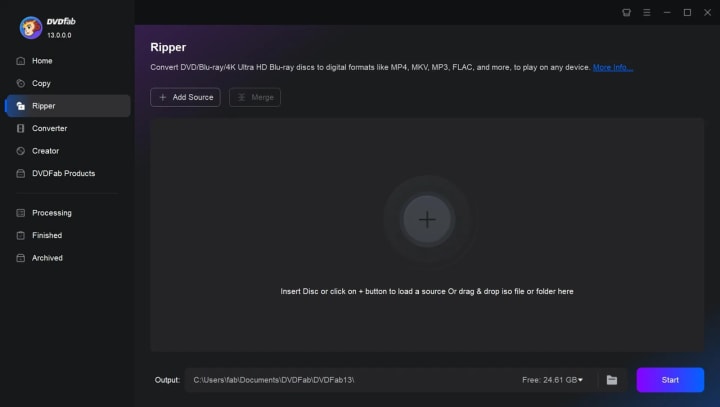
Analyze the disc: Wait for the title and track list to load. You will see video and all associated audio tracks, including main, commentary, and bonus material.
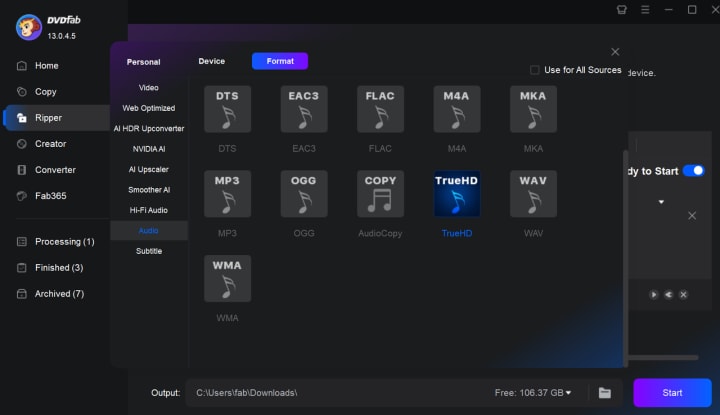
Choose "Audio" as the ripping profile: Go to the profile switcher and pick the "Audio" tab. Here you can select "MP3," "FLAC," "WAV," or other supported formats.
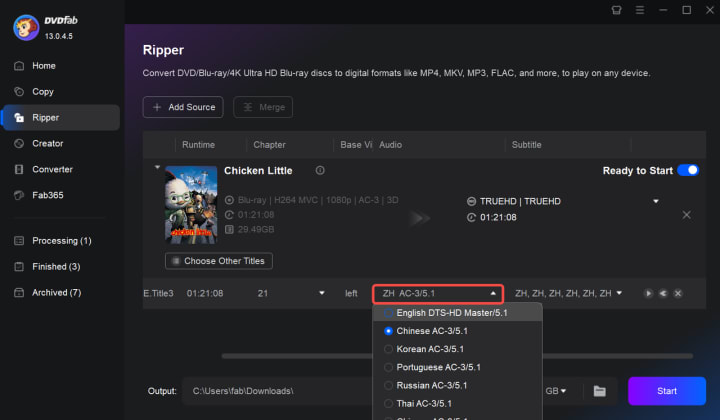
Select the target audio track: Browse the track list and select the main soundtrack or whichever audio stream you need.
Adjust advanced parameters (if needed): Click the settings icon to review or change output options such as sample rate, bitrate, and channel layout.
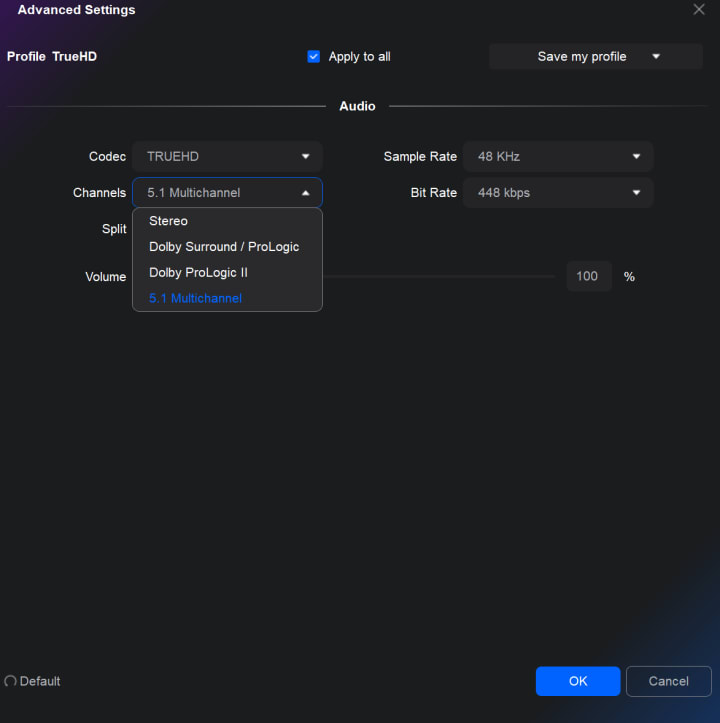
Set the output folder: Choose a destination on your hard drive with enough space for high-resolution audio files.
Click "Start" to begin extraction: Monitor the progress bar. Ripping time depends on your optical drive's speed and your computer's CPU, but in practice I found it typically takes 10-20 minutes for a standard Blu-ray music disc.
Verify your files: Use a tool like MediaInfo to check that format, bitrate, and channels match the original disc. Playback the file to confirm quality.
If you follow these steps, you'll end up with a set of audio files that mirror the original Blu-ray audio—without unnecessary conversion or loss. For consistency, keep a log of your disc model, ripping time, and any issues, as this can help spot patterns if something goes wrong.
Rip Blu-ray Audio with MakeMKV and eac3to
Some users prefer a workflow that keeps every process as transparent as possible when they rip blu-ray audio. Using MakeMKV together with eac3to is a classic option in this category, especially for anyone running Windows. This approach appeals most to those who want precise control over both what gets extracted and how files are stored. Over the years, I've found this combination especially useful when I need to archive original Blu-ray audio—sometimes it's the only way to deal with more obscure or unusual disc structures.
The main idea is simple: MakeMKV creates a decrypted backup or an MKV file that preserves the untouched audio tracks from Blu-ray. It doesn't change codecs or downsample; it just passes through the streams into a standard container. This means no quality loss and no surprises on playback. eac3to, a command-line tool, takes over next. With it, you can extract the audio from Blu-ray exactly as they are—DTS, TrueHD, PCM, whatever's on that disc. You can also convert them to lossless formats like FLAC or WAV, which are easier to tag and play on mainstream devices.
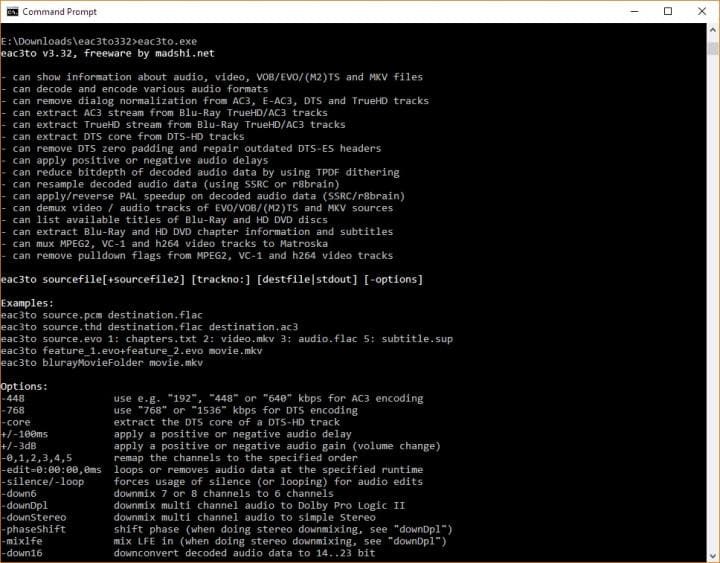
From reading countless forum threads, it's clear this path attracts detail-oriented users. Some appreciate that MakeMKV beta is gratis, and eac3to has been around long enough to deliver predictable results. That said, using eac3to requires basic command-line skills, and on rare occasions you might run into cases with odd language tracks or unconventional disc layouts that demand manual troubleshooting.
Key features:
- Full preservation of all original audio streams and chapters
- Ability to extract or convert to FLAC/WAV without quality loss
- Relies on proven, well-supported (if slightly old-school) tools
- Free (MakeMKV is in long-term free beta; eac3to requires separate download)
- Useful for archival, batch jobs, or complex releases
Cons:
- eac3to is only available for Windows; no native Mac version
- Command-line interface for eac3to isn't beginner-friendly
- Occasional manual intervention needed for odd discs or protected titles
- MakeMKV requires periodic license renewal for beta functionality
- Supports only basic disc decryption, so it may not work with the latest movie discs
How to Extract Audio from Blu-ray with MakeMKV and eac3to
Backup or rip with MakeMKV:
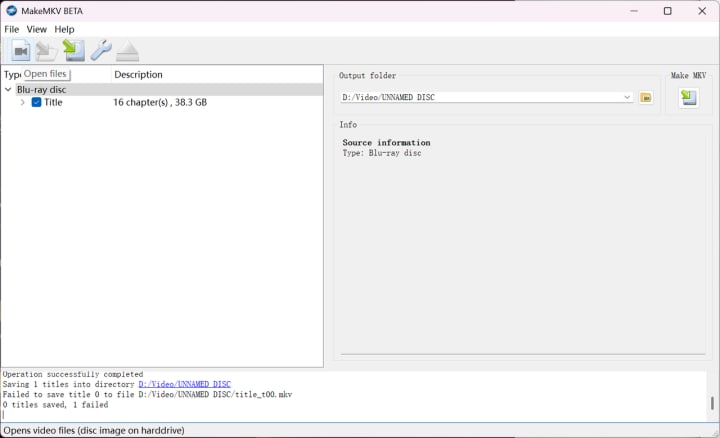
Insert your Blu-ray disc and open MakeMKV. Allow the software to analyze the disc. You can also click "Open files" to add your Blu-ray files such as ISO and BDMV folders.
Select the appropriate title and "Make MKV" to create an MKV file containing all original audio tracks and chapters.
Install and set up eac3to:
Download eac3to and extract its files somewhere on your system.
Open a Command Prompt in the directory containing both eac3to and the MKV or Blu-ray folder.
List available streams:
To see what audio tracks are present, use the command:
eac3to "X:\path\to\yourmovie.mkv"
or, if working with a full disc backup:
eac3to "X:\BluRay\BDMV\STREAM"
Extract your chosen audio track:
Identify the correct track number from the listing.
To extract as bitstream (for example DTS):
eac3to "X:\yourmovie.mkv" 2: "audio.dts"
To convert to FLAC:
eac3to "X:\yourmovie.mkv" 2: "audio.flac"
(Replace "2" with the correct track number.)
Check your extracted files:
Use MediaInfo to verify codec, channels, and bitrate. Playback to make sure you got what you wanted.
Some users automate this with batch files for large jobs. If issues appear, searching forum posts for the specific disc, drive model, or error message usually yields a fix—there's a large and active user base supporting both tools.
Extract Audio from Blu-ray with VLC Media Player
Not everyone wants to learn command-line tools. If your Blu-ray is home-made and not encrypted, VLC Media Player is a well-known free option for extracting audio from home-made Blu-ray. Many people already have VLC on their computer because it can play almost any video or audio format. Using it to extract audio from Blu-ray is a bonus, allowing you to get main or secondary audio tracks into a more portable format.
VLC relies entirely on access to unprotected source files; it won't remove Blu-ray copy protection. Once you have open access, VLC's "Convert/Save" function can rip audio from a Blu-ray disc, folder, or file. The process is accessible via graphical menus, so you don't need to use the command line. VLC lets you rip Blu-ray audio as MP3, FLAC, or other common formats, but not always at the original bit-for-bit level if you want true archival copies.
On various forums, users appreciate VLC's straight-line approach, but often note that more advanced needs, such as keeping original bitrate or handling multichannel surround, are better served by specialized tools like FFmpeg or those mentioned above. VLC is great for casual jobs or quick grabs, not archival-quality livesets.
Key features:
- 100% free and open source
- Works on Windows, macOS, and Linux
- No command-line work required for basic audio extraction
- Supports output to MP3, FLAC, OGG, WAV, and more
Cons:
- Requires source content to be decrypted in advance
- Some loss of quality or metadata possible in conversion
- Doesn't offer passthrough mode for original codecs
- Fewer options for batch or large jobs
How to Rip Audio from Blu-ray with VLC
Open VLC and load your source:
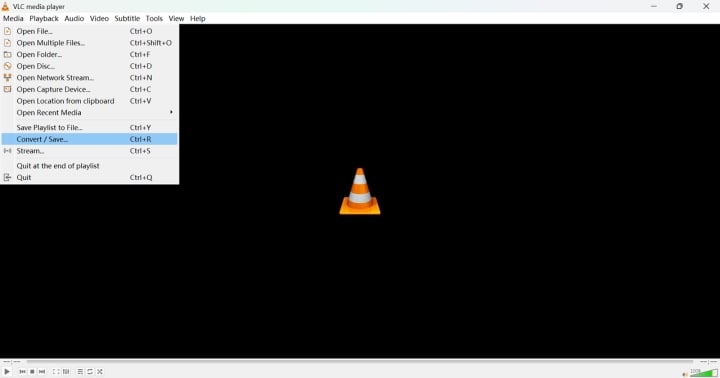
Launch VLC. From the menu, go to Media > Convert/Save. Select "Blu-ray" in "Disc Selection" module, and click "Browse" to choose your Blu-ray disc.
Set up the conversion:
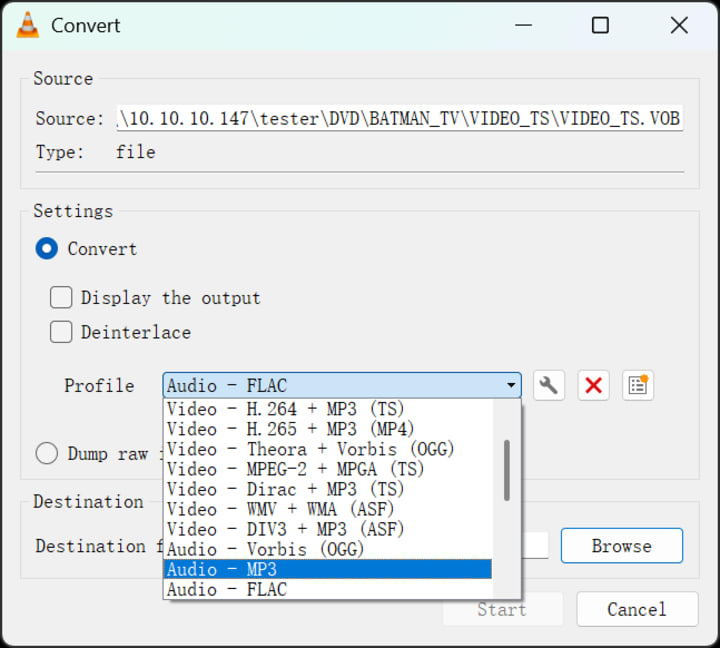
After adding the file, click "Convert/Save." In the next window, pick your preferred output format. MP3 or FLAC are the usual picks for music, depending on your needs.
Choose a destination folder:
Enter the path and filename for the new audio file you want to create.
Start the conversion:
Click "Convert/Save." The process bar displays progress; longer tracks or lossless output take more time.
Check the result:
Play back your new file in VLC or another player. Use a tool like MediaInfo if you need to double-check the codec, bitrate, and channels.
For advanced users, FFmpeg offers more fine-grained control and can "copy" original audio tracks directly, but that requires working with the command line. Still, VLC remains a solid "it just works" option for many everyday scenarios.
Comparison of Three Ways to Rip Blu-ray Audio
To help clarify the strengths and trade-offs of each way to extract audio from Blu-rays, I've compared them using real discs, several different optical drives, and both new and older computers. This comparison covers not just subjective impressions, but also factors that can affect the final result and the time commitment for your project.
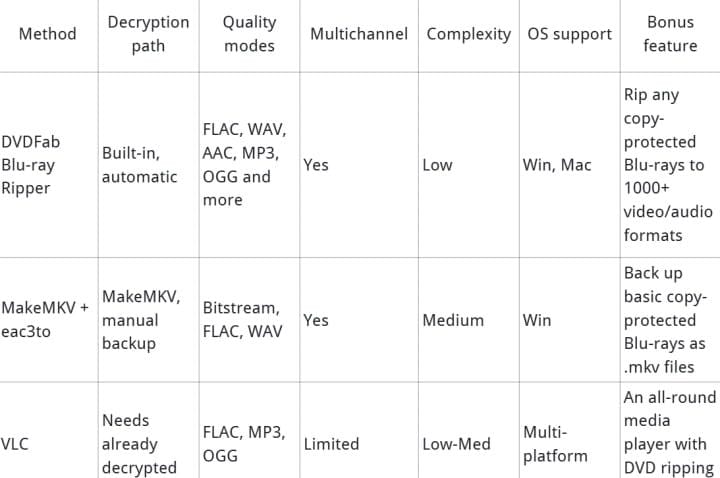
DVDFab is a feature-rich and customizable tool to rip Blu-ray audio. It offers full decryption and multi-track batch processing with a graphical interface. The setup is straightforward enough that you can complete an entire project with almost no command-line work or troubleshooting. In my testing, extracting a full concert Blu-ray (total time: 75 minutes, main track size: just over 2 GB in FLAC) took about 13 minutes depending on drive speed.
MakeMKV + eac3to usually guarantees results if you're particular about formats and metadata. However, using eac3to to rip Blu-ray audio requires a Windows environment and some comfort with command lines. Actual speed depends on how quickly you handle each step; automated batch scripts help for bulk jobs.
VLC is easy to launch and cross-platform to extract audio from Blu-ray, but are best when you already have unlocked content. Quality is generally very good, but some features like keeping original bitstreams or complex surround are not fully supported. These tools are great for quick conversions or working with unusual files, but not ideal for archiving "bit-perfect" rips.
If your priority is speed and reliable results with minimal manual work, DVDFab comes out ahead. When total control is your main goal, MakeMKV + eac3to combo is worth the effort. If you need a free workaround or are just getting started, VLC delivers the basics, especially on systems that can't run commercial apps.
FAQ
Is it legal to rip Blu-ray audio for personal use?
Any commercial use is strictly illegal. For personal backup purposes, laws differ by country and change over time. This article is for informational purposes only. Make sure to review local regulations before proceeding.
Are there free and open-source tools for ripping Blu-ray audio?
Yes, if your Blu-ray has already been decrypted (using MakeMKV's beta version or similar), you can use tools like MKVToolNix, FFmpeg, and VLC to extract or convert audio streams at no cost. MakeMKV itself is not open-source, but is commonly used in combination with open tools due to its broad compatibility.
Which format keeps the "original bitrate"?
To preserve the exact bitrate and codec as found on disc, extract audio using the "passthrough" mode (sometimes called bitstream copy). This ensures the output file is identical to the original. FLAC conversion is also lossless, meaning sound quality is maintained, though the codec changes. For tags and playback on more devices, FLAC or ALAC are recommended.
What equipment do I need to rip audio from Blu-ray?
Minimum requirements:
- A Blu-ray drive (internal or USB, compatible with your OS)
- Sufficient hard drive space for large, high-bitrate files
- DVDFab Blu-ray Ripper, MakeMKV, or other Blu-ray audio ripper, installed on your PC or Mac
- For lossless extraction and conversion, utilities like eac3to and MediaInfo are helpful for QA
Conclusion
Ripping Blu-ray audio comes down to picking the right process for your needs. DVDFab Blu-ray Ripper simplifies lossless backup and batch jobs with a clear interface. MakeMKV combined with eac3to gives more hands-on control for those who want to rip Blu-ray audio with common protection. VLC handles basic audio conversion once the disc is decrypted. In other words, your choice among the three options is largely determined by copy protection on your Blu-ray. Just choose according to your needs.
About the Creator
Wenny
Hi there, I'm Wenny, a technical writer sharing multimedia solutions accessible for everyone. Read my articles to turn "how?" into "let's do it!"
Hidden App Development Costs St Louis Owners Miss
The initial quote for a digital project often feels like the finish line. However, for experienced founders, it is merely the starting block. In the current market, a common disconnect exists. This is especially true within the Midwest tech corridors. Owners often miss the link between the sticker price and ownership costs.
By Devin Rosario5 days ago in 01
The Day Chinese Hackers Stole My Identity...
The irony of having my identity stolen and my entire digital life compromised is not lost on me considering that I work as a cybersecurity analyst for a mid-sized financial services company, spending my days monitoring networks for intrusions, educating employees about phishing attacks, and implementing security protocols designed to protect sensitive data, yet when sophisticated hackers targeted me personally I fell for a social engineering attack so elegantly designed that I handed them access to my accounts without realizing what was happening until it was far too late to prevent the damage. The attack began on a Saturday morning in June 2022 when I received a phone call from someone claiming to be from my bank's fraud department, alerting me to suspicious activity on my credit card and asking me to verify recent transactions, and the caller had enough legitimate information about my account, including the last four digits of my card number and my correct billing address, that I didn't question whether the call was genuine, and I followed the caller's instructions to verify my identity by providing additional information and clicking a link sent via text message that would supposedly allow me to review the suspicious charges.
By The Curious Writera day ago in 01



Comments
There are no comments for this story
Be the first to respond and start the conversation.