
Reviewing Canva - The Design Tool Best-Suited For Beginners and Experts
Quick review and guide on how to use the free graphic design software to make beautiful pictures.


Canva is a versatile online design and publishing tool used to create stunning social designs, documents, and posters. It is also used in visual content creation, marketing proposals, and many other graphic designs. Digital users like professionals, students, teachers, and writers enjoy using Canva. It is also used by marketers, businesses, and many others. Both beginners and experts used Canva alike.
But how do you want to be inspired by the story of Canva?
Canva - The Story of the Company
Canva was launched in Australia by then 30-year-old Melanie Perkins and her co-founder Cliff Obrecht in 2013. The dream of putting up Canva started with just a small-scale online school business creating designs for their school yearbooks, and it was called Fusion Books.
It was just a test business to help students collaborate and design profiles and make articles for their yearbooks. Later on, they made waves and made designs, and printed yearbooks for schools across Australia.
Since its launch in 2013, Canva now has 60 million active users coming from 190 different countries. And it has created more than 6 billion designs. Today, Canva has more than two thousand employees from Sydney, Beijing, and Manila teams.
Canva - Designs and Functionality
There are several different features that you will enjoy in using Canva. If you are a newbie, you can use the free version, with beginner-friendly features, and functionalities. And if you want advanced features, you have the Canva Pro for a paid premium subscription.
The Free Canva
Benefits:
- You can create stunning designs with Canva's excellent features
- Edit and convert your PDFs into online designs
- Exciting and dynamic animations can flow with your texts
- You can personalize or customize your text design using curved text
- Create styled logo with ease
- Print-ready quotes are available
Limitations:
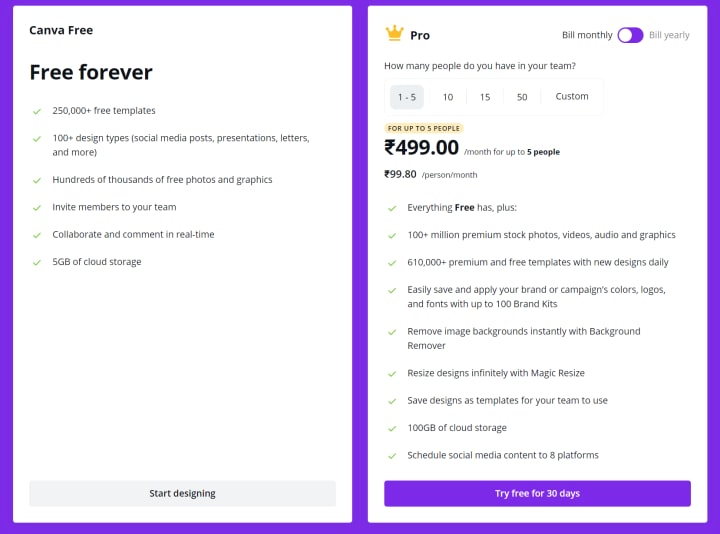
The Pro Version
Benefits:
- Additional features are available, including unlimited storage for photos
- You can access millions of paid images starting at $1 each
- Exclusive access to 400,000 free images, templates, and illustration
- You can also use Canva for work for Education with relevant designs in each category
- Unlimited access to premium tools
Limitations
- Canva on small screens is not user-friendly like in image resizing, adding, and removing elements. It can become time-consuming.
- The tool can sometimes crash or lag or errors in downloading.
- Not recommended for advanced graphic designers because you can not create your own graphics design.
- You can't make trademarks of your designs if you are an expert graphic designer.
- Massive security breach, exposing the data of approx 139 million users: includes email ads, users' country of location, password which happened on May 24, 2019
- You will pay a one-time yearly subscription fee of around $50 per year for up to five users.
The Canva Enterprise
- You can control your team access to graphics, logos, fonts, etc.
- Control team uploads
- Template locking
- Unlimited storage
- 24/7 enterprise-level support
- SSO or the single-sign-on
- Use of multiple brand kits
- Pay around $150 for a monthly subscription for five people users
Other Features of Canva
How to Use Canva for Work?
You can start using Canva in 5 easy steps:
Step #1: Sign Up
First of all, you must have an account with Canva. Go to Canva.com and sign up with either Facebook, Google, or Email. You will receive an email verification through your email address to allow permission and proceed to finalize the creation of your account.
Step #2: Log in to Your Account
After you log in, you should see this is the screen to your account:
Step #3: Design Creation
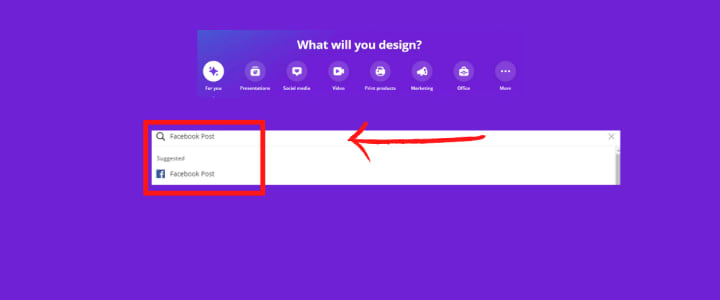
In the search bar, type in and enter your preferred design.
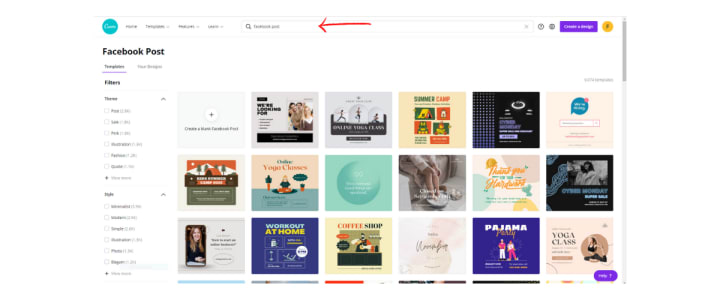
As you type in your option, Canva for work will suggest based on your search term. You can now select the most appropriate suggestion from the dropdown, and it will open in a new window.
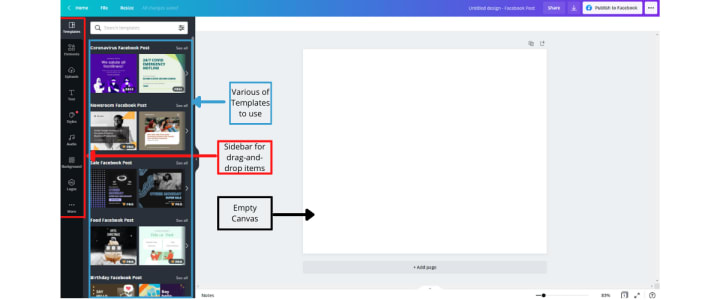
Select from the template to load it into the canvas. Here, you can now do your edits. You can also add or remove items individually. You can express your freedom and flexibility in design.
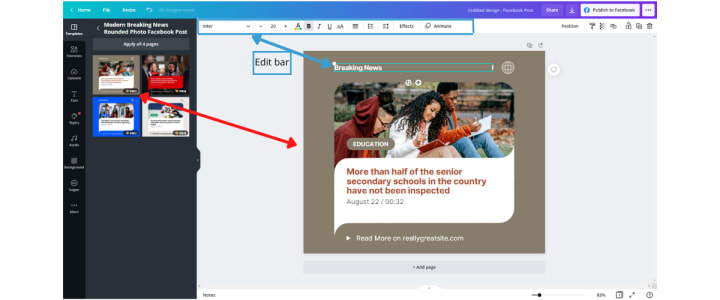
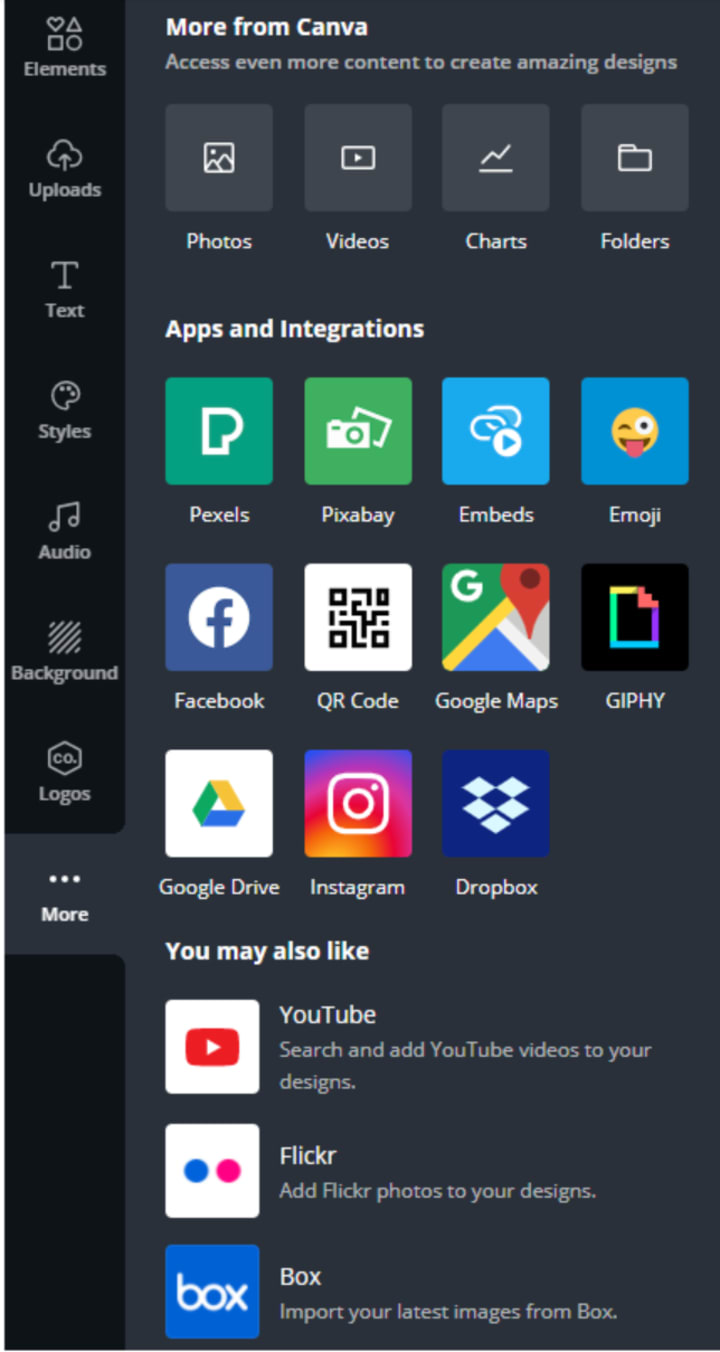
You can edit some more. You can add elements, graphics, or select texts. You can also add emojis, photos, choose a background, or upload images.
There are many features that Canva for work does when it comes to editing and tweaking a template.
Step #4: Publish or Download
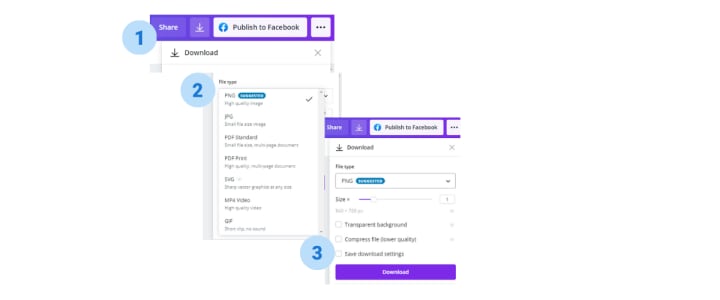
Once your design is done, you can choose to download or publish it. To download: click download, and choose the file type you prefer.
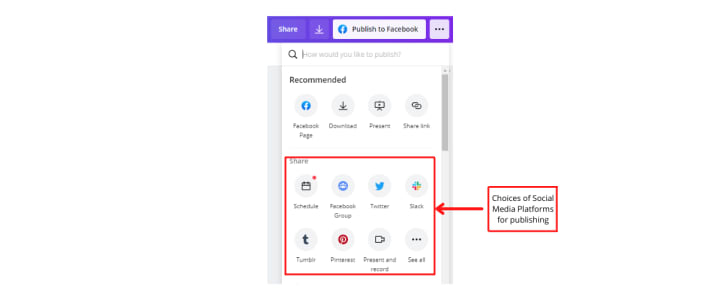
If you prefer to publish your design, click "publish your design" on Facebook, Pinterest, Twitter, or website. Click the arrow with Publish to Facebook (this might vary depending on how you signed up).
Step #5: Repeat
Success on your first try? You can now create as many designs as you want.
What You Can Do and What You Can't in Canva?
Canva is a user-friendly tool, even if you are still learning to use it. It is ideal for making designs for your start-up business or your socials. And;
You are allowed:
- To modify images according to your desired output.
- Allowed to use free photos, video files, music on Canva for commercial and noncommercial use.
- Be creative in editing any media that you like.
- To use the free media. No attributions are required but always appreciated.
The restrictions:
- Selling of unaltered copies of photos, video, or music is prohibited.
- Implied endorsement of your product by people or brands on the image.
- Redistribution or re-selling of photos, videos, music on other stock media platforms.
The Corporate Responsibility
Above all else, be impressed by Canva's commitment to sustainability practices and goals in designing a better future.
The company is more committed to making a positive impact in every aspect of the business with the implementation of the following sustainability initiatives:
- Transitioning global operations to being carbon-neutral in 2021.
- Making use of 100% renewable energy for Canva's Head office in Australia.
- A Global transition in 2024 into 100% renewable energy
- Canva is committed to positively impacting climate change by being completely climate positive in 2023. They are geared to reducing carbon footprint to 50% per employee in the next five years. And;
- Canva offset unreduced footprints with planting initiatives.
About the Creator
Anangsha Alammyan
Author, Engineer, & Lover of fantasy fiction. I write about books, feminism & personal development. Find out more at https://authoranangsha.com | IG: anangsha_
Keep reading
More stories from Anangsha Alammyan and writers in 01 and other communities.
What Every Writer Needs to Know Before Getting a Grammarly Subscription
Grammarly, the most widely used writing assistant, is one of the tools that writers can not do without. It makes writing so trouble-free, undemanding, and leisurely. You can depend on Grammarly when your writing experience seems immensely complicated and needing to get an outright writing assistant right when you need it.
By Anangsha Alammyan5 years ago in 01
Understanding Crossdressing Culture and Modern Crossdresser Shops in Australia
Crossdressing refers to the act of wearing clothing traditionally associated with another gender. Throughout history, people have practiced crossdressing for cultural, theatrical, personal, or social reasons. Historical records show that crossdressing has appeared in many civilizations, including ancient societies where clothing and gender roles were more fluid than often assumed.
By James Mburu5 days ago in 01
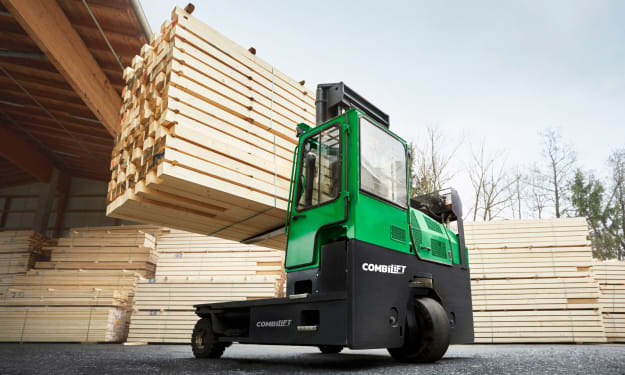
Multi Directional Forklift: The Future of Flexible Warehouse Handling
Modern warehouses and logistics centers rely heavily on efficient material‑handling equipment. Among the many machines used in warehouses, the Multi Directional Forklift stands out as one of the most versatile solutions for handling complex loads in tight spaces. As storage facilities become more compact and demand faster operations, businesses are increasingly adopting advanced forklifts that maximize space, safety, and productivity.
By charliesamuel5 days ago in 01
The Politics of Playing Dress-Up
Well, to start off I'd like to say a happy world book day to all who celebrate. I know I haven't really posted anything on my socials about it but I'm not a jubilant kind of person. I lay low most of the time. Let's start off with a popular anecdote from the vaults...
By Annie Kapur5 days ago in Geeks



Comments
There are no comments for this story
Be the first to respond and start the conversation.