
Outlook Account Hack: Complete Guide to Crack a Password
A Comprehensive 2026 Guide to Preventing Unauthorized Access and Securing Your Email

The Reality of Email Account Vulnerabilities
Microsoft Outlook accounts represent more than just email inboxes—they serve as gateways to personal data, professional communications, and often as single sign-on keys to numerous other services. With over 400 million active users worldwide, Outlook has become a prime target for cybercriminals employing increasingly sophisticated methods. This comprehensive guide examines the legitimate security landscape, revealing how attackers exploit vulnerabilities while providing actionable strategies to fortify your digital identity. Understanding these threats isn't about enabling malicious behavior—it's about empowering users and administrators with the knowledge needed to build impenetrable defenses in an era where email security is paramount to both personal privacy and organizational integrity.
How Attackers Target Outlook Accounts: Understanding Common Vectors
1. PASS REVELATOR
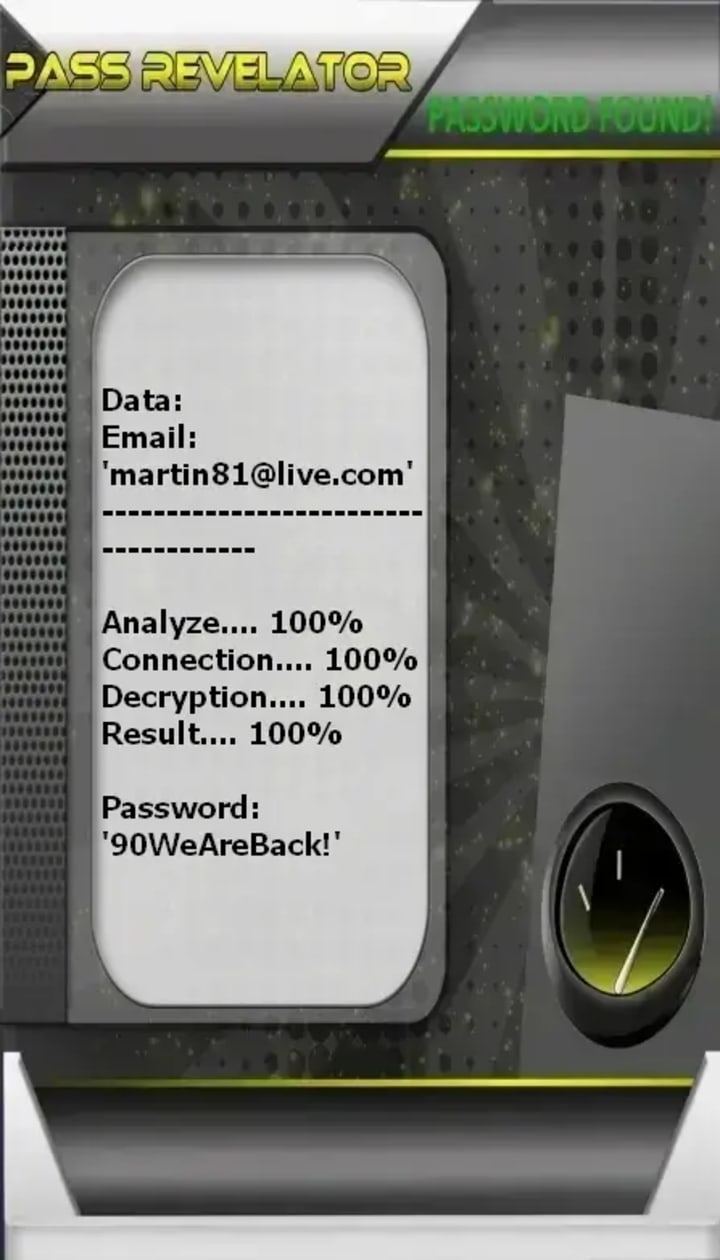
PASS REVELATOR is a tool that uses advanced AI algorithms to decrypt and reveal the passwords for Outlook and related Microsoft accounts. It operates by intercepting and analyzing data to break cryptographic protections, presenting the password in plain text. Important Warning: Using such a tool to access accounts you do not own or have explicit permission to test is illegal, violates Microsoft's terms of service, and constitutes a serious cybercrime.
You can download the application from its official website: https://www.passwordrevelator.net/en/passrevelator
2. Social Engineering and Phishing Attacks
Phishing remains the most prevalent attack method, accounting for approximately 90% of all successful account compromises. These attacks have evolved far beyond the obvious "Nigerian prince" emails of the past. Modern phishing campaigns against Outlook users typically involve:
- Credential Harvesting Pages: Attackers create flawless replicas of Microsoft's login portal, often using domains that appear legitimate at first glance (like "micr0soft-verification.com" or "office365-security.net"). These pages capture both usernames and passwords in real-time.
- Multi-Factor Authentication (MFA) Bypass Attempts: Sophisticated attackers use proxy servers to intercept both credentials and the subsequent MFA challenge. The user enters their information on a fake page, which the attacker immediately forwards to the real Microsoft server, captures the MFA prompt, and presents it to the user through the fake interface.
- Targeted Spear-Phishing: Unlike broad phishing campaigns, these attacks are customized for specific individuals or organizations, often referencing actual colleagues, projects, or internal terminology to appear legitimate.
3. Technical Exploitation Methods
While less common than social engineering, technical attacks present serious risks, particularly for accounts with inadequate security measures:
- Credential Stuffing Attacks: Cybercriminals utilize automated tools to test username and password combinations obtained from previous data breaches. Since 65% of people reuse passwords across multiple sites, this technique often succeeds against Outlook accounts protected by compromised credentials from other services.
- Password Spraying Techniques: Instead of targeting a single account with multiple passwords (which would trigger lockouts), attackers try one common password against thousands of accounts before moving to the next password. This bypasses account lockout policies while testing for weak credentials.
- Man-in-the-Middle (MitM) Attacks: On unsecured public Wi-Fi networks, attackers can intercept communications between a user's device and Microsoft servers, potentially capturing login credentials or session tokens.
- Malware and Keyloggers: Specially designed malware can record keystrokes, capture screenshots during login processes, or even hijack browser sessions to bypass certain security measures.
Essential Protective Measures for Maximum Security
Implement Multi-Factor Authentication (MFA)
MFA represents the single most effective security control, blocking approximately 99.9% of automated attacks. For Outlook accounts, Microsoft offers several authentication options with varying security levels:
1. Microsoft Authenticator App (Highest Security): This push-notification-based method provides number matching to prevent accidental approvals and includes geolocation information with each request. The app also supports passwordless sign-in for supported accounts.
2. FIDO2 Security Keys (Enterprise-Grade Protection): Physical security keys like Yubico devices offer the strongest form of two-factor authentication, resistant to both phishing and MitM attacks. These are particularly recommended for administrative and high-value accounts.
3. SMS-Based Verification (Basic Protection): While better than no MFA, SMS codes are vulnerable to SIM-swapping attacks and should be considered a minimum rather than optimal protection layer.
To enable MFA, visit your Microsoft account security settings and follow the step-by-step setup wizard. For organizational accounts, administrators can enforce MFA through Azure Active Directory conditional access policies.
Password Management Best Practices
Password strength and uniqueness form your first defensive barrier. Implement these practices without exception:
- Create passwords with minimum 12 characters mixing uppercase, lowercase, numbers, and symbols. Consider using passphrases (like "BlueCoffeeTable@2024!") which are both strong and memorable.
- Ensure absolute password uniqueness across all accounts. A breach of your social media password should not compromise your Outlook account.
- Utilize a reputable password manager such as Bitwarden (open-source) or 1Password. These tools generate, store, and autofill complex passwords while encrypting your data locally before cloud synchronization.
- Enable Microsoft's passwordless authentication where available, eliminating password vulnerabilities entirely for supported accounts and devices.
Advanced Account Hardening Strategies
Beyond basic measures, these advanced configurations significantly enhance your security posture:
- Review Account Activity Regularly: Microsoft provides access to recent sign-in activity at account.microsoft.com/privacy. Check this page weekly for unfamiliar locations or devices. Microsoft's security dashboard clearly shows sign-in history with device and location details.
- Configure Trusted Devices and Locations: Designate specific devices as "trusted" to reduce unnecessary authentication challenges while maintaining strict controls for new devices.
- Enable Security Alerts: Configure notifications for sign-ins from new devices or locations. Immediate awareness of suspicious activity enables rapid response before significant damage occurs.
- Use Dedicated App Passwords: For applications that don't support modern authentication, generate unique app-specific passwords rather than using your primary credentials. These can be individually revoked if compromised.
Organizational Outlook Security: Administrative Best Practices
For IT administrators managing organizational Outlook/Exchange Online environments within Microsoft 365, these technical controls are essential:
- Implement Conditional Access Policies: Azure AD conditional access allows administrators to define and enforce sign-in conditions based on user, device, location, application sensitivity, and real-time risk detection.
- Disable Legacy Authentication Protocols: Block IMAP, POP3, and SMTP AUTH protocols that don't support modern authentication methods, as these are frequently exploited in password spray attacks.
- Enable Azure AD Identity Protection: Configure risk-based policies that automatically challenge or block sign-ins exhibiting anomalies, such as impossible travel or sign-ins from malware-infected devices.
- Conduct Regular Access Reviews: Audit administrative privileges, third-party application consents, and mailbox delegation permissions quarterly to ensure the principle of least privilege is maintained.
- Deploy Microsoft Defender for Office 365: This enterprise-grade protection adds attachment scanning, URL detonation, anti-phishing, and anti-spoofing technologies specifically designed for the Microsoft 365 environment.
Frequently Asked Questions About Outlook Security
1. What immediate steps should I take if I suspect my Outlook account has been compromised?
First, immediately change your password from a known-secure device. Second, review and remove any unfamiliar forwarding rules, delegated accounts, or connected applications. Third, check your sent items for unauthorized messages and notify contacts if suspicious emails were sent from your account. Finally, enable MFA immediately if not already active.
2. How often should I update my Outlook password if I have MFA enabled?
With proper MFA implementation, frequent password changes provide minimal additional security and may actually decrease overall security by encouraging weaker passwords or password patterns. Microsoft now recommends password changes only when there's reason to believe the credential has been compromised, provided strong MFA is in place.
3. Can Outlook be compromised through linked accounts or connected services?
Yes, accounts with authorization to access your Outlook data (like third-party email clients, productivity apps, or mobile applications) can become attack vectors. Regularly review connected applications in your Microsoft account permissions and revoke access for unused or unfamiliar services.
4. What's the difference between personal and enterprise Outlook account security?
While the fundamental principles remain similar, enterprise accounts benefit from centralized administrative controls, advanced threat protection services, detailed auditing capabilities, and integration with broader organizational security infrastructure. Personal accounts rely more heavily on individual user security practices.
Conclusion: Building a Security-First Mindset
Outlook account security in today's threat landscape requires continuous vigilance and proactive measures. By understanding common attack vectors, implementing multi-layered defenses, and cultivating security-conscious habits, individuals and organizations can significantly reduce their vulnerability to account compromise. Remember that cybersecurity isn't a one-time configuration but an ongoing process of education, adaptation, and reinforcement.
Begin your security enhancement today by auditing your current Outlook account settings, enabling MFA if you haven't already, and reviewing your recent sign-in activity for any irregularities. For organizational administrators, conduct a Microsoft Secure Score assessment to identify and address configuration gaps across your Microsoft 365 environment.
Disclaimer: This article is intended for educational purposes to help users understand and protect against security threats. Unauthorized access to computer systems, including email accounts, violates laws in most jurisdictions and Microsoft's terms of service. Always obtain proper authorization before testing security measures on any account you do not own.
About the Creator
Alexander Hoffmann
Passionate cybersecurity expert with 15+ years securing corporate realms. Ethical hacker, password guardian. Committed to fortifying users' digital safety.
Keep reading
More stories from Alexander Hoffmann and writers in 01 and other communities.
Cracking a Gmail Account: Here Are the Hackers’ Methods
Every year, millions of Gmail accounts fall victim to cyberattacks, exposing personal, professional, and financial data to critical risks. According to Google’s annual security report, over 100,000 accounts are reported as compromised each month — and this figure represents only a fraction of actual incidents.
By Alexander Hoffmann2 days ago in 01
🔋 Hydrogen Fuel: Powering the Future of Clean Energy
As the world searches for cleaner, more sustainable energy sources, hydrogen fuel has emerged as one of the most exciting contenders ⚡. Often described as the fuel of the future, hydrogen promises zero emissions at the point of use, high energy efficiency, and versatility across multiple industries. But what exactly is hydrogen fuel, how does it work, and can it truly replace fossil fuels? Let’s explore 🚀.
By Toader Adelina day ago in 01
House Cleaning Scopes That Keep Results Consistent
A clean home feels simple until you try to keep it that way during a busy month. Work deadlines, school schedules, pets, and visitors stack up. Dust returns faster than expected. Bathrooms show water spots. Kitchen grease builds around the stove. Many homeowners hire cleaning help, then feel unsure about what to request and how to judge quality.
By Jared Benning4 days ago in 01



Comments
There are no comments for this story
Be the first to respond and start the conversation.