
My first year as a developer: set up, break, fix, go.
Useful commands that helped me throughout this year and in everyday rails development - setting up VSCode as a code editor, destroy a stuck running server and fix some recurring problems like a naughty Selenium version causing your tests to fail.


By April, easter 2021 it will be exactly one year since I first started as a junior developer. Hundreds of hours of code later, there are some things that like to break every-time I restart the computer, or a new version of Chrome comes out.
I work mainly with ruby-on-rails and on a macOS. That said, the "fixing common problems" part is probaby most pertinent if you're on the same setup.
First thing I'll take you through: code editor setup. Having a good one and remembering a few shortcuts is guaranteed to save you hours. I recommend VSCode which has brilliant plugins and all the fun bits.
Once installed, get the command line shortcut so you can easily open Vscode by typing "code" from anywhere in your terminal. Launch the VSCode app, hit the keyboard combo:
cmd+shift+p
and type shell.
Click on "Shell Command: Install 'code' command in PATH'

You can now use "code" as a command to open either individual files or a whole directory folder. For example, try it out by opening a terminal, and opening any folder with the command code. In the image below
"code rubytests" opens the rubytests folder in VScode:
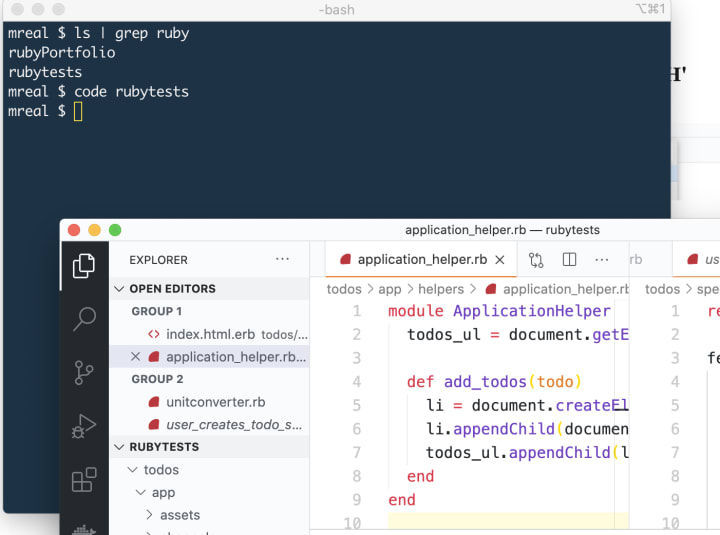
Setup VScode as your default editor for github
(Trust this: it'll make your life easier)
Open a terminal and type:
git config --global core.editor "code --wait"
And that should set you up. Next time you do a "git commit -v" the editor that opens for you to add a commit message should be VSCode.
Setup VScode snippets for rails
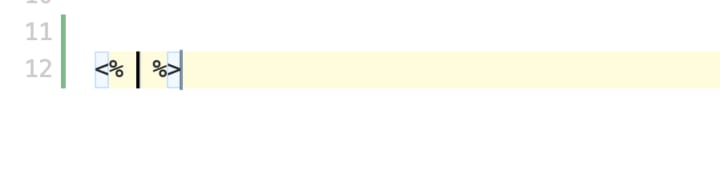
Snippets allow you to call a little bit of code by name. For example in rails templates, instead of constantly having to type <% %> or <%= %> it is much faster to call a keyword to invoque these:
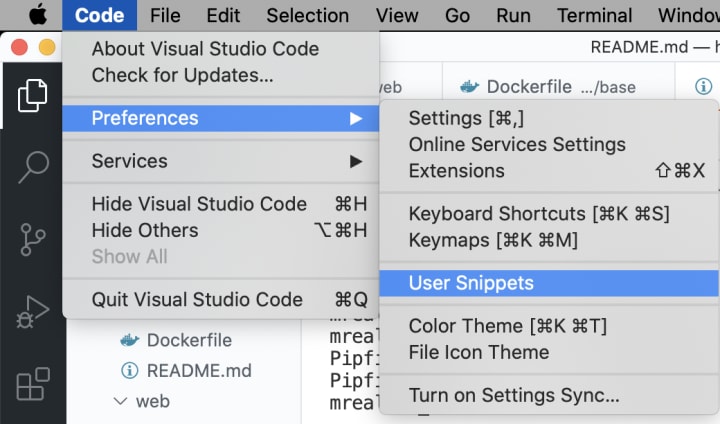
for rails development, edit "erb.json.code-snippets" file.

Add these (and others) you'd like in there. You can name them whatever you like by changing the prefix:
"Snowcone" : {
"prefix": "snowcone",
"body": [
"<% $1 %>"
],
"description": "Inserts erb snowcones."
},
"Squid" : {
"prefix": "squid",
"body": [
"<%= $1 %>"
],
"description": "Inserts erb squid"
},
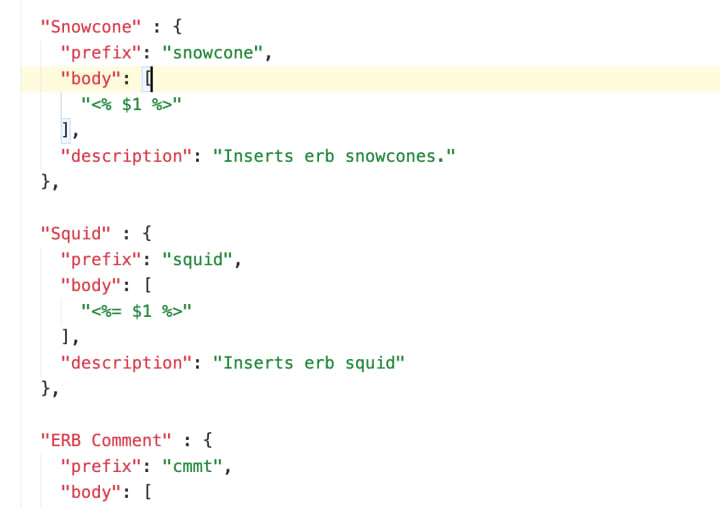
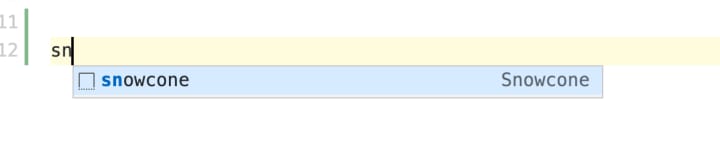
and now, in any html.erb file, start typing the name of your shortcut and hit enter to get it into the page:
VSCode keyboard shortcuts to speed up your everyday:
Action: open a terminal
control+shift+`

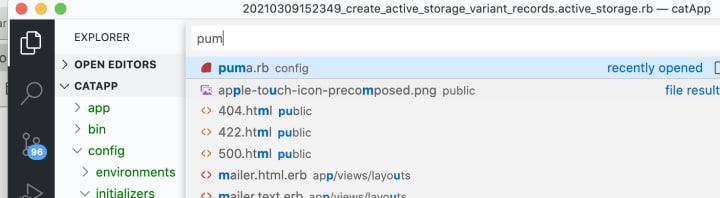
Action: jump to any file within your project
cmd+p
Then write part of the file name and press enter
Action: search for a certain word within the project
cmd+shift+f
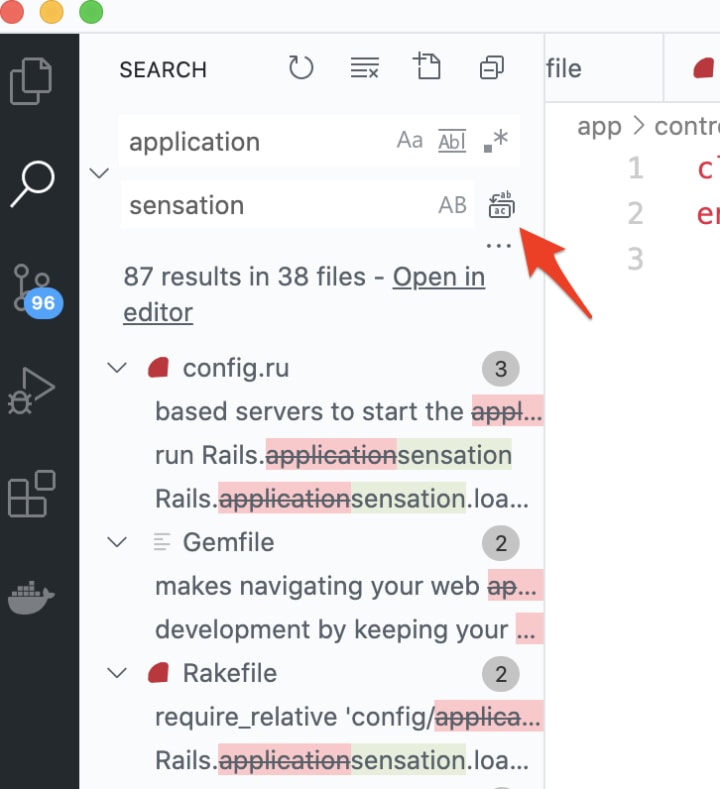
Action: search and replace a certain word within the project
cmd+shift+h
Action: go back to edit mode after searching (show expLorer file view)
cmd+shift+e
Action: toggle side bar so you have more screen space
cmd+b
Action: select all occurrences of the same word in a given file
double click chosen word then:
cmd+shift+l
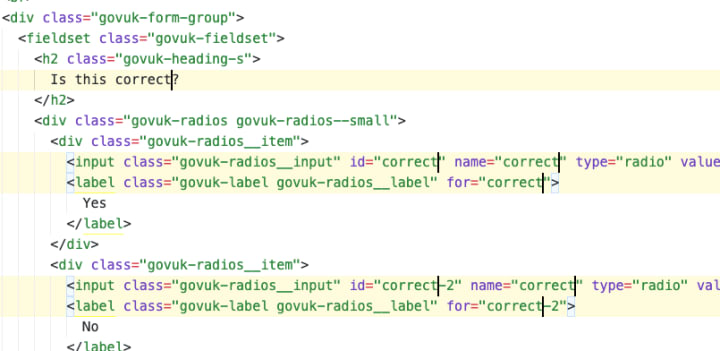
Action: select only a few occurrences of a word in a given file
double click chosen word then press this key combination multiple times, depending on how many occurrences you want (i.e 3):
cmd+d
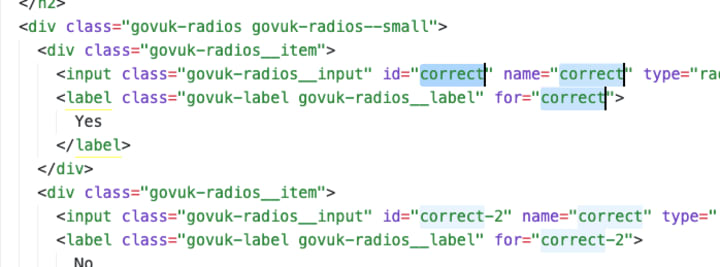
I've recommended VSCode to the designers in my company as well, mainly due to how emmet works and the integrated terminal ability. Emmet does wicked code snippets, have a look about it in the VSCode docos.
Now for some common rails dev problems and their solutions:
Issue: "port 3000 is in use".
you had a server running with "rails server" stopped it with ctrl+c but it didn't shut down properly. Do:
lsof -wni tcp:3000
to get the list of process ids running on that port. From there grab the PID - in our case its 56413 and run kill -9 PID:

so for our case:
kill -9 56413
Issue: when trying to run tests Selenium::WebDriver::Error::SessionNotCreatedError
Session not created: This version of ChromeDriver only supports Chrome version 83
This happens whenever google chrome updates, you update your selenium webdriver but an old one is still lurking in your computer. In this case we have the version 81 lurking, but we want 83.
You need to delete the old one and make sure your computer is "pointing" to the latest. Open a terminal, and after installing the latest version:
brew cask install chromedriver
run:
which chromedriver
and
brew info chromedriver
which version do you get, now that you updated? (you should only update chromedriver using brew / brew cask update)
If the update was successful should return version 83, or whichever one you updated to. Then, you’ll need to find the lingering old version ( in this case version 81) to delete. To do that, open up a terminal, and go up two levels (so in a fresh terminal window, type
cd ../../
then run:
find ./ -name chromedriver
that will tell you where your sneaky chromedriver is. In my case (in case it saves you time) it was in a hidden folder inside the “Volumes” directory. You can open a finder window and do cmd + shift + . to show hidden files, and then peek inside volumes to check if its there - otherwise your find should give you the culprit
Issue: can't launch a postgres server
1. Make sure you have the postgres app installed, its the easiest way to go about it.
2. If the problem is related to 'postgres port in use' do:
sudo launchctl list | fgrep postg
which will give you the name of the service you want to stop. Then:
sudo launchctl stop com.edb.launchd.postgresql-13
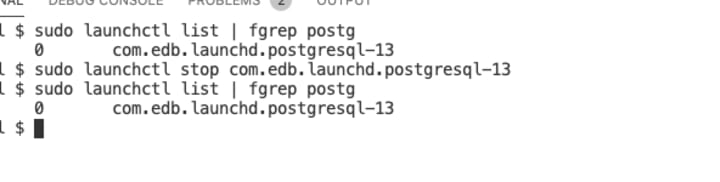
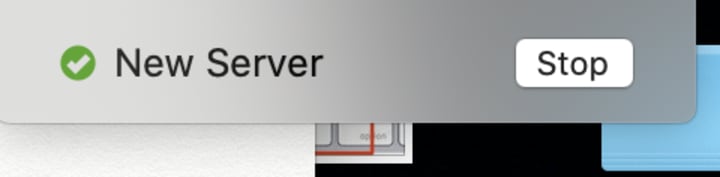
Now you should be able to start postgres: (in my case I had to add a new server to achieve this)
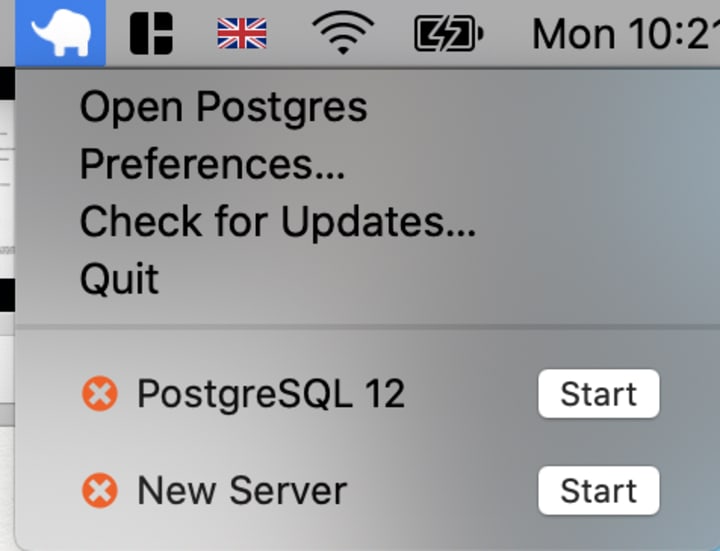
3. Maybe it was just brew all along (?) try:
brew services start postgres
brew services stop postgres
sudo pkill -u postgres
4. Not a miracle worker here, just uninstall and reinstall the darn thang.
And that's it for some quick fixes / setup. Hope its helpful, I sure keep going back to this little server stop list so I thought it might be useful for someone out there - or in case my computer gets thrown off a cliff and I lose all my notes, so now this lives on the internet.
Might have saved someone enough time for a cat nap.
Happy programming!

About the Creator
Melissa Real
Writing to escape reality, or explain it.
Love sugar and stretches, interesting problems, exciting tech, a crazy story, things that make one smile.
Keep reading
More stories from Melissa Real and writers in 01 and other communities.
The hungry book
I feel myself falling into an abyss of whiteness. That feeling, like falling back into my body after a dream of flying - yet now I fall away from my self, my face indistinct in the distance, the brown ceiling of the classroom I'd been in zooming out until it was but a brown speck consumed by emptiness.
By Melissa Real5 years ago in Futurism
How to Choose the Best Mobile App Development Company in Canada 2026
Choosing the right app development partner in 2026 isn’t just a procurement decision—it’s a strategic move that can define whether your digital product scales or stalls. The Canadian tech ecosystem has matured rapidly, with agencies offering everything from rapid MVP builds to enterprise-grade platforms powered by AI and cloud-native architectures.
By alan michael3 days ago in 01



Comments
There are no comments for this story
Be the first to respond and start the conversation.