
Is Your MacBook’s Storage Failing? Here’s How to Spot the Problem Early
Identify the Signs of a Failing Drive and Discover How Expert Replacement Services Can Restore Your MacBook’s Performance

Your MacBook’s Behavior Might Be a Warning Sign
MacBooks are built for performance, reliability, and seamless user experience — but even the best machines can start showing signs of wear over time. When your once-smooth Mac begins slowing down, freezing, or acting unpredictably, the problem might not be a minor glitch. In many cases, these issues point to a deeper problem: your internal storage drive is failing. It’s not just annoying — it’s a potential threat to your data, productivity, and peace of mind.
A failing hard drive doesn’t just compromise your MacBook’s speed; it puts your files, photos, and personal information at risk. Many users wait until the device completely crashes before taking action — often when it's too late to recover lost data. That's why it's so important to recognize the early signs and respond proactively. But how you respond matters just as much as when.
Choosing a reliable, secure, and professional hard drive replacement service is crucial. Your MacBook stores sensitive files, personal information, and sometimes your entire work portfolio. Trusting it to an inexperienced technician or attempting DIY fixes without proper tools can lead to data loss, improper installations, or further hardware damage. What you need is a repair team that understands Mac architecture, handles your data with care, and uses only high-quality or OEM-compatible parts.
In this guide, we’ll help you identify the symptoms of a failing MacBook drive, understand what they mean, and walk you through your next steps. Whether you're dealing with frustrating performance issues or worried about losing important files, this blog will show you when — and why — it's time to seek professional MacBook hard drive replacement you can trust.
Understanding Your MacBook’s Drive: What’s Inside and Why It Fails
Your MacBook’s storage drive is like its memory bank. It holds not only your files and photos, but the system itself — macOS, apps, preferences, and more. If the drive slows down or breaks, everything else is affected.
Older MacBook models often use hard disk drives (HDDs) with spinning parts, while newer versions come equipped with solid-state drives (SSDs). SSDs are faster and more durable, but that doesn’t mean they last forever. Every drive, no matter how advanced, has a lifespan. Factors like usage intensity, storage capacity, and even overheating can shorten that lifespan dramatically.
Key Symptoms of a Failing Storage Drive
If your MacBook is acting up, here are the most common signs that your internal drive could be in trouble:
🔹 Slow Startup and Performance
Does your Mac take ages to power on? Is it sluggish even when running light apps? This is one of the most noticeable red flags and often one of the first symptoms to appear.
🔹 Unexpected Freezes and Crashes
Sudden freezing, spinning beach balls, or apps crashing repeatedly may suggest your Mac is struggling to read or write data to the drive.
🔹 Missing Files or Corrupt Documents
Files that disappear, refuse to open, or return strange errors can point to data corruption — a strong indicator of failing storage.
🔹 Odd Sounds (HDD only)
If your MacBook has a traditional hard disk, you might hear clicking or grinding sounds, which signal that the internal mechanisms are failing.
🔹 Boot Errors or a Question Mark Folder
Seeing a folder with a question mark on startup? That means your Mac can’t find the system drive — often because it’s failed or corrupted.
🔹 Disk Utility or SMART Errors
You can run Disk Utility (via macOS Recovery) and check the S.M.A.R.T. status of your drive. If it says “Failing,” it’s time to act immediately.
How to Confirm It’s Your Storage — Not Something Else
Before assuming the worst, do a bit of troubleshooting:
Run Disk Utility First Aid: Go to Applications > Utilities > Disk Utility and run First Aid to check for disk errors.
- Check SMART Status: In Disk Utility, click “Info” to view the S.M.A.R.T. status. “Failing” or “Not Verified” is a strong red flag.
- Try Safe Mode: Boot into Safe Mode by holding Shift during startup. If it runs better, the problem may be software-related. If not, storage could be the issue.
- Apple Diagnostics: Hold “D” at boot and follow the hardware test. This can identify some drive issues automatically.
When It’s Time to Replace the Drive
If your diagnostics show consistent errors, startup problems persist, or SMART status fails, it’s time for a replacement — no matter how new or expensive your MacBook is. Failing drives only get worse over time, and continued use increases the risk of data loss and total failure.
A drive replacement is also an opportunity to upgrade to an SSD if your MacBook doesn’t already have one. This significantly improves performance, with faster app launches, file transfers, and overall responsiveness.
Act Fast: Backup and Protect Your Files
- If your MacBook is still running — even if slowly — don’t waste time. Back up your data immediately using:
- Time Machine: Best for full-system backups if drive access is stable.
- External Drive Copy: Manually copy critical files to an external SSD or USB.
- Cloud Backup (iCloud, Dropbox, Google Drive): Good for documents and photos, but limited for full system recovery.
If your drive has already failed or the data is inaccessible, avoid DIY recovery attempts. Repeated restarts can make the situation worse. This is the moment to call a professional.
How Long Should a MacBook Drive Last?
- HDD lifespan: 3–5 years (with moving parts prone to wear)
- SSD lifespan: 5–10 years (more durable but can still fail suddenly)
Drives age faster under heavy usage, frequent temperature shifts, or power interruptions. If your Mac is nearing these limits, proactively replacing the drive may save you from future stress.
What to Expect During a Storage Replacement
Replacing a MacBook’s drive (especially newer models) isn’t always easy. Apple devices are compact and require special tools and care. Here’s a quick breakdown of the process:
- Open the MacBook safely using the correct tools
- Disconnect and remove the old drive from its connection point
- Install a new SSD or storage unit, ideally with higher performance specs
- Reinstall macOS and configure the system
- Restore your backup or recover data if necessary
Professional technicians streamline this process with precision — minimizing risk and downtime.
How F2 Technology Helps You Recover and Reboot
At F2 Technology, we don’t just replace storage drives — we help MacBook users restore performance and protect what matters most: their data.
✅ Quick, Accurate Diagnostics
Our technicians perform detailed diagnostics to confirm whether your issue is with the storage drive or another component — ensuring no guesswork.
✅ Certified MacBook Repairs & SSD Upgrades
We use Apple-compliant parts and provide SSD upgrade options that make your MacBook even faster than before. Every replacement is handled by trained professionals with experience across all MacBook models.
✅ Data Backup & Recovery Services
Still have access to your data? We’ll back it up before the repair. Drive already failed? We offer data recovery solutions even in complex cases — from logical corruption to dead drives.
✅ Transparent Pricing & Fast Turnaround
We offer fair pricing with no hidden costs and same-day service for many repairs. Whether you’re in Dubai, Sharjah, or nearby, we’re ready to help.
Conclusion: Don’t Wait Until It’s Too Late
Your MacBook is more than just a device — it’s where you work, create, connect, and store your life’s important moments. When something feels off, don’t ignore it. That sluggish boot, the crashing apps, or those strange disk errors? They’re not just inconveniences. They could be signs your drive is reaching the end of its life.
The good news is that you can act before the worst happens. With the right knowledge — and the right team by your side — you can diagnose the issue, replace the failing component, and bring your MacBook back to peak condition. And if you choose to work with F2 Technology, you can rest easy knowing your device and your data are in expert hands.
Don’t wait for a complete breakdown. Listen to the signs, back up your files, and seek professional support when needed. Your MacBook deserves a second chance — and you deserve peace of mind.
About the Creator
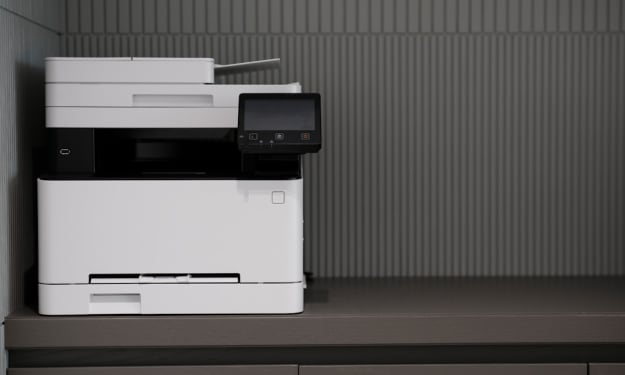
Can You Send a Fax from Your Phone, and How?
We primarily associate faxing with sending necessary documents using a special device connected to a telephone line. Indeed, until recently, this was the standard practice, and businesses relied heavily on bulky fax machines that dominated office spaces. But the world of document transmission has evolved significantly. What does faxing look like in today's mobile-first environment? Is the process truly simpler? Most importantly, can you accomplish this task directly from your smartphone?
By Arooj Manoor2 days ago in 01
Navigating Cryptocurrency Asset Recovery
The challenging environment of digital asset theft and loss has given rise to a specialized sector focused on recovery. This field consists of companies with distinct operational models, from direct investigation to technical support and foundational analytics. The following outlines five notable entities often referenced in this space, categorized by their primary function.
By Milan Roberts7 days ago in 01



Comments
There are no comments for this story
Be the first to respond and start the conversation.