
How to Use Microsoft PC Manager to Free up Space on PC
Learn how to use Microsoft’s own tool to easily free up common types of unnecessary files in Windows 10 or 11 to free up space.

If you are looking for a free way to free up storage space on your Windows 10 or Windows 11 PC, I recommend trying PC Manager by Microsoft.
First released in 2024, PC Manager is a relatively new app and not very well known so far.
In this article, I will show you how to use it to delete unnecessary files and free up space on your Windows computer.
Before getting started
Although PC Manager is provided by Microsoft, it’s not included with Windows. So you need to install it first.
1. Open the Microsoft Store.
2. Search for PC Manager.
3. Click Get.
Scan for and remove unnecessary files
PC Manager can help you identify and manage the following types of files.
- Large files
- Duplicate files
- Junk files, such as temporary files, log files, and cache
Quickly free up space by deleting unwanted big files
1. Open PC Manager.
2. Choose Storage.

3. Select All disks or a specific disk in the Large files section. Click the arrow icon.
4. After the scan is complete, you can view all big files or view them by file type (such as big video files).
5. Select the big files that you are sure you don't need anymore and click Permanently delete.

Note: You can decide what is considered a large file by selecting the file size range.
Tip: If you don’t want to eliminate certain big files but still want to regain space, you can choose to move them to an external hard drive.
Delete duplicate files to make room for useful files
Duplicate files are file that are identical. But note a group of duplicate files don’t necessarily share the same filename.
Duplicate files are generally not useful unless you keep them for purposes like backing up files. Therefore, you can delete unnecessary duplicates.
1. In the Storage interface in PC Manager, go to the Duplicate files section.
2. There, select All disks or a specific disk.
3. Click the arrow icon.
4. Once the scan is done, you can view the groups of duplicate files that have been found.
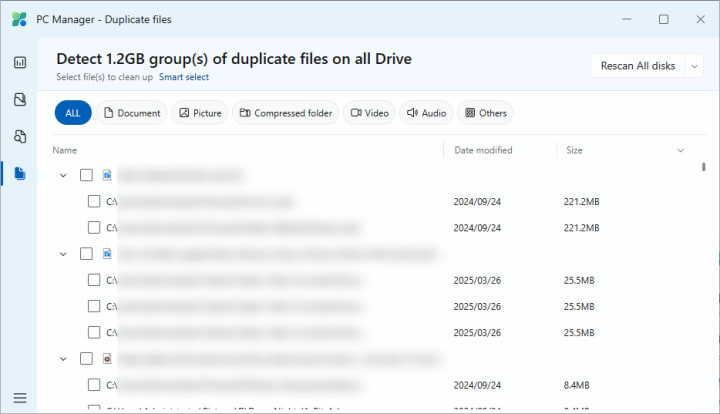
5. If you want, you can use the Smart select feature to quickly select duplicates for removal.
Note: I recommend taking a look at the selection and deselect the files that you want to keep. (For example, you may want to keep the ones in backup folders.)
6. Click Permanently delete.
Clean up those junk files
You may don’t have many big files or duplicate files on your PC, but you certainly have tons of junk files accumulated on your device (unless you clean them up regularly).
1. Still in the Storage interface, click the Storage sense section.
2. It may take PC manager a while to scan for junk files.
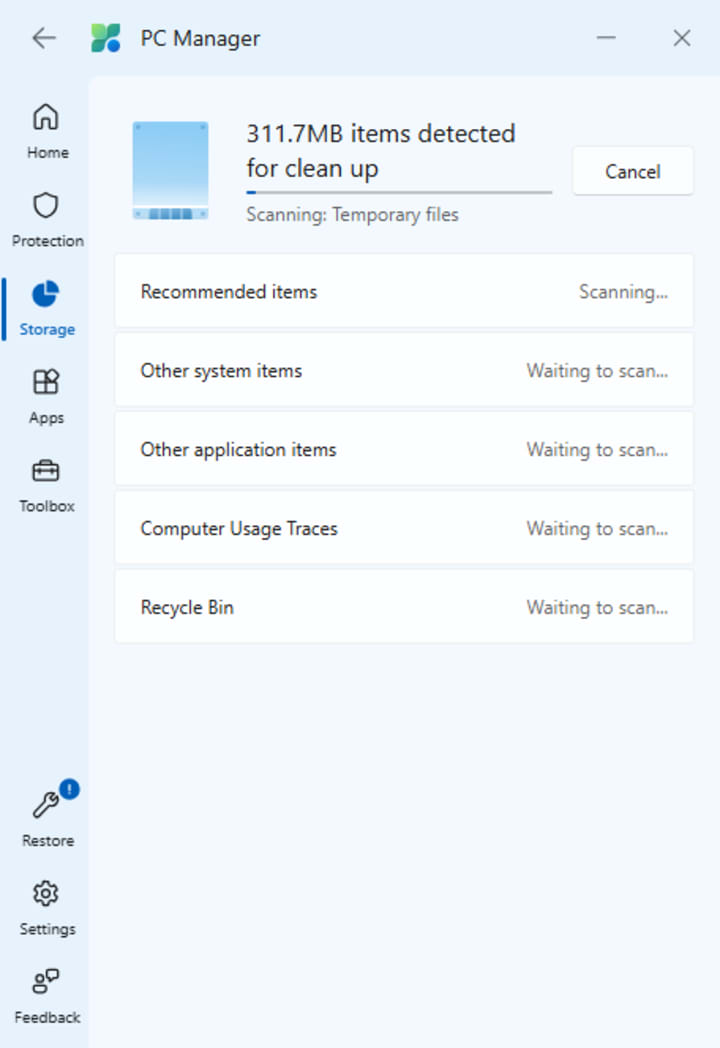
3. When the scan is complete, you can start managing them.
- If you are pretty sure that all those files are useless, select the Recommended items checkbox and then click Proceed.
- If you are not sure, you can go through each type junk files and only select those unwanted ones for deletion.
Note: For certain junk files, PC Manager provides brief explanations to help understand why it’s okay to delete them.
General tips
- If you are not quite sure if it’s safe or okay to delete certain files, keep them (at least now).
- If you are not certain about some files, open them in File Explorer (and associated apps) to have a better look before you delete them.
- Read articles and watch videos on to learn more about junk files or duplicate files.
About the Creator
Keep reading
More stories from writers in 01 and other communities.
Jeff Bezos vs. Jane Austen: Amazon will deliver its packages to English gardens
The e-commerce giant begins testing the use of drones for order delivery in the UK Amazon has decided to eliminate not only all the businesses on the streets of our towns and cities, but also one of the quintessentially English traits: gardening, which is more than just a hobby; it's a way of life idealized by much of the islands' literature. Among others, and perhaps the most captivating, is that of Jane Austen. Examples abound throughout her work. The very essence of the garden. Austenian It would be the garden of her home in Chawton, a village in Hampshire, in southern England, about 95 km southwest of London. The writer lived there for seven years, and in the garden she cultivated flowers and vegetables.
By Dena Falken Esq5 days ago in 01




Comments
There are no comments for this story
Be the first to respond and start the conversation.