
How to Rip DVDs on Mac in 2025: The Complete Guide
Looking to rip DVDs on your Mac? This up-to-date guide covers the best tools—DVDFab DVD Ripper, MacX DVD Ripper Pro, and HandBrake—offering step-by-step instructions, troubleshooting tips, legal advice, and everything you need to digitize your DVD collection safely and easily.

Ripping a DVD on a Mac really should be simple—insert disc, click a button, enjoy your movie anywhere. But spoiler alert: for most Mac users, it’s anything but. I found this out the hard way. Want a quick confession? The first DVD I ever tried to rip on my MacBook (a classic rom-com, for the record) didn’t even show up on my desktop. I wasted an hour searching Apple forums before realizing—newer Macs don’t even come with DVD drives these days!
So, why is it so tricky? For starters, Apple stopped shipping built-in DVD SuperDrives years ago, and macOS doesn’t include any DVD ripping tool out of the box. If you do have an external drive (or you managed to hold on to an older MacBook), you're still faced with cryptic error messages, region locks, or—my personal nemesis—encryption that laughs in the face of "free" software. To make matters worse, many tools are either outdated, don't support the latest macOS, or can't handle newer encrypted discs. If you've been banging your head against this problem, trust me, you're not alone.
What You Need
Before you start ripping DVDs on your Mac, let's make sure you have all the basics covered. There’s nothing more annoying than following a tutorial, only to get blocked by a missing cable or incompatible app. Take it from me: being prepared will save you plenty of headaches (and last-minute panicked Amazon orders).
External DVD Drive: Modern Macs (especially MacBook Air, MacBook Pro, Mac mini, iMac [post-2016]) don’t include a SuperDrive. Any reputable USB DVD drive works—Apple’s USB SuperDrive is reliable, but most generic brands are fine, too.
Quality USB Cable: Don't underestimate a stable connection—poor cables cause drive dropouts or failed rips.
Enough Free Disk Space: Ripping a full DVD movie typically consumes 4–8GB. Make room before you start.
A Mac Running Recent macOS: Tools like DVDFab, MacX DVD Ripper Pro, and even HandBrake have updates supporting Ventura, Monterey, and Sonoma.
Top 3 DVD Ripping Solutions
DVDFab DVD Ripper
DVDFab DVD Ripper is a premium, full-featured solution for Mac users who want power, simplicity, and the ability to handle almost any disc you throw at it—including commercial, encrypted, and region-locked DVDs.
Pros:
- Excellent decryption:Bypasses most copy protections (CSS, RCE, Disney X-project, etc.) with ease.
- Wide format support: Converts DVDs to MP4, MKV, MOV, and device-optimized profiles (iPhone, iPad, Android, etc.).
- Fast and stable: Multi-core support and GPU acceleration give you quick ripping times.
- User-friendly interface: Easy enough for beginners, yet loaded with advanced options (custom editing, subtitles, chapter selection).
- Frequent updates: Keeps up with latest macOS releases and new DVD protections.
- Batch processing: Rip multiple DVDs back-to-back with minimal fuss.
Cons:
Not free:Requires purchase or subscription, though it offers a free trial with limited features.
App installation may trigger Gatekeeper warnings on the newest macOS—you may need to right-click > “Open” if the first launch fails.
Some advanced features might feel overwhelming for total beginners (though default settings work for most users).
MacX DVD Ripper Pro
A favorite among Mac users for its speed and reliability, MacX DVD Ripper Pro combines a simple workflow with robust DVD support.
Pros:
- Handles most copy-protected DVDs (though not quite as reliably as DVDFab for the newest encryptions).
- Intuitive GUI: One-click ripping with sensible preset profiles.
- High-quality output and fast conversion.
- Supports backup to ISO/Image files as well as standard video formats.
Cons:
- Paid software (free trial limits output length).
- Slightly fewer advanced customization options than DVDFab.
- Occasional compatibility issues with rare DVD region codes.
HandBrake + libdvdcss
The go-to free and open-source ripper, ideal for unencrypted or older DVDs. For commercial discs, you’ll need to install libdvdcss (an extra step required on Mac).
Pros:
- Free to use and open-source.
- Suitable for basic needs and non-protected DVDs.
- Great control over output format, bitrate, subtitles, etc.
Cons:
- Doesn’t natively support encrypted or region-locked DVDs—libdvdcss install process is technical and not officially supported.
- Lacks “easy” device presets for newer Apple devices.
- The interface is not as user-friendly for beginners.
Walkthrough: Rip DVD on Mac with DVDFab DVD Ripper
1. Install and Launch DVDFab DVD Ripper
Download from the official DVDFab website and install as instructed.
On macOS Ventura or later, if you see a “cannot be opened” warning, right-click > Open.
2. Insert Your DVD & Load into DVDFab
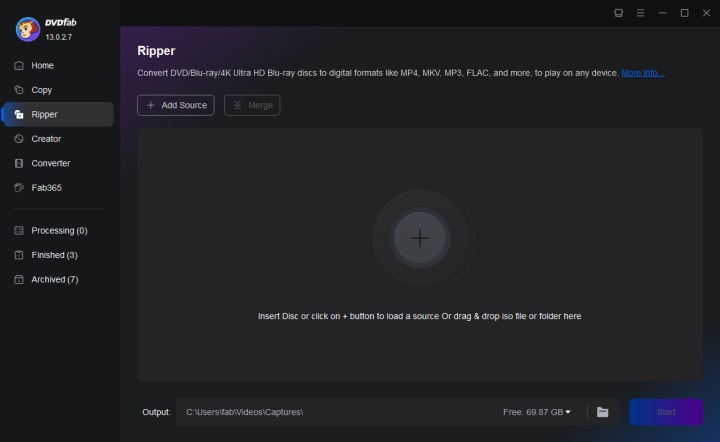
Connect your external DVD drive and insert the disc.
DVDFab will auto-detect the DVD and list its content in the main window.
It handles most protections and region codes automatically.
3. Choose Output Profile
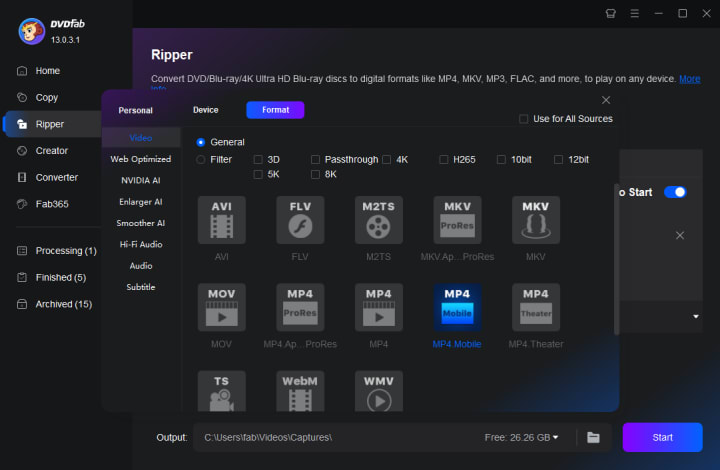
Select output format: MP4 (most universal), MKV, MOV, or device-specific profiles (iPhone, iPad, Android, etc.).
You can choose entire movies, main titles, or select chapters.
Optional: Edit video (trim, crop, add subtitles, etc.).
4. Set Output Destination
Click the folder icon to choose where ripped files will be saved.
5. Start Ripping
Hit “Start” and monitor the progress bar.
For most DVDs, average rip time is 10–20 minutes per disc.
Solving Common Issues (Mac Not Reading, Output Errors, etc.)
Even with the best tools, DVD ripping on a Mac can throw some curveballs. I can’t count how many times I’ve sat watching a progress bar, praying it wouldn’t crash, or stared blankly at a Mac that just refused to see my disc. Let’s walk through some of the most common issues—along with practical fixes—whether you’re using DVDFab DVD Ripper, MacX DVD Ripper Pro, or HandBrake.
Mac won’t recognize the DVD
If your Mac can’t “see” the DVD at all, your first suspect should be the hardware. Often, it’s just a matter of a faulty or low-quality USB to DVD drive cable. Try unplugging and replugging the drive, switching USB ports, or using another cable altogether. Occasionally, dust or scratches on the disc play havoc with the drive; a quick clean with a soft cloth might do the trick. If all else fails, restarting your Mac or using a different external DVD drive can save the day.
Disc loads, but the ripper shows nothing
When the DVD mounts but your software (especially HandBrake or MacX) displays a blank screen or “no titles found,” strong copy protection is usually to blame. Free rippers like HandBrake often struggle here, even with libdvdcss, while MacX sometimes chokes on newer encryptions. In my experience, DVDFab DVD Ripper handles these scenarios far better—it detects main movie titles despite the fake tracks set up by DVD publishers.
Ripping crashes halfway through
A crash or freeze during the ripping process usually points to a physically damaged disc. Deep scratches or fingerprints can cause your drive to lose sync. Try giving your disc a gentle cleaning. If your software supports it, switch to “Clone” or “Backup ISO” mode, which sometimes overcomes minor errors. Also, check your Mac’s power settings: making sure the system doesn’t go to sleep mid-rip (System Settings > Battery) can prevent unwanted interruptions.
Output video has no sound
Ending up with a silent movie is surprisingly common—often, it’s just the wrong audio track having been selected. While ripping, double-check in DVDFab (or your chosen ripper) to make sure the correct audio stream is ticked. Some DVDs contain multiple languages and commentary tracks, so verify your settings before starting.
Garbled video, weird subtitles, or scrambled playback
If the resulting video looks like a jigsaw puzzle or subtitles are missing/garbled, you may have fallen victim to advanced copy protection, region mismatches, or simply chosen the wrong title to rip (some discs intentionally fill “Title 1” with junk footage as a barrier). Always select the largest file or the main movie title. Updating to the latest version of your ripping tool can also patch up a surprising number of these issues—developers constantly push fixes for newly discovered DVD tricks.
HandBrake/libdvdcss throws errors
On newer macOS versions, installing and configuring libdvdcss for HandBrake has become a headache, and it still might not defeat all commercial protections. If you run into cryptic errors or see “libdvdnav” warnings, it’s often time to try a different tool—DVDFab and MacX both require far fewer technical workarounds and succeed with many discs where HandBrake stalls.
Conclusion
Ripping DVDs on a Mac no longer needs to be a technical nightmare. With the right combination of hardware (a trustworthy external drive), up-to-date software (especially DVDFab DVD Ripper for encrypted discs), and a little patience, you can free your favorite movies from their plastic prisons and watch them anywhere—on your Mac, iPhone, iPad, or even smart TV. Remember, while HandBrake is a great option for basic, unprotected discs, true convenience and reliability come from tools like DVDFab and MacX DVD Ripper Pro, particularly when facing region codes or tricky copy protection.
If you ever get stuck, don’t give up! Most issues have quick fixes—whether it’s updating your software, changing cables, or simply switching tools. Always keep your backups for personal use, stick to the latest versions, and enjoy the digital freedom that comes with a well-ripped DVD collection. Happy watching!
About the Creator
DVDLOVER
Sharing the latest on DVD & Blu-ray releases, E-book downloads, and trending TTS. Stay tuned for updates, tips, and exclusive content!



Comments
There are no comments for this story
Be the first to respond and start the conversation.