
How to Rip Blu-ray to MP4 For Free: The Complete Guide
This guide explains how to rip Blu-ray to MP4 and why it's a good idea. Also reviews five top software options—DVDFab, HandBrake, Leawo, and EaseFab—each with unique features and step-by-step instructions.

When it comes to Blu-ray backup, MP4 is the way to go. Why? Because MP4 is the most popular and compatible format today. Plus, ripping a Blu-ray to MP4 gives the best balance of video quality and file size for most people. In this article we’ll look at the reasons to convert Blu-ray to MP4, the best software to use and step by step guide on how to use each software for your ripping task.
5 Best Software to Rip Blu-ray to MP4
Since most media players and portable devices don’t support Blu-ray discs, folders and ISO files, you need to convert your Blu-ray disc to MP4 using the best Blu-ray to MP4 converter. There are software that are the best to rip Blu-ray to MP4. Here are some of them: DVDFab Blu-ray Ripper, HandBrake, VLC Media Player, Leawo Blu-ray Ripper, EaseFab Blu-ray Ripper.
DVDFab Blu-ray Ripper
A reliable Blu-ray to MP4 converter that can losslessly rip and convert any 2D or 3D Blu-ray to digital formats like MP4, MKV, AVI, MP3, M2TS and more. It also has a built-in video editor to edit and customize your Blu-ray videos.
Features of DVDFab for Ripping Blu-ray to MP4
Quick Blu-ray Ripping: Rip any Blu-ray to MP4 in just 15 minutes for fast access to your DVD content.
High-Quality Conversion: Retain the original cinematic experience with lossless audio and video quality.
Extensive Format Options: Choose from over 1,000 output formats, including MKV, AVI, and more for versatile playback.
Broad Device Compatibility: Rip Blu-ray discs into formats compatible with over 245 preset devices, including smartphones and tablets.
Hassle-Free Decryption: Automatically remove protections from both old and new encrypted Blu-rays using a cloud service.
Subtitle Customization: Easily convert Blu-ray subtitles to SRT format with OCR technology for enhanced viewing on a variety of devices.
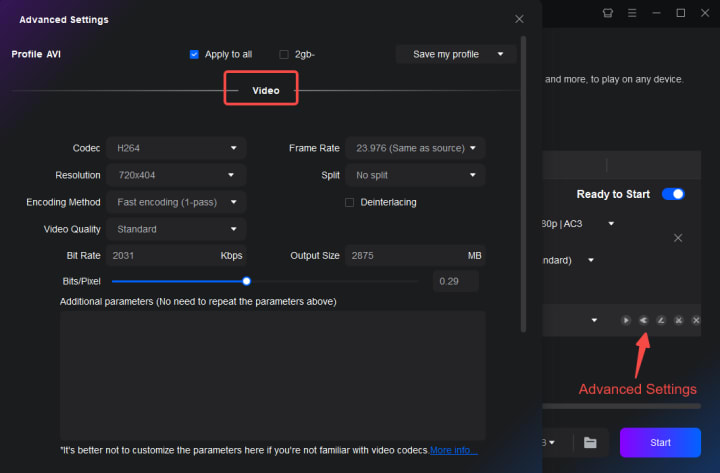
Customizable Settings: Adjust video output with options for codec, resolution, frame rate, and more to optimize quality and size.
Multitasking Capability: Manage multiple ripping tasks simultaneously with the Task Queue feature, saving you time.
Automatic Metadata Sync: Sync metadata (title, cast, and cover) automatically for easy organization and access on media servers.
How to Convert Blu-ray to MP4 with DVDFab Blu-ray Ripper?
Step 1: Install and launch DVDFab Blu-ray Ripper on your computer.
Step 2: Insert your Blu-ray disc into the Blu-ray drive and load it in the "Ripper" module of DVDFab.
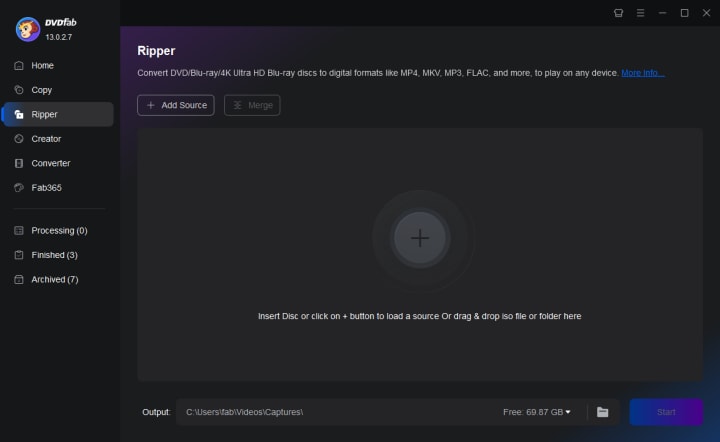
Step 3: Click "Choose Other Profile" and select MP4 as the output format.
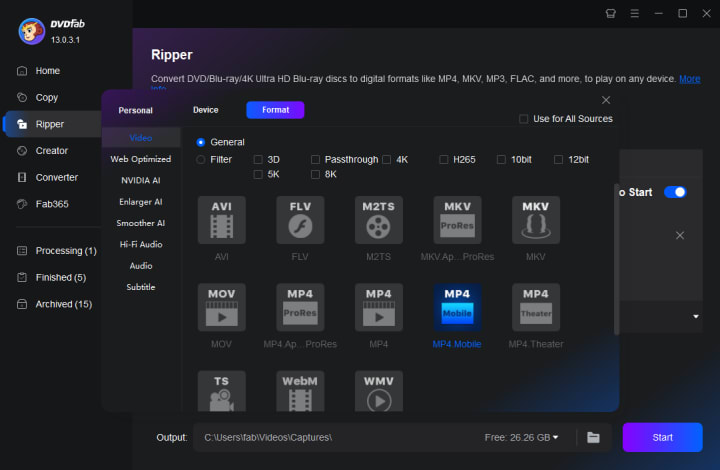
Step 4: Adjust video and audio settings such as resolution and quality if necessary.
Step 5: Select the output folder where you want the MP4 file to be saved.
Step 6: Click "Start" to begin the conversion process.
HandBrake
Handbrake is a popular video transcoder that can rip Blu-ray on Mac, Windows and Linux system. It's a good Blu-ray to MP4 converter for converting homemade Blu-ray discs to MP4, MKV, and Webm. This app uses batch scanning and line-up features to provide quick conversion. It can also effectively compress or change the format of movies or shows that have been ripped using another tool.
But Handbrake doesn't convert encrypted Blu-ray discs or commercial Blu-ray movies in BDMV file structure. So you can't use Handbrake to back up and rip protected Blu-rays, but you can still use it to convert homemade Blu-rays to MP4.
PROS
User-friendly interface
Live preview feature allows for real-time monitoring during ripping
Supports batch conversion, enabling multiple Blu-ray rips at once
CONS
Cannot rip protected Blu-ray discs
Slower ripping speed compared to some other Blu-ray rippers
Limited support for video formats other than MP4/MKV
How to Convert Blu-ray to MP4 with HandBrake
Step 1: Make sure that the HandBrake app you are using is the latest version.
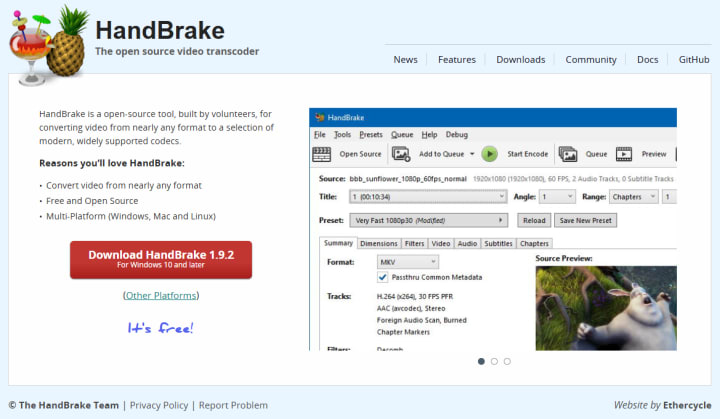
Step 2: Then, put your non-encrypted Blu-ray disc in your computer and wait a few seconds. The software will scan the Blu-ray file and let you choose which titles to convert to MP4.
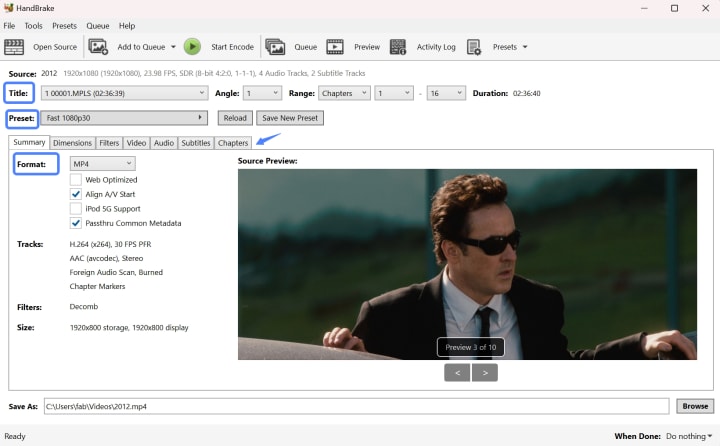
Step 3: If you're ripping the main movie, you must use the longest title. From the “Output settings” you can click "MP4" as the format for the output.
Step 4: Then, you can start the ripping process by clicking the "Start Encode" button after selecting the path to save the final file.
Leawo Blu-ray Ripper
Through our repeated tests, Leawo Blu-ray Ripper performs outstandingly in converting Blu-ray to MP4. In addition to MP4, this tool can convert commercial Blu-rays to other video formats such as FLV, MKV, MOV, and more. With over 180 formats supported, you can easily rip Blu-rays to smartphones like iOS and Android.
Furthermore, you can use Leawo Blu-ray Ripper to customize your Blu-ray and DVD movies before you start ripping them. You can crop, merge, add watermarks, cut scenes, create 3D movies, and adjust brightness and contrast, among other options.
PROS
Supports over 180 formats, including MP4
High output quality and fast conversion performance
User-friendly interface with video editing features
CONS
Lacks support for certain DRM protections
Additional fees for DVD conversion
Can fail to load Blu-ray discs at times
How to Rip Blu-ray to MP4 with Leawo Blu-ray Ripper
Step 1. Download, install, and run the program. Afterward, open the Blu-ray Ripper module. Click the "Add UHD/Blu-ray/DVD" button to browse Blu-ray movies you want to convert to MP4.
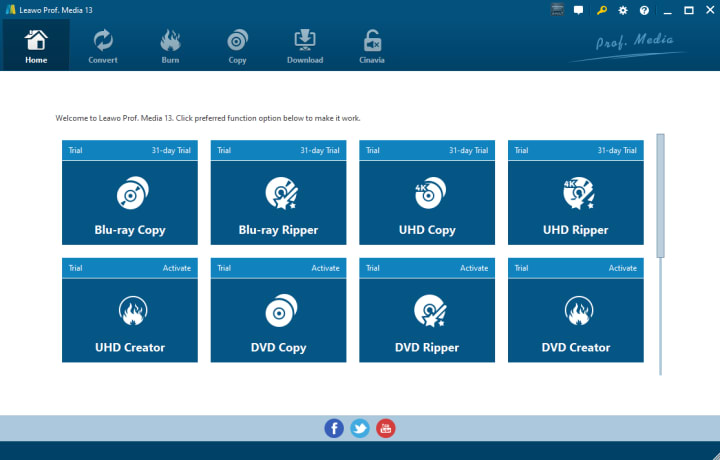
Step 2. You will see a dropdown box just before the "Convert" button; click it. And then click the "Change" button to select "Format", then "Common Video", and finally "MP4 Video". Otherwise, select "Format", then "HD Video", and finally "HD MP4 Video" as your output format from the "Profile" box. After you have set the output profile, return to the main interface.
Step 3. Click the "Convert" button and choose the output directory in the sidebar window. To begin converting Blu-ray videos to MP4, click the "Convert" button below.
EaseFab Blu-ray Ripper
EaseFab Blu-ray Ripper is an adaptable application that can convert copy-protected Blu-ray discs to more than 500 video and audio formats, including MP4, MKV, AVI, and WMV. After ripping, you can play the converted MP4 files on your iPhone, iPad, Android, or Windows Phone. EaseFab also lets you add subtitles, select subtitle/audio tracks, trim, clip, and edit your Blu-ray video.
PROS
Supports mainstream formats
Fast ripping speed and encoding
Useful editing tools
CONS
Does not support 4K Blu-ray discs
Cannot remove region codes
Cumbersome interface for beginners
Full version is expensive
How to Rip Blu-ray to MP4 with EaseFab Blu-ray Ripper
Step 1. Insert the Blu-ray disc into the BD drive and press the "Load Disc" button to upload it. Soon, it will provide a comprehensive list of Blu-ray titles, including the auto-checked primary title.
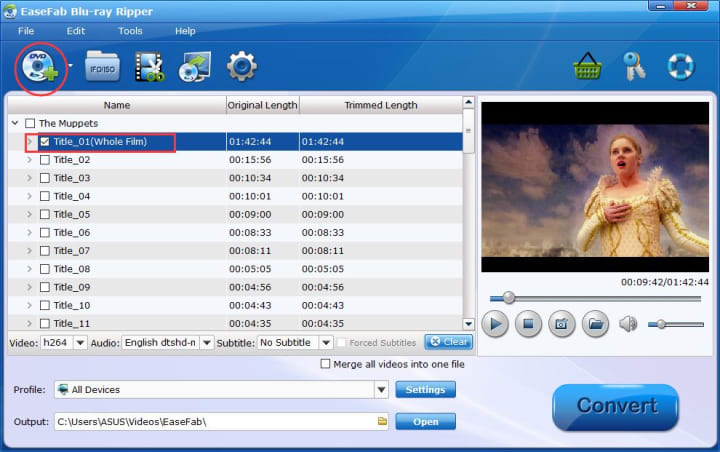
Step 2. Click the "Profile" tab and select the required format, such as MP4. The software also has a category for changing Blu-ray files for Android, iPhone, YouTube, and web services.
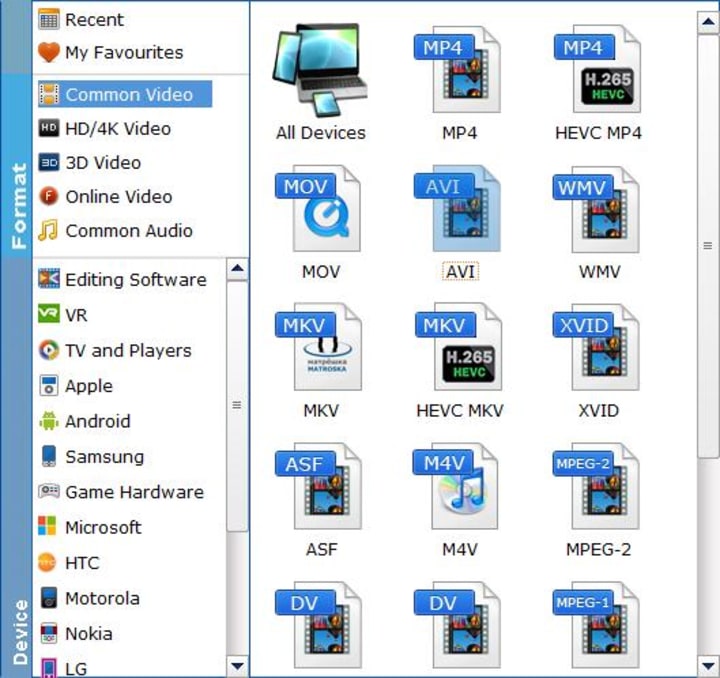
Step 3. Adjust the necessary settings such as video/audio codecs, frame rate, pixel dimensions, audio sample rate, bit rate, etc.
Step 4. To start ripping a Blu-ray, select the desired output destination and press the huge blue "Convert" button.
FAQs About Converting Blu-ray to MP4
What is the best video format for Blu-ray?
The best video format for Blu-ray is MPEG-2, which is the standard for high-definition video on Blu-ray discs. Other formats such as AVC (H.264) and VC-1 are also used. For digital use, MP4 is popular due to its compatibility with various devices while maintaining quality.
Does MP4 preserve quality?
Yes, MP4 can preserve quality, especially when you set a high bit rate during conversion. While it may not retain the original Blu-ray quality, MP4 strikes a solid balance between file size and video quality, making it suitable for streaming and playback on different devices.
Can MP4 go to 4K?
Absolutely! MP4 can handle 4K video if encoded correctly. Just ensure that both your video source and playback device support 4K for the best results.
Do I need special hardware to rip Blu-ray?
Yes, to rip Blu-ray discs, you need a Blu-ray drive to read the discs. Many modern computers do not have a built-in Blu-ray drive, so you may need to purchase an external Blu-ray drive. Make sure your ripping software is compatible with the drive you choose for a smooth experience.
Can I add subtitles when ripping Blu-ray to MP4?
Yes! Many Blu-ray ripping tools allow you to include subtitles during the conversion process. You can often choose to include embedded subtitles or add external subtitle files.
Final Wrap-up
Ripping Blu-ray to MP4 is a smart choice for digital media lovers, offering numerous benefits. This guide explored various software options, such as DVDFab, HandBrake, Leawo, and EaseFab, to help you rip your Blu-ray discs to MP4 easily. MP4 is the preferred output format due to its balance of quality and compatibility with many devices, allowing you to enjoy your films on smartphones, tablets, etc. By transitioning to digital formats, you save storage space and make your collection more accessible. Embracing these tools ensures your favorite Blu-ray movies remain available for years to come.
About the Creator
Rita
I am a freelancer, specializing in DVD, Blu-ray, and multimedia technologies. With a strong background as a tech editor, I bring a deep passion for the tech industry to my writing, crafting insightful articles.


Comments
There are no comments for this story
Be the first to respond and start the conversation.