
Best DVD Rippers for Mac in 2025: An Ultimate Guide for You
Everything You Need to Know About Ripping DVDs on Mac in 2025: Essential Software Comparisons, Compatibility Tips, and Foolproof Step-by-Step Guides.

In 2025, it might seem like DVDs belong in a museum—especially for Mac users, whose computers have long said goodbye to built-in disc drives. Streaming rules, cloud storage is everywhere, and yet, countless people still find themselves searching for a dvd ripper mac.
Why? Because our DVD collections still mean something. Maybe you've got home movies, rare films, or important projects that simply aren't online. Tossing those discs isn't an option, but leaving them to gather dust is equally frustrating. Digitizing them is how we protect, share, and enjoy content on modern Macs, iPhones, or iPads—no disc drive required.
Identify Your DVD Ripping Needs
Before you jump into software reviews, it's smart to pause and think: What kind of discs are you trying to rip, and what will you do with the files afterward? Your answers can seriously affect which mac dvd ripper makes sense for you. Different users have different priorities, and choosing the right tool starts with figuring out your real requirements.
Home DVDs vs. Commercial Discs
If your collection is mostly home movies, family projects, or self-burned DVDs, congratulations—your ripping experience will be much simpler. These are non-commercial discs with no copy protection, meaning nearly any DVD ripper (free or paid) can handle them. You'll have more options and less technical hassle.
But if you plan to convert retail movies, TV box sets, or region-locked imports, things get trickier. Most commercial DVDs include encryption or region codes to stop copying. Not all software can handle these protections legally or efficiently, so you'll need a tool that advertises built-in decryption (and ideally one that stays updated to bypass new DRM tricks).
Archival, Sharing, or On-the-Go?
It's also worth clarifying your end goal. Are you archiving your entire collection for safety? Editing clips for family projects? Or do you mainly want files that play easily on your iPhone or Apple TV?
Archiving and editing needs might push you toward rippers that offer lossless formats and more customization.
If portable playback is the goal, look for user-friendly tools with built-in device presets (like "iPhone" or "iPad" output).
Getting specific about your needs will save you time, money, and annoyance down the line. I know exactly how you feel—I've been there myself, grabbing the "most popular" tool only to find it didn't do what I actually wanted.
2025's Most Reliable Mac Rippers: Quick Intro
Choosing the best DVD ripper for Mac in 2025 isn't about hype—it's about what genuinely works for your discs and your workflow. Below, you'll find four top contenders, each introduced with their main value, followed by straightforward pros & cons, and a simple step guide so you know what to expect right from the start.
DVDFab DVD Ripper for Mac
DVDFab DVD Ripper for Mac is a professional-grade tool favored for its ease in cracking encryption (even on the latest commercial DVDs), robust conversion options, and thoughtful design for both beginners and pros. It keeps pace with Apple Silicon chips and macOS updates, saving users from compatibility headaches.
Pros:
- Excellent at bypassing most commercial disc protections
- Converts to a wide variety of formats and device profiles
- Fast ripping speed (with multiple acceleration techniques)
- User-friendly interface, but loaded with advanced options
- Frequent updates support new Mac hardware/software
Cons:
- Full functionality requires a paid license
- May be more feature-rich than needed for basic home DVDs
How to Use (Basic Steps):
1. Download and Install the Software
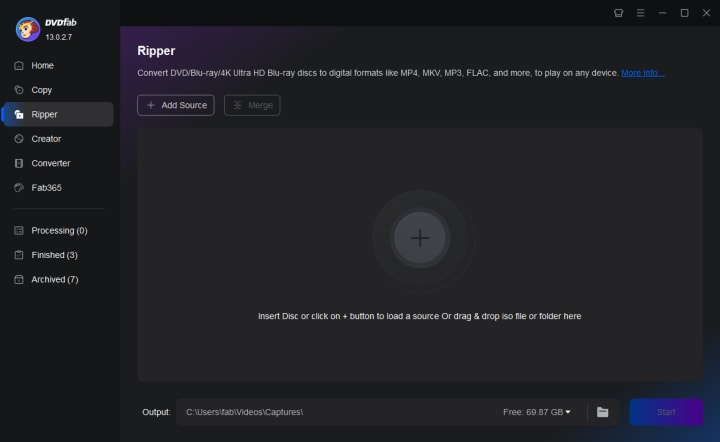
Download and install DVDFab DVD Ripper for Mac from the official site. Launch the program, insert your DVD, and wait for automatic detection.
2. Customize the Video Settings
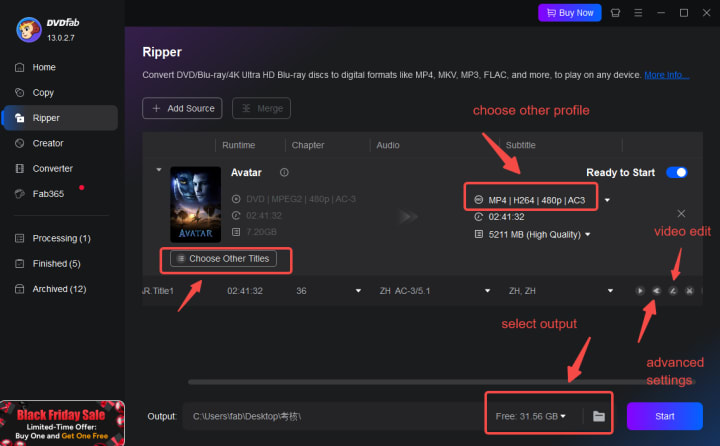
Select desired output format or device profile (like "iPhone" "MP4" or "Apple TV"); Optionally adjust settings (subtitles, audio, quality), then click "Start"
3. Start the Conversion
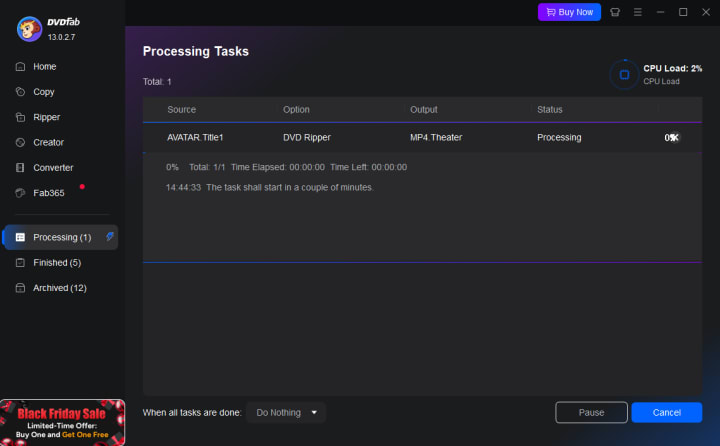
Monitor progress and locate the digitized file in your chosen output folder.
HandBrake (Free & Open Source)
HandBrake is a well-respected free solution, perfect for those with home-recorded or unprotected discs. Its streamlined open-source interface appeals to DIY types, though it doesn’t natively remove copy protection.
Pros:
- Completely free and lightweight
- Strong customization for codecs, resolution, and device presets
- Very stable, with a passionate support community
- Runs smoothly on both Intel and Apple Silicon Macs
Cons:
- Does not natively support encrypted/commercial DVDs
- Basic interface; may require add-ons for specific workflows
- No built-in tech support or live chat
How to Use (Basic Steps):
1. Download and Install HandBrake
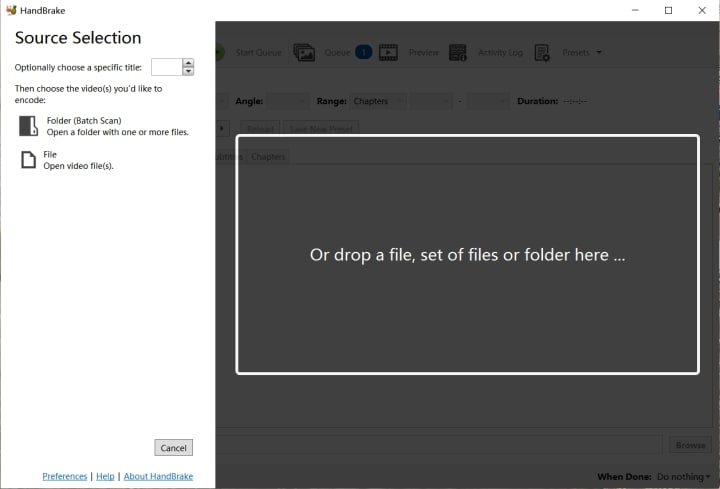
Install HandBrake from the official website (be sure to get the Mac version).
2. Launch the Software and Customize the Settings
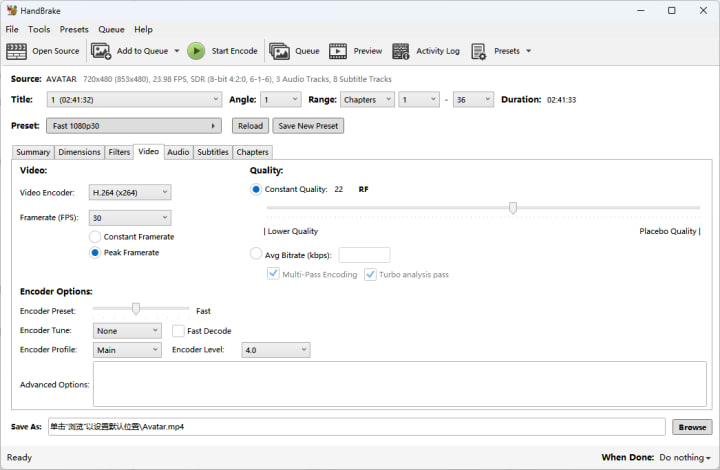
Open HandBrake, insert your DVD, and select the disc as the source.
Choose your output format and tweak quality/compression as needed.
3. Set your destination folder, then hit "Start Encode"
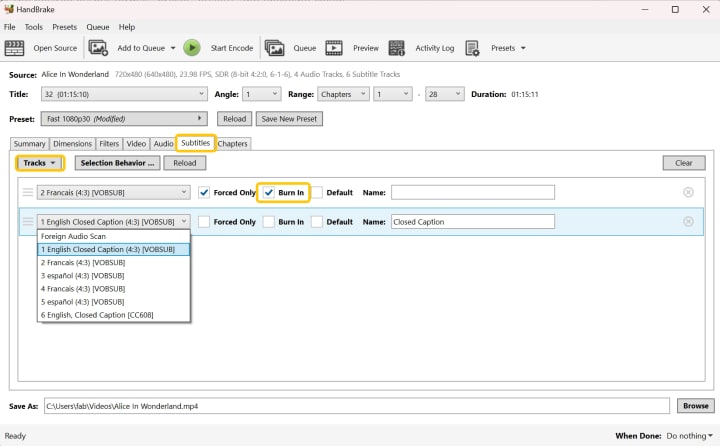
When complete, check your output video—ready for Mac viewing.
Leawo DVD Ripper for Mac
Leawo offers a balance of baseline ripping with multimedia features like batch conversion and simple trimming/editing. It’s popular among those who want to edit clips, add subtitles, or work with mixed-format DVD collections.
Pros:
- Handles most common DVD types and protections
- Offers editing features (crop, trim, watermark, subtitles)
- Batch processing—rip multiple discs or chapters at once
- Regularly updated for new versions of macOS
Cons:
- Some encrypted discs may require third-party decryption
- Interface occasionally lags on older Macs
- Free version is limited in speed/features
How to Use (Basic Steps):
1. Download Leawo DVD Ripper for Mac, install, and open it.
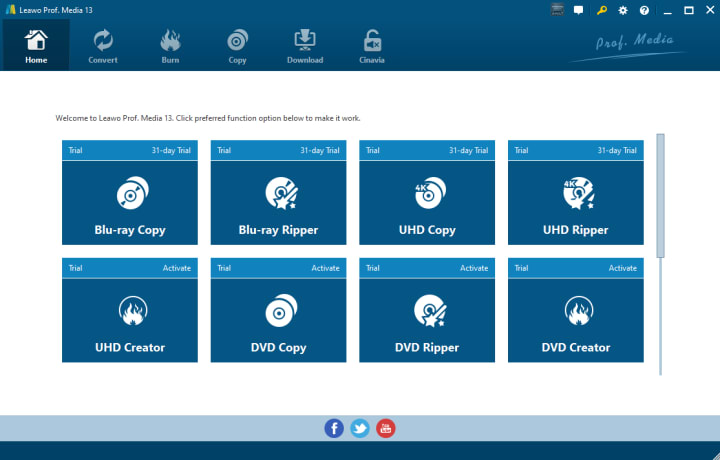
Insert DVD; click “Add Blu-ray/DVD,” and select your disc.
2. Choose output format and apply any edits or subtitle selections.

3. Click “Convert” and let it process.
Find your digital copy in the output location you set.
Paid vs Free DVD Rippers for Mac: How to Choose?
So, you’ve figured out what you want to do with your DVDs—now comes the question Mac users wrestle with every year: Is it worth paying for a DVD ripper, or can you get by with one of those “100% free, no catch” apps you find in every Google search?
Cost Factors: What Are You Really Paying For?
Freeware like HandBrake or MakeMKV is a tempting place to start. For home-burned discs or simple projects, these options might be all you need—and they’ve improved a lot over the years. But if you’re working with commercial movies, region codes, or special features, free tools often hit roadblocks.
Paid tools such as DVDFab, or Leawo tend to offer ongoing updates, built-in decryption engines, and more user-friendly presets. You're not just paying for initial download—you're investing in convenience, speed, and tech support.
Limitations of Free Versions
Here’s the reality check: truly free DVD ripper Mac software almost always comes with strings attached. Common restrictions include:
- Watermarks stamped on output videos
- Limited ripping length (first 5–10 minutes only)
- Lack of support for encrypted or commercial discs
- Fewer output format choices or device presets
- Updates that lag behind MacOS releases
On my very first DVD ripping project, I barely noticed the watermark in the preview, only to see it plastered right in the center of my finished video.
The Subscription Nuances
Don't assume "paid" means you're safe forever, though. Some top-tier Mac DVD rippers have moved to annual subscriptions or charge extra for "lifetime" updates. Always check whether the price covers future MacOS compatibility or support for the latest copy protections.
If this sounds familiar, that's because it happens to so many of us. The smart move: weigh the pros and cons (and read the fine print) before you commit.
Top Troubleshooting FAQs for Mac DVD Ripping
No matter how user-friendly today's DVD rippers have become, you're bound to hit a hiccup or two—especially with Mac's evolving hardware, security settings, and the quirks of individual DVDs. Below are the most common questions (and quick answers) I've encountered and solved through personal use and community wisdom.
Q1: My Mac DVD ripper won't detect my external DVD drive. What now?
A1: First, ensure your drive is connected directly to your Mac (not via a hub). Some drives draw more power or require updated drivers. If the drive lights up but the ripper still can't see it, try rebooting your Mac, switching USB ports, or testing with a different DVD.
Q2: Why do ripped videos have no sound/subtitles or the wrong language?
A2: Most rippers (including DVDFab, MacX, Leawo) let you choose audio tracks and subtitles before starting. Take a closer look at these pre-rip options—especially if you’re dealing with foreign language or multi-audio discs.
Q3: The output video plays, but the quality looks terrible. What gives?
A3: Higher compression settings mean smaller files but lower quality. If quality is a priority, pick "High" or "Original" quality and avoid shrinking file sizes too much. Some free rippers default to aggressive compression; paid tools usually offer more control.
Q4: My ripper suddenly crashes or won’t open after a macOS update. Any hope?
A4: This is common right after big system updates! Check the developer's website for the latest version—most serious rippers push out compatibility updates fast. Grant security permissions (System Preferences → Security & Privacy) if "unidentified developer" warnings appear.
Q5: Can I safely rip copy-protected DVDs for personal use?
A5: The legal answer varies by country. In most cases, personal backups are legal for discs you own, but distributing rips is not. When in doubt, use rippers with built-in DRM handling and keep your copies for private viewing only.
Q6: My rip is super slow or stalls at the same spot every time. Problems?
A6: Dirty, scratched, or heavily protected DVDs can cause this. Clean your disc, try another ripper, or (for really stubborn ones) update to the latest paid tool with stronger decryption.
Conclusion
Choosing the best DVD ripper for Mac in 2025 ultimately comes down to your personal needs, habits, and the kinds of discs living on your shelf. There is no single "perfect" tool, but there is the right tool for your specific situation.
If you're mostly dealing with commercial discs, want consistent updates, and appreciate having both quick-start and deep customization options, DVDFab stands out as a practical, everyday solution. Its strong decryption support, frequent compatibility updates, and user-friendly workflow make it easy to recommend for most Mac owners—even those with Apple Silicon or the latest macOS.
About the Creator
Rita
I am a freelancer, specializing in DVD, Blu-ray, and multimedia technologies. With a strong background as a tech editor, I bring a deep passion for the tech industry to my writing, crafting insightful articles.
JD Vance: ‘despicable toady for Trump’ – and 2028 candidate in all but name
JD Vance has moved quickly from outsider to one of the most influential figures in American politics. As vice president, he has positioned himself as Donald Trump’s most aggressive defender while quietly building a future of his own. Publicly, he presents loyalty. Privately, many see preparation.
By Dena Falken Esq2 days ago in 01


Comments
There are no comments for this story
Be the first to respond and start the conversation.