
How to Resolve Keyboard Lag on Your PC Quickly
Step-by-Step Solution

Keyboard lag is one of the most frustrating issues PC users can encounter. It disrupts productivity, hampers gaming experiences, and creates unnecessary delays in everyday tasks. Whether you're typing up an important document or navigating through a game, a lagging keyboard can be an obstacle to your smooth workflow. Fortunately, resolving this issue is often straightforward with the right troubleshooting methods.
In this article, we'll explore the causes behind keyboard lag and provide practical steps to fix it quickly. By the end, you'll have the tools to tackle this issue with confidence and restore optimal keyboard performance.
Causes of Keyboard Lag
Understanding the root causes of keyboard lag is the first step toward resolving it. Here are the most common culprits:
Outdated Drivers
Keyboard drivers may become outdated, causing communication delays between the keyboard and the PC.
Wireless Signal Interference
For wireless keyboards, weak connections or interference can result in delayed keypresses.
Software Conflicts
Background applications or system processes can sometimes interfere with keyboard performance.
Slow System Performance
A lagging computer system can directly impact keyboard response time.
Physical Issues
Dirt or damage to the keyboard may also contribute to slow responses.
Step-by-Step Solutions to Fix Keyboard Lag
1. Restart Your Computer
Restarting your computer is a simple but effective first step. A reboot clears temporary glitches, resolves software conflicts, and refreshes system performance.
Steps:
Save any open work.
Click on the "Start" menu.
Select "Restart."
After the reboot, test your keyboard to see if the lag persists.
2. Check Keyboard Connection
If you're using a wireless keyboard, check the connection quality:
For Wireless Keyboards:
Ensure the USB receiver is firmly connected to your PC.
Replace or recharge the keyboard batteries.
Minimize interference by keeping the receiver and keyboard close.
For Wired Keyboards:
Inspect the USB port and cable for damage.
Try connecting the keyboard to a different USB port.
3. Update or Reinstall Keyboard Drivers
Outdated or corrupted drivers can hinder your keyboard's performance.
Steps to Update Drivers:
Press Win + X and select "Device Manager."
Expand the "Keyboards" section.
Right-click your keyboard and select "Update driver."
Follow the on-screen instructions.
Reinstalling Drivers:
Uninstall the existing driver through Device Manager.
Restart your PC to allow Windows to reinstall the driver automatically.
4. Disable Filter Keys
Windows has an accessibility feature called "Filter Keys," which can cause delayed responses.
Steps:
Open "Settings" (Win + I).
Navigate to Ease of Access > Keyboard.
Turn off the "Filter Keys" toggle.
5. Close Background Applications
Resource-heavy programs running in the background can slow down your system, affecting keyboard responsiveness.
Steps:
Press Ctrl + Shift + Esc to open Task Manager.
Look for programs consuming high CPU or memory resources.
Right-click and select "End Task" for non-essential applications.
6. Perform a System Scan for Malware
Malware or viruses can degrade system performance and interfere with peripherals like keyboards.
Steps:
Open Windows Security (Win + S and search for "Windows Security").
Select Virus & threat protection.
Click Quick scan.
For a deeper check, select Scan options > Full scan.
7. Adjust Keyboard Repeat Rate Settings
Keyboard lag can sometimes be related to incorrect repeat rate settings.
Steps:
Open the Control Panel and search for "Keyboard."
Under the Keyboard Properties window, adjust the repeat delay and repeat rate sliders.
Click "Apply" and test the settings.
8. Update Windows
Outdated operating systems may cause compatibility issues with peripherals.
Steps:
Open Settings > Update & Security.
Select Windows Update.
Click Check for updates.
Install any pending updates and restart your computer.
9. Test with Another Keyboard
To rule out hardware issues, try using a different keyboard.
If the replacement keyboard works fine, the original one may be damaged.
If the lag persists, the issue is likely software or system-related.
10. Reset Your Keyboard Settings
Custom keyboard configurations or third-party software may introduce lags. Resetting to default settings can help.
Steps:
Uninstall any keyboard management software.
Reset any macros or keybinds set via third-party tools.
11. Check for System Resource Bottlenecks
Slow system performance could be due to insufficient resources.
Steps to Optimize Resources:
Use Disk Cleanup to remove temporary files.
Increase virtual memory through Advanced System Settings.
Upgrade RAM or consider moving to an SSD for better overall performance.
12. Reinstall Third-Party Keyboard Software
If you use custom software for your keyboard, such as Razer Synapse or Logitech G Hub, reinstalling it might solve compatibility issues.
Steps:
Uninstall the software via the Control Panel.
Download the latest version from the manufacturer’s website.
Install and configure the software afresh.
13. Reset Windows Settings
If none of the above methods work, resetting Windows settings to their default can resolve deeper software issues.
Steps:
Open Settings > Update & Security > Recovery.
Under "Reset this PC," select "Get started."
Follow the prompts and choose whether to keep or remove your files.
14. Check for BIOS/UEFI Updates
Rarely, outdated BIOS/UEFI firmware may cause peripheral performance issues.
Steps:
Visit your PC manufacturer’s website to check for BIOS updates.
Follow their instructions to safely update the firmware.
15. Seek Professional Assistance
If you've tried all the above steps and the issue persists, it may be time to consult a professional technician. They can diagnose and repair hardware or software problems more comprehensively.
FAQs About Resolving Keyboard Lag
Why is my wireless keyboard lagging?
Wireless keyboards may lag due to weak battery power, interference from other devices, or distance from the receiver. Replace batteries and ensure a strong connection.
Can malware cause keyboard lag?
Yes, malware can slow down your PC and interfere with keyboard performance. Running a full antivirus scan can resolve this.
How do I know if the problem is with my keyboard or my PC?
Testing your keyboard on another device or using a different keyboard on your PC can help determine if the issue lies with the keyboard or the system.
What is the best way to clean a keyboard?
Turn off the keyboard and use a compressed air can to remove dust. For sticky keys, lightly dampen a cloth with isopropyl alcohol and clean the keys.
Is keyboard lag common in gaming setups?
Yes, keyboard lag can occur in gaming setups due to high CPU usage, outdated drivers, or interference in wireless connections.
Will resetting Windows delete all my files?
If you choose the "Keep my files" option during a reset, personal files will be retained. However, installed applications will be removed.
Conclusion
Keyboard lag can be a nuisance, but with these troubleshooting steps, you can resolve the issue quickly and get back to enjoying a seamless typing or gaming experience.
Start with the basics like restarting your PC or checking connections, and progress to advanced methods like driver updates or system resets if needed. By identifying the root cause and applying the appropriate fix, you'll have your keyboard functioning smoothly in no time.
About the Creator
Keep reading
More stories from Hammad Editor and writers in 01 and other communities.
Generative AI: The Missing Piece in Scientific Discovery and Innovation
Generative artificial intelligence (AI) in today’s vast world of technological progress is a force to be reckoned with, as it endeavors to expand human potentialities beyond any horizons. As the dawn of another age draws near, generative AI slowly reveals itself as an amazing story that involves science and development at its very core, challenging everything we ever knew about imagination, solution finding or investigation.
By Hammad Editorabout a year ago in 01
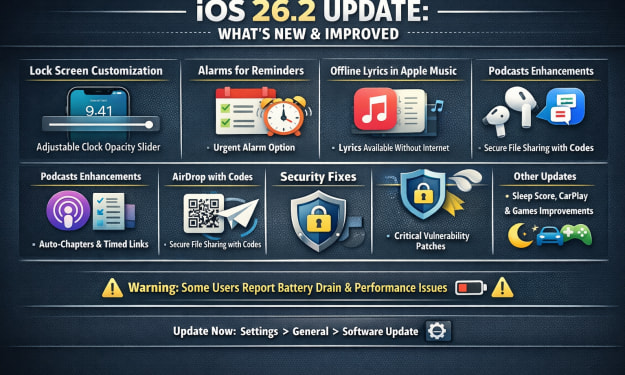
Apple iOS 26.2 Update
Apple officially released iOS 26.2 in December 2025 as a free over-the-air update for compatible iPhones (iPhone 11 and newer, plus second-generation iPhone SE). This second major point update for iOS 26 brings a mix of new features, system enhancements, customization options, security patches, and app upgrades aimed at refining the user experience following the launch of iOS 26 earlier in the year.
By USA daily update 7 days ago in 01


Comments
There are no comments for this story
Be the first to respond and start the conversation.