
How to Play Tidal Music on MusicBee
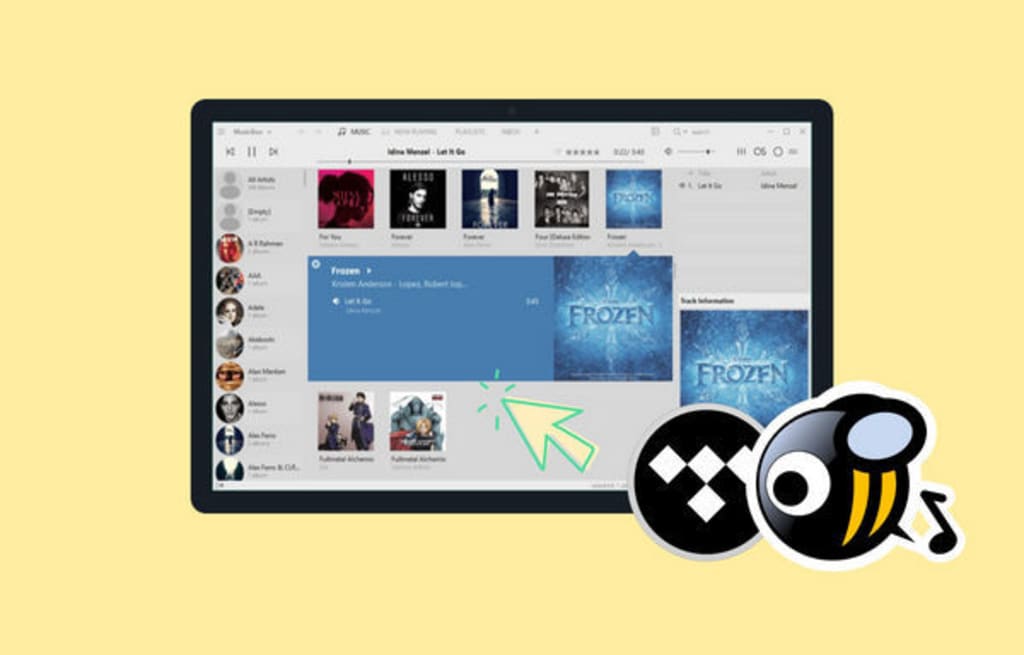
There is a detailed instruction about how to connect Tidal Music with MusicBee and play Tidal music on MusicBee.

Part 1. Download Music Tracks from TIDAL
Using a streaming service like Tidal to add music to MusicBee can be tricky, as the songs are protected in such a way that they cannot be used on other devices or platforms. That being said, users can still find ways to add Tidal music to MusicBee by converting the Tidal songs, albums, and playlists into DRM-free formats. This allows you to obtain your favorite music from Tidal and add it to any device or service - including MusicBee. All in all, by taking some extra steps, users can add their beloved tunes from Tidal to MusicBee with ease.
Thus we need a handy music downloader tool - Tidabie Tidal Music Converter. It decrypts and downloads Tidal Music files to a local computer in common MP3, AAC, WAV, FLAC, AIFF, and ALAC formats. Tidabie maintains the metadata information and ID3 tags such as the artist, title, year, track number, disc number, etc. You can as well customize the audio parameters like sample rate, bit rate, and more. This tool also lets you manage the output music library by album or artist for easy management. Tidabie will preserve the original HiFi quality of the Tidal music. Moreover, these converted Tidal songs can be saved on your computer for permanent playback.
Follow the steps in the following part to check how it orients you to download Tidal songs to your local PC and add Tidal Music folders to MusicBee for free playback.
Step 1 Install and Run Tidabie Tidal Music Converter
Download Tidabie Tidal Music Converter on your computer(both Windows and Mac versions are available). After completing the installation, start Tidabie. Click on the "Open Tidal Web Player" button to visit the official Tidal web player. Here you need to access your Tidal account via the 'Log in' button. All TIDAL plans are fully supported, including the TIDAL free account.
Step 2 Finish the Output Settings
In the top right corner, tap on the "settings" button. Then you will see a pop-up setting window where you can change the output format, bit rate, sample rate, output folder, and other parameters.
You can choose MP3/AAC/FLAC/WAV formats which are fully compatible with the MusicBee player. Tidabie allows you to sort the downloaded songs via artist, album or playlist under OutPut Organized option. To download all songs to the same folder without classification, just choose "None" in the Output Organized setting.
TIPS: by choosing "Auto" under the Output Format option, Tidabie will download TIDAL songs with original quality and audio format.
Step 3 Select Tidal Tracks to Start Downloading
Open the playlist or album that you want to download, then click the "Add to list" button in the lower right. Tidabie will load all songs in the playlist or album, choose the songs from the list, then click the "Convert Now" button to start converting the songs instantaneously.
You may have noticed another option "Save to list" on the convert list. It's designed for users who prefer to download multiple playlists/albums at once. By clicking this button, you can add more songs from other playlists or albums to the convert list for batch conversion.
Please wait patiently until Tidabie finished downloading. Generally, the output folder will open soon after the conversion. You can also click the "History" icon to check the converted tracks. Move to the song you need and you will see a "folder" icon, click it to open the local output folder.
Part 2. Add the Converted Tidal Songs to MusicBee
After opening the output folder, you will see all downloaded Tidal songs are well-organized and preserve ID3 tags. Now follow the steps below to add Tidal songs to MusicBee for offline playback.
Method 1: After you successfully installed MusicVee, it will pop up a Window which allows you to select folder from your local computer. Simply click the "Choose Folders..." button, and choose the Tidabie download folder to add all downloaded Tidal playlists to your MusicBee library.
Method 2: You can also click the MusicBee title on the top-left corner, select File > Add Files to Library... from the drop-down menu, then import the downloaded Tidal albums to MusicBee.
MusicBee is a popular media player for managing, playing and organizing digital music. Unfortunately, it does not natively support streaming services such as Tidal. Thankfully, add-on tools like Tidabie Tidal Music Converter provide a great method for converting and transferring Tidal tracks to MusicBee with ease. This allows you to add songs from your playlists on the Tidal platform to the media player, so you can access them offline whenever needed. Additionally, since the converted and downloaded tracks are DRM-free, they are also usable on DJ programs and any mobile device without restrictions. Thus, add Tidal music to MusicBee with ease by using Tidabie!
About the Creator
Taxi Market Size and Forecast 2025–2033: The Future of Urban Mobility Goes Digital
Global Taxi Market Outlook 2025–2033 The global taxi market is entering a transformative era, driven by rapid urbanization, digital innovation, and the changing mobility preferences of modern commuters. According to Renub Research, the Taxi Market is expected to reach US$ 592.96 billion by 2033, growing from US$ 274.6 billion in 2024, at a CAGR of 8.93% from 2025 to 2033.
By Renub Researchabout 10 hours ago in 01
Best React Datetime Pickers for 2026: Top Libraries
Look, I get it. You're staring at your React project right now, wondering why picking a stupid date has to be this complicated. Should've been simple, yeah? But here we are in 2026, and somehow we've got more datetime picker options than there are days in a bloody year.
By Sherry Walker5 days ago in 01



Comments
There are no comments for this story
Be the first to respond and start the conversation.