
How to Fix Broken or Missing Laptop Keys with Laptop Replacement Keys
Laptop Replacement Keys

When you’re typing away on your laptop and suddenly notice a key is loose, missing, or broken, it can be incredibly frustrating. Whether it's your space bar, enter key, or one of the letters you use most often, even one missing key can affect your productivity. The good news is that you don’t need to replace your entire keyboard or laptop. With the right approach and tools, you can fix broken or missing laptop keys using laptop replacement keys. This article will walk you through everything you need to know to get your keyboard working like new again—all in simple, easy-to-understand language.
Understanding the Basics of Laptop Keys and Their Structure
Before diving into the repair process, it’s important to understand how laptop keys are built. Most laptop keys consist of three main parts: the keycap (the part you press), the retainer clip (a small plastic piece that holds the keycap in place), and the rubber or silicone cup (which gives the key its springy bounce). These three components work together to make your keyboard feel responsive and accurate.
Every laptop model has a slightly different keyboard design. Some use scissor-switch mechanisms, while others may use butterfly or membrane switches. When you’re dealing with broken or missing keys, you need to make sure you have compatible replacement parts. That’s why knowing your laptop brand and model is essential before you start. Whether you’re dealing with English keyboard keys or others like teclas de teclado (Spanish for "keyboard keys") or tasti tastiera (Italian for "keyboard keys"), the structure remains fairly consistent, allowing for repairs across a variety of keyboards.
Common Reasons Laptop Keys Break or Fall Off
Laptop keys can break or pop off for many reasons. One of the most common causes is wear and tear from regular use. If you’re someone who types frequently—whether for school, work, or gaming—your keyboard gets a lot of action. Over time, this can weaken the retainer clips or cause the keycap to loosen. Spills are another culprit. Even a small amount of liquid can seep underneath the keys and cause sticky or unresponsive behavior. Accidental impacts, like dropping your laptop or closing the lid on something, can also damage the keys or their underlying structure.
Sometimes, kids or pets may unintentionally cause damage, especially if they press the keys too hard or pull them off out of curiosity. No matter the reason, having the right knowledge and tools can help you fix the issue without needing a costly repair or a full keyboard replacement.
Where to Get Laptop Replacement Keys and What to Look For
When fixing a broken or missing key, the first thing you need is a reliable laptop replacement key. These can be found through specialized websites that offer individual keys for all major laptop brands, including Dell, HP, Lenovo, Acer, Apple, Toshiba, and more. Make sure to search using your laptop’s exact model number. That information is usually printed on a sticker at the bottom of your laptop or can be found in your device settings.
When buying replacement keys, you should receive a keycap, retainer clip, and rubber cup (if needed). Some sellers also include installation tools or instructions, which can be helpful if this is your first time doing a repair. You can also find replacement parts labeled as teclas de teclado or tasti tastiera depending on the country or language of the website you’re purchasing from, so keep an eye out for those terms.
It’s a good idea to check reviews and ratings for the seller before making a purchase. High-quality keys will feel just like your original ones, both in touch and responsiveness. Poorly made keys may look similar but can feel off or fail to fit properly. If possible, order a few extra keys—especially if you’ve had more than one break in the past.
How to Fix Broken or Missing Laptop Keys Step-by-Step
Once you have your replacement parts, it’s time to fix the broken or missing key. Start by examining the area where the key was located. If any broken pieces of the retainer clip are still attached, gently remove them with tweezers. Make sure the area is clean and dry—use a soft cloth or canned air to remove dust and debris.
Next, attach the new retainer clip. This step is often the trickiest because the clip must be properly aligned and snapped into place. Each retainer has a top and bottom, so be careful not to force it in the wrong way. Once the clip is in position, you can gently press it down until it clicks into the keyboard base.
After the retainer is secure, place the rubber cup (if included) in the center of the retainer. This cup provides the springy feedback you’re used to when typing. With that in place, align the keycap over the retainer and press down evenly until it clicks into place. Don’t press too hard; the key should snap on with moderate pressure.
Test the key to make sure it feels and works just like the others. If it feels stiff, loose, or unresponsive, remove it and try reinstalling it. Sometimes it takes a couple of tries to get everything aligned perfectly. Don’t get discouraged—once you get the hang of it, replacing laptop keys becomes much easier.
Maintaining Your Laptop Keys to Prevent Future Issues
Once you’ve fixed your key, you’ll want to keep your keyboard in good condition to avoid having the same issue again. One of the best ways to prevent damage is by regularly cleaning your keyboard. Dust, crumbs, and grime can build up over time and affect how your keys work. Use a can of compressed air to blow out debris between the keys and wipe the surface with a microfiber cloth.
Avoid eating or drinking near your laptop whenever possible. Even a tiny splash of water can cause problems. If you do spill something, power off your laptop immediately, unplug it, and try to dry it out by flipping it upside down. In some cases, you may need to take it to a professional for a deeper clean.
Typing gently also goes a long way. You don’t need to hammer the keys—just a light touch will do. Over time, this helps preserve the clips and internal components. If your laptop often travels with you, consider using a keyboard cover. These silicone sheets protect against dust, spills, and everyday wear and tear. They’re available for most laptop models and are especially helpful for those who are constantly on the go.
If you’ve fixed your key using a part labeled as teclas de teclado or tasti tastiera, keep the packaging or product ID on hand in case you need more replacements in the future. Some sellers even offer bulk discounts or warranties on their parts.
When to Consider Professional Repair or Full Keyboard Replacement
While fixing broken or missing laptop keys with laptop replacement keys is a great solution for most minor issues, there are times when professional help might be your best bet. If multiple keys are unresponsive or if there’s deep internal damage (like from a major liquid spill), your entire keyboard might need to be replaced. This is especially true if the motherboard or circuits underneath the keyboard have been affected.
If you’re unsure about the extent of the damage, take your laptop to a certified technician for a quick diagnosis. In many cases, they can tell you whether the keyboard can be repaired or needs to be swapped out. For laptops still under warranty, always check with the manufacturer first. Attempting a DIY fix might void your warranty if not done correctly.
That said, many people successfully fix their keys at home with little to no technical background. Just take your time, follow the steps, and don’t be afraid to start over if your first attempt doesn’t go as planned. Replacement key kits are affordable, and fixing one key can save you from the expense of a full keyboard or laptop replacement.
Whether you’re working with English laptop keys or ones from international keyboards labeled teclas de teclado or tasti tastiera, the process remains largely the same—and completely doable with a bit of patience.
Conclusion
Fixing broken or missing laptop keys doesn’t have to be overwhelming. With the right laptop replacement keys and a bit of know-how, you can restore your keyboard’s function in just a few simple steps. Understanding how your keys work, choosing the right parts—whether labeled in English, teclas de teclado, or tasti tastiera—and using care during the repair process will help you get back to typing smoothly.
Maintaining your keyboard is just as important as fixing it. Keep it clean, handle it gently, and protect it from future damage. And if the issue is bigger than a single key, don’t hesitate to seek professional help. Whether you’re a student, a professional, or just someone who uses their laptop for fun, knowing how to repair your keyboard puts the power back in your hands—literally.
With these tips and tools, you’ll never have to panic about a broken key again. Your laptop keys are too important to ignore, and now, you have the confidence to fix them yourself.
About the Creator
Keep reading
More stories from Seo Musarrat and writers in 01 and other communities.
What Everyone Must Know About Pros & Cons of SPC Flooring
Selecting flooring options for houses as well as commercial spaces and offices demands more thought than many people anticipate. The search leads to a product that fulfills design needs while maintaining high longevity and affordability. The market has recently witnessed an increase in SPC flooring adoption among customers searching for better flooring solutions. You need to study the complete specifications of SPC flooring because it has both positive and negative characteristics before picking a choice. Understanding everything will allow you to choose decisions that bring lasting satisfaction.
By Seo Musarrat11 months ago in 01
The Role of the Three Way Forklift in Modern Warehouse Efficiency
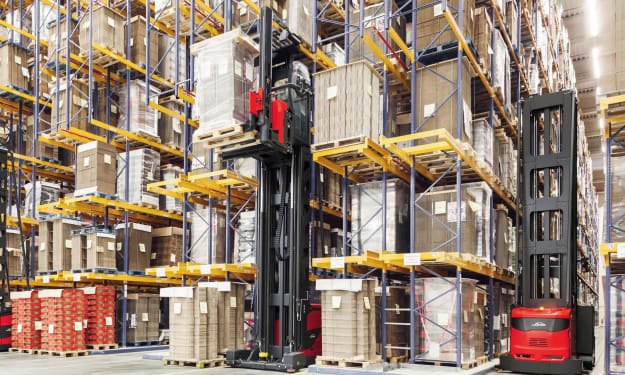
Efficient material handling is a crucial part of modern warehouse management. As global trade and e‑commerce continue to grow, warehouses must store more products while maintaining fast and accurate operations. One of the most important machines used in logistics and storage facilities is the forklift. A forklift is an industrial vehicle designed to lift, move, and transport heavy materials over short distances, making it a core component of supply chain operations.
By charliesamuel2 days ago in 01
Responsible AI Development Design, Testing, and Governance for Teams
Artificial Intelligence is transforming how enterprises operate — from automation and predictive analytics to intelligent customer experiences. In fact, over 90% of firms use AI in some capacity today, with adoption expanding quickly across departments and workflows.
By Jakob Stanely6 days ago in 01



Comments
There are no comments for this story
Be the first to respond and start the conversation.