
How to Extract Audio from DVDs with 3 Reliable Software
Learn how to extract audio from DVDs with the 3 best professional tools. Choose the ideal method for your audio ripping needs.

Sometimes, when watching the movie DVDs I've collected, I come across a piece of background music that I really love. I often thought to myself, "If only I could extract the music from DVDs and put it on my phone to play on repeat, that would be amazing." I have to say, it's a brilliant idea, and what's even more surprising is that such tools actually exist. Over the years, I've used more than 10 different ways to rip audio from DVD, and there are three that I find the most useful. I've even used them to rip an entire season of Modern Family, so I can listen to it while commuting. Now, I'd like to share with you the three methods I frequently use and how I extract audio from DVD with them.
How to Rip Audio from DVDs with Professional Tools?
Way 1: How to Extract Audio from DVDs with DVDFab DVD Ripper
DVDFab DVD Ripper is a comprehensive DVD video and audio converter that is handy and easy to use. It provides over 260 preset device profiles that can produce videos compatible with devices such as iPhones, Huawei, and Apple & Android tablets. Besides those popular video formats such as MKV, MP4, and AVI, you can also use it as a DVD audio ripper to rip music and audio from DVDs with quality loss.
Additionally, it can customize audio formats for different DVD titles before starting the batch conversion process, which allows you to personalize your audio files according to your preferences.
PROS
- Support copy-protected DVDs.
- Support over 1000 output formats, including .srt subtitle format.
- Batch conversion of multiple titles at a fast speed.
- Advanced video editing features, including trim, crop, color effect, and more.
- Support title/chapter customization for an exclusive playback experience.
CONS
- The free version offers only MKV and MP4 as output.
Here is the step-by-step guide on how to rip audio from DVD using DVDFab DVD Ripper:
Step 1: Download and install DVDFab DVD Ripper from the official website.
Step 2: Launch the software, and switch to the "Ripper" tab on the left pane.
Step 3: Insert the DVD you want to rip into your PC drive. Wait till DVDFab automatically analyzes and loads the DVD as the source. DVDFab will display the main movie title by default (normally the longest one), if you want to add more titles for a batch conversion, open the "Choose Other Titles" window and select the desired one.
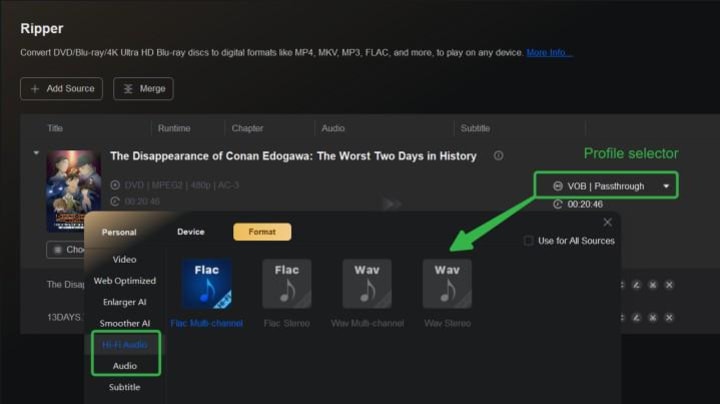
Step 4: Click on the tiny triangle to open the Profile selector panel, switch to the "Hi-Fi Audio" and "Audio" tab, and then choose the audio format you prefer.
- To get a high-quality reproduction of sound, choose those under the "Hi-Fi Audio" tab, you have four options to choose from: Flac (Multi-channel / Stereo) and Wav (Multi-channel / Stereo).
- If you just want regular audio or sound, choose under the "Audio" tab, there are 16 formats available, such as AAC, AC3, OGG, and TrueHD.
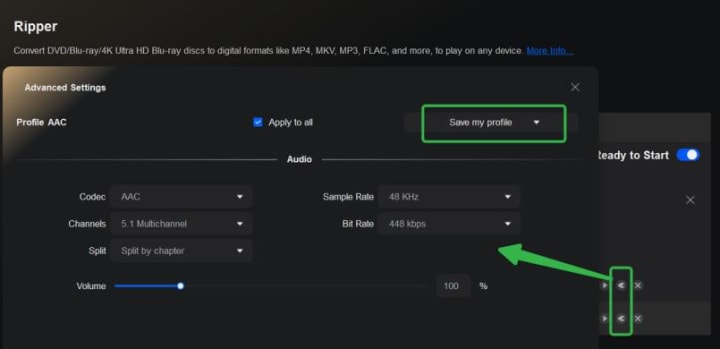
Step 5: Adjust the codec, channels, sample rate, and bit rate if needed in the Advanced Settings panel. Split the title into chapters is also supported, simply choose the option per your need. After making the changes, if you want to save the parameters for future use, click the "Save my profile" button in the top-right corner.
Step 6: Go back to the main interface, choose the Output location, and click the "Start" button to extract audio from your DVD.
Step 7: Once the ripping process is complete, you can enjoy audio on your computer or manually move it to a portable device for listening.
Way 2: How to Extract Audio from Discs with VLC Media Player
VLC Media Player, a free and well-known multimedia player, allows you to play all sorts of files without DRM. Besides the media play feature, it also provides the features to let you rip audio from DVDs, however, the sources need to be copy-free DVDs, so if you want a DVD audio ripper for commercial DVDs too, you may consider DVDFab DVD Ripper.
PROS
- Free and open-source.
- Multi-platform supports.
CONS
- Only support DVDs without copy protection.
Follow the steps below to extract audio from DVDs using VLC:
Step 1: Choose the VLC version that is compatible with your computer, and download and install it.
Step 2: Insert the DVD you want to extract audio from into your PC drive.
Step 3: Open VLC and click Media in the top menu bar. From the drop-down menu, select Convert / Save.
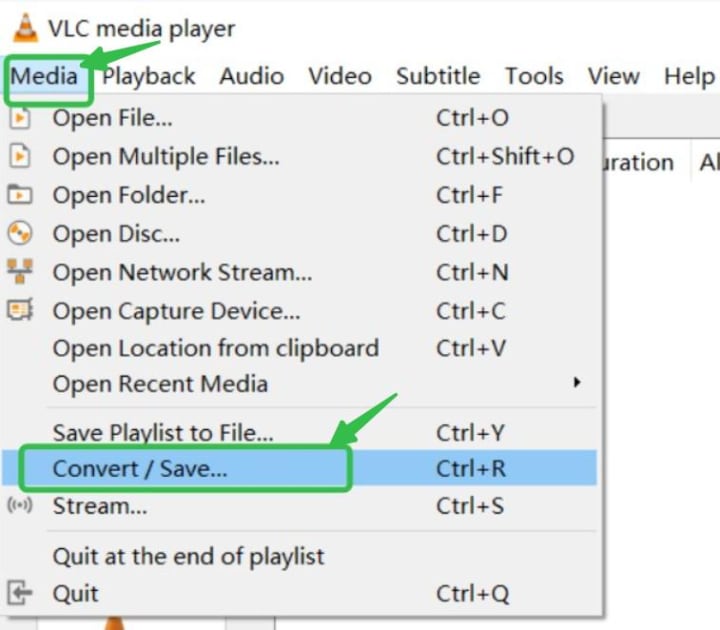
Step 4: In the next window, switch to the "Disc" tab. Choose the corresponding tab to rip audio from DVDs saved in another location. Once the DVD is loaded, click Convert / Save to proceed to the next step.
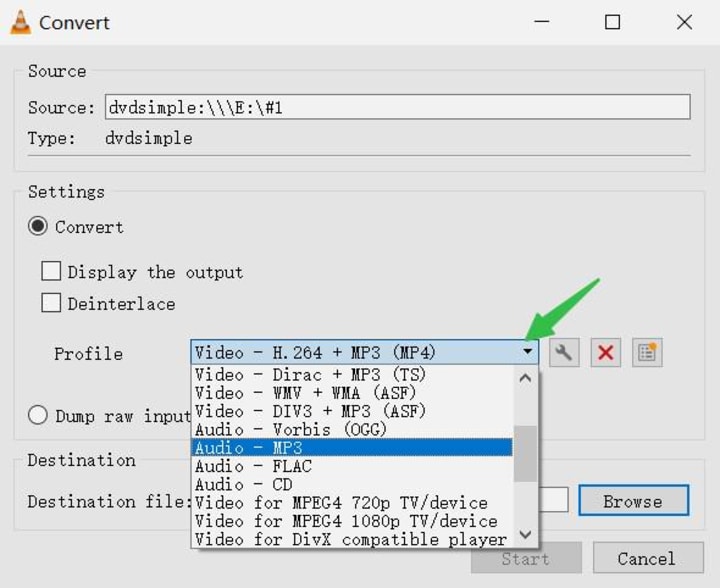
Step 5: Click the Profile box to choose an audio format from the drop-down list. Available options include MP3, FLAC, Vorbis (OGG), and CD.
💡Tips: If you want a custom profile, click the "wrench" icon next to the Profile box to proceed.
Step 6: Press the Start button to rip DVD to MP3 or another format to your liking.
Way 3: How to Extract Audio from DVDs with XMedia Recode
XMedia Recode is a versatile and efficient tool that allows you to extract audio from DVDs besides ripping videos from Blu-ray, DVD, and many different videos. With a variety of device profiles available, such as iPod, iPhone, PSP, and Blackberry, this software makes it easy to tailor your conversions to specific playback devices. In addition to conversion capabilities, XMedia Recode offers basic video editing features like cutting, cropping, rotating, and adjusting video color. Finally, it is free to use as a video converter and audio extractor.
PROS
- Support a wide range of input and output formats.
- Support adding subtitles or setting chapters for the video.
- Provide a bunch of audio and video filters.
- Allow for editing ID3 Tag and changing the album cover.
- Batch conversion of multiple files.
CONS
- Limited editing options compared to other professional video editing software.
- May experience occasional crashes or bugs.
Step-by-step guide on how to rip audio from a DVD using XMedia Recode:
Step 1: Download and install XMedia Recode from the official website.
Step 2: Insert the DVD into your computer's DVD drive.
Step 3: Open XMedia Recode and click "Open Disc" in the top toolbar.
Step 4: Select the DVD drive from the dropdown menu and click "OK" to open the DVD in XMedia Recode. It will by default show all the titles available in the source DVD.
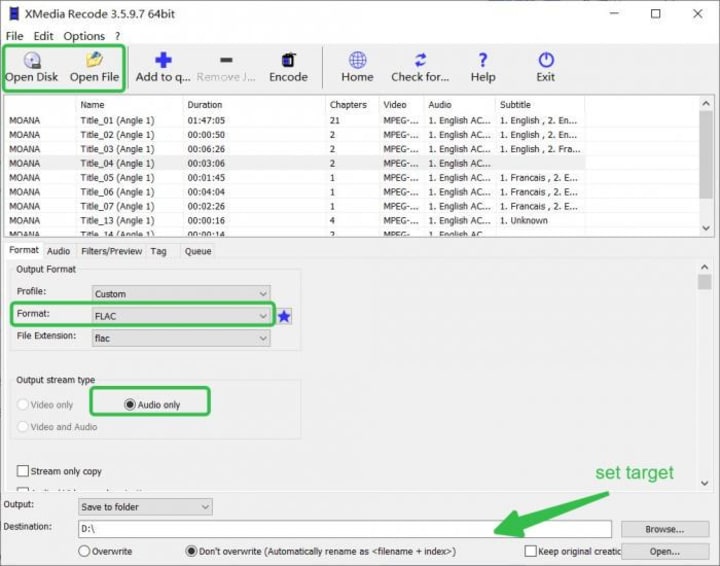
Step 5: Set the output format to FLAC or others per your needs. It will then automatically switch to the "Audio only" type.
Step 6: Click the Audio tab to customize the sample rate, channels, bitrate, etc., and adjust other settings such as chapter range to your liking.
Step 7: Click the "Add to queue" button to add the titles you want to extract audio to the conversion queue.
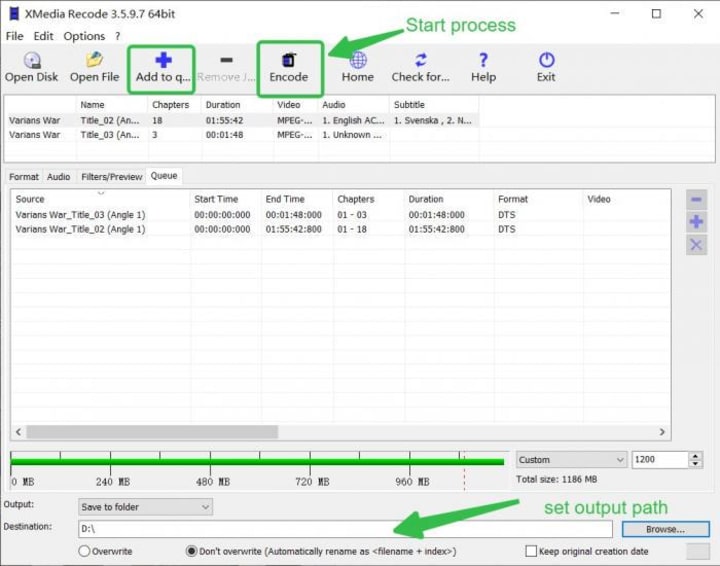
Step 8: Set the destination output path in the lower area.
Step 9: Click the "Encode" button to start ripping the audio from the DVD.
FAQs
Q1: Can EAC rip DVD audio from Discs?
Exact Audio Copy (EAC) is primarily designed for extracting audio from CDs, not DVDs. While EAC excels at ripping audio CDs with high accuracy, it doesn't support DVD-Audio formats or encrypted DVDs.
For extracting audio from DVDs, especially DVD-Audio or encrypted DVDs, specialized tools like DVDFab DVD Ripper, VLC Media Player, or XMedia Recode are more suitable.
Q2: How to get sound out of a DVD player?
If you're experiencing no sound while playing a DVD, consider the following troubleshooting steps:
- Check Audio Connections: Ensure that all audio cables are securely connected between your DVD player and the TV or audio receiver.
- Verify Audio Settings: Access your DVD player's audio settings and confirm that the output format (e.g., PCM, Dolby Digital) matches your connected equipment.
- Inspect Volume Controls: Make sure the volume is turned up and not muted on both the DVD player and the connected audio device.
- Test with Different Discs: Try playing a different DVD to rule out issues with the disc itself.
- Clean the Disc: If the disc is dirty or scratched, clean it gently with a soft cloth and test again.
- Update Firmware: Check for any firmware updates for your DVD player that might address audio playback issues.
If the problem persists after these steps, it may be necessary to consult the manufacturer's support or consider professional repair services.
Conclusion
These are the three methods I've loved using over the years to extract audio from DVDs. I'm confident that even if you're not tech-savvy, you'll be able to figure out how to use these tools after reading this detailed guide. All in all, I hope this article helps you make the most of your DVD collection and build up your music collection.
About the Creator
Wenny
Hi there, I'm Wenny, a technical writer sharing multimedia solutions accessible for everyone. Read my articles to turn "how?" into "let's do it!"
How Can Kaito Project Marketing Guide Community Decision-Making in 2026?
By 2026, community decision-making has become one of the most critical determinants of success for decentralized projects. As protocols scale and governance participation widens, the ability of communities to interpret information, evaluate trade-offs, and act collectively has taken center stage. Kaito, as an intelligence-driven platform that aggregates, structures, and contextualizes crypto discourse, plays a pivotal role in shaping how decisions are formed rather than merely how opinions spread.
By Jack santo5 days ago in 01




Comments
There are no comments for this story
Be the first to respond and start the conversation.