
How to Delete a Page in Word?
Everything You Need to Know

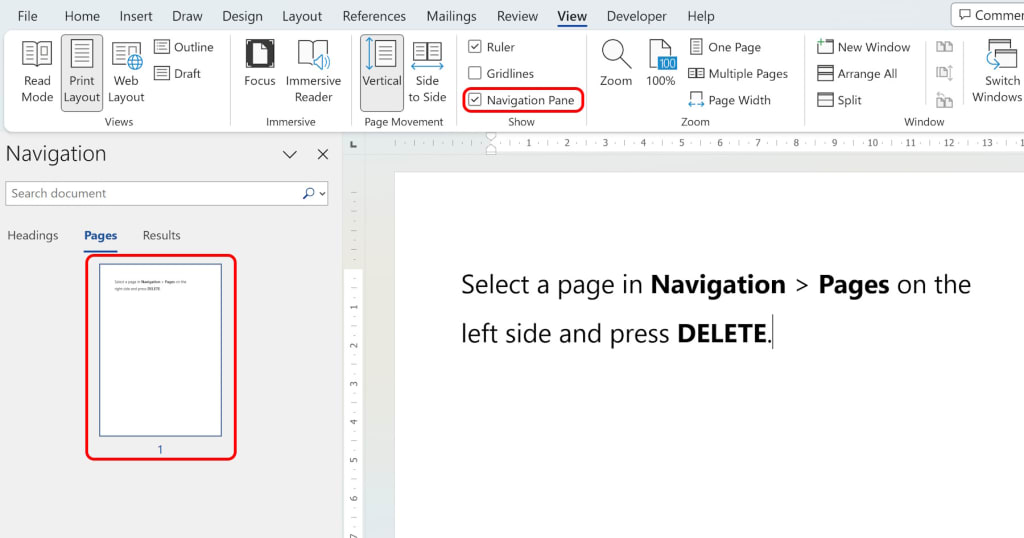
In today's digital age, Microsoft Word remains one of the most popular word processing tools. Whether you’re working on an academic paper, a business document, or simply writing a journal, sometimes you end up with blank pages that you don’t want. In this blog post, we’ll explore how to delete a page in Word, provide tips, and share personal insights to help you do this quickly and effectively.
Reasons for Deleting Pages
Before we dive into the specific steps, it's essential to understand why someone might need to delete pages. Here are a few reasons:
Blank Pages: It often happens that after finishing your writing, a blank page remains, usually caused by excess spacing or empty lines.
Formatting Issues: Incorrect formatting can create additional pages. You may have accidentally inserted spaces or invisible symbols that cause this occurrence.
Editing: When you edit a document, you might decide to remove parts of the text, thereby eliminating pages that are no longer needed.
Aesthetic Reasons: Editing documents for visual appeal can be important, especially in the business world.
How to Delete a Page in Word
Now that we’ve discussed the reasons, let’s see the concrete steps for deleting a page in Word.
1. Deleting Blank Pages
Step 1: Show Hidden Symbols
The first step is to display hidden symbols in your document. You can do this by clicking the “¶” icon in the toolbar. This option will show you all the invisible symbols, such as blank lines or spaces, that may cause a blank page to appear.
Step 2: Remove Excess Spaces
Once the hidden symbols are visible, simply click on the blank line or space you want to remove and press the “Delete” or “Backspace” key on your keyboard. This simple step can often eliminate the blank page.
2. Deleting Pages with Text
If you have a page with text that you want to delete, the process is slightly different.
Step 1: Select the Text
First, select all the text on the page you want to delete. You can do this by clicking at the beginning of the text, then holding down the “Shift” key and clicking at the end of the text.
Step 2: Delete the Text
Once the text is selected, simply press the “Delete” or “Backspace” key. This will remove all the content, including the page itself.
3. Removing Pages with Page Breaks
Sometimes pages don’t get deleted simply because of page breaks. These are particularly common causes of blank pages at the end of a document.
Step 1: Show Page Breaks
As before, use the “¶” icon to display page breaks. A page break looks like a line that stretches across the width of the page.
Step 2: Delete the Page Break
Simply select the page break and press “Delete” or “Backspace.” This will remove the entire page where the break is located.
Tips for Effectively Managing Pages
Given that deleting pages can be frustrating, here are a few additional tips that may help:
1. Check Margin Settings
Sometimes blank pages are the result of inappropriate margins. Check your margin settings in your document and adjust them as needed.
2. Use Print Preview
Before finalizing your document for printing, preview it in print layout view. This option can help you spot blank pages that you might have missed.
3. Save Your Document Regularly
As with any work, regularly saving your document can help avoid data loss. If something goes wrong while deleting pages, you can revert to a previous version.
4. Understand Styles
Styles in Word can affect the layout of your pages. Understanding how styles work can help you avoid adding extra blank pages.
Personal Perspective
As someone who frequently uses Word for various projects, I’ve come to realize how essential it is to manage my documents effectively. Initially, deleting blank pages frustrated me, but over time, I learned to identify the causes and resolve them faster than I thought. Each of these methods has helped me improve my skills and productivity.
One key moment for me was realizing that many blank pages result from hidden symbols. Once I understood this, it could be said that my “Word life” became much easier! Additionally, using the option to show hidden symbols allowed me to see what was really happening with my text.
Deleting pages in Word may seem like a straightforward task, but it can lead to frustration, especially when you don’t know how. With this guide, we hope you’ve gained the understanding and confidence needed to manage pages in your documents effectively. Whether it’s dealing with blank pages, invisible symbols, or page breaks, you are now equipped with the knowledge to make your work more efficient.
Next time you encounter the issue of blank pages, remember these tips and tricks. Word is a powerful tool, and with the right information, you can use it like a pro. Good luck with your documents!
About the Creator
Sen Sab
Join me in exploring the extraordinary in the ordinary, and let's dive deep into the realms of imagination and understanding together




Comments
There are no comments for this story
Be the first to respond and start the conversation.