
How to Copy DVD to ISO Files on Mac and Windows
The best ways to store your DVD collections.


If you have collected many DVD collections and wish to better preserve these DVD collections without suffering from physical damage and missing them, it is a good idea to copy DVDs to ISO files. ISO files are the exact digital copies of DVDs and are convenient for playing without needing extra DVD discs. If you don't know how to do this, this tutorial will teach you how to copy DVD to ISO with several copying tools on both Mac and Windows computers.
Part 1: Can You Copy DVD to ISO Files
YES. DVDs can be copied as the ISO files. You can consider ISO files are digital copies of the DVDs without the physical discs. All the data of the DVD will be duplicated on the ISO including the structure, menus, extra content, video, and audio. But, if you want to do so, you must leverage some tools to accomplish this. In the next section, you can learn some of the best tools to copy DVDs to ISO.
Part 2: How to Copy DVD to ISO Files
Let’s dive into how you can do it using different tools. Here, we list a few methods, including some popular software options that are easy to use and highly effective.
Method 1: Copy DVD to ISO Files with Leawo Blu-ray Copy
Leawo Blu-ray Copy, one of the best Blu-ray Copy software, is a comprehensive software program to copy your DVD to an ISO file for Windows and Mac. It ensures your DVD is quality-lossless during the copying process. Additionally, it not only creates ISO files, but also allows you to compress DVD9 to DVD5, and allows you to copy 2D and 3D Blu-rays and DVDs.

Advanced disc protection removal is also included, which helps to bypass protections like CSS and region codes. Copying DVDs to USB drives and ripping DVDs to MKV and MP4 format is also feasible for flexible playing. This program, with a free trial, is worth trying and is perfect for anyone who would like to securely store and play their DVD collections.
Why Should Choose Leawo Blu-ray Copy:
- Copy both Blu-rays and DVDs to discs/ISO files/folders
- Copy at no quality loss with 1:1 duplication.
- Remove protection from AACS, BD+, MKB (Blu-ray), and CSS (DVD), region codes.
- 6X faster copying speed.
- Three copying modes for customizable copying: Full Movie, Main Movie and Custom Mode.
- Easy-to-use interface, no tech skills required
Now, let's walk through the simple steps to copy your DVD to ISO files using Leawo Blu-ray Copy.
Step 1: Download and install Leawo Blu-ray Copy on your computer (Windows/MacOS). Insert the DVD into your drive and open Leawo Blu-ray Copy. Select the Copy tab on the home interface of the software and then choose DVD Copy.

Step 2: From the Add UHD/Blu-ray/DVD option choose Add from CD-ROM. It will start to load your DVD.

Step 3: After loading, you need to set the copy mode from Full Movie, Main Movie, and Custom Mode. Also, you may need to choose the disc type, subtitles, and audio track.

Step 4: When you are ready, click on the green Copy button at the upper right corner and it will pop up a window to ask you to finish the output settings Choose the output folder as the output directory. Check the ISO files box to confirm you want to copy your DVD to ISO files. Click on the Copy button again, and it will begin.

Method 2: Copy DVD to ISO Files with ImgBurn
ImgBurn is a popular program and is widely used to copy DVDs to ISO files, but only works on Windows. It is lightweight, hence more appealing for those users looking for an effortless and quick method of copying DVDs. ImgBurn can read many disc formats and allows you to create image files for a variety of types of DVDs, including video, audio, and image files. ImgBurn is also free of charge, so you will not spend a penny on using its features.
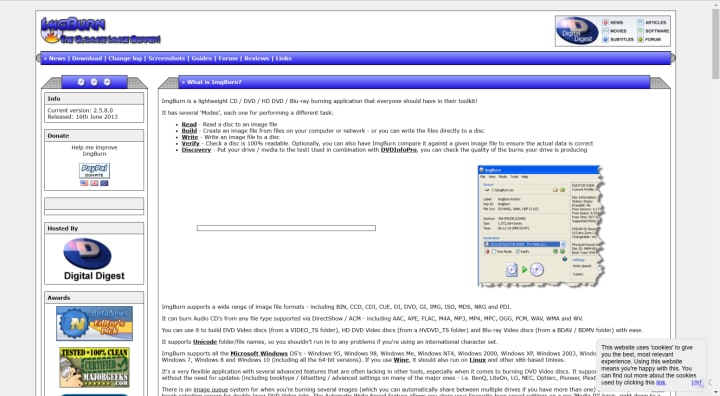
However, it doesn’t offer to remove disc protection, which means it won't be able to copy protected DVDs. Also, it lacks some advanced options such as DVD compression and 3D Blu-ray support which are supported by Leawo. But overall, for basic features to copy DVDs to ISO files, ImgBurn can need all the user needs.
Here is how to use ImgBurn to copy DVDs to ISO files:
Step 1: Download and install ImgBurn from its official webpage.
Step 2: Insert the DVD you want to copy and open ImgBurn.
Step 3: Select "Create image file from disc" and decide where your ISO file will reside.

Step 4: Click the "DVD to File" icon to begin copying your DVD to an ISO file.

Method 3: Copy DVD to ISO Files with DVD Decrypter
DVD Decrypter is an older but reliable DVD copying software for ISO files, which targets Windows users. The software is only sized in 878KB, which is even lighter than ImgBurn's 3870KB, so it’s quicker to install than many other tools. Although the software has not been updated for years, it still offers a straightforward and effective method of copying DVDs, including copy-protected DVDs.
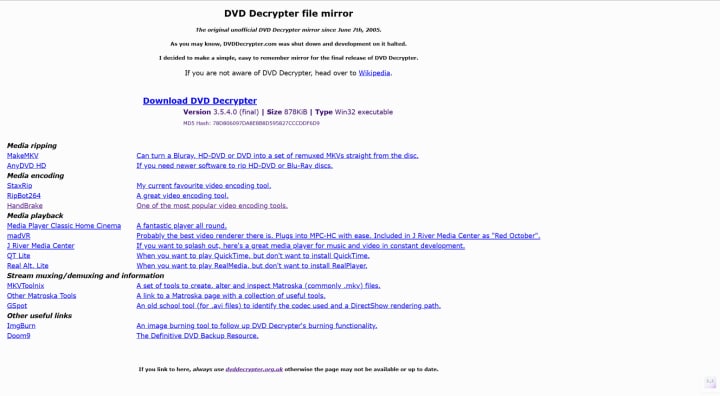
Its biggest plus point is that it can remove DVD protection like CSS encryption, and region codes, allowing you to copy your DVDs without any issues. However since it's no longer supported, it might not be compatible with newer disk formats or operating systems. So, it is suitable for those who want to copy simple and protected DVD formats without cost with no need for advanced options.
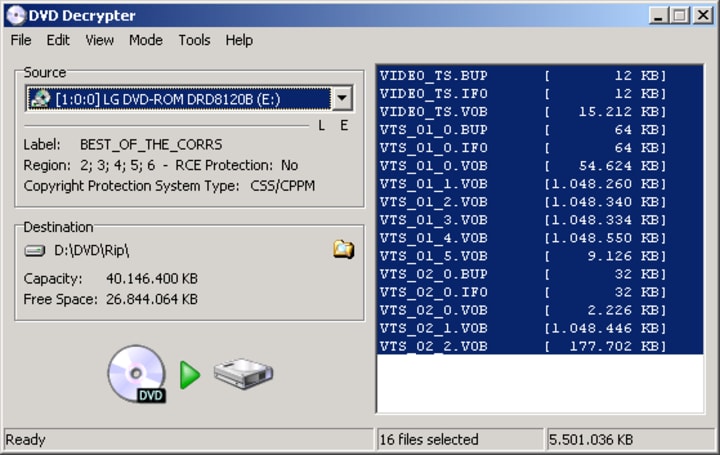
The interface is a bit older than most of the DVD copying software but not overly complex to use. This is how to use DVD Decrypter to copy DVDs to ISO files:
Step 1: Download and install DVD Decrypter on your Windows computer from the official page.
Step 2: Insert your DVD into your drive and open the DVD Decrypter.
Step 3: Select "ISO" as output in the Mode tab. Pick a destination folder.
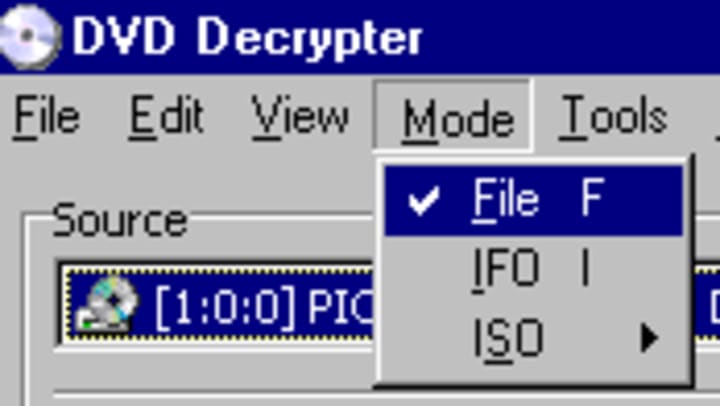
Step 4: Click the "Decrypt" button to begin and create your ISO file.
Part 3: FAQs
Q1: Why do I backup DVDs to ISO files?
Backing up DVDs to ISO files is convenient to protect your DVD library from loss or destruction. ISO files give an ideal digital replica of the original DVD with everything including video, audio, and menus. It also ensures you can use your DVD library without the actual disc, hence easy to store, manage, and back up. Furthermore, copying DVDs to ISO provides a handy means to save your preferred movies for prolonged watching.
Q2: How can I copy a DVD to an ISO file and save it on a USB drive?
To copy a DVD to an ISO file and save it on a USB drive, you can either set the USB folder as the destination location before the conversion process or move the ISO file to your USB drive after copying it on your computer. Most of the DVD copying tools, like Leawo Blu-ray Copy, offer the choice to choose the destination folder for ISO files that you can save directly in your USB drive or any other location of your choice.
Q3: How to copy DVD to ISO file on Mac?
For Mac, you are able to copy DVDs to ISO files with the help of DVD copy software that is compatible with Mac. One reliable option is Leawo Blu-ray Copy, a Windows and MacOS-compatible program that allows you to copy DVDs and Blu-rays to ISO files with no quality loss.
Q4: What is the best tool to copy DVDs to ISO files?
The best software varies with what you need. There are tools with completely free features and others with advanced features like protection bypassing and DVD file compression. For a one-stop solution, Leawo Blu-ray Copy is a great choice that provides all these features. Though it is not completely free, the software offers a free trial where you get to experience its features before committing to it.
Bonus: How to Burn ISO to DVD
If you already possess ISO files and want to burn them onto DVD discs, Leawo Blu-ray Creator is an easy and efficient solution. Using this powerful software, you can burn any files (including ISO files) to DVDs or Blu-rays with provided customization options like disc menu creation and video editing. You can even create 3D DVDs or Blu-rays using its in-built functionalities with 6 types of 3D effects. Supporting a number of formats such as AVI, MP4, DAT, WEBM, RMVB, and more, Leawo Blu-ray Creator ensures that your burning experience is easily accessible and specific to your needs.
It’s easy to use. Follow the step by step below to begin:
Step 1: Launch the software after installation. Choose the Burn option from the tab at the top.
Step 2: Click on the Add Video option to Add ISO file button to load your ISO file.
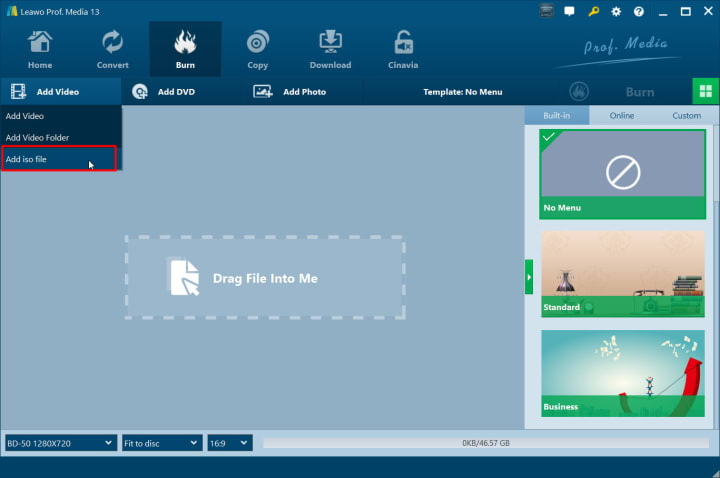
Step 3: Inset a black disc, after loading the ISO file, choose your disc location in the Copy to section. Then, click on the Burn button to start.

Final Words
All in all, copying DVDs to ISO files is an easy method for keeping your collections safe and sound and away from physical damage. Free or paid, there are some best DVD to ISO copying tools for your needs. Leawo Blu-ray Copy stands out as the best option among them, delivering high-quality copying, speed, and protection against DVD protections. It is supported by both Windows and Mac and offers a comfortable, hassle-free backup process. Try it now for seamless DVD-to-ISO copying with no quality loss.
About the Creator
Lumi
I am rooted, but I flow.
Understanding Ceramic Components: Materials, Manufacturing, and Modern Applications
Ceramics have been used by human societies for thousands of years, evolving from simple pottery into highly engineered materials used in advanced industries. Today, the word ceramic refers not only to traditional objects but also to technical materials designed for precision, durability, and performance. Modern discussions around ceramic components reflect this long history of innovation and adaptation.
By charliesamuel4 days ago in 01
How a Healthcare 4.0 Strategy Is Reshaping Patient-Centered Care
Healthcare is undergoing one of the most profound transformations in modern history. Advances in artificial intelligence, connected devices, data analytics, and cloud computing are reshaping how care is delivered, managed, and experienced. Hospitals, clinics, and healthcare organizations are no longer limited to traditional systems; instead, they are moving toward digitally connected ecosystems that focus on efficiency, predictive insights, and personalized treatment.
By Steve Waugh5 days ago in 01
TUS NUA - ch 53
TUS NUA – ch 53 New Beginnings – Mia and Midnight (*)(*)(*) Finola knew Ali’s brother-in-law needed to put his mind at rest. She fed her arm through his and led him outside. “We’ll sit here. If you like, I can put a block around us so our conversation will be private.”
By Margaret Brennan6 days ago in Fiction




Comments
There are no comments for this story
Be the first to respond and start the conversation.