
How to Access and Save YouTube Private Videos
User-Friendly.

“I bookmarked a YouTube video a long time ago, only to find out that it has been made private by the channel owner. So, is there still a way for me to see this video again?”
This question bothers a lot of people because some creators will set videos within their channels as private after posting their work for a while. Followers will fail when they try to view the video again. Is there any way we can get them back? The answer is yes, and in this article, we'll provide you with three ways to watch your YouTube private videos. We'll walk you through what private videos are and how to get them back. All three methods are highly operational and not difficult to use. You don't need to have any specialized computer knowledge, just follow our steps. After you've retrieved the video, if you're worried that the current page is unstable, you may risk losing the video again. You can also read the download instructions we provide in the second half of the article. We have recommended one of the most professional YouTube private video downloaders to you. As long as you can play the video on a web page or provide the URL of the video, you can definitely download YouTube private videos using the method we introduced. We wrote this article to help you solve the problem, so explore how to do it with us below.
Part 1: What Is a YouTube Private Video
To solve a problem, we must understand its nature. So, before trying to restore YouTube videos, let's first understand the meaning of YouTube private videos and what limitations they will give us.
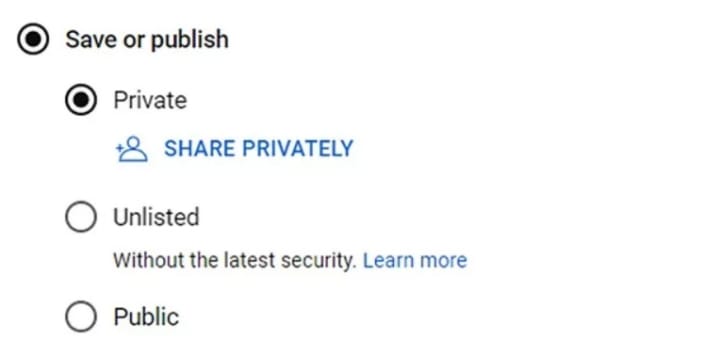
First of all, as a YouTube creator, one can choose the visibility of their video, i.e., private or public. The most common type of YouTube videos are public videos. This is because the main purpose of YouTube is to promote their content and attract more followers for the creators, so if we don't change the option voluntarily, all the videos we post will be public by default. The public video is meant to be seen through the homepage or by searching for the videos you've posted. The opposite is YouTube's private video. This option is for creators who don't want their videos to appear in recommendations or can be found through a general search. Private videos have the highest viewing restrictions and can only be accessed by the creator and those on the list provided by the creator.
To view a private video, you need to contact the creator via email. And ask him if you can be included in the YouTube private video viewer list. And the creator's subscribers don't receive any notification when he publishes a private video. So, private videos are not suitable for creators who want to accumulate views and followers quickly. Instead, it can be used by publishers who simply want to share their work with a group of family, friends, or coworkers. To make your YouTube video private, all you need to do is find the drop-down menu on the upload screen and select Private. Of course, you are free to change the privacy settings of your video after posting it.
In addition to the above two, another more common type of YouTube video is Unlisted. The difference between private and unlisted videos is that a private video requires not only the viewer to have a link to the video but also specific authorization from the creator. In contrast, an unlisted video likewise doesn't show up in search results, but anyone with a link to it can access it directly.
Part 2: How to Access YouTube Private Videos
Now it's time for us to learn how to watch a private video on YouTube. At the end of the previous part, we have touched the edges of part of the answer, which is to contact the creator of the video and ask him for permission to watch it.
To save your time, we are going to detail three ways that can help you find and watch private videos on YouTube in this part. All of them are proven to be effective. You can try them one by one in order.
Method 1: Ask for Permission
Now that we've learned that the video's viewing privileges are set by the creator. If we want to retrieve the private video's playback link, the most effective way is to go and contact the publisher of that video and ask him to get the private link and permission to access the target video. Here are the steps you need to do.
Step 1: Go to the YouTube platform and find the creator’s channel. Click on About.
Step 2: Find the creator’s email.
Step 3: Send an email to the creator. Explain why you need to watch this post and ask if he can get permission.
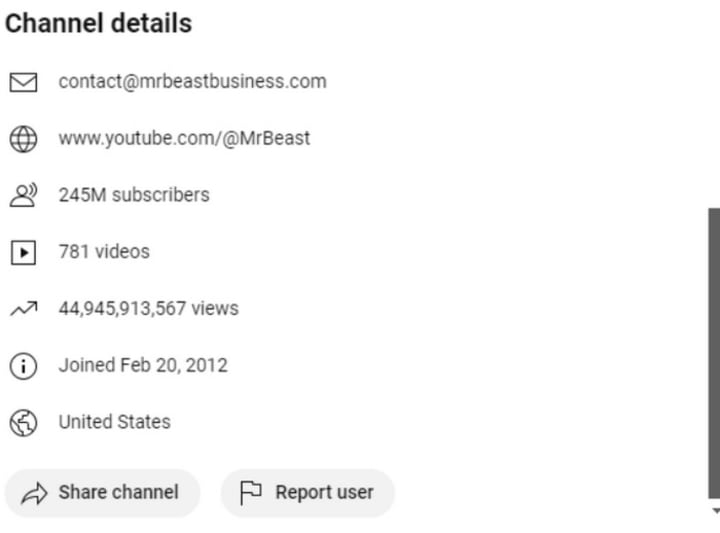
Once the creators see your email, they will decide whether they can allow you to watch the video or not based on what you have written, so we need to provide solid reasons and necessary information when writing the email. Try to be as sincere as possible. Don't forget to submit your Gmail address and make sure it's the one tied to your YouTube account. Once licensed, you can access private YouTube videos directly by verifying your Google account.
However, this method is not instantly effective as many creators may not log into their accounts for a long time or may not be able to read and respond to emails in a timely manner. So you may have to wait for a while to get an answer.
Method 2: Change the Video URL
If you don't get a reply from the creator or are in a hurry to watch the video and don't want to wait too long wait, then you can also try the second method, which allows you to watch the private video even without a license. You need to find the URL of the targeted private video first and then make some minor modifications. It will be able to help you bypass the age limit of the platform, but please note that you should not apply this method in any malicious way.
Here is how to change the private video URL to watch it.
Step 1: Open the YouTube platform and find the private video you want to watch.
Step 2: Locate its URL from the search bar of your browser. Modify it by removing the watch.
Step 3: Press the Enter key, and you may be able to watch the video now.
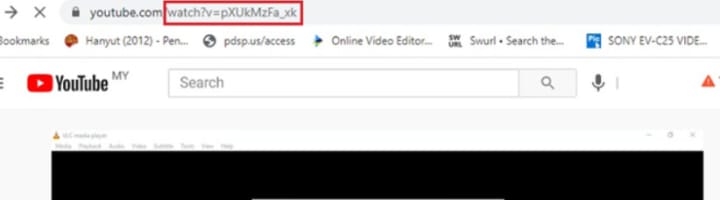
This method still has a very high success rate. However, it is not 100% effective, and if you find that it still does not apply to your own situation, read on and try the third method.
Method 3: Try to View the Video Cache
The third method is a little more complicated. First of all, you need to understand the concept that when you watch videos, they are saved in the video cache file. This means that you can find all the videos you have opened in the video cache view. If the visible range of YouTube videos you have watched has been changed to private, try to search for them in the video cache. Once you find these videos, you can use a reliable video downloader to convert YouTube videos to MP4 so that you can watch them properly on your device.
Here is how to find the private video in the video cache.
Step 1: Access your video cache file.
Step 2: Find the YouTube video you have watched before. Copy its link.
Step 3: Use a video downloader to turn the video file to MP4. Then, you can watch it on your device.
This method is only applicable if you have already watched a particular video, but it has since been changed by the creator to the YouTube privacy setting.
If you have followed the above steps to find the link to that video, you can consider using some tools to save the video so that you won’t miss it again. For example, Leawo Free Screen Recorder is a free recording tool to help record videos. We will show you how to use it later.
Tips: How to View YouTube Video Cache?
If you don't know what to look for in a cache of YouTube videos, please read this subsection. We recommend you to use the tool Google Search Operator, which can easily help us find YouTube video cache from Google cache page. There are three methods that you can refer to.
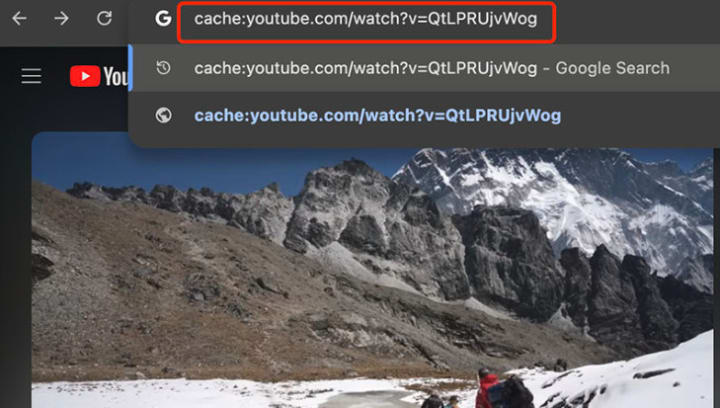
Way 1: Find the cached version
Step 1: Copy the URL to the private video and remove the https:// part.
Step 2: Enter cache: followed by the modified URL into the Google search bar.
Then, Google will show you the cached version of the private video.
Way 2: Use the watch ID
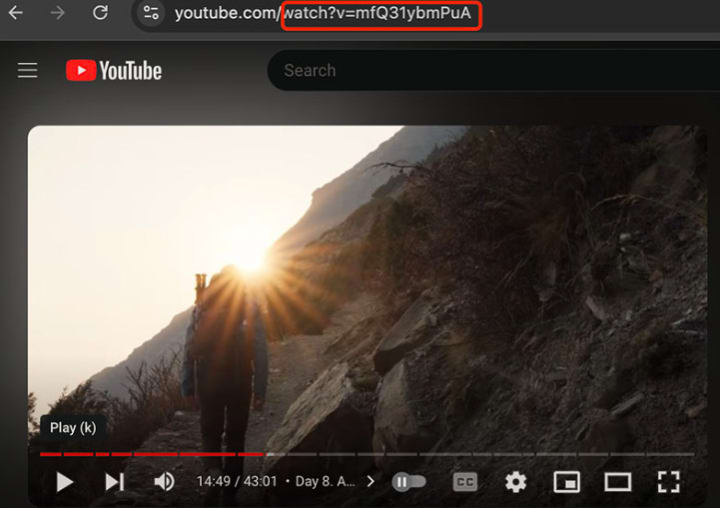
Step 1: Copy the private video link. Only keep the text after _watch?v=. That is the watch ID of the YouTube video.
Step 2: Paste it into the Google search bar. Then, you will find the private video.
Way 3: Use details
If you remember the title or keywords of the video, then you can type it into the search bar. As long as the video has been indexed by Google before, then you will surely be able to find it.
Part 3: How to Record YouTube Private Videos
If you have already found the link to the private YouTube video using the above three methods or have been able to play the video on the web page successfully, then you can use Leawo Free Screen Recorder to freely record the YouTube private videos. Here is a simple guide to show you how to record the video.
Step One: Download and launch Leawo Screen Recorder on your computer. (For Windows Only)
Step Two: Begin with setting the output formats based on your preferences. For example, you can choose video output format, video output quality, the audio output format, etc..
Step Three: Pick a record mode by clicking the “Record Screen” button. Then, choose from “full screen”, “select region”, “fixed region” or customization to start recording.
Step Four: Adjust volume and other settings if needed.
Step Five: Start recording.
Part 4: Conclusion
This is a full guide that can help you get back your private YouTube videos; we first introduced the meaning of private YouTube videos and how to watch them. If you've watched a video that has now been made private by the creator, there are three ways to retrieve the link. The most direct way is to contact the creator, but if you don't get a prompt reply, then you can try to modify the original video link. When the above two methods can't meet your requirements, you can also try to retrieve the original viewing record from the video cache and export the available video resources in this way. Once you can successfully access YouTube private videos, we recommend that you use Leawo Screen Recorder to save them. This way, you don't have to worry about losing your video resources anymore.
About the Creator
Lumi
I am rooted, but I flow.
How to Hire White Label WordPress Developer
Digital agencies are expanding, and client demands tend to rise more rapidly than internal resources. The development teams may be stretched to the limit when dealing with multiple site projects, maintenance, and custom feature requests. This is where hiring a white-label developer comes as an option. Most of the agencies engage the services of outside specialists to expand their services without affecting the brand or the quality of delivery.
By Rutvik Sangani5 days ago in 01


Comments
There are no comments for this story
Be the first to respond and start the conversation.