
How to Copy DVD to Computer with Professional Tools on Windows and Mac
Copy DVD to computer to make access to your DVD collections easier. Find tools to copy or rip DVD your laptop/desktop computer.

With the increasing popularity of streaming services, DVDs are not as common as they once were, but many people still enjoy the traditional experience of watching DVDs. DVDs can be damaged easily during daily use. In order to protect your DVD collection and make it easier to manage and play through different home TV devices, portable players, etc, it is recommended to copy DVD to computer as a folder, ISO or in digital formats such as MKV, MP4, MOV. This tutorial will guide you on how to rip or copy DVD to computer via Windows and Mac OS.
How to Copy DVD to Computer with Professional Tools
Way 1: Rip DVD to Computer with DVDFab DVD Ripper
Compatible OS: Windows and Mac
Input: Home-made and copy-protected DVD, DVD folder/ISO image file
Output: 1,000+ digital formats like video formats like (3D) MKV/MP4/AVI/WMV/FLV, Audio formats like Flac/WAV/MP3/AAC, and Subtitle in .srt format
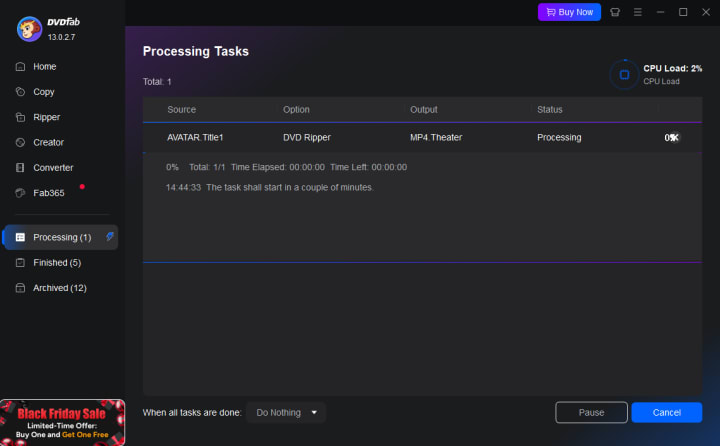
DVDFab DVD Ripper can batch convert and rip DVDs to various video and audio formats, it can particularly deal with DVDs with encryption like region codes. With over 260 preset device profiles, you can easily rip DVD to computer for playback on a wide range of devices such as iPads, Phones, and tablets. This tool has the ability to take advantage of the GPU hardware acceleration, which boasts fast ripping speeds while at the same time, it can retain the HD video quality.
Pros:
- Support copy-protected DVDs
- Convert multiple titles in batch
- Compatible with Windows and Mac OS
- Merge different titles/chapters into one file
- Provide a built-in video editor for customizing videos with trimming, cropping, watermarking, and other effects
- Preserve all subtitles and audio tracks as well as personalized settings for subtitles, audio tracks, titles, and chapters
- Scan forced subtitles and set it to display forced subtitles only
Cons:
- The free version may not work with new DVDs
- Limited output formats (MKV/MP4) with the free version
Step-by-step Guide on How to Rip DVD to Computer Using DVDFab DVD Ripper
Step 1: Download and install DVDFab DVD Ripper from the official website.
Step 2: Launch the software, and switch to the "Ripper" tab on the left pane.
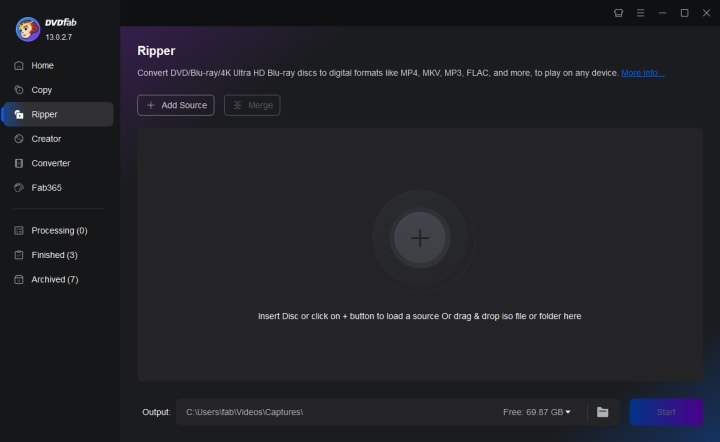
Step 3: Insert the DVD into your PC's DVD drive and wait till DVDFab automatically detects and loads the DVD as the source. DVDFab will display the main movie title by default, if you want to add more titles for a batch conversion, open the "Choose Other Titles" window and select the desired one.
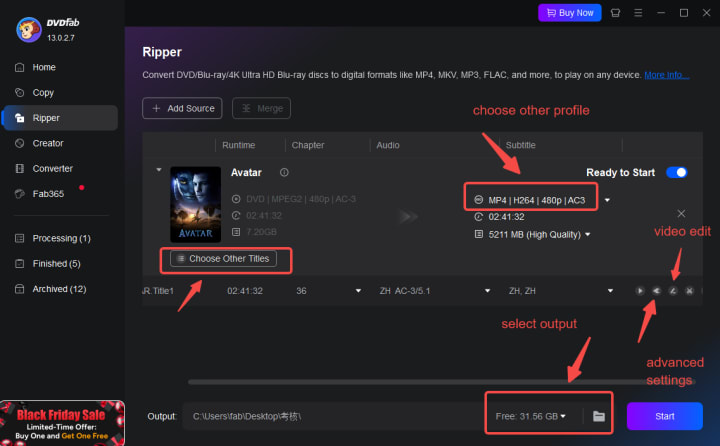
Step 4: Choose the output profile and destination folder. You can select from a wide range of formats and preset devices, such as MP4, MKV, iPhone, Android, and more.
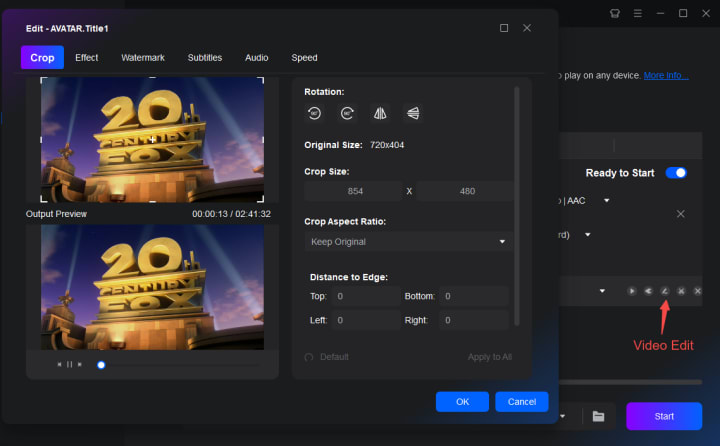
Step 5: Customize the output video by selecting options like subtitles, audio tracks, and chapters on the main interface. Trim the title or click on the button that looks like a PEN to open the Video Edit window and adjust the video effect, like adding a watermark or external subtitles, cropping, or changing the aspect ratio.
Step 6: Click the "Start" button to rip the DVD to your computer.
Way 2: Rip DVD to Computer with HandBrake
Compatible OS: Windows, Mac, and Linux
Input: DVD/Blu-ray without protection and regular video files
Output: MP4, MKV, and WebM
HandBrake is a versatile and user-friendly DVD-ripping software that is both free and open-source. It can be used on various platforms to easily copy DVD to computer. The program allows you to select specific chapter ranges, set markers, and even batch scan folders for multiple files. While HandBrake may not offer as many video editing features as some other programs like DVDFab DVD Ripper, it does provide essential functions like cropping, deinterlacing, sharpening, and scaling. However, for decrypting copy-protected DVDs, additional tools may be required to bypass encryption.
Pros:
- Free software
- Support both DVD and Blu-ray
- Ability to customize chapter range, cropping, and scaling the video
- Offer a range of different encoders for video and audio and a list of preset options for you to select from
- Ability to queue tasks and utilize built-in profiles for high-quality conversions at a decent speed
Cons:
- Limit output formats
- Lack of advanced video editing features
- Only support sources that do not contain any kind of copy protection. You will need additional tools to bypass encryption
Step-by-step Guide on How to Save a DVD to Computer Using HandBrake
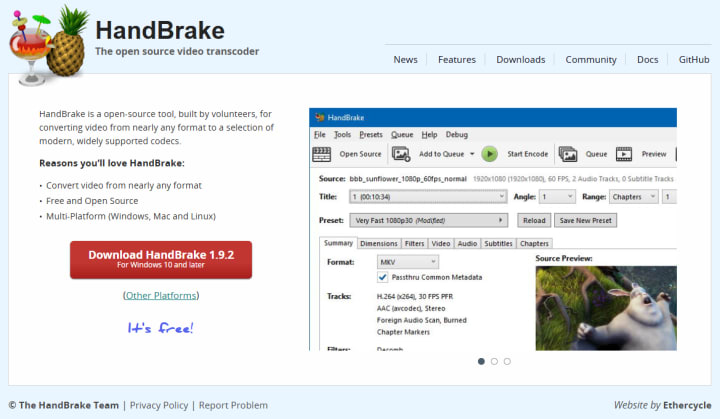
Step 1: Go to the HandBrake website and download and install HandBrake by following the on-screen instructions.
Step 2: Insert the DVD you wish to rip into your computer’s DVD drive.
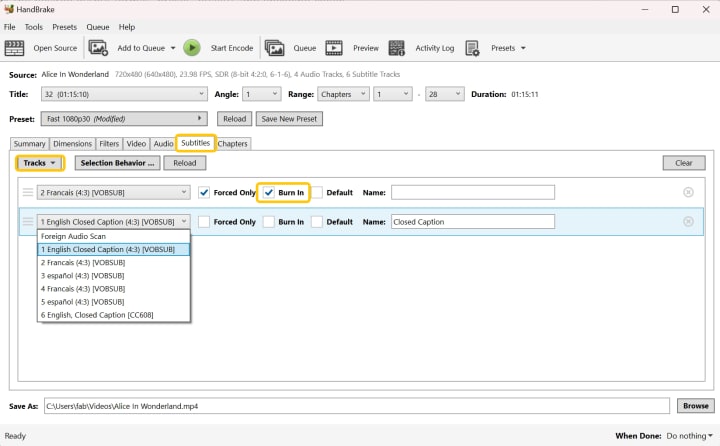
Step 3: Click the "Open Source" button in the top-left corner of the HandBrake window and select the DVD drive as the source. Select the title you want to rip (usually the longest one) from the list.
Step 4: Choose the Output Format under the "Summary" tab, and select a destination folder where you want to save the ripped video.
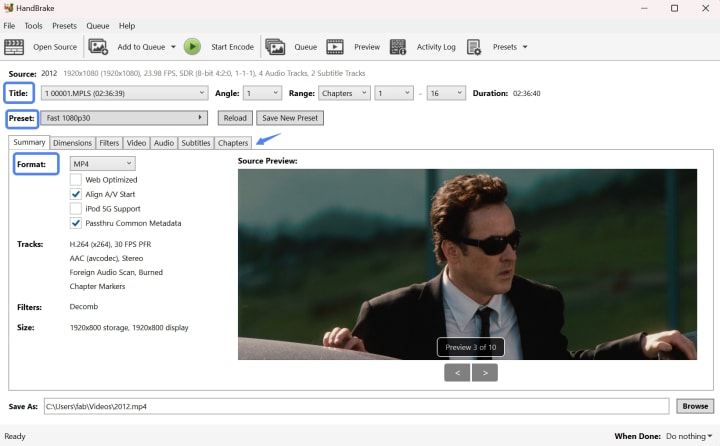
Step 5: Click on the "Start Encode" button in the top menu bar to start the ripping process and wait for it to finish ripping the DVD.
Way 3: Copy DVD to Computer with Freemake
Compatible OS: Windows
Input: DVD, video, audio, and photo
Output: AVI, MP4, WMV, MKV, FLV, 3GP, MPEG, DVD, Blu-ray, MP3, iPhone, iPad, PSP, Android, Xbox, Samsung, Nokia, BlackBerry
Freemake Video Converter can convert video and audio files, as well as rip DVD movies to digital formats. Unfortunately, it does not support ISO files as input. While Freemake Video Converter does provide a free trial, allowing you to rip DVD to computer hard drive, a Freemake logo will be added to any files created using the software. You will need to get a license to redo the process to get one file without a watermark.
Pros:
- Support decrypting certain copy-protected DVDs
- Offer customization options for subtitles and audio tracks
- Support photo input besides video and audio
Cons:
- Does not support ISO files as input
- A watermark will be in the output with the free version
- Some advanced features are only accessible after purchasing the full version
Step-by-step guide on How to Copy DVD to Computer Using Freemake Video Converter
Step 1: Download and install Freemake Video Converter.
Step 2: Launch the program and prepare the DVD by inserting it into the drive of your PC.
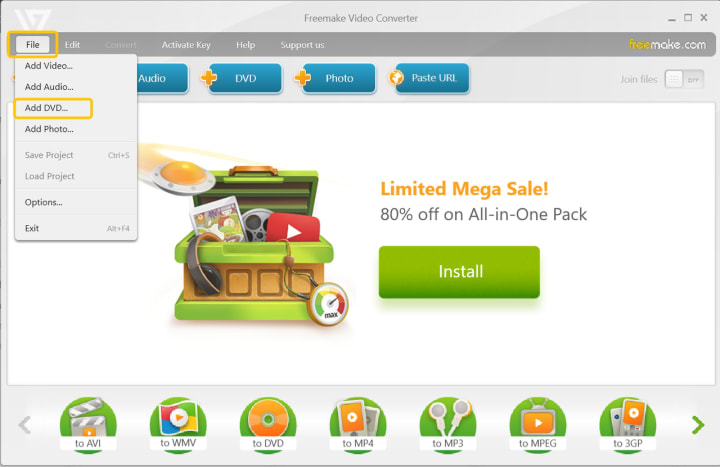
Step 3: Click on the "File" button at the top of the Freemake interface and select "Add DVD..." to choose the DVD title you want to copy to the computer. Or you can simply use the "+DVD" button.
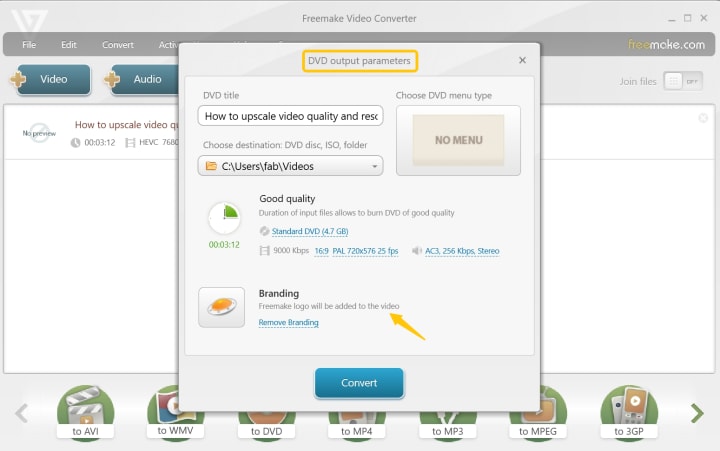
Step 4: Select the output format from the list of available formats. Customize the output settings such as video codec, frame size and bitrate if needed.
Step 5: Choose the destination folder.
Step 6: Click the "Convert" button to start the ripping process.

How to Copy DVD to Computer without the Third-Party Software
1. Copy DVD to Computer without software on Windows - File Explorer
Wondering "How to copy a DVD to my computer without a copy software?" The answer is simple. File Explorer is a file management application in the Windows operating system for users to organize and access files and folders on their computer. One of the functionalities of File Explorer is the ability to copy files from a CD or DVD onto the computer’s hard drive. You can use Windows File Explorer to easily transfer data from a disc to your computer for storage or further use.
This method may not work for copy-protected DVDs, as they may require specialized software to bypass copy protection. Editing the video is not possible in this way.
Steps for How to Copy DVD to Computer Using Windows File Explorer
Step 1: Insert the DVD into your computer’s DVD drive.
Step 2: Open File Explorer by pressing Windows key + E on your keyboard.
Step 3: Locate and select the DVD drive in the left pane of File Explorer.
Step 4: Right-click on the DVD drive and select "Open" to view the contents of the DVD.
Step 5: Press Ctrl + A on your keyboard to select all the files and folders on the DVD.
Step 6: Right-click on any of the selected files or folders and choose "Copy".
Step 7: Navigate to the location on your computer for saving the copied DVD files.
Step 8: Right-click in the destination folder and select "Paste" to copy the files from the DVD to your computer.
Step 9: Wait for the copying process to complete.
2. Copy DVD to Computer without software on Mac - Disk Utility
When a DVD is unprotected, you can use the free Disk Utility feature comes with the Mac operating system to copy DVD to computer. Disk Utility is a built-in utility application on macOS devices that allows users to manage storage devices, including internal and external hard drives, solid-state drives, and disk images.
However, if you want to copy a DVD with protection, you will need to proceed using some third-party applications such as DVDFab DVD Ripper or others mentioned above in this article.
Guide on How to Save a DVD to Computer with the Free Disk Utility
Step 1: Insert the DVD you want to copy into your Mac's drive.
Step 2: Open the Disk Utility feature, you can type "disk utility" in the top-right corner of the screen and search.
Step 3: Click your DVD's name in the left panel. And then click the "File" menu and select "New Image" > "Image from [DVD name]".
Then a new window will appear on your screen with options for your DVD. Give a new name for your DVD and save the Image Format as DVD/CD Master in the drop-down menu.
Step 4: Select Desktop or wherever you want to save the ripped DVD as a saving location from the "Where" menu.
Step 5: Click Save at the bottom of the window. Disk Utility will now rip DVD to computer and create an image file ending with the .CDR file extension. You'll get a confirmation message once the process is complete.
Step 6: Simply eject the DVD from the drive and enjoy the file on your hard drive.
FAQ about Copying DVD to Computer
Q: Can I rip European DVDs to my computer hard drive and then watch them on my TV in the US?
A: Yes, you can! While commercial DVDs may come with region codes and copy protections, fear not! With DVDFab DVD Copy and DVD Ripper at your disposal, you can easily decrypt and copy your favorite DVDs to your computer’s hard drive for personal use.
Q: What is the best quality format to rip DVD to computer?
A: If disk space is not a concern, you can effortlessly rip your video without compression using DVDFab DVD Ripper (Passthrough profile) and MakeMKV. If your playback devices support ISO Image files as input, consider using DVDFab DVD Copy in Clone mode to create an exact 1:1 copy of the DVD.
Conclusion
In conclusion, copy DVD to computer with the right tools can make the backup process of DVD effortless. DVDFab DVD Ripper and DVDFab DVD Copy are excellent choices for users who prioritize speed and quality and are willing to pay for premium tools with their customization features. For users simply want a simple backup, HandBrake and MakeMKV are suitable options, with HandBrake being a free open-source tool and MakeMKV offering limited output types. Freemake is a decent tool for basic DVD copying needs but may not be as reliable for copy-protected discs.
About the Creator
DVDLOVER
Sharing the latest on DVD & Blu-ray releases, E-book downloads, and trending TTS. Stay tuned for updates, tips, and exclusive content!
Building an OTC Crypto Trading Platform for Trades That Can’t Go Public
Not every crypto trade belongs on a public exchange. While exchanges work well for small and medium trades, they often fall short when transactions become large, sensitive, or time-critical. Large orders placed on open order books can move prices, attract attention, and create unnecessary risk. This is why OTC, or over-the-counter, crypto trading platforms exist. Building an OTC crypto trading platform requires a different mindset, design approach, and technical structure compared to regular exchanges.
By smithtaylor7 days ago in 01



Comments
There are no comments for this story
Be the first to respond and start the conversation.