
How to Copy DRM-Protected DVD to a Computer
A detailed guide.

Aren't you tired of physical DVDs restricting you, especially those with copy protections that block duplication? Often, such restrictions apply through mechanisms like CSS encryption. This can make it challenging to back up your collection for personal use. But actually, you can back up DVDs onto digital formats and give you playback across various devices, ensuring you can watch your favorites offline anytime.
In this article, we are going to show you what DVD copy protection is, how it works, and guide you step by step on how to copy DVDs to computers. Continue reading to unlock the full power of your DVD collection!
What Is DVD Copy Protection
DVD copy protection is a class of various encryption and restriction technologies geared to block the unauthorized duplication of DVDs. The vast majority of movies and publishers use these to defend their intellectual property against piracy. However, they will also limit your ability to back up or play your legally purchased DVDs on different devices.
1. Commonly used DVD copy protections
Of the many protection schemes, a few are encountered more often than others, such as CSS and region codes, which are discussed below.
1.1 CSS (Content Scramble System)
CSS stands for Content Scramble System, an encryption technology popularly used on DVDs. Its original purpose is to protect stored data with a proprietary 40-bit stream cipher algorithm. It scrambles the video and audio data so that only authorized devices with the correct decryption key are capable of accessing and playing the content. While generally good at preventing casual copying, CSS has its vulnerabilities where it can be circumvented with specialized software for users to back up their DVDs for personal use.
1.2 Region Codes
Another common method of protection against DVD copying is region codes. DVDs are divided into large regions, e.g., Region 1 for North America and Region 2 for Europe, by rough coincidence with major markets and regional release patterns or licensing agreements. The restriction implies that region-locked DVDs will be played only on devices of the corresponding region. Users need to use either region-free players or appropriate tools to play DVDs from any region.

2. How does DVD copy protection work
In addition to the DRM protection of CSS encryption and region codes addressed above, copy protection for DVDs deploys an array of other approaches toward the prevention of unauthorized duplication. These include physical errors, bad sectors, and dummy files. Each of these methods is designed to introduce technical hurdles that further complicate the copying of DVDs.
For example, DRM limits the use of content to Playback or duplication on authorized devices only. Physical errors and bad sectors are intentionally placed on the disc to interfere with copying software, while dummy files or illegal directory structures add unnecessary complexity and confusing tools that attempt to replicate the disc. Together, these measures work to protect intellectual property, although they also can get in the way of legitimate users who simply want to back up their DVDs for personal use.
What You Need Before Copying
Now that we have discussed the basics related to DVD copy protection let us proceed to what you need prior to copying your DVDs. Essentially, to copy your DVDs or Blu-rays successfully, you need a couple of things: a good disc drive and the right professional copy tool. With these in hand, you'll be able to bypass copy protection and create backups of your DVDs for personal use.
1. Disc Drive
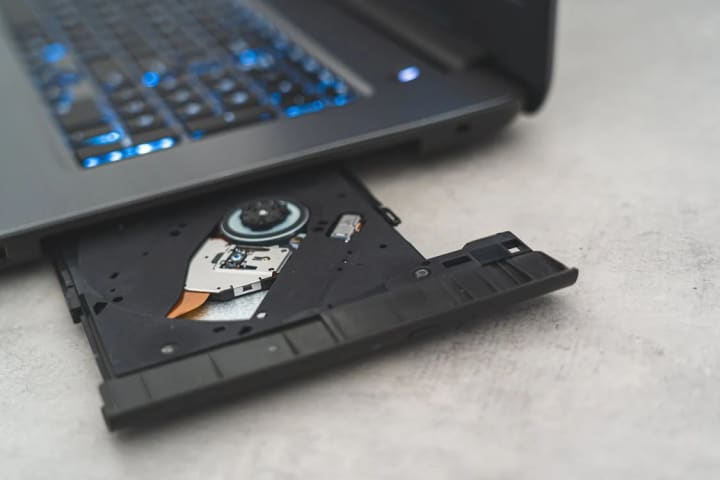
Copying a DVD requires having an appropriate disc drive. Most computers of recent models have an integrated DVD drive, and such drives are capable of reading and copying standard DVDs with ease. These drives are up to the task of most DVD ripping tasks for backing up or converting your DVDs into digital formats without a problem.
However, if you want to make copies of Blu-ray discs later on, you can also invest in a Blu-ray disc drive. While originally for Blu-rays, it is fully compatible with DVDs, meaning you can continue using it for DVD copying, along with the added functionality of copying Blu-ray discs if you need to afterward.
2. Copy Software: Leawo Blu-ray Copy
While it is true that a good disc drive is imperative for reading DVDs, you really need the right software to copy them successfully. With good DVD copy software, it's ensured that bypassing copy protection and backing up of DVDs can be done with ease and efficiency. Leawo Blu-ray Copy is such a powerful and user-friendly tool to help you make backup copies of your DVDs and preserve the quality of the original content.
It is an all-around software program that supports DVD and, in addition, Blu-ray. Whatever your backup needs, whether it's coping with a DVD or copying Blu-ray onto a computer, they will be met. With 6X copying speed and ease of use, you are not required to apply any skills and techniques to copy your favorite DVD collections efficiently and effortlessly.

Main Features of Leawo Blu-ray Copy:
- Copies Blu-ray/DVD discs with no quality loss, keeping the original content intact.
- Bypasses various DRM protections and removes region codes for easier copying.
- Copies Blu-ray/DVD content to your computer or blank discs in disc, folder, or ISO format.
- Supports 1:1 disc-to-disc copying with no quality loss.
- Copy and back up both 2D and 3D Blu-ray/DVD movies with ease.
- Provides three different copy modes to fit your different Blu-ray/DVD backup requirements: full disc, main movie, or custom.
Part 3: How to Copy Videos from DVD/Blu-ray to PC
Leawo Blu-ray Copy is for users at all levels, providing reliable methods for converting Blu-ray (DVD) to USB flash drives, hard drives, computers, etc. Follow the steps to copy DRM-protected DVD content to your PC for backup or playback on different devices.
Step 1: Launch Leawo Blu-ray Copy
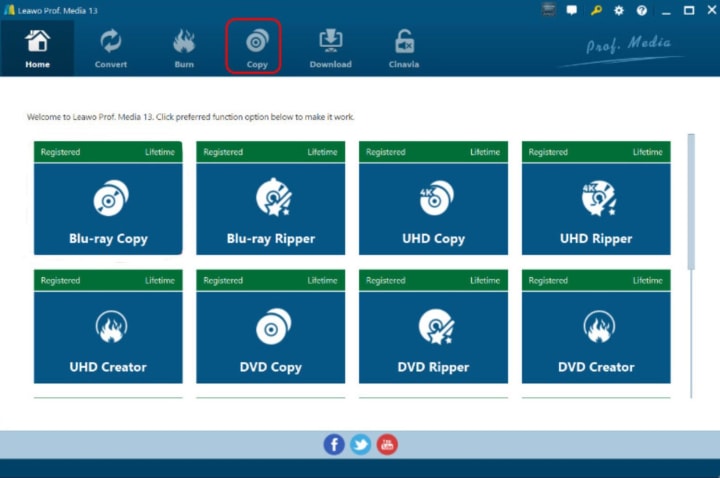
Download and install Leawo Prof. Media. Run it. Under the module, click "Copy" to enter Leawo Blu-ray Copy, then click on DVD Copy.
Step 2: Add Source DVD Files
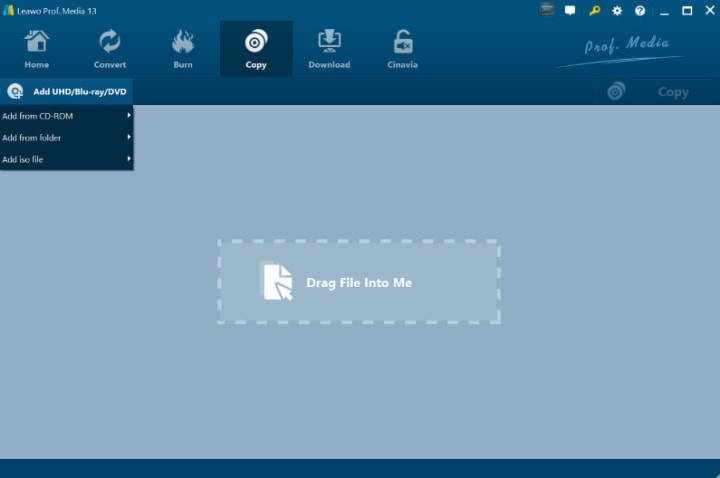
Click on Add UHD/Blu-ray/DVD > Add from CD-ROM to load the DVD into the program in your disc drive.
Step 3: Change Copy Settings
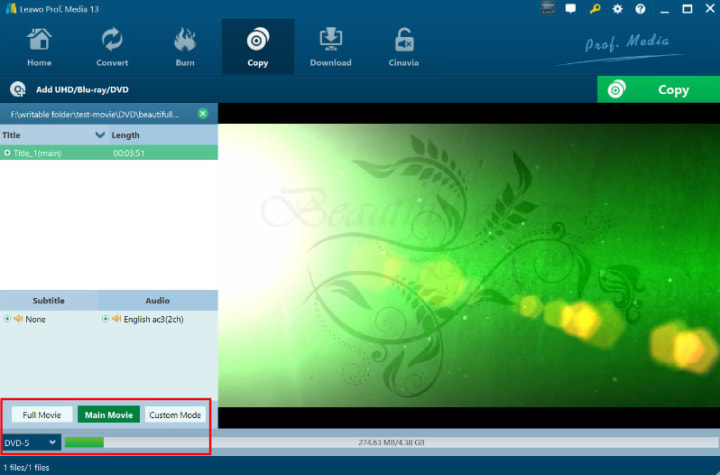
After loading the source Blu-ray/DVD, select the type of the DVD, copy mode and subtitles and audio tracks.
Here are the fine definitions of three copy modes:
Full Mode: Copy the entire disc content.
Main Movie: Copy only the main movie video.
Custom Mode: Copy specific chapters from the disc.
Step 4: Set Output Directory
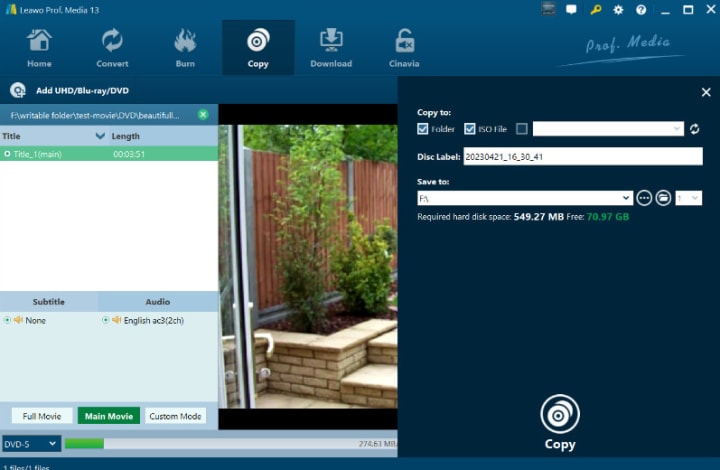
Click the green Copy button at the top right. A sidebar will appear. Make sure the ISO file and Folder boxes are selected to save the DVD video as digital files on your computer. Choose the Save to option and set the output folder for the backup.
Step 5: Copy Your DVD to the PC
Click the bottom copy button to start copying. Copying will take place in no time, based on content selected for copy and copy mode.
Part 4: FAQs
Q1. Is it legal to copy DVDs to the computer?
It is usually considered acceptable to copy DVDs for personal use, provided the copied content is not distributed or shared in any way. Make sure the copies are for personal backup purposes and that no commercial or piracy intent exists.
Q2. Why can't I copy DVDs to my computer?
If you don't seem to copy DVDs, you probably are dealing with some copy protection, which is pretty common and keeps unauthorized copying at bay. These may involve CSS or region codes. You can get rid of such restrictions by using tools such as Leawo Blu-ray Copy, which removes them for you and makes the job of copying your DVDs to your computer very straightforward.
Final Words
That's it. Now you know how to copy DRM-protected DVDs to your computer. Leawo Blu-ray Copy is a great tool for this field and I hope you find this article useful. :)
About the Creator
Lumi
I am rooted, but I flow.
The AI/ML Development Roadmap: How Do You Scale from PoC to Production?
Companies build Artificial Intelligence models to solve specific business problems. However, most of these projects fail before human workers ever use them. Engineers create a successful Proof of Concept (PoC) in a laboratory setting. The model works perfectly on historical data. The project then dies when the company tries to connect the model to live software.
By ViitorCloud Technologies3 days ago in 01


Comments
There are no comments for this story
Be the first to respond and start the conversation.