

While DVDs offer a great home video viewing experience, they are so fragile and susceptible to damage. For instance, moisture, scratches, heat, etc. can ruin your precious DVDs easily. That’s why you might want to copy your DVD to USB drives. So you can keep your favorite movies, photos, or important data and bring them anywhere. Still don’t know how to copy a DVD to USB? Worry not. This blog will introduce three useful methods to help you out. Just keep reading.
Solution One: Copy DVD to USB Directly
The most conventional way to copy DVDs to USB drives is to transfer the video files to your USB drives directly. So how to copy a DVD to a flash drive? Here are the steps.
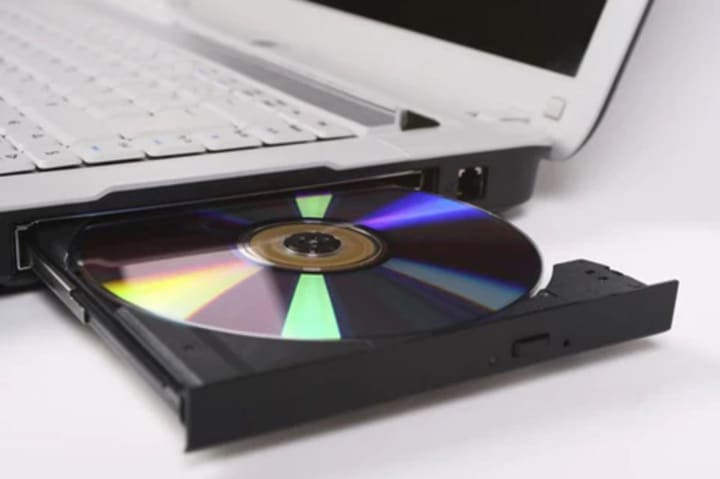
Step 1. Plug the USB flash drive into the USB port and place the DVD into the disk drive.
Step 2. Open the DVD on your computer. Choose the ISO files or DVD folder and copy all the DVD's contents and files.
Step 3. Open the USB drive and paste the DVD files to the USB drive.
That’s how to transfer a DVD to USB directly. However, it might lose data during the copy-and-paste process. Especially when your computer experiences a sudden shutdown, the process might be paused, and you have to start over. In addition, you can not copy protected DVDs directly, as they are encrypted with protocols. If you'd like to copy a DVD that has copy protection for legal personal use, check out solution two.
Solution Two: Copy DVD to USB Hard Drive with the Third-Party Copy Software
Countless copy software claims that they can copy DRM-protected DVDs with ease. However, not all tools can serve both simplicity and practicality. I have tested Leawo Blu-ray Copy and so I am going to use it as an example.
As introduced earlier, direct copying DVDs to flash drives applies to homemade DVDs only. For purchased DVD movies, you will need a third-party DVD-to-USB converter to get the job done. Here Leawo Blu-ray Copy is the great choice I’ve tested, which can help you copy Blu-rays and DVDs to USB drives without quality loss. Just check out its powerful features to learn more.
- Convert DVD to USB with 1:1 replication. You can copy all video content, such as audio channels, subtitles, etc. with the original quality retained.
- It can successfully remove the copyright protection on the Blu-rays and DVDs, including BD50, BD25, DVD-9, DVD-5 discs, AACS, BD+, MKB V18, CSS, etc.
- Copy DVD to USB drives in three modes: Full Movie(copy the entire disc content), Main Movie(copy the main movie videos only), and Custom Mode(copy certain chapters of the discs).
- You can choose various settings for disc reading, loading, decrypting, copying, saving, and making full customizations for engine burning and DVD video modes.
Now let’s see how to copy a DVD to flash drives with it in simple steps.
Step 1: Launch Leawo Blu-ray Copy
Install Leawo Prof. Media on your device. Click on the Copy icon to enter the Leawo Blu-ray Copy module.

Step 2: Add Source Blu-ray/DVD Files
Click on the Add UHD/Blu-ray/DVD on top and choose “Add from CD-ROM” to import DVD videos.

Step 3: Adjust Copy Settings
Click the BD-25 button after the DVD files are loaded. Choose the disc type option and a preferred copy mode.

Step 4: Set Output Directory
Click on the Copy button in the upper-right corner, and you will see a sidebar. Tick the “Folder” and “ISO File” boxes. Set the output folder from the “Save to” option.

Step 5: Copy DVD to USB
Click on the Copy button to copy the video files on DVD, and the copied video files will be ready in the output folder once the process is done. You can transfer the DVD files to a USB drive freely. (Note: Please make sure that you’ve already plugged the USB flash drive into the USB port.)

Solution Three: Rip DVD to Video for USB with the Third-Party Ripping Software
Similarly, many ripping software can do the task. Here, I will take Leawo as an example. Leawo Blu-ray Ripper is a professional ripper that allows you to decrypt, rip, and convert Blu-rays/DVDs to videos and audio easily. Before introducing the specific steps for converting a DVD to a USB drive, let’s have a look at its prominent features.
- Rip Blu-ray to videos and audio in 180+ formats, including MP4, AVI, MKV, MP3, FLAC, and so much more.
- It can bypass the disc protection and region restriction to rip Blu-rays and DVDs of all kinds. For instance, AACS, BD+, the latest MKB protection, CSS-DVDs, Blu-rays of region A/B/C, and DVDs from regions 0 to 6.
- Rip Blu-rays/DVDs from all movie studios like MGM, Paramount Pictures, United Artists, Warner Bros., and more.
- Rip Blu-rays/DVDs with original quality. It can perfectly keep the pixel density, aspect ratio, etc. in the source videos.
Below is the step-by-step guide about how to rip DVDs to USB drives:
Step 1: Launch Leawo Blu-ray Ripper
Go to Convert > Leawo Blu-ray Ripper from the main interface to enter the module.

Step 2: Import Blu-ray/DVD Files
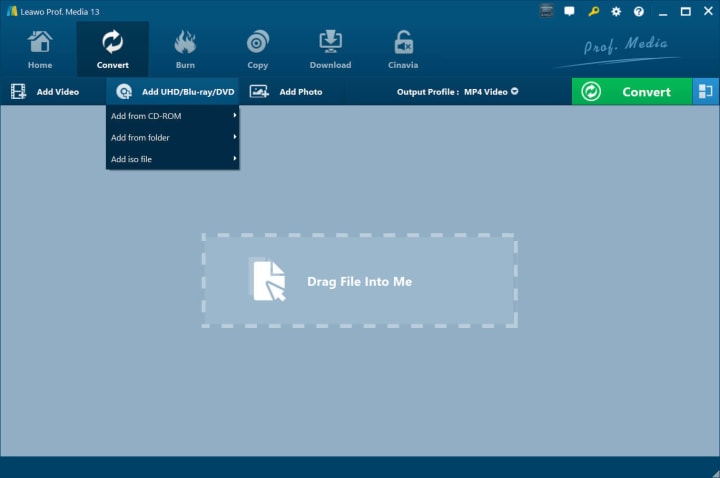
Click on “Add Blu-ray/DVD” to add a source Blu-ray/DVD, folder, or ISO image file. You can also drag and drop the files to the interface.
Step 3: Choose Loading Mode
Choose the mode for ripping: Full Movie, Main Movie, and Custom Mode.

Step 4: Adjust Settings
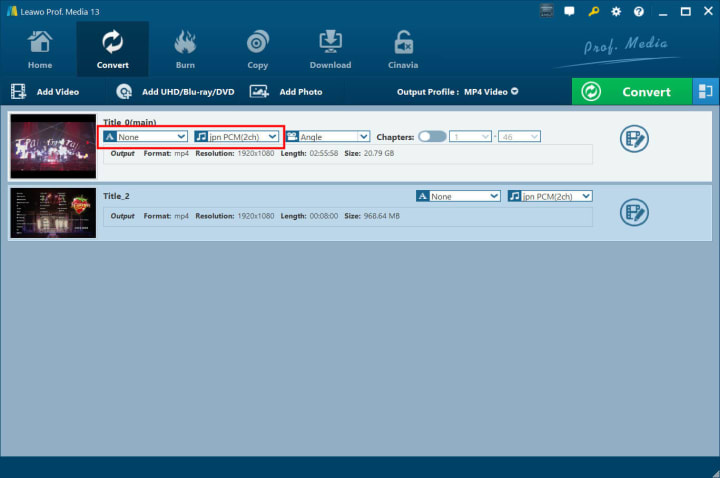
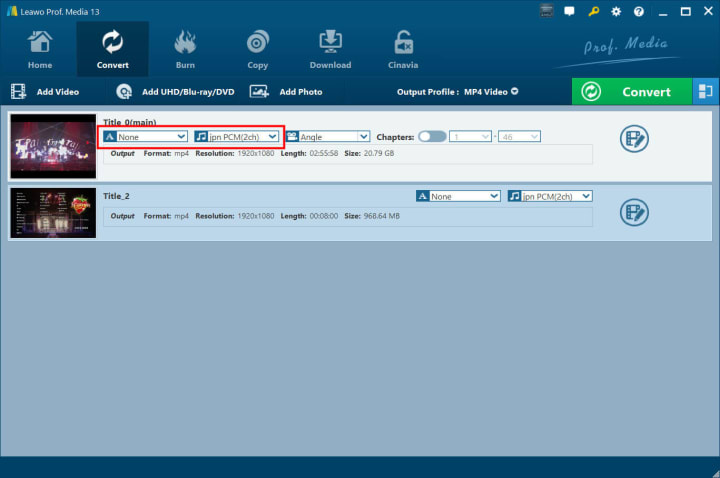
Click on the “Subtitles” and “Audio” options to determine output subtitles and audio tracks. You can also choose the video angle when converting multi-angle Blu-ray/DVDs with the “Angle” option.
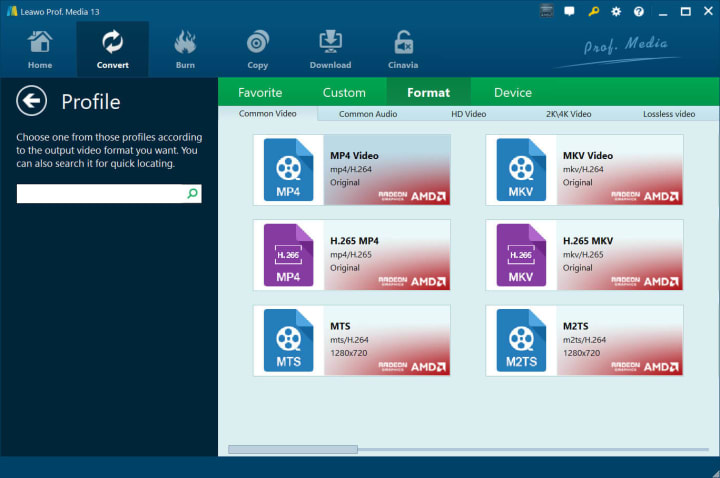
Step 5: Choose Output Profile
Click on the “MP4 Video” next to the “Add Photo” button. Select the “Change” option to choose the output format.
Step 6: Adjust Output Parameters (optional)
Head back to the main interface and click on the “Edit” option from the drop-down box. You can set parameters such as Video Codec, Bit Rate, Resolution, Frame Rate, Aspect Ratio, Audio Codec, Channel, Sample Rate, etc.

Step 7: Set Output Directory
Click on the green “Convert” button to set the destination path. You can set it from the “Save to” box.

Step 8: Rip DVD to USB
Click on the Convert button at the bottom to start ripping a DVD. After the conversion is done, you can transfer the converted DVD videos to USB drives as you like.
Conclusion
DVDs are fragile if not kept properly. But worry not. This blog has introduced three useful solutions to help you transfer your favorite DVDs onto a USB flash drive. I hope it helps.
About the Creator
Lumi
I am rooted, but I flow.
The Role of AI Agents in Modern Enterprise Automation Strategies
AI is transforming how work gets done in enterprises, but it won’t replace humans outright. Instead, employees who leverage AI effectively will outpace those who don’t. Modern automation has evolved beyond simple scripts and scheduled tasks, introducing intelligent software capable of making decisions, interacting with systems, and completing meaningful work independently.
By Swiftproxy4 days ago in 01
The Hidden Technology That Powers Every Pickup and Delivery Request
In the modern digital economy, convenience has become one of the most important factors influencing customer behavior. People expect services to be fast, reliable, and accessible at the touch of a button. Pickup and delivery platforms have emerged as a powerful solution that connects businesses with customers in real time, making the movement of goods easier than ever before. Whether it is food, groceries, parcels, or retail items, these platforms have transformed the way people send and receive products.
By Nayel Basim Al Shehhia day ago in 01



Comments
There are no comments for this story
Be the first to respond and start the conversation.