
How to Copy a DVD: Backup to ISO or Convert to Digital Formats
Copy DVDs to DVD or Digital Formats for Playback on Any Device

I’ve been collecting DVDs for years, and many of the discs I own can’t be found on streaming platforms. Some hold rare concerts, others are family recordings that I’d hate to lose. The trouble is, discs wear out, and region codes make it difficult to watch them when traveling.
Copying a DVD has become my way of keeping these titles safe and easier to watch on modern devices. Sometimes I need a full ISO backup with menus and extras intact; other times I prefer a smaller MP4 or MKV file that works on my laptop or Plex server.
This guide walks through the practical steps of copying a DVD today, comparing ISO backups with digital conversions, and showing which tools can make the process smoother.
What You Need Before Copying a DVD
Before you start copying a DVD, it helps to know what equipment and software are required. I’ve learned from experience that missing even one of these can slow you down or cause the copy to fail.
Hardware Requirements: An external USB drive is often the easiest option. Make sure it supports both reading and writing if you plan to burn new discs. Storage space also matters: a dual-layer disc can reach 8.5 GB. If you’re making ISO backups of several movies, you’ll need plenty of free disk space.
Software Options: Copying a DVD isn’t just drag-and-drop. Most commercial discs are encrypted, which means you’ll need software that can read and process the data. The right choice depends on whether you want a perfect disc image or a compressed video file for everyday viewing.
Legal Considerations: It’s worth remembering that copyright law varies by country. In most regions, making a copy for personal use is treated differently from distributing or sharing that copy. I always recommend checking local regulations before starting, especially if you’re planning to copy commercial DVDs.
Method 1: Copy DVD to ISO or VIDEO_TS Folder
When the goal is to preserve a DVD exactly as it is—menus,the extras, and all—the most reliable option is to create an ISO image or a VIDEO_TS folder. This approach produces a 1:1 backup, ensuring no quality loss. Two well-known tools stand out here.
DVDFab DVD Copy
DVDFab DVD Copy software is a commercial program designed for full disc backups. It can remove most encryption and supports several copy modes: Full Disc, Main Movie, Clone/Burn, Split, Merge, and Customize. Output options include ISO files, VIDEO_TS folders, or burning directly onto blank discs. It also supports both single-layer (DVD-5) and dual-layer (DVD-9) formats.
Pros:
- Decrypts commercial DVDs automatically, even with newer protections.
- Multiple copy modes allow flexible backups.
- Maintains full menus, extras, and original quality.
- Regular updates keep pace with new protections.
Cons:
- Paid software, with 30-day free trial.
How to Copy DVD to ISO using DVDFab DVD Copy
Load the DVD: Insert the DVD into your drive and launch DVDFab DVD Copy. Select the source disc.
Choose Copy Mode: Pick the mode that fits your needs (Full Disc, Main Movie, Clone, etc.) and select ISO or VIDEO_TS as the output.
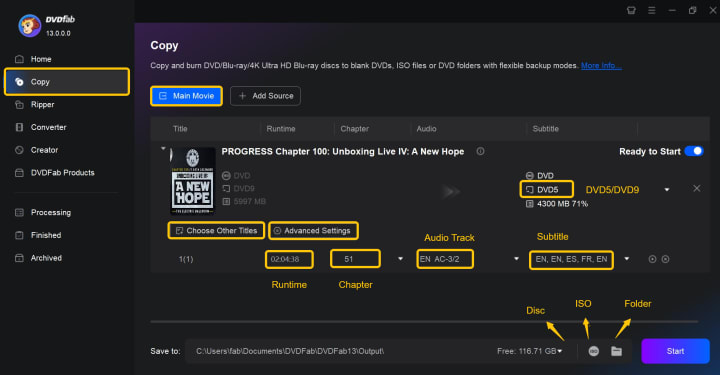
Start Copying: Click "Start" and wait. The software will decrypt and save the disc as ISO or VIDEO_TS folder.
ImgBurn
ImgBurn is a long-standing free tool for creating and burning ISO images. It works best with unprotected discs. The process usually involves copying the VIDEO_TS folder first, then using ImgBurn’s Build mode to create an ISO, which can later be burned to a blank DVD.
Pros:
- Free and lightweight.
- Reliable for ISO creation and burning.
- Good verification features to ensure disc integrity.
Cons:
- Cannot bypass DVD copy protections.
- Development has slowed, so no recent updates.
- More manual steps compared to modern commercial software.
How to Copy DVD for Free using ImgBurn
Select Mode: Open ImgBurn and choose "Create image file from disc".
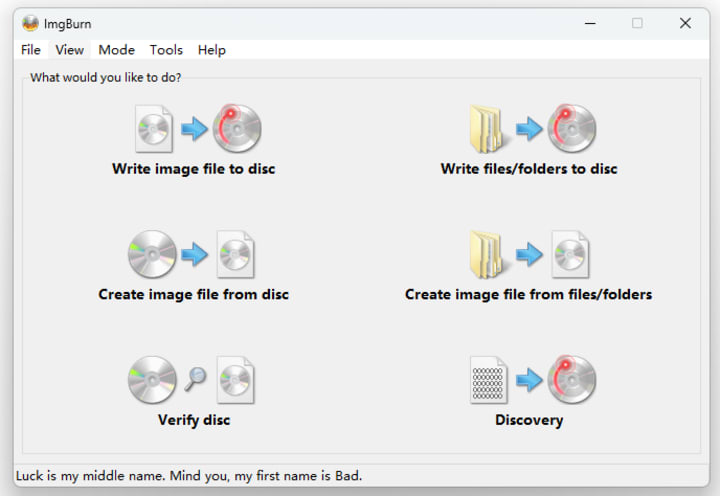
Choose Source and Destination: Select the DVD as the source and set the destination path for the ISO file.
Build the Image: Click the "Read" button to copy the disc into an ISO file.
Method 2: Copy a DVD to Digital Video Formats
Converting DVD to digital file allows you to watch movies on laptops, tablets, or media servers without the physical disc.
DVDFab DVD Ripper
A complete solution for converting DVDs into more than 1000 digital formats, such as MP4, MKV, AVI, and others, is DVDFab DVD Ripper. It has cutting-edge features like GPU acceleration and AI-enhanced video upscaling, and it works with both Windows and macOS.
Pros:
- Can handle almost all DVD encryption schemes.
- Preserves multiple audio tracks and subtitles.
- Supports batch processing for multiple titles or discs.
- Adjustable output settings for flexible quality/file size management.
Cons:
- The full version requires a paid license.
How to Copy DVD to Computer with DVDFab DVD Ripper
1. Insert the DVD and Launch: Place the DVD in your drive, open DVDFab DVD Ripper, and wait for the software to recognize the disc.
2. Select Titles and Output: Choose which titles to rip (full movie or specific chapters). Select an output format (e.g., MP4, MKV), resolution, and any additional settings like subtitles or audio tracks.
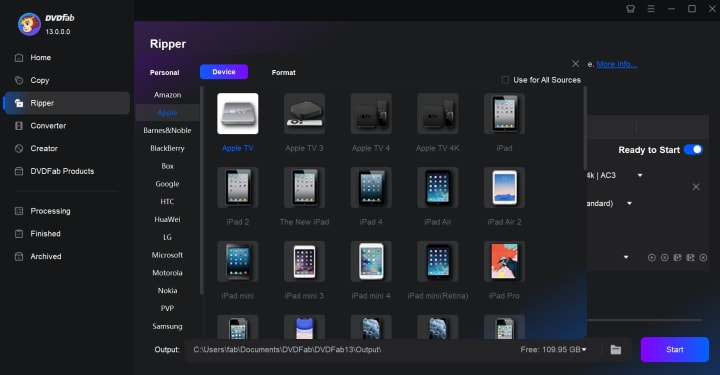
3. Start Ripping: Click “Start” to begin the conversion. Monitor progress; GPU acceleration can significantly speed up the process. Once done, the files will be saved to the chosen folder.
MakeMKV
When you want to copy a DVD to a digital file while keeping the original quality, MakeMKV is a free tool that converts DVDs and Blu-rays into MKV files. It preserves all video, audio, and subtitle tracks without compression.
Pros:
- Free to use on all supported platforms.
- Maintains original video and audio fidelity.
- Quick and simple interface suitable for beginners.
Cons:
- Outputs only MKV format.
- No video editing or compression options.
- Large file sizes compared to compressed formats.
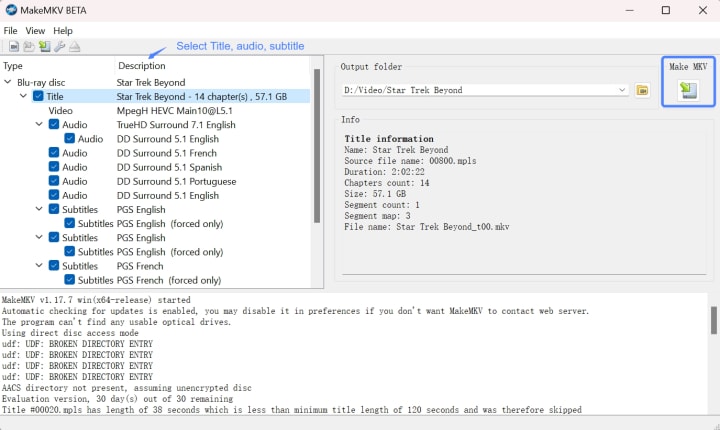
How to Rip a DVD for Free using MakeMKV
1. Insert DVD and Open MakeMKV: Place the disc in your drive, launch MakeMKV, and click the DVD drive icon to load the disc. The software will scan and display available titles.
2. Select Titles and Tracks: Review the titles, audio tracks, and subtitles. Check only the ones you need to avoid unnecessarily large files.
3. Set Output Location and Start: Choose the folder for the MKV files. Click "Make MKV" to start ripping. MakeMKV will preserve all tracks, so files may be large but will keep original quality.
Practical Scenarios: Which Method Fits You
The choice of copy method depends on how you wish to handle the copies, storage considerations, and the devices you plan to use.
1. Preserving the Full Disc Structure
Recommended Tool: DVDFab DVD Copy
Why: It supports full disc cloning, handles encrypted DVDs, and offers multiple copy modes to maintain everything exactly as it appears on the original disc.
When to use:
- Archiving a collection for long-term storage.
- Making a backup to burn onto another disc later.
- Keeping extras, commentary tracks, and menus intact.
2. Converting to Digital Video for Playback
Recommended Tool for Flexibility: DVDFab DVD Ripper
- Offers multiple output formats (MP4, MKV, AVI, etc.) and adjustable quality settings.
- Ideal for creating files optimized for different devices.
- Supports batch processing and editing features like trimming or adding subtitles.
Recommended Tool for Original Quality: MakeMKV
- Suitable if file size is not a concern and maintaining 1:1 quality is important.
- Quick and simple for users who want a direct MKV copy without compression.
3. Practical Tips
Storage Requirement: As ISO and MKV files can be huge, use DVDFab DVD Ripper with custom compression if you have limited space.
Devices for Playback: MP4 files can be played on a wide range of devices, however MKV files might need suitable players or applications.
Encryption: DVDFab handles this automatically, while free tools like MakeMKV may have limitations depending on DVD protection.
Conclusion
Many common frustrations can be resolved by copying a DVD, such as needing to watch movies on modern devices without carrying the original disc, region restrictions, or scratched discs.
Those who want to copy a DVD to a DVD can easily generate precise disc copies with programs like DVDFab DVD Copy. If you want to create digital files for media servers or laptops, DVDFab DVD Ripper and MakeMKV are dependable choices.
It’s important to note that copying commercial DVDs for distribution or any commercial activity may violate copyright laws, and this guide does not advocate such use.
About the Creator
Diana
I’m a passionate Blu-ray collector who loves preserving the magic of physical media. Every now and then, I enjoy burning precious family videos onto discs, keeping memories alive in a tangible way.
Why Replica Watches Fascinate People: A Reflection on Design, Identity, and Aspiration
Watches have always been more than timekeeping tools. They mark achievements, express identity, and carry stories about craftsmanship. While luxury models receive global admiration, another world quietly exists alongside them—one filled with replicas, reinterpretations, and recreations.
By charliesamuel2 days ago in 01
Grocery App Development Cost: Your 2026 Price Guide
Building a software product today feels like trying to hit a moving target while riding a unicycle. I reckon you have noticed how fast things change. Just a few years ago, we were happy with a simple list and a checkout button.
By Sherry Walker3 days ago in 01


Comments
There are no comments for this story
Be the first to respond and start the conversation.