
How to Convert MP4 to DVD with Top Burning Software
MP4 to DVD Made Easy: Step-by-Step Guides and Personal Experiences

MP4 has become the go-to format for storing movies thanks to its excellent compatibility across almost all devices. As someone who loves collecting videos, I quickly realized that a large MP4 library, while convenient, can rapidly consume precious space on my computer’s hard drive.
Faced with this challenge, I decided to explore converting and burning MP4 files onto DVDs. Not only does this free up valuable disk space, but it also creates a physical backup that I can easily share with family or enjoy on DVD players. Over time, I experimented with several tools and techniques, discovering efficient, user-friendly ways to turn my favorite MP4 videos into beautifully crafted DVDs. Here, I'll share the best methods, including my personal experience using DVD Creator software.
How to Convert MP4 to DVD Using DVDFab DVD Creator
From the moment I started using DVDFab DVD Creator, the experience felt intuitive. It is a really good program for anyone who wants to burn MP4 video to DVD on Windows and Mac. One thing I really appreciated was how it managed large MP4 files without slowing down my computer. It even allows me to tailor the DVD menu and edit the movies. Thanks to its multi-core and high-performance acceleration technology, everything proceeds smoothly.
Features:
- Make standard DVDs from more than 200 video formats, including MOV, MP4, AVI, TS, MKV, M2TS, etc.
- Provides a variety of menu templates to help you elevate your homemade DVDs to the next level.
- This DVD creation software generates a.nfo file by default. The file consists of all metadata, including titles, descriptions, and other details.
Steps to Convert MP4 to DVD with DVDFab DVD Creator
Step 1: Open DVDFab DVD Creator and select the "Creator" and then the "DVD Creator".
Next, select your video by clicking the "Add Source" option on the main page. You can also just drag & drop the file to the main page.
Step 2: Adjust video size, quality, and DVD format in Advanced Settings. Then, use Menu Settings to select or edit your DVD menu, making the disc uniquely yours.
If you want to skip the opening credits or add a text watermark, just navigate to the video editing window.
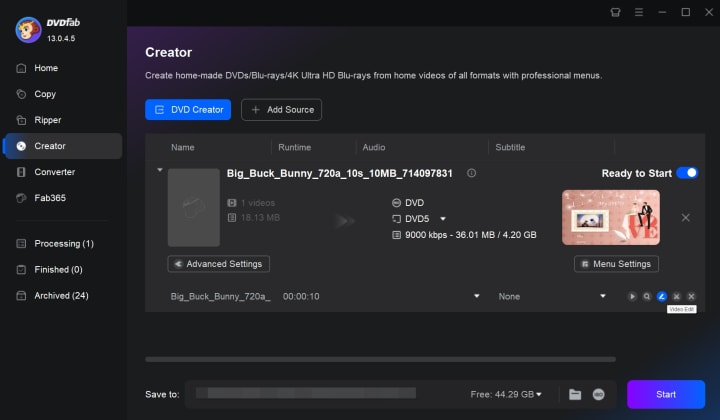
Step 3: Choose an output directory under "Save to," then click "Start." Track progress in the "Processing" tab.
How to Burn MP4 to DVD with A Free Option
If you want a free way to convert MP4 to DVD, DVDStyler is one of the more practical tools I have tried. Unlike simple file burners, it is built for DVD authoring, which means it does more than just write MP4 files onto a disc. It helps create a playable DVD-Video with menus, titles, and a structure that works better on standalone DVD players.
Features:
- Create DVD-Video discs from MP4 and many other common video formats
- Add interactive DVD menus for a more organized playback experience
- Burn directly to disc or save the project as an ISO image
- Support multiple titles, subtitles, and audio tracks
- Available on Windows, macOS, and Linux
Steps to Burn MP4 to DVD with DVDStyler
Step 1: Launch DVDStyler on your computer and create a new project. Insert a blank DVD into your disc drive if you want to burn directly to disc.
Step 2: Set the disc label, disc capacity, and video format. Then choose a menu template if you want to create a more polished DVD interface.
Step 3: Add your MP4 files by dragging them into the project window. You can organize the titles and adjust the menu layout based on how you want the DVD to look.
Step 4: Make any final changes to subtitles, audio tracks, or menu elements. If needed, you can preview the project before burning.
Step 5: Click Burn to either write the MP4 project directly to a blank DVD or save it as an ISO image for later use.
How to Convert MP4 to DVD with Built-in Tools
If you prefer not to install extra software, both Windows and Mac offer native ways to burn data DVDs containing your MP4 files.
Convert MP4 to DVD Using Windows Media Player
As a built-in media player in Windows, Windows Media Player is not only used to watch videos, listen to music, and view photos but also enables you to copy or burn these files to an empty disc. Although it can burn video files to DVD, it only supports MP4. Here are the steps to burn MP4 to DVD using Windows Media Player.
Step 1: Insert the DVD into the disc drive and open Windows Media Player.
Step 2: Click the Burn tab on the top right corner of the interface. Drag and drop the MP4 videos you want to burn.
Step 3: Click the drop down icon on the Burn tab, select Data CD or DVD and then click Start burn to start the process.
Burn MP4 to DVD Using Windows Explorer
Finder is a built-in Mac application to search and organize applications, files, and disks. As an all-in-one media file manager and conversion tool for Mac users, Finder's utility goes beyond a basic file manager, it acts as a useful tool for burning MP4s to DVD, thus providing a quick route for managing and converting media. It is supported on Mac OS X 10.11 El Capitan or later.
Step 1: Since most modern Macs lack built-in DVD drives, connect an external USB DVD drive. If your Mac has only USB-C ports, ensure the drive supports USB-C.
Step 2: Place a blank DVD into the external drive. Ensure it has no files before proceeding.
Step 3: Launch Finder by clicking the blue face-shaped icon in the Dock. Navigate to the folder containing your MP4 file.
Step 4: Click on the MP4 file to highlight it, then click File in the top menu bar. From the drop-down menu, select "Burn [movie] to Disc…".
Step 5: In the Burn window, adjust settings if needed, then click "Burn" to begin the process.
Step 6: Once burning is complete, click "OK", then eject the DVD. Your MP4 file is now saved on the DVD and can be played on any computer with a DVD drive.
Conclusion
Burning MP4 to DVD is a simple but powerful solution for releasing storage on your computer and making robust physical copies of your prized videos. This guide looks at the best ways to convert MP4 to DVD on Windows and Mac, including built-in tools like Windows Media Player, Windows Explorer, and Finder, as well as excellent third-party software like DVDFab DVD Creator, and DVDS. Each piece of software is intended to be user-friendly and efficient, with customisable options ranging from menu layouts to subtitle support.
About the Creator
Diana
I’m a passionate Blu-ray collector who loves preserving the magic of physical media. Every now and then, I enjoy burning precious family videos onto discs, keeping memories alive in a tangible way.



Comments
There are no comments for this story
Be the first to respond and start the conversation.