
How to Convert DVD to MP4 on macOS,Windows & Linux?
Solutions for Converting DVDs to MP4 Across All Platforms

Ripping DVDs to MP4, MOV, or MKV has become common because it makes playback easier on laptops, TVs, and portable devices. Among these formats, MP4 is the most widely supported across systems and devices.
I started digitizing my own DVDs when my laptop no longer had a built-in optical drive. Some discs were family recordings, others were movies I had collected over the years. I quickly realized that choosing the right software made the difference between a smooth conversion and hours of wasted time. In this guide, I’ll look at popular tools available on different platforms, explain their pros and cons, and share step-by-step instructions.
Convert DVD to MP4 with DVDFab DVD Ripper (Windows and macOS)
DVDFab DVD Ripper works on both Windows and macOS and is designed to convert DVD to MP4 with popular codecs such as MPEG-4, H.264, and H.265. These codecs ensure that the videos are compatible with a wide range of portable devices, including iPhones, iPads, Samsung phones, Huawei devices, and tablets. In addition to video formats, the program allows you to extract subtitles in SRT format and even keep Hi-Fi audio from both commercial and homemade DVDs, folders, or ISO files. With support for hardware acceleration (such as VideoToolbox), DVDFab can shorten conversion time significantly while still maintaining high-quality MP4 output.
Key Features:
- Supports both old and new DVDs with copy protection
- Lets you queue multiple titles for batch conversion
- Trim, crop, merge clips, or add text and image watermarks
- Automatically syncs metadata (movie titles, posters, cast info) for media servers like Plex
Cons:
- Free version only outputs to MP4 and MKV
How to Convert DVD to MP4 using DVDFab DVD Ripper
Step 1. Drag the DVDFab 13 dmg file to the Applications path to complete the installation. Then launch it.
Step 2. Insert the DVD into the optical drive. DVDFab DVD Ripper will automatically detect and load the disc as the source, and by default, it will display the main movie title which is normally the longest one.
If you want to add more titles or choose another one, click the "Choose other titles" button.
Step 3. Choose MP4 as a profile from the Profile selector. You can use the Filter to get the desired preset options quickly. You can also choose a device profile, such as an iPad, Apple TV, Xbox, etc.
Go to the Advanced Settings panel, you can adjust the video and audio codecs and choose how to control the subtitles.
Step 4. Trim & merge the title and edit the video per your preference.
In the "Editor" window, you can crop and rotate your video, adjust the video effects such as brightness and saturation, and personalize it by adding text and picture watermarks. You can also import additional external subtitles, among other features.
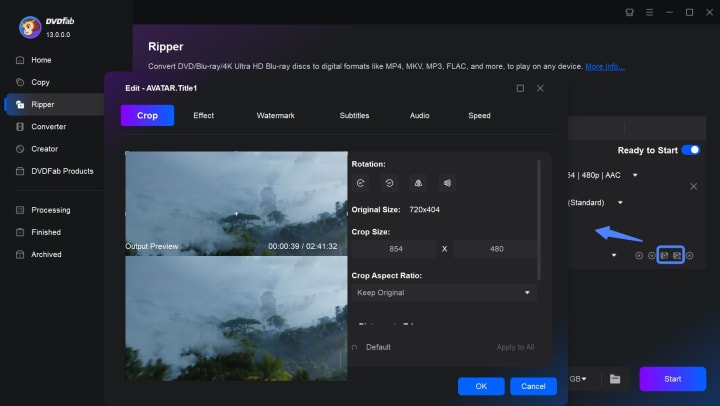
Step 5. Set the output destination and press the Start button to begin the conversion of DVD to MP4 on Mac.
Convert DVD to MP4 with HandBrake (Windows, macOS, Linux)
HandBrake is a free, open-source program that runs on all major platforms. It converts DVDs into MP4, MKV, or WebM formats and comes with built-in presets for different devices and quality levels. If you want a high-quality DVD to MP4 output, you can easily choose those super HQ options in the preset list. HandBrake also lets you crop, deinterlace, or denoise video with its filter options.
Key Features:
- Available on Windows, macOS, and Linux
- Filter options for cropping, denoising, deinterlacing
- Customizable audio, subtitle, and chapter settings
Cons:
- Cannot handle copy-protected DVDs without extra libraries
How to Convert DVD to MP4 for Free with HandBrake
Step 1. Download and run this converter. After that, click the "Open Source" button to load the source DVD. Wait till HandBrake completes the analysis process.
Step 2. HandBrake will show the main title by default, which is normally the longest one. If you want to choose another title, click the "Title" and select the movie title from the drop-down list.
Step 3. Click "Preset" and choose the output quality you need. While you select the Fast option to convert DVD to MP4, the conversion process will be quick but the output quality is not good enough as compared to other options, so we suggest you use HD or Super HD.
Step 4. In the "Output Settings" section, besides choosing MP4 as the format, you can adjust the video codec, audio, subtitles, chapters, etc.
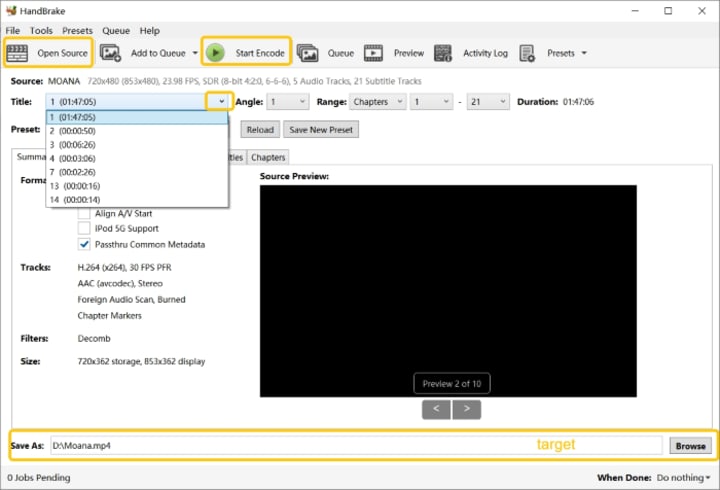
Step 5. Change the "Destination" path if needed. Then click the green "Start" button on the upper area.
Convert DVD to MP4 with VLC Media Player (Windows, macOS, Linux)
VLC media player is a powerful media playback tool compatible with Mac, Windows, Linux, iOS, and Android. It can also convert a home DVD to MP4, WebM, TS, OGG, ASF, MP3, and more. You can set the starting position of the title and adjust audio and subtitles inside VLC. While it is not the best option for copy-protected DVDs and may not match the output quality of dedicated DVD to MP4 tools, it is still a convenient choice for converting unprotected DVDs.
Features:
- Free and easy to operate
- Lets you set the title start position
- Provides basic video and audio settings, plus subtitle and audio adjustments
Cons:
- Cannot convert encrypted DVDs well without additional libraries
- Does not come with video quality adjustment and editing options
How to Convert DVD to MP4 using VLC
Step 1. Download VLC from the official VideoLAN website and install it. Open the program on your computer. Using the latest build helps avoid compatibility issues with certain DVDs.
Step 2. Place the DVD you want to convert into your computer’s optical drive (internal or external). Wait until the system recognizes the disc.
Step 3. In VLC, go to the top menu and select Media > Convert/Save (on macOS, this is under File > Convert/Stream). In the Disc tab, choose DVD as the source and make sure the correct drive is selected. You can also set the starting title or chapter if you only want part of the video.
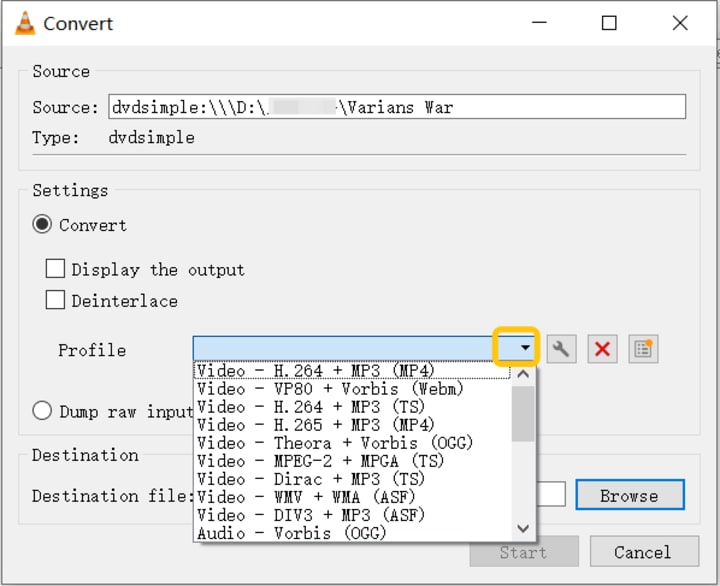
Step 4. Click Convert/Save to move to the next window. Under Profile, choose Video – H.264 + MP3 (MP4) or another MP4 option. If needed, click the wrench icon next to the profile to adjust codecs, bitrates, resolution, subtitles, or audio tracks.
Step 5. Click Browse to set where you want the MP4 file saved and give it a filename ending in .mp4. Once ready, click Start.
FAQs about Converting DVD to MP4
Should I choose lossless output or re-encoding to MP4?
If you want the exact same quality as the original DVD, a lossless copy (often in MKV format first) is the safest choice, but the file size will be very large. Re-encoding to MP4 with H.264 or H.265 compression reduces the size a lot and still provides very good quality for most uses. For archiving, many users keep a large lossless copy, then make a smaller MP4 version for daily playback.
Are there online DVD to MP4 converters?
Some websites claim to convert DVDs to MP4 online, but in reality, they only support uploading files of a few hundred MB. This method is slow, unsecure, and often fails due to copy-protected discs. A full DVD can be 4-8 GB or even larger, making it impractical for most online converters. For a safe and reliable solution, it's best to use desktop software like DVDFab.
How much faster is GPU acceleration for ripping DVDs?
GPU acceleration can provide significant speed improvements, but the specific results depend on your system and software. On a modern laptop with supported hardware, a conversion that might take 60-80 minutes on a CPU typically completes in 10-20 minutes with the GPU enabled. Note that not all codecs and tools utilize the GPU equally well, so your results will vary.
Conclusion
Converting DVDs to MP4 makes it easier to enjoy your collection on modern devices. Paid tools like DVDFab DVD Ripper save time and handle copy-protected discs smoothly. Free options like HandBrake or VLC are useful for simple projects.
From my own experience, the best approach depends on the type of DVD. For commercial DVDs with protections, professional software saves a lot of frustration. Once converted, your DVDs are not just safer from scratches but also ready to play anywhere.
About the Creator
Diana
I’m a passionate Blu-ray collector who loves preserving the magic of physical media. Every now and then, I enjoy burning precious family videos onto discs, keeping memories alive in a tangible way.
Who’s Leading Fintech in 2026? Top App Development Companies
When it comes to building secure, scalable, and innovative financial solutions — from digital banking platforms and payment systems to AI-driven risk tools — picking the right partner can make or break your success. In 2026, fintech is evolving faster than ever, powered by AI, cloud-native architectures, blockchain, and embedded finance. Below are the foremost companies shaping the future of fintech technology.
By Aarti Jangida day ago in 01
Musk wants up to $134B in OpenAI lawsuit, despite $700B fortune
Elon Musk wants a jaw-dropping $79 billion to $134 billion in damages from OpenAI and Microsoft, claiming the AI company defrauded him by jettisoning its nonprofit mission, Bloomberg first reported. The figure comes from expert witness C. Paul Wazzan, a financial economist whose bio says he has been deposed nearly 100 times and testified at trial more than a dozen times in complex commercial litigation cases.
By Dena Falken Esq3 days ago in 01
Center Stage with Paul Stewart
*** I'm keen to republish the interviews I did for my series with Vocal creators. It's been a few years and I thought it might be nice to revisit these wonderful conversations. I'll be releasing them one at a time for a few weeks/months.
By Heather Hubler5 days ago in Interview



Comments
There are no comments for this story
Be the first to respond and start the conversation.