
How to Convert ISO to MP4: The Best Tools for You
If you have an ISO file — the disc image format used for DVDs, Blu-rays, or even software installations — and want to convert it to the more portable MP4 format for easy playback on various devices, there are several tools available that can help.

MP4 is a widely supported video format, making it ideal for streaming, media players, and storage. In this article, we'll explore the best software for converting ISO files to MP4, with DVDFab being one of the top choices.
1. DVDFab: The All-in-One Converter
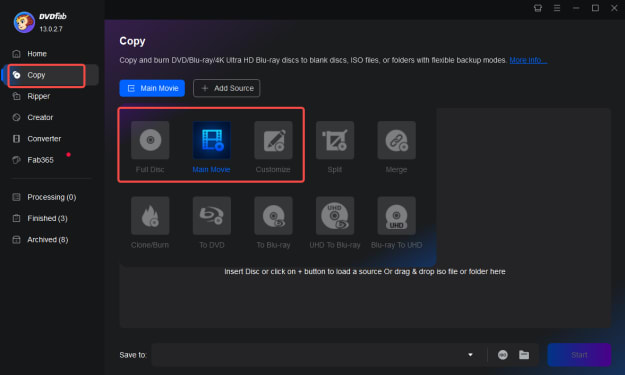
DVDFab is a powerful multimedia tool that excels in converting ISO to MP4, among other formats. With its robust feature set, this tool is perfect for users who need high-quality results with minimal hassle.
How to Convert ISO to MP4 with DVDFab:
1. Launch DVDFab and select the Ripper module.
2. Add your ISO file by clicking the **“+”** button.
3. Choose MP4 as the output format. You can adjust settings like resolution, bitrate, and video codec.
4. Click Start to begin the conversion.
Why Choose DVDFab?
- High-quality video output with customizable settings.
- Supports a wide variety of source formats, including ISO, DVD, Blu-ray, and more.
- Fast processing speeds, especially with hardware acceleration support.
- User-friendly interface, making it ideal for beginners and professionals alike.
DVDFab's comprehensive features and top-tier quality make it an excellent choice for anyone looking to convert ISO files to MP4 quickly and effectively.
2. HandBrake: Free and Open-Source
For those who prefer a free and open-source solution, HandBrake is a popular choice. It’s an easy-to-use video transcoder that supports a variety of formats, including ISO files, and allows you to convert them to MP4 with just a few clicks.
How to Convert ISO to MP4 with HandBrake:
1. Open HandBrake and click on “Source” to select your ISO file.
2. Choose MP4 as the output container from the format options.
3. Customize the video settings, such as resolution, codec, and bitrate, if necessary.
4. Click Start Encode to begin converting.
Why Choose HandBrake?
- Completely free and open-source.
- Great for basic ISO to MP4 conversions.
- Customizable video and audio settings.
- Supports batch processing for multiple files.
While HandBrake is a bit more basic in terms of advanced features compared to DVDFab, it’s a great option if you want a straightforward, no-cost tool to convert your ISO files.
3. MakeMKV + HandBrake: For MKV to MP4 Conversion
MakeMKV is another powerful tool primarily designed for ripping Blu-rays and DVDs, but it can convert ISO to MP4. MakeMKV converts the ISO file into the MKV format, which you can then convert to MP4 using HandBrake.
How to Convert ISO to MP4 with MakeMKV and HandBrake:
1. Use MakeMKV to convert your ISO file into MKV format.
2. Open HandBrake and load the MKV file.
3. Choose MP4 as the output format and adjust any necessary settings.
4. Click Start Encode to finish the conversion.
Why Choose MakeMKV + HandBrake?
- MakeMKV offers high-speed ripping and preservation of original quality.
- HandBrake gives you complete control over video encoding when converting MKV to MP4.
- Ideal for users who frequently deal with Blu-ray or DVD ISO files.
This combination provides an excellent way to handle more complex ISO files, especially Blu-rays, and convert them into a more universally compatible MP4 format.
4. Freemake Video Converter: Easy-to-Use for Beginners
Freemake Video Converter is a well-known, user-friendly tool that can handle the conversion of ISO files to MP4 with ease. This software is designed for users who want a simple, no-fuss solution to convert their ISO videos without dealing with complicated settings.
How to Convert ISO to MP4 with Freemake:
1. Open Freemake Video Converter and import your ISO file.
2. Select MP4 as the output format.
3. Optionally, adjust the resolution, bitrate, and audio settings.
4. Hit Convert to start the process.
Why Choose Freemake?
- Very easy-to-use interface, perfect for beginners.
- Supports a wide variety of formats, including ISO, MP4, AVI, MKV, and more.
- Quick conversion with decent output quality.
While Freemake is a solid tool for basic conversions, it does come with some limitations in its free version (such as watermarks). However, it’s a good choice for anyone who wants simplicity over advanced features.
5. Any Video Converter (AVC): Flexible and Feature-Rich
Any Video Converter (AVC) is a versatile video conversion tool that supports many formats, including ISO to MP4 conversion. It offers a good balance of ease of use and advanced features for users who need more control over their conversions.
How to Convert ISO to MP4 with AVC:
1. Open Any Video Converter** and add your ISO file.
2. Choose MP4 as the output format.
3. Customize video settings like resolution, bitrate, and audio options.
4. Click Convert Now to start the conversion.
Why Choose AVC?
- Free version available with basic features.
- Supports a wide range of input and output formats.
- Includes basic video editing tools (crop, trim, etc.).
- Fast conversion speeds.
AVC is ideal for users who want a good mix of features without spending too much time learning complicated settings. It’s a good choice for casual video converters and those who need a tool with some extra editing capabilities.
6. XMedia Recode: Lightweight and Free
XMedia Recode is a free, lightweight video converter that supports a variety of formats, including ISO to MP4. It's an excellent choice for users who need a fast and simple solution without extra bloat or complications.
How to Convert ISO to MP4 with XMedia Recode:
1. Open XMedia Recode and load your ISO file.
2. Set the output format to MP4.
3. Adjust the video/audio settings if needed.
4. Click Encode to start the conversion.
Why Choose XMedia Recode?
- Free and lightweight.
- Supports many formats, including ISO, MP4, MKV, and more.
- Ideal for quick and simple conversions.
This tool is perfect for users who need to convert ISO files to MP4 without dealing with heavy software or advanced settings.
Conclusion
Converting an ISO file to MP4 can be done with a variety of tools, each offering its own unique features and strengths. If you're looking for an all-in-one, high-quality solution, DVDFab is the best choice, with fast processing speeds and great customization options. For those who prefer free tools, HandBrake is an excellent option for basic conversions, while MakeMKV + HandBrake offers a powerful two-step process for dealing with Blu-ray ISOs. Freemake Video Converter and Any Video Converter are both user-friendly options, perfect for beginners. Finally, XMedia Recode offers a lightweight, no-fuss solution for quick conversions.
No matter what your needs are, there’s a tool that fits your workflow and provides the results you're looking for!
About the Creator
Rita
I am a freelancer, specializing in DVD, Blu-ray, and multimedia technologies. With a strong background as a tech editor, I bring a deep passion for the tech industry to my writing, crafting insightful articles.
Global Security Market Size and Forecast 2025–2033: Protecting a Digitized World in an Era of Rising Threats
Global Security Market Overview The global security market is entering a decisive phase of expansion as governments, enterprises, and institutions confront an increasingly complex risk environment. According to Renub Research, the Security Market is expected to grow from US$ 142.66 billion in 2024 to US$ 264.71 billion by 2033, registering a strong CAGR of 7.11% from 2025 to 2033. This growth reflects the convergence of digital transformation, rising geopolitical tensions, urbanization, and escalating cyber and physical threats worldwide.
By Renub Researcha day ago in 01
Google Billionaire Larry Page Snaps Up 2 Miami Mansions for $173 Million
Billionaire and Google co-founder Larry Page has shelled out more than $173 million in recent weeks, snapping up a pair of luxury estates tucked deep within Miami's discreet Coconut Grove enclave. Page made the high-dollar moves as speculation intensified over his broader departure from California, where a proposed ballot measure targets billionaires with a sweeping one-time wealth tax.
By Dena Falken Esq6 days ago in 01
My New Book is Finally Here
My poetry collection Beautiful and Brutal Things is done. It's actually done and finally published over 270 pages. Over a year of my life went into this book. More than a year, really. Long days at my computer, sometimes seven days a week because I couldn't stop even when I probably should have. Then two months of editing that felt harder than the writing itself. But it's finished, and I'm still standing, and the book is real.
By Tim Carmichael4 days ago in BookClub


Comments
There are no comments for this story
Be the first to respond and start the conversation.