
How to Convert Excel Files to PDF Securely?
Steps to convert Excel (.xls & .xlsx) files to PDF in Windows OS. Advance Excel converter to convert Excel to PDF with hyperlinks, checkboxes, formulas, etc.

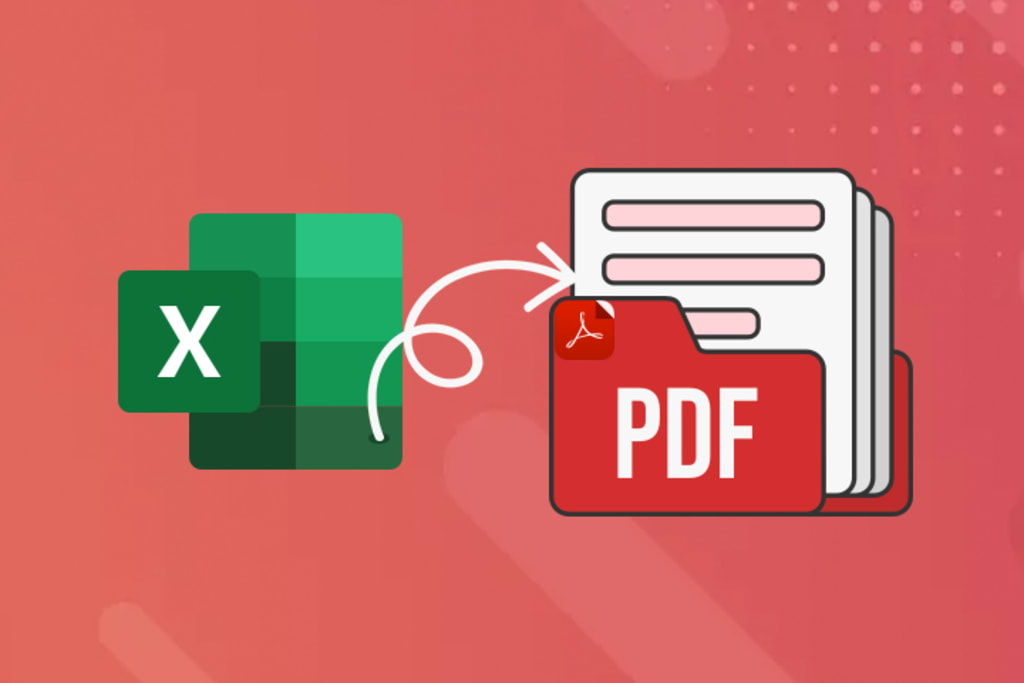
“Imagine you’ve created and shared a financial report in Excel with detailed charts and data tables of your company. But when the manager opens the file, the layout is broken, rows are missing, and it becomes unprofessional. Should I convert Excel to PDF before sharing?”
Often, this happens when someone uses different Excel versions or doesn’t have it at all. Since PDFs preserve formatting, open on any device, and display your content exactly as you designed, converting Excel to PDF would be wise. So, don’t make your document improper and messy; convert XLS to PDF format immediately before sharing or submitting.
Converting Excel file to PDF is tedious, but it becomes easy with the right approach. Whether you’re a tech expert or a novice user, this guide will help you. Here, you’ll get proven methods to convert XLSX to PDF format with manual and automated Excel Converter.
Why Convert Excel to PDF Format?
PDF is one of the most reliable and secure file formats that compel users to convert XLS to PDF format. Let’s break down other beneficial properties of a PDF file:
- Compatible across all devices.
- Easier sharing via email or the web.
- Preserves layout and formatting
- Prevents unwanted modifications.
- Great for reports, invoices, forms, and data summaries.
- Provides a password protection feature to prevent unauthorized access.
Reliable & Hassle-Free Methods to Convert Excel to PDF Format
Here are a few simple step-by-step methods that will help you to convert Excel workbooks to PDF without any hassle.
Method 1: Save Excel file to PDF Using Microsoft Excel
Microsoft Excel is a powerful application that is available on the Windows OS. You can use this easily to convert Excel sheet to PDF without losing formatting. Here are the steps to follow:
- Open your Excel file and click on File. Tap Save As, click Browse and choose a saving destination folder.
- In the Save as type dropdown, select PDF (*.pdf). Then, click Options if you want to adjust page range or print settings. Tap Save.
Your Excel file is now saved in PDF format.
Method 2: Save Excel as PDF using the " Print to PDF" Feature
When you don’t want to use the above method or your Excel version doesn't support PDF export, use the built-in Print to PDF feature to convert Excel to PDF. It converts only part of the spreadsheet, like specific pages or sheets. Follow the below steps
- Open the Excel file in Microsoft Excel. Go to File > Print.
- In the Printer dropdown, select Microsoft Print to PDF or Save as PDF on Mac. Click Print. Choose a file name and location, then click Save.
Your Excel file will be converted into PDF format.
Method 3. Save Excel Sheet to PDF using Google Sheets
Whether you have a computer system or are away from your computer, you can easily convert XLSX to PDF using Google Sheets. Here are the steps to follow:
- Log in to Google Sheets, click File, then Open, and upload your Excel file.
- Once uploaded/opened, go to File, tap Download and choose PDF (.pdf).
- Adjust PDF settings (page size, orientation, margins) in Print Settings. Click Export.
Your Excel file will be downloaded as a PDF file.
Method 4. Save XLS as PDF using Online Tools
Alternatively, you can use an online Excel to PDF converter tool to save Excel sheet as PDF without hassle. For this, you need to opt for any reliable tool from the many available online. After opting for the trustworthy one, upload your Excel file and download the resultant PDF file on your system after a successful conversion.
But do remember, opting for a reliable online XLS to PDF converter is necessary to prevent original formatting and data security when you convert Excel file to PDF format.
Method 5. Convert Excel to PDF using the Ultimate Solution
You may often face various limitations and issues when you convert Excel workbook to PDF with multiple sheets using manual methods and online converters. To escape such problems and drawbacks, use a professional third-party Windows-based Excel converter tool.
These XLSX to PDF converters have multiple advanced features and functionalities, making the conversion smooth, easy, and quick. They help convert Excel files to different spreadsheet formats and other formats like documents, presentations, images, etc.
A few prominent features of a good Excel converter are:
- Preview Excel file content before conversion.
- Quickly convert Excel to PDF without data loss.
- Multiple page-based filters for selective conversion.
- Maintains original layout, images, tables, and formulas.
- Password-protected Excel files support.
- Convert Excel files to PDF without changing date format.
Final Thoughts
Now you know exactly how to convert XLS to PDF using Microsoft Excel, Print to PDF, Google Sheets, or online tools. Alternatively, you can use professionally designed third-party Excel to PDF converter software to convert Excel to PDF with formulas, hyperlinks, checkboxes, tables, formatting, etc. With the tool, the process becomes quick, simple, and highly useful when sharing spreadsheets securely and professionally. So, download the free demo version now to test the conversion!!!
About the Creator
Layla Darzi
I’m Layla, a content writer dedicated to creating meaningful, engaging, and results-driven content. I specialize in writing blogs, articles, website copy, and brand stories that blend creativity with strategy.
Keep reading
More stories from Layla Darzi and writers in 01 and other communities.
How Much Does App Development Cost in Colorado?
You are probably staring at a napkin sketch thinking you’ve found the next big thing. Good for you. Truly. But I reckon your first real hurdle isn't the code. It is the cold, hard cash required for app development cost in Colorado.
By Sherry Walker7 days ago in 01
How to Choose a Mobile App Development Company in 2026
The Google ecosystem is currently undergoing a structural realignment that fundamentally changes how mobile applications are discovered and validated. We are witnessing a tectonic movement away from traditional index-based search toward a unified Trust Graph where Entity Signals dictate market survival.
By Devin Rosario5 days ago in 01
Affection and Healing for Yourself
During the night of the last quarter moon, I gathered my ritual supplies. I carefully handled the chunk of black tourmaline that would protect me from your overall negative and narcissistic energy. I carefully walked the house with my stick of selenite in hand, asking the universe to cleanse our working space.
By Alisha Wilkins ✒️🦋🖋️7 days ago in Fiction



Comments
There are no comments for this story
Be the first to respond and start the conversation.