
Easy Blu-ray Ripping: Step-by-Step Guide to 2 Best Blu-ray Ripper Tools
Learn how to quickly and easily rip Blu-rays into various video formats using the top Blu-ray rippers DVDFab Blu-ray Ripper and HandBrake.

For movie lovers looking to move from physical Blu-ray discs to the convenience of digital media, ripping your Blu-ray collection has become an essential step. Whether you want to enjoy your favorite films effortlessly across multiple devices or safeguard your treasured collection with backups, choosing the right Blu-ray ripping software is crucial. In this guide, I'll introduce you to the top two Blu-ray rippers and walk you through a simple, effective tutorial on how to rip Blu-ray discs quickly and with excellent quality.
Best Blu-ray Ripper: DVDFab Blu-ray Ripper
Best for: all types of Blu-rays, including encrypted, unprotected and homemade ones
DVDFab Blu-ray Ripper stands out as an excellent solution for converting Blu-rays (including 3D discs) into digital formats. It boasts extensive format compatibility, supporting a wide array of video and audio output types such as MP4, MKV, AVI, and more, making it easy to enjoy your movies on various devices. Its robust decryption engine can remove any Blu-ray protection, ensuring you can back up both commercial and homemade discs with ease. The software leverages advanced GPU acceleration, significantly speeding up ripping and conversion without compromising on output quality. Users have access to detailed, customizable settings, allowing for fine-tuning video resolution, bitrate, subtitles, audio tracks, and more.
PROS
- Rip Blu-rays into over 1000 video and audio formats, including MP4, MKV, AVI, MOV, and more.
- Remove Blu-ray copy protections such as AACS, BD+, BD-J, RC, and Region Codes effortlessly.
- Fully compatible with a wide range of devices and software applications.
- Features more than 245 built-in presets for popular devices from brands like Apple, Google, Samsung, and Sony.
- Accelerate conversion speeds efficiently with GPU hardware acceleration.
- Provides comprehensive customization options for personalized content output.
CONS
- Cannot be used on Linux OS
How to Rip Blu-ray with the Best Blu-ray Ripper
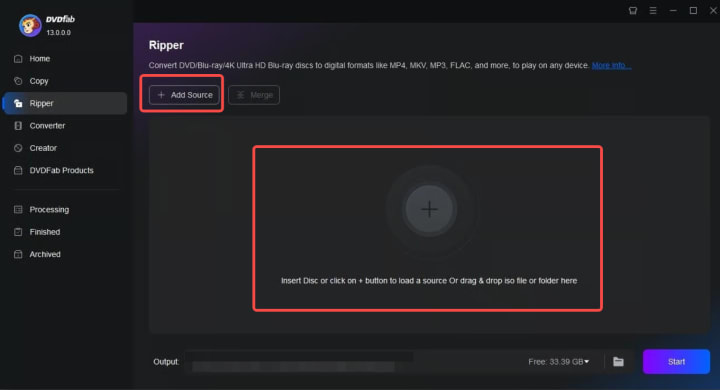
Step 1: Install DVDFab Blu-ray Ripper on your Windows or Mac computer, then launch the application. Navigate to the "Ripper" section. To load your Blu-ray content, either press the "Add" button or drag the files directly into the program interface.
Step 2: Select the specific titles, audio tracks, and subtitles you want to include. Next, choose your preferred output format or pick from preset profiles tailored for your mobile devices by clicking "Choose Other Profile." Additionally, you can access "Advanced Settings" to customize video quality, and use the built-in "Video Edit" and "Trim" modules to make image adjustments.
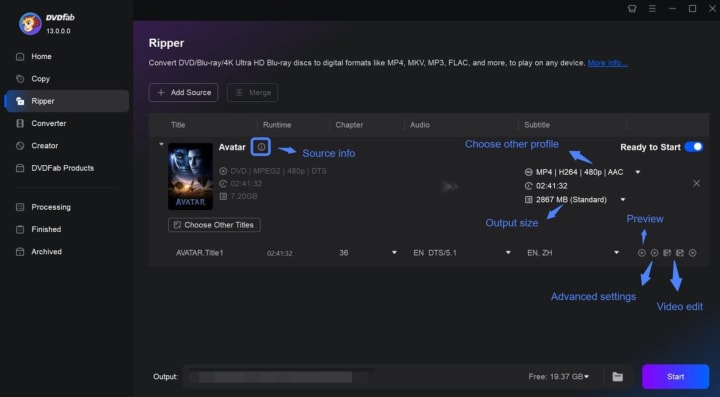
Step 3: Choose the output folder and click "Start" to begin the ripping operation.
Free Blu-ray Ripper Software: HandBrake
Best for: unprotected or homemade Blu-rays
HandBrake is a free desktop application well-suited for ripping homemade or unprotected Blu-ray discs. It supports a wide range of input sources, including VIDEO_TS folders and unencrypted Blu-ray discs, allowing users to easily convert their videos into popular formats like MP4 or MKV for playback on various devices. However, when it comes to commercial Blu-ray discs, HandBrake faces significant limitations. While there are third-party plugins and external libraries designed to help HandBrake bypass certain DVD protections (e.g., libdvdcss for DVDs), currently, there is no reliable or officially sanctioned method for decrypting commercially protected Blu-ray discs.
PROS
- Compatible with MP4, MKV, and WebM output formats
- Capable of ripping Blu-rays and DVDs without copy protection
- Provides features like deinterlacing, noise reduction, and cropping
- Allows selection of titles, chapters, subtitles, and specific ranges
- Supports batch processing for greater efficiency
CONS
- Ripping speed is very slow
- Cannot decrypt encrypted Blu-ray discs
- May be complex and overwhelming for users new to video ripping software
How to Rip Blu-ray with HandBrake
Step 1: Go to HandBrake's official website to download and install the version compatible with your system.
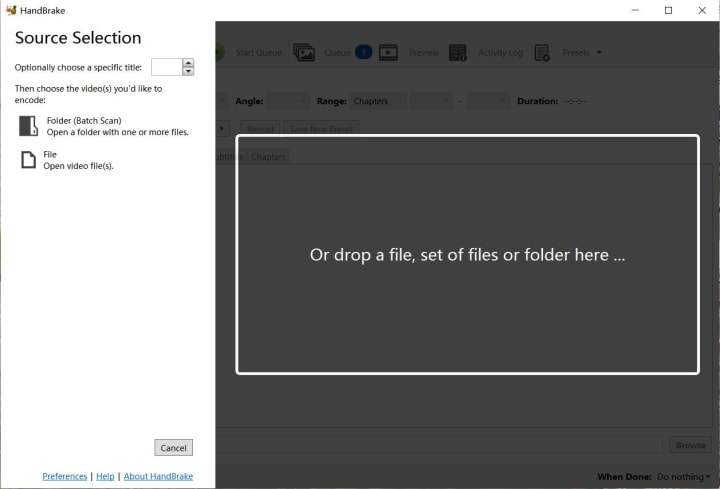
Step 2: Launch HandBrake, then select or drag and drop the file or folder you wish to process. You can load multiple files at once. After loading your sources, insert your Blu-ray disc to begin.
Step 3: Customize your output by creating a preset. Adjust video dimensions, apply filters, and configure key settings such as encoder type, frame rate (FPS), quality (RF), and encoder presets under the Video tab to suit your preferences. Select your desired output format—MP4, MKV, or WebM—and specify the destination folder where your ripped files will be saved.
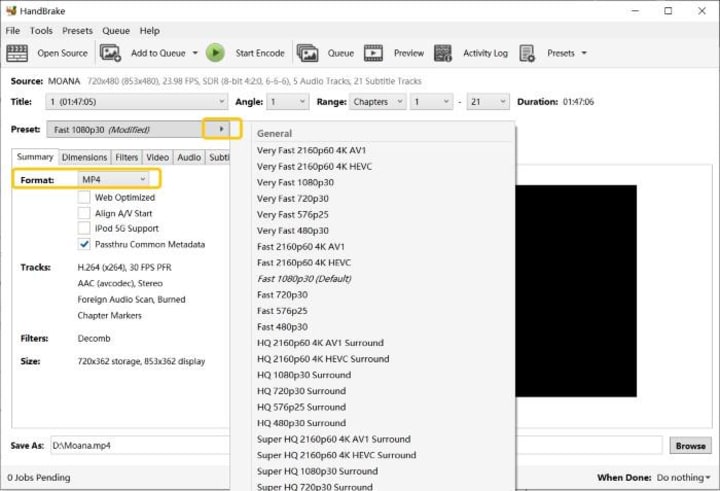
Step 4: Set the saving path and click "Start Encode" to convert your Blu-ray discs.
FAQs
1. What's the best format to rip Blu-ray?
Choose the suitable video format for ripping Blu-ray based on your playback device, as different devices support various formats and resolutions. For example:
- PC: MKV and MP4
- Mac: MOV
- Android Phone: MP4
- Apple iPhone: M4V
- Upload to YouTube or other video sites: MP4 and FLV
2. Can I rip a Blu-ray with VLC?
Yes, you can rip a non-protected Blu-ray with VLC. VLC Media Player is a top Blu-ray ripper for Mac, converting Blu-ray to MP4 and other formats. However, it doesn't remove copy protection, requiring third-party decryption tools. Check how to rip a Blu-ray with VLC.
Step 1: Download and open the VLC Media Player. Then, insert your Blu-ray disc into the drive of your laptop, PC, or Mac to begin playback or conversion.
Step 2: Click "Disc" and select "Blu-ray" as the disc type. Check the "No disc menus" option.
Step 3: Choose your disc from the dropdown menu to proceed with playback.
Step 4: Click "Convert/Save," then "Browse" to select a destination directory.
Step 5: Press "Start" to begin the ripping process and save the file to your chosen location.
Final Thoughts
As for the two methods introduced in this article, which one should you choose? If you're on a tight budget and mainly want to rip unencrypted discs, HandBrake offers a great free option. However, if you're looking for a more professional ripping experience that ensures a faster, smoother, and more customized experience, DVDFab Blu-ray Ripper is the ideal choice for those seeking comprehensive features.
About the Creator
Wenny
Hi there, I'm Wenny, a technical writer sharing multimedia solutions accessible for everyone. Read my articles to turn "how?" into "let's do it!"
Understanding the Cultural Importance of Handbags
Handbags have played a meaningful role in fashion and daily life for centuries. Historically, handbags were created out of necessity, designed to help people carry personal belongings such as money, tools, or documents. Over time, they evolved into carefully designed accessories that combine practicality with aesthetics. Today, handbags are widely recognized as symbols of personal style, social identity, and changing fashion values.
By charliesamuel4 days ago in 01
2026 Career Reality How You Become a Mobile App Developer
In 2026, the question how do you become a mobile app developer is no longer answered by learning a stack and shipping an app. A tectonic shift inside the Google ecosystem has tied developer relevance to AI Retrieval, Zero Click behavior, and entity-level trust, creating direct career risk for those who build without authority awareness.
By Mike Pichai3 days ago in 01




Comments
There are no comments for this story
Be the first to respond and start the conversation.