
How to Burn M4V to DVD Easily on Windows and Mac
Learn how to burn M4V to DVD and get ready to enjoy your favorite shows on the big screen

Nothing beats the joy of watching favorite shows and movies on the big screen. If your videos are in M4V format, however, playback is often limited to Apple devices. I faced this myself when I had a collection of iTunes-purchased TV episodes that looked great on my MacBook but were useless on my living room DVD player. The good news is that there are reliable ways to convert and burn M4V to DVD with the right software.
In this guide, I will walk you through what an M4V file is, how professional tool makes the process simple, and also share a free alternative I tested for basic burning tasks.
Understanding What an M4V File Is
M4V is a file format associated with MPEG-4, commonly used for TV shows, movies, and music videos purchased from the iTunes Store. Due to DRM (Digital Rights Management) protection, M4V files are typically restricted to Apple devices like iPods, iPhones, and iPads. This restriction is what kept me from enjoying my purchased content on a big screen until I tried proper DVD burning software.
Burn M4V to DVD with Customization Using DVDFab DVD Creator
DVDFab DVD Creator is designed with advanced features and broad compatibility, which makes it one of the best solutions for turning M4V to DVDs.
This software works on both Windows and macOS, supporting DVD, ISO, and folder outputs from almost any video format including M4V. I particularly liked its wide selection of customizable DVD menu templates, adding a background image and text gave my discs a personal touch when I created a collection of family holiday videos.
Key Features:
- Create DVDs, ISO files, or folders from M4V and 200+ formats
- Stylish menu templates with customization options
- Supports DVD-9, DVD-5, DVD±R/RW, and DVD±R DL
- High quality video and audio output suitable for PS5, Xbox, or software players
- GPU acceleration for faster burning (up to 50X)
- Metadata integration (movie title, cast, cover art, etc.)
How to Convert M4V to DVD with DVDFab DVD Creator
Step 1: Download and launch the best DVD Creator software
Get started by downloading and installing DVDFab DVD Creator on your device. Once installed, launch the program by double-clicking its desktop icon.
Step 2: Import Your M4V File
Open the Creator module and find the DVD Creator mode to begin your project. Drag and drop your M4V files onto the interface to prepare them for DVD burning. Hit Advanced Settings to choose your desired output volume (DVD-9 or DVD-5) and select the quality.
Step 3: Customize and Prepare Your DVD
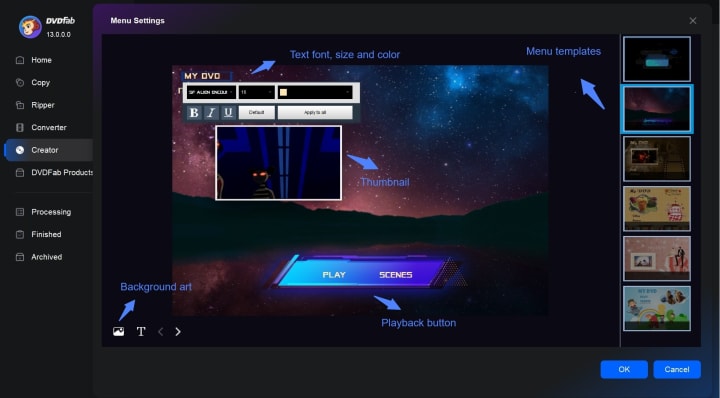
Personalize your video and configure your DVD settings. To design your DVD menu, select "Set Menu," and a fresh interface will open. Explore numerous built-in templates or personalize your menu by adding images and text for a unique touch tailored to your content.
Step 4: Initiate the Burning Process
To initiate the M4V to DVD conversion, hit the "Start" button. Before the process starts, select an output directory for your DVD file.
How to Burn M4V to DVD for Free with DVD Flick
DVD Flick is a free program for Windows that can turn common video formats, including DRM-free M4V, into a playable DVD. It has been around for many years and is still appreciated in forums for its simplicity and effectiveness. The software creates a standard DVD-Video structure that works in most standalone players and can also generate ISO files for later burning.
Features:
- Completely free and open source
- Supports M4V and over 40 other video formats
- Allows creation of simple menus and subtitles
- Burns directly to disc or creates ISO files
Limitations:
- Basic menu templates, limited customization
- Slower encoding compared with paid software
- Occasional audio and video sync issues reported
How to Burn M4V to DVD with DVD Flick
Step 1. Install and Launch
Download and install DVD Flick on your Windows computer. Open the program and click Add title to import your M4V file. Check the size indicator at the bottom to ensure the video fits on a DVD-5 or DVD-9 disc.
Step 2. Configure Project Settings
Go to Project settings. Under the Video tab choose NTSC or PAL depending on your region. Under Target size, select DVD-5 or DVD-9. Leave audio settings as default unless you have special requirements.
Step 3. Customize Menu and Chapters
Open Menu settings to select a template. You can also go to Title properties and create chapters at regular intervals to make navigation easier when watching the disc.
Step 4. Choose Output and Start
Select an empty folder as the output location. In the Burning tab you can tick “Burn project to disc” to let DVD Flick use ImgBurn automatically, or choose to create an ISO file for manual burning later. When ready, click Create DVD and let the process complete.
FAQs
Can I burn M4V to DVD on Mac for free with the built-in Burn Disc feature?
No. macOS will only create a data disc, not a playable video DVD. Most DVD players cannot read that. You need dedicated software like DVDFab DVD Creator or DVD Flick.
How can I watch M4V movies?
You can watch DRM-protected M4V files on iTunes or Apple devices. To enjoy them on a TV, burn them to DVD with tools like DVDFab DVD Creator.
Conclusion
Burning M4V to DVD is a practical way to free your videos from Apple-only devices. For a customizable experience with high quality results, DVDFab DVD Creator is the tool I rely on. If you just want a simple and free solution, DVD Flick can also create playable DVDs from DRM-free M4V files. From my own use, the key is preparation: pick the right blank discs, choose software that matches your needs, and take a few minutes to personalize your menus.
About the Creator
Diana
I’m a passionate Blu-ray collector who loves preserving the magic of physical media. Every now and then, I enjoy burning precious family videos onto discs, keeping memories alive in a tangible way.
How Asset Verification Works in Tokenization and Why It Matters for Institutional Investors
Asset verification is a critical step in tokenization, especially when dealing with real-world assets. Tokenization converts physical or traditional financial assets into digital tokens that can be traded, held, or managed on a blockchain network. For institutional investors, the authenticity, legality, and valuation of the underlying assets are fundamental. Without careful verification, tokenized assets can pose risks such as misrepresentation, fraud, or ownership disputes. Comprehensive verification provides investors confidence that their investments are secure and accurately represented in tokenized form.
By Ethan hunt8 days ago in 01



Comments
There are no comments for this story
Be the first to respond and start the conversation.