
How to Convert DVD to AVI: Step-by-Step Guide
Want to convert your DVDs to AVI files easily and without quality loss? This comprehensive guide compares the top DVD to AVI converters.

It' easy to assume that physical DVDs are relics of a bygone era. After all, streaming is everywhere and nearly every device can access Netflix, Prime, or YouTube. But here's the thing: there are still millions—yes, millions—of us who have shelves of treasured DVDs. Maybe it's a rare indie film never available online, a home video of a family event, or that classic TV series you just can't find with subtitles in your language. Sometimes, the only way to access this content on your phone, laptop, or smart TV is by converting it to a friendly, portable format like AVI.
I remember a rainy weekend digging through a box of dusty discs in my parents’ house. Half the labels were missing, a few were scratched, but buried among them was an old concert DVD my brother wanted to watch on his tablet. There was no legal way to stream it. This isn’t nostalgia—it’s practicality. Converting DVDs to AVI can bring lost content back to life without risking disc damage or battling with cranky old players.
Understanding Your Source and Target Formats
Even before you pick your DVD ripper or conversion software, it pays to know what you’re dealing with. DVDs and AVIs are more than just funny acronyms — understanding them can spare you wasted effort, blocky videos, or that sinking feeling when a file won’t play on your device.
My first ever attempt at DVD conversion ended up in a disaster: I’d ripped a home movie to the “wrong” format (MOV), only to realize my dad’s old tablet refused to play it. Turns out, asking “What is a DVD, and what’s an AVI good for?” would have saved me hours of frustration.
DVD basics: structure, limitations, and surprises
- Physical format: Standard DVDs use the Video_TS and Audio_TS folders to store movies, menus, and audio tracks. Some DVDs include copy protections (CSS, region codes) that block simple copying.
- Video quality: Most DVDs max out at 720x480 (NTSC) or 720x576 (PAL) — SD, not HD! That’s plenty for casual viewing, but it means you can’t magically extract Full HD detail.
- Audio/subtitles: DVDs often bundle multiple audio languages and subtitle streams. Migrating these into a single video file can be tricky.
Protection hurdles: Commercial discs may include advanced encryptions (ARccOS, Disney, etc.), making some free “one-click” tools fail.
AVI advantages and disadvantages
- Device compatibility: AVI is widely supported by legacy hardware, old laptops, TVs, and even some handheld consoles—still a big deal for many.
- Flexibility: It handles a range of video/audio codecs, which is why it’s beloved for basic editing or re-encoding tasks.
- Drawbacks: AVI files can sometimes get bulky; not all modern streaming apps love them. For ultra-small files or modern mobile devices, MP4 might edge out AVI.
- Why people still choose AVI: When aiming for maximum playback compatibility (especially if you don’t want to test five different apps per device!), AVI is a safe bet.
Comparing Top DVD to AVI Tools: 2025 Review
Navigating the landscape of DVD to AVI converters can be overwhelming—I've tested nearly every notable tool out there over the years, and let me tell you, not all are created equal. Below I break down the three front-runners in 2025: DVDFab, HandBrake, and MakeMKV. Each has strengths, quirks, and best-fit user scenarios. This detailed comparison should help you confidently select what's best for your needs.
DVDFab (Windows/Mac): The All-in-One Professional Solution
DVDFab is, hands-down, one of the most robust and user-focused DVD ripping tools available today. Unlike most converters (especially free ones), it natively handles the latest DVD copy protections—meaning you don’t have to hunt down sketchy plugins or cryptic hacks. The interface is modern, intuitive, and genuinely beginner-friendly, yet filled with customization for power users.
Key Features & Real-World Experience
- Built-in Copy Protection Removal: Effortlessly rips both commercial and home DVDs, bypassing CSS, region codes, ARccOS, and more.
- I tried ripping an old Disney DVD that stopped every free tool I had. DVDFab just asked me for my output location and got it done—no grumbling, no extra tricks.
- Batch Conversion: Queue up entire seasons; keeps subtitles, chapters, and multiple audio tracks if you want.
- Customized AVI Output: Choose from device-optimized profiles, advanced bitrate/resolution controls, or let it auto-configure.
- Fast and Consistent: Modern GPU acceleration speeds up conversion without turning videos into pixelated messes.
- Regular Updates & Support: New disc formats or protections? DVDFab pushes updates regularly (even for older versions), and their support is actually responsive.
- Clean Install: No adware or hidden nags in either trial or paid version.
Downsides
- Price: It’s a premium tool. The free trial has limitations (watermarks, output length), so for larger collections, expect to pay. But for hassle-free, professional results—especially if you value your time—it’s justified.
- Feature Overwhelm: There are a lot of settings. Fortunately, the basic workflow hides expert controls until you need them.
HandBrake (Windows/Mac/Linux): Flexible, Powerful, but Not for Copy-Protected Discs
HandBrake is the darling of many tech enthusiasts. It's free, open source, and offers deeper customization than most commercial tools. But—here's the catch—it doesn't natively rip copy-protected DVDs. That means it's fantastic for your homemade videos or older, unprotected discs, but flounders on most store-bought movies.
Key Features & Real-World Experience
- Full Codec Control: Tweak resolution, frame rate, filters, video and audio compression to your heart’s content.
- Batch Processing: Excellent for converting big folders of unprotected DVDs or already ripped video files.
- Presets: Handy device- and web-optimized profiles (though AVI output may require manual tweaking).
- Open Source: No ads, no hidden costs, a vast user community.
- I used HandBrake to convert all my home video DVDs—quality tuning is top-notch and file sizes came out exactly how I wanted. For commercial film DVDs, though, nothing happened until I spent ages on forums trying to install “libdvdcss” and…let’s just say it wasn’t plug-and-play.
Downsides
- No Native Decryption: Commercial DVDs with copy protection just won’t work out of the box.
- Technical Overhead: Lots of options can intimidate non-technical users.
- AVI Support Not Obvious: MP4 and MKV are front-and-center; you’ll need to adjust advanced settings to produce AVI files.
Tip: If you only convert family videos or very old discs, HandBrake is a solid (and totally free) pick. Otherwise, be ready for a learning curve and some Google time.
MakeMKV (Windows/Mac/Linux): King of Quick Backups, Needs Extra Steps for AVI
MakeMKV isn't a traditional converter—it’s a DVD/Blu-ray “ripper” famed for its simplicity in breaking copy protections and creating high-fidelity backups. However, it only outputs MKV files, so if AVI is your true target, you’ll need an additional step with something like HandBrake.
Key Features & Real-World Experience
- Strong Decryption: Handles most commercial DVD (and Blu-ray) copy protections natively.
- One-Click Simplicity: Insert disc, hit rip, grab your file—great for archiving or later conversions.
- Preserves all tracks: Keeps every audio/language, subtitle, and chapter if you wish.
- Free During Beta: It’s been “in beta” for ages—so free for most users, with a license update pop-up every month or so.
I once rescued a rare concert DVD this way: MakeMKV did the initial backup (took about 20 minutes), then I piped the MKV into HandBrake to create the exact-format AVI needed for an old media server. A two-step workflow, but super reliable for tricky discs.
Downsides
- No AVI Output: Requires additional conversion software (and time).
- Bulky Files: MKVs are “everything included” by default—great quality but big file sizes.
- Simple, but Limited: No advanced video re-encoding or lower-size profile options at the rip stage.
Selection Guide: Who Should Choose What?
DVDFab: If your DVDs are a mix of home videos and retail discs, and you don’t want roadblocks, this is the fastest route—especially if subtitles, languages, and smooth batch work matter to you.
HandBrake: Great for home projects, tech dabblers, and those happy to research and tweak. Not for encrypted commercial movies unless you manually add decryption libraries.
MakeMKV: Ideal if you need a strong “backup first, convert later” workflow. Adds a step but can rescue otherwise un-rippable DVDs.
Personal note: There's a certain satisfaction in finding the workflow that fits your exact needs—and even more satisfaction in not having to repeat the same failed attempts over and over!
Step-by-Step: Converting a DVD to AVI (Example: DVDFab)
It's time to get hands-on! Even if you're tech-wary, with the right software, converting a DVD to AVI isn't magic—it just follows a logical path. Here I'll walk through the process using DVDFab, illustrating where its advantages show up in real-world use. This example holds for most mainstream DVDs, including those with basic to advanced copy protection.
Believe me, I know how frustrating it can be to follow vague YouTube guides only to end up with a video file that won’t play or has weird subtitles. Step-by-step, we’ll avoid those headaches together.
1. Installing and launching DVDFab
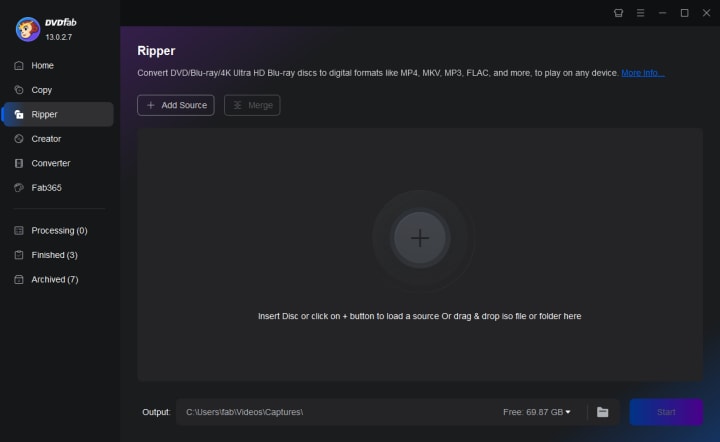
Download: Go to the official DVDFab site and download the latest version for your platform (Windows or Mac).
Install: Double-click the installer, follow prompts—no bundled junk or annoying toolbars.
Launch: Open DVDFab. Choose “Ripper” from the main dashboard for optimal DVD-to-AVI workflow.
Empathy check: DVDFab’s interface is refreshingly modern, with big icons and clear guides—I never felt lost, even the first time.
2. Loading your DVD and configuring settings
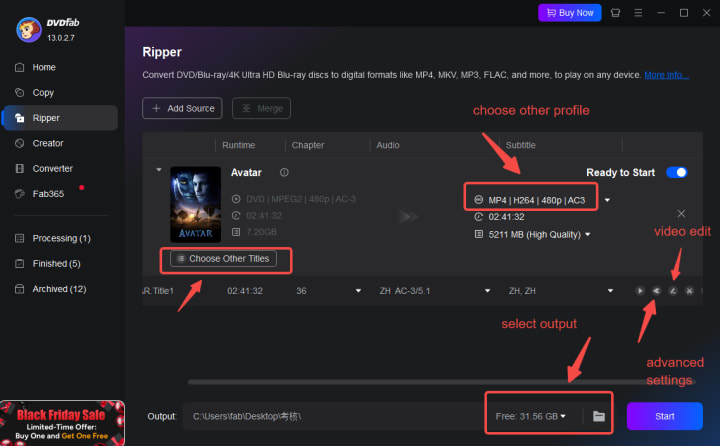
Insert your DVD: Wait a moment as DVDFab automatically detects the disc and displays its contents.
Title selection: Select the main movie (or custom clips). DVDFab conveniently previews chapters and lets you deselect unwanted extras.
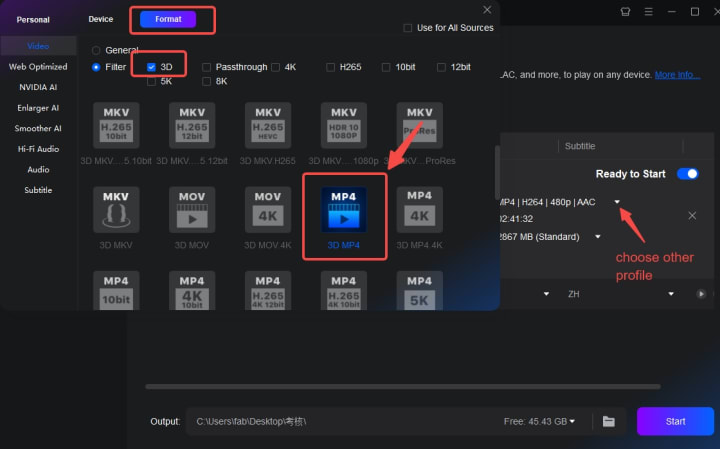
Choose output format: Click the profile icon and select “AVI.”
Device preset (optional): Pick a profile suited to your device—old TV, smartphone, tablet, etc. Profiles auto-optimize bitrate, resolution, and compatibility.
3. Start conversion and monitor progress
Confirm output folder: Make sure you've set the save path to a folder with enough free space.
Start ripping: Hit "Start". DVDFab begins analyzing and ripping—hardware acceleration (if available) gives a big boost.
Live progress: You'll see an estimated time and progress bar; you can pause or cancel, and DVDFab handles errors gracefully.
Completion: When done, the AVI file appears in your output folder, ready for playback or transfer.
FAQ: DVD to AVI in 2025
Is AVI still a good format for movies?
Absolutely—if compatibility is your top priority, especially for older devices or TVs. AVI’s simplicity and widespread support mean you can share files between generations of tech (PCs, old set-top boxes, even some portable media players).
But a note of honesty: For pure mobile use or streaming, MP4 might be more modern and produce smaller files. Still, AVI remains a safe bet for anything “universal.”
Can I make AVI copies of Blu-ray discs, too?
With the right software (like DVDFab or MakeMKV), yes—though the file sizes and hardware requirements are higher. Keep in mind that Blu-rays are protected by tougher DRM, so only advanced software with frequent updates can handle these effectively. Also, output files will be much larger, and many devices that play DVD-sourced AVIs may not handle Blu-ray video without resizing or re-encoding.
Why does my AVI play fine on the computer but not on my smart TV?
This is a classic pain point! While AVI as a container is widely supported, the inside (codec, bitrate, resolution) matters. Some TVs only recognize specific codecs (e.g., Xvid or DivX), or have limits on file size or resolution.
Quick Fixes: Use a device-specific preset when ripping (DVDFab has many), ensure you stay below 4GB per file for USB playback, and test a sample before mass-converting your collection.
If you’ve hit a wall, try re-encoding your AVI using a tool like HandBrake, selecting the “compatible” option for your device.
How long does it take to convert a typical DVD to AVI?
On a reasonably modern computer, most conversions take 20–45 minutes per disc—depending on length, quality settings, and whether GPU acceleration is enabled.
Batch jobs (e.g., a season of TV) can take longer, but you don’t need to babysit the process. SSD storage and a fast CPU/GPU combo will speed things up.
Conclusion
Digitizing DVDs in 2025 is about more than just file conversion—it’s about preserving what matters in a format that actually works for you. There will be a few bumps, maybe even a failed rip or two, but with the right preparation and the right software, you’ll be able to revisit your collection for years to come—across couches, gadgets, and family get-togethers. Happy converting!
About the Creator
DVDLOVER
Sharing the latest on DVD & Blu-ray releases, E-book downloads, and trending TTS. Stay tuned for updates, tips, and exclusive content!
2026 Reality How Mobile Apps Are Developed Now
In 2026, the question how are mobile apps developed no longer describes a linear build process. It reflects a structural shift inside the Google ecosystem where AI Retrieval, Zero Click discovery, and entity-level evaluation now determine whether apps gain visibility, authority, or fade into functional obscurity.
By Mary L. Rodriquez5 days ago in 01
Best AR15 Rail Systems for Home Defense, Duty & Range Use
The AR15 platform is renowned for its modularity, and choosing the right rail system—also known as an AR15 handguard or AR15 rail—can significantly enhance performance for specific applications. For home defense, the Aero Precision ATLAS S-ONE stands out as a lightweight, slim M-LOK option that allows quick accessory mounting like lights for low-light scenarios. In duty use, the Midwest Industries Combat Rail excels with its rugged quad-rail design for heavy attachments. For range sessions, the STNGR HWK M-LOK handguard offers excellent value, balancing weight and versatility for extended shooting.
By Ar15handguardabout an hour ago in 01
Wild Card Weekend Recap: What Happens Now?
I think I figured out why I love Wild Card Weekend so much. It's because it's the first playoff anything of the calendar year. The NFL season starts in the fall, and once upon a time, the champion was crowned either on or slightly before New Year's. The evolution of the NFL schedule has resulted in the playoffs starting just into the New Year, and currently, the final week of the season falls on the first weekend of the New Year, with Wild Card Weekend coming a week after that. So yes, chronologically, the NFL's Wild Card Weekend serves as the first playoff anything of the calendar year.
By Clyde E. Dawkins6 days ago in Unbalanced


Comments
There are no comments for this story
Be the first to respond and start the conversation.